1. Introduction
This manual provides detailed instructions for the installation, operation, and maintenance of your Tenveo PTZ Camera Bundle, which includes the VHD630A AI Auto Tracking PTZ Camera and the KB200PRO PTZ Joystick Controller. This system is designed for professional video production, live streaming, and conferencing applications, offering high-quality video capture and precise control.
1.1 Package Contents
- Tenveo VHD630A AI Auto Tracking PTZ Camera (3 units)
- Tenveo KB200PRO PTZ Joystick Controller (1 unit)
- Power Adapters for Camera and Controller
- USB Cable
- Network Cable
- IR Remote Control
- Wall Mount Brackets and Screws
- User Manual (this document)

Image 1.1: Complete Tenveo PTZ Camera Bundle including three VHD630A cameras and one KB200PRO controller.
2. Safety Information
Please read all safety instructions carefully before using the product. Improper use may result in damage to the product or personal injury.
- Do not expose the devices to rain or moisture.
- Do not disassemble the product. Refer all servicing to qualified personnel.
- Use only the provided power adapters.
- Ensure proper ventilation around the devices to prevent overheating.
- Avoid placing the devices in direct sunlight or near heat sources.
3. Product Overview
3.1 Tenveo VHD630A PTZ Camera
The VHD630A is an AI-powered PTZ camera featuring 30X optical zoom and 8X digital zoom. It delivers 1080P at 60 frames per second (FPS) video quality and supports multiple output interfaces including SDI, HDMI, USB3.0, and LAN (PoE). Its AI auto-tracking and auto-framing capabilities ensure subjects remain in view.

Image 3.1: Front view of the Tenveo VHD630A PTZ Camera, showing the lens and base with power and standby indicators.
3.1.1 Camera Features
- 30X Optical Zoom + 8X Digital Zoom: Captures clear details from various distances.
- AI Auto Tracking & Auto Framing: Automatically follows and frames subjects.
- 1080P 60FPS Video: High-definition video output for smooth motion.
- Multiple Video Outputs: SDI, HDMI, USB3.0, and LAN for versatile connectivity.
- Power over Ethernet (PoE): Simplifies installation by providing power and data over a single cable.
- Wide Field of View: 69.5° for comprehensive coverage.
- Audio Input/Output: LINE IN and LINE OUT interfaces for external audio devices (audio device not included).
- Network Protocols: Supports SRT, TCP/IP, HTTP, RTSP, RTMP, Onvif, DHCP, Multicast.

Image 3.2: Visual representation of the VHD630A camera's key features.
3.2 Tenveo KB200PRO PTZ Joystick Controller
The KB200PRO is a professional PTZ camera joystick controller designed for precise camera movement and control. It features a 5-inch LCD screen for real-time preview and supports various control protocols including NDI, PoE, VISCA, Pelco-D/P, RS422/RS485, RS232, and RJ45.
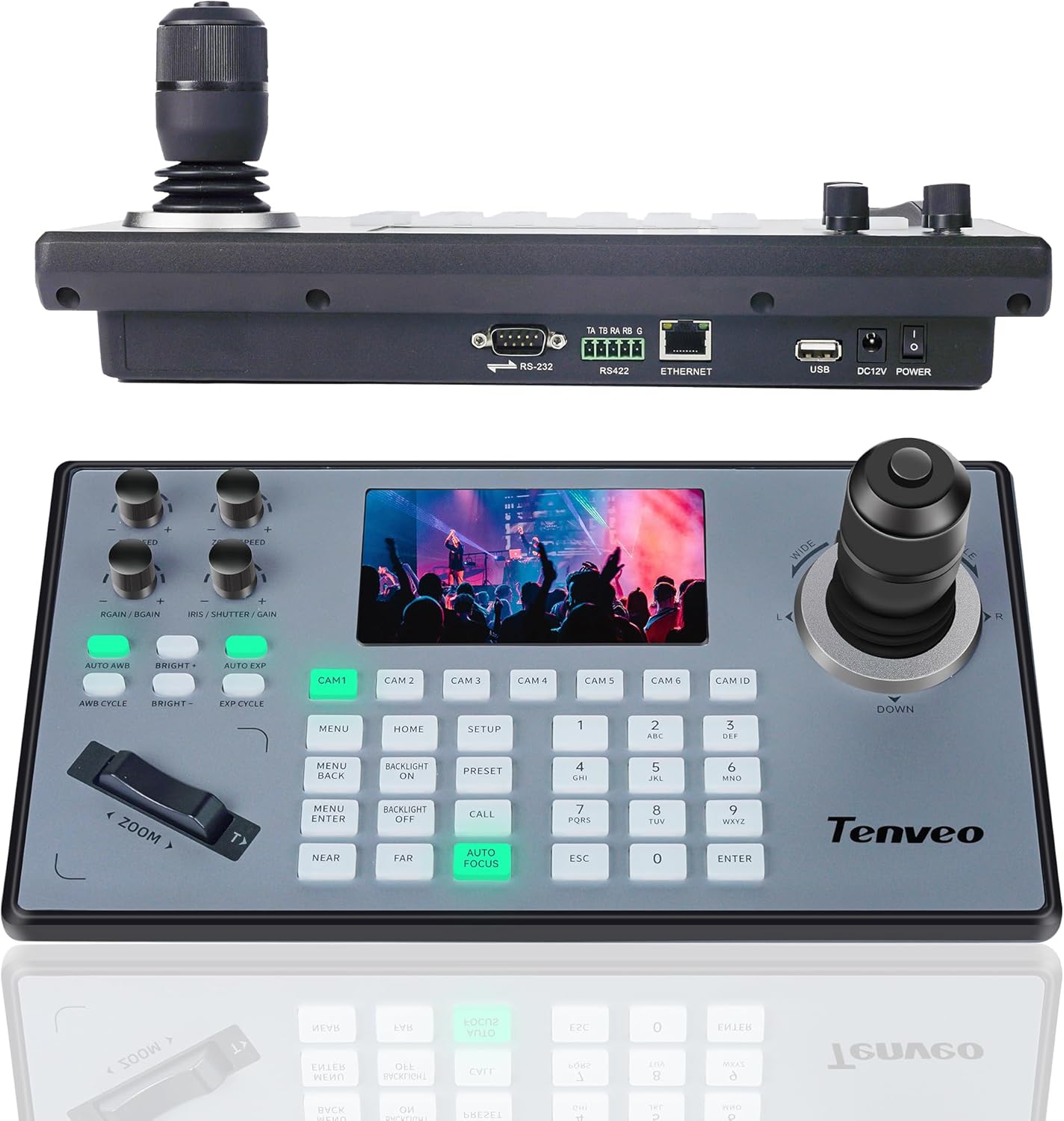
Image 3.3: Top view of the KB200PRO controller with its 5-inch LCD screen and joystick, and a rear view showing its various ports.
3.2.1 Controller Features
- 5-inch LCD Screen: Provides real-time video preview for precise control.
- 4D Joystick: Enables smooth and accurate pan, tilt, and zoom adjustments.
- Multi-Camera Control: Easily switch and control multiple cameras.
- PoE Support: Power and data transmission over a single Ethernet cable.
- Universal Protocol Support: Compatible with VISCA, Pelco-D/P, NDI, and more.
- Quick Access Buttons: Dedicated buttons for focus, backlight, presets, and PTZ speed.

Image 3.4: Labeled ports on the KB200PRO controller, including RS232, RS422, Ethernet, USB, DC12V, and Power switch.
4. Setup
4.1 Camera Installation
The VHD630A camera supports desktop, monitor, wall, or ceiling mounting. Wall mount brackets and screws are included.
- Choose a Location: Select a stable location that provides the desired viewing angle and is within reach of power and network connections.
- Mounting (Optional): If wall or ceiling mounting, use the provided brackets and hardware to securely attach the camera. Ensure the camera is oriented correctly. The built-in gravity sensor will automatically flip the image vertically if mounted upside down.
- Connect Power: Connect the camera to its power adapter and plug it into an electrical outlet. Alternatively, if using PoE, connect the camera to a PoE-enabled network switch or injector.
- Connect Video/Data: Connect the appropriate video output cable (SDI, HDMI, or USB3.0) to your display or capture device. For IP control and streaming, connect an Ethernet cable to a network switch or router.
4.2 Controller Installation
- Connect Power: Connect the KB200PRO controller to its power adapter and plug it into an electrical outlet. If using PoE, connect the controller to a PoE-enabled network switch.
- Connect to Network: Connect an Ethernet cable from the controller to the same network as your PTZ cameras. This enables IP control.
- Connect to Cameras (Alternative): For direct serial control, connect the controller to the camera(s) using RS232 or RS422 cables (not included).
4.3 Network Configuration
For IP control and streaming, ensure both cameras and the controller are on the same network. The cameras can be automatically searched or manually added via the controller's interface.
- Access Camera IP: Refer to the camera's documentation or use a network scanner to find the camera's IP address. You can access the camera's web interface via a web browser for advanced settings.
- Controller Camera Setup: On the KB200PRO controller, navigate to the camera setup menu. Use the auto-search function to detect cameras on the network or manually input camera IP addresses and protocols.
- Assign Camera IDs: Assign unique IDs to each camera for easy selection on the controller.

Image 4.1: Connection diagrams for USB, Ethernet, HDMI, and SDI PTZ camera setups.

Image 4.2: Simplified connection diagram for multiple PTZ cameras with a PoE switch and controller.
5. Operation
5.1 Basic Camera Control
Use the KB200PRO joystick and buttons to control the connected PTZ cameras.
- Camera Selection: Press the corresponding CAM button (CAM 1-10) to select the camera you wish to control. The selected camera's feed will appear on the 5-inch LCD screen.
- Pan/Tilt: Move the 4D joystick left, right, up, or down to pan and tilt the camera.
- Zoom: Rotate the joystick or use the dedicated zoom rocker switch (if available) to zoom in (T) or out (W).
- Focus: Use the AUTO FOCUS button for automatic focus. For manual focus, adjust the NEAR/FAR buttons.
- Exposure/Brightness: Adjust the BRIGHT+ / BRIGHT- buttons or AUTO EXP for automatic exposure.
- Backlight: Use the BACKLIGHT ON/OFF button to enable or disable backlight compensation.
5.2 AI Auto Tracking and Auto Framing
The VHD630A camera features built-in AI technology for automatic subject tracking and framing.
- Enable AI Tracking: Refer to the camera's web interface or OSD menu to enable AI auto-tracking.
- Operation: Once enabled, the camera will automatically recognize and track a presenter or speaker, adjusting its pan, tilt, and zoom to keep the subject centered and optimally framed.

Image 5.1: Demonstration of AI Tracking and Auto Framing keeping a subject in frame.
5.3 Preset Management
Presets allow you to save and recall specific camera positions (pan, tilt, zoom, focus) quickly.
- Set Preset: Position the camera to the desired view. Press the PRESET button, then a number button (0-9) to save the preset.
- Call Preset: Press the CALL button, then the corresponding number button (0-9) to recall a saved preset.
- The camera supports up to 255 presets via IR remote control.
5.4 Live Streaming Integration
The Tenveo PTZ camera bundle is compatible with popular live streaming software and platforms.
- Software Compatibility: Works with Blackmagic Design ATEM, Zoom, Teams, vMix, OBS, and other live video streaming software.
- Platforms: Stream directly to YouTube, Facebook, Twitch, and other platforms.
- Setup: Connect the camera's video output (HDMI, SDI, or USB) to your computer or video switcher. Configure your streaming software to recognize the camera as a video source.

Image 5.2: Example setup for live streaming a church worship service or event.
6. Maintenance
6.1 Cleaning
- Camera Lens: Use a soft, dry cloth specifically designed for optical lenses to clean the camera lens. Avoid abrasive materials or harsh chemicals.
- Device Surfaces: Wipe the camera body and controller surfaces with a soft, slightly damp cloth. Do not use liquid cleaners directly on the devices.
6.2 Firmware Updates
Periodically check the Tenveo official website for firmware updates. Firmware updates can improve performance, add new features, or fix bugs. Follow the instructions provided with the firmware update package carefully.
7. Troubleshooting
| Problem | Possible Cause | Solution |
|---|---|---|
| No video output from camera | Loose cable connection; Incorrect input selection on display; Camera not powered on. | Check all video cables (HDMI, SDI, USB). Ensure the display is on the correct input. Verify camera power indicator is lit. |
| Camera not responding to controller | Incorrect network configuration; Wrong camera ID selected; Protocol mismatch; Loose control cable. | Ensure camera and controller are on the same network. Select the correct camera ID on the controller. Verify control protocol settings (VISCA, Pelco-D/P). Check RS232/RS422/Ethernet cable connections. |
| Image is blurry or out of focus | Auto-focus issue; Manual focus adjustment needed. | Press the AUTO FOCUS button on the controller. If still blurry, use NEAR/FAR buttons for manual adjustment. |
| AI Tracking not working | Feature not enabled; Subject too far or obscured; Poor lighting conditions. | Ensure AI tracking is enabled in the camera's settings. Verify the subject is clearly visible and within the camera's optimal tracking range. Improve lighting if necessary. |
| No power to controller | Power adapter not connected; Outlet issue; PoE not active. | Check power adapter connection and ensure the outlet is functional. If using PoE, verify the network switch port is PoE-enabled. |
8. Specifications
8.1 Tenveo VHD630A PTZ Camera
- Model: VHD630A
- Optical Zoom: 30x
- Digital Zoom: 8x
- Video Capture Resolution: 1080p (Full HD)
- Frame Rate: 60 FPS
- Photo Sensor Technology: CMOS (1/2.8")
- Connectivity Technology: HDMI, USB, SDI, LAN (PoE)
- Supported Audio Format: AAC, MP3 (via external audio device)
- Network Protocols: SRT, TCP/IP, HTTP, RTSP, RTMP, Onvif, DHCP, Multicast
- AI Features: Auto Tracking, Auto Framing
8.2 Tenveo KB200PRO PTZ Joystick Controller
- Model: KB200PRO
- Screen Size: 5 Inches (LCD Real-time Preview)
- Joystick: 4D Variable Speed
- Control Interfaces: RS232, RS422, RS485, RJ45 (Ethernet), USB
- Control Protocols: VISCA, VISCA over IP, Pelco-D, Pelco-P, NDI, ONVIF
- Power: DC12V or Power over Ethernet (PoE)
9. Warranty and Support
Tenveo offers a 3-year warranty for this product. Additionally, lifetime technical support service, including firmware upgrades, is provided.
For any questions or technical assistance, please contact Tenveo customer support. We aim to respond within 12 hours and provide a satisfactory solution.
Contact Information: Refer to the Tenveo official website or your purchase documentation for the most current support contact details.


