
1. Introduction
Welcome to the realme Buds T310 user manual. These truly wireless in-ear earbuds are designed to provide a superior audio experience with advanced features such as Hybrid Active Noise Cancellation, 360° Spatial Audio, and a powerful 12.4mm Dynamic Bass Driver. This manual will guide you through the setup, operation, and maintenance of your new earbuds.

Image: realme Buds T310 earbuds in their open charging case, showcasing the sleek black design.
2. What's in the Box
Your realme Buds T310 package includes the following items:
- realme Buds T310 Earbuds (Left and Right)
- Charging Case
- Ear Cushions (various sizes for optimal fit)
- USB Charging Cable
- User Manual
3. Setup
3.1 Charging the Earbuds and Case
Before first use, fully charge your realme Buds T310. The charging case and earbuds are equipped with long-lasting batteries.
- Connect the charging case to a power source using the provided USB cable.
- Place the earbuds into the charging case. The indicator light on the case will show charging status.
- A full charge provides up to 40 hours of total playback (with ANC off).
- Fast charging allows for 5 hours of playback from just a 10-minute charge.

Image: Visual representation of the 40-hour total playback capability of the realme Buds T310, with a table detailing playback times with ANC on and off.
3.2 Pairing with Your Device
The realme Buds T310 utilize Bluetooth 5.4 for stable and efficient connectivity.
- Open the charging case with the earbuds inside.
- On your device (smartphone, tablet, etc.), enable Bluetooth.
- Search for "realme Buds T310" in the list of available Bluetooth devices and select it to pair.
- A voice prompt will confirm successful pairing.
The earbuds support Dual Device Connectivity, allowing seamless switching between two paired devices within a 10-meter wireless range.

Image: Illustration of realme Buds T310 connecting to a smartphone and a tablet simultaneously, highlighting Bluetooth 5.4 and dual device connectivity.
3.3 realme Link App
For enhanced control and customization, download the realme Link app from your device's app store. The app allows you to:
- Customize touch controls.
- Adjust sound effects and EQ modes.
- Manage noise cancellation settings.
- Receive firmware updates.
4. Operating the Earbuds
4.1 Touch Controls
The realme Buds T310 feature intuitive touch controls for media playback and call management. Specific gestures can be customized via the realme Link app.
- Play/Pause: Single tap on either earbud.
- Next Track: Double tap on the right earbud.
- Previous Track: Double tap on the left earbud.
- Answer/End Call: Single tap on either earbud.
- Reject Call: Long press on either earbud.
- Switch Noise Control Mode: Long press on either earbud (customizable).
4.2 Hybrid Active Noise Cancellation (ANC)
Experience unparalleled quiet with 46dB Hybrid Noise Cancellation. This feature effectively reduces ambient noise, allowing you to focus on your audio. You can switch between ANC modes (Noise Cancellation, Transparency, Normal) using the touch controls or the realme Link app.

Image: A close-up of the realme Buds T310 earbud with sound waves indicating noise cancellation, highlighting the 46dB Hybrid Noise Cancellation feature.
4.3 360° Spatial Audio Effect
Immerse yourself in a rich, multi-dimensional sound experience with 360° Spatial Audio. This technology creates a wider soundstage, making audio feel like it's coming from all around you.

Image: An earbud placed in an ear, with glowing lines indicating the immersive 360-degree spatial audio effect.
4.4 12.4mm Dynamic Bass Driver
Enjoy powerful and deep bass thanks to the large 12.4mm Dynamic Bass Driver, delivering a rich audio experience across all frequencies.

Image: An exploded view of the realme Buds T310 earbud, highlighting the internal components, specifically the 12.4mm Dynamic Bass Driver.
4.5 Ultra-Low Latency
With an ultra-low latency of 45ms, your audio and video will remain perfectly synchronized, providing an optimal experience for gaming and streaming.

Image: A smartphone displaying a racing game, with realme Buds T310 earbuds in the foreground, illustrating the 45ms ultra-low latency feature for gaming.
5. Maintenance
5.1 Cleaning
To ensure optimal performance and hygiene, regularly clean your earbuds and charging case.
- Use a soft, dry, lint-free cloth to wipe the earbuds and case.
- For ear tips, remove them from the earbuds and clean with a mild soap solution if necessary, then rinse and dry thoroughly before reattaching.
- Do not use abrasive cleaners or immerse the earbuds or case in water.
5.2 Water & Dust Resistance (IP55)
The realme Buds T310 are rated IP55 for water and dust resistance, making them suitable for workouts and outdoor activities. This means they are protected against limited dust ingress and low-pressure water jets from any direction.
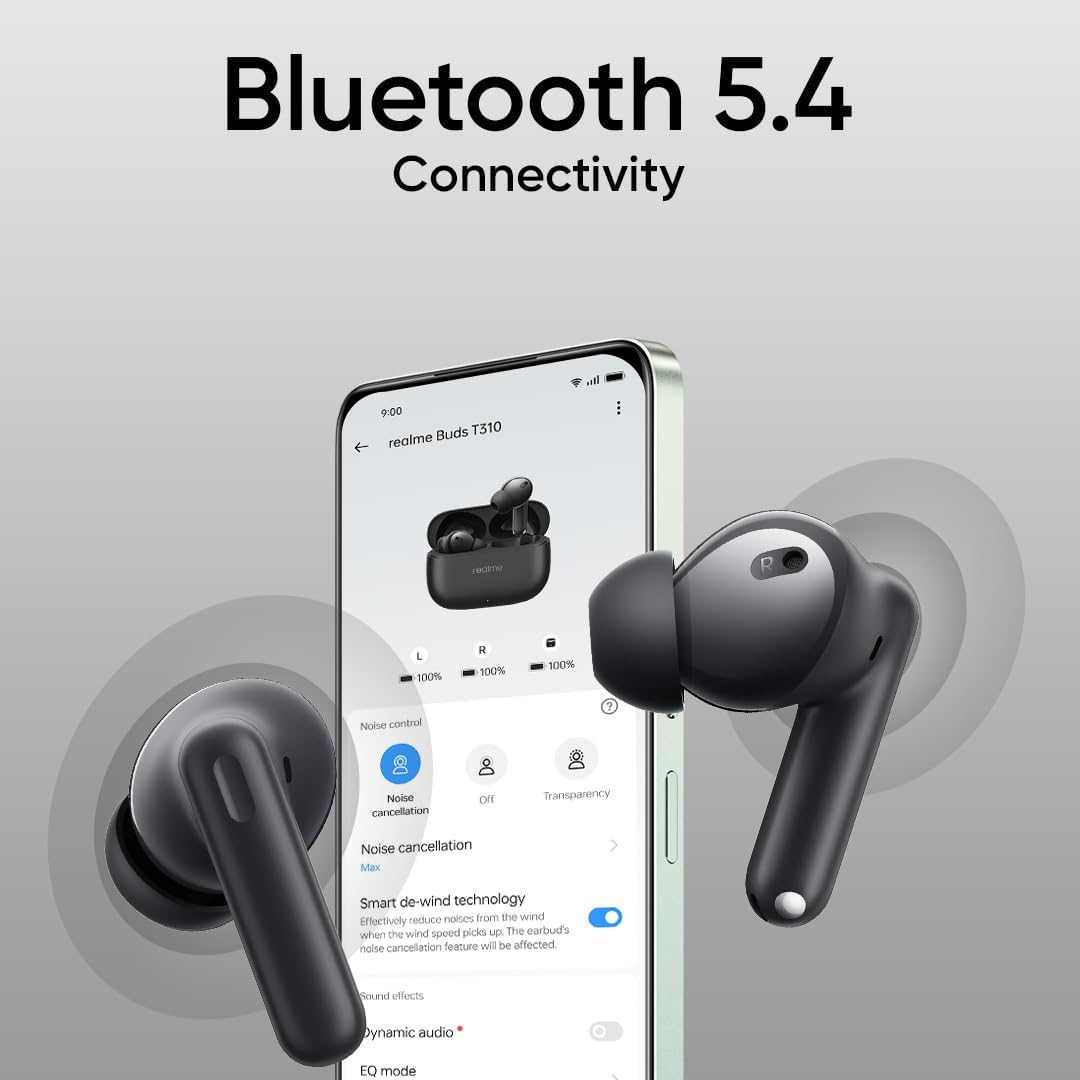
Image: realme Buds T310 earbuds with water droplets, illustrating their IP55 water and dust resistance.
Note: The charging case is not water-resistant. Avoid exposing it to liquids.
5.3 Storage
When not in use, store the earbuds in their charging case to protect them and ensure they remain charged.
6. Troubleshooting
If you encounter any issues with your realme Buds T310, please refer to the following common solutions:
- Earbuds not pairing: Ensure both earbuds are in the charging case, close the lid, wait a few seconds, then open it again. Check your device's Bluetooth settings and try re-pairing.
- No sound from one earbud: Place both earbuds back in the case, close the lid, and then take them out again. Ensure they are charged.
- Low volume or poor sound quality: Clean the ear tips and speaker mesh. Ensure the ear tips provide a good seal in your ear. Adjust volume on your connected device.
- Earbuds not charging: Ensure the charging cable is securely connected to both the case and the power source. Check if the charging port is clean.
- Connectivity issues: Ensure your device is within the 10-meter Bluetooth range. Avoid strong electromagnetic interference.
If the issue persists, try resetting the earbuds (refer to the realme Link app or realme support website for specific reset instructions).
7. Specifications
| Feature | Specification |
|---|---|
| Model Name | realme Buds T310 |
| Model Number | RMA2303 |
| Connectivity Technology | Wireless (Bluetooth) |
| Bluetooth Version | 5.4 |
| Bluetooth Range | 10 Meters |
| Noise Control | 46dB Hybrid Active Noise Cancellation |
| Audio Driver Size | 12.4 Millimeters Dynamic Bass Driver |
| Audio Latency | 45 Milliseconds |
| Total Playback Time | Up to 40 Hours (with charging case, ANC off) |
| Fast Charging | 10 minutes charge = 5 hours playback |
| Water Resistance Level | IP55 (Earbuds only) |
| Control Type | Media Control (Touch) |
| Dimensions (Earbud) | 1.22 x 0.79 x 0.91 inches |
| Item Weight | 1.59 ounces (45 Grams) |
| Compatible Devices | Universal, Cellphones, Tablets, Desktops |
8. Official Product Video
Video: An official product video showcasing the realme Buds T310 Wireless Earbuds and their key features.
9. Warranty and Support
Your realme Buds T310 earbuds come with a standard manufacturer's warranty. For detailed warranty information, technical support, or service inquiries, please visit the official realme support website or contact their customer service.
You can also find more information and support resources on the realme Store on Amazon.