
Introduction
This manual provides detailed instructions for the installation, operation, and maintenance of your LOFOV 360° 4-Channel 1080P Dash Cam. Designed for comprehensive vehicle surveillance, this device captures video from the front, rear, left, and right sides of your vehicle simultaneously, ensuring 360-degree coverage. Please read this manual thoroughly before using the product to ensure proper function and safety.
What's in the Box
- LOFOV 360° 4-Channel Dash Cam Unit
- 64GB SD Card
- Suction Cup Mount
- Power Cable (USB Type-C to 12V Car Charger)
- User Manual
- Quick Guide
Setup and Installation
- Attach Suction Cup Mount: Securely attach the suction cup mount to your vehicle's windshield. Ensure the surface is clean and dry for optimal adhesion.
- Mount the Dash Cam: Slide the LOFOV Dash Cam unit onto the suction cup mount until it clicks into place. The mount allows for rotation and swiveling to achieve the desired viewing angles for the side cameras.
- Connect Power: Plug the provided USB Type-C power cable into the dash cam and the 12V car charger into your vehicle's cigarette lighter socket. Route the cable neatly along the windshield and dashboard edges to avoid obstruction.
- Insert SD Card: Insert the included 64GB micro-SD card into the designated slot on the dash cam. Ensure it is inserted correctly. The dash cam supports up to 256GB micro-SD cards (U3 Class 10 speed recommended). If formatting the TF card on a computer, use FAT32 format.
- Adjust Camera Angles: Power on the dash cam. The 3-inch IPS screen will display real-time video feedback from the four cameras. Adjust the three front lenses to capture your desired angles (front, left, right). The side cameras can be rotated and swiveled.
- Optional Rear Camera Connection: For the rear camera to function as a backup camera, connect its red power wire to your vehicle's reverse lights. This will activate the rear camera display when the vehicle is in reverse.

Image: LOFOV 360° Dash Cam showing adjustable side cameras and suction cup mount.
Operating Instructions
Power On/Off
- The dash cam will automatically power on and begin recording when your vehicle starts.
- It will automatically power off when your vehicle is turned off (unless parking mode is active and hardwired).
Video Display
- The 3-inch IPS screen displays live feeds from all four cameras simultaneously.
- Use the navigation buttons (M, Up, Down, OK) to cycle through different display modes or access settings.
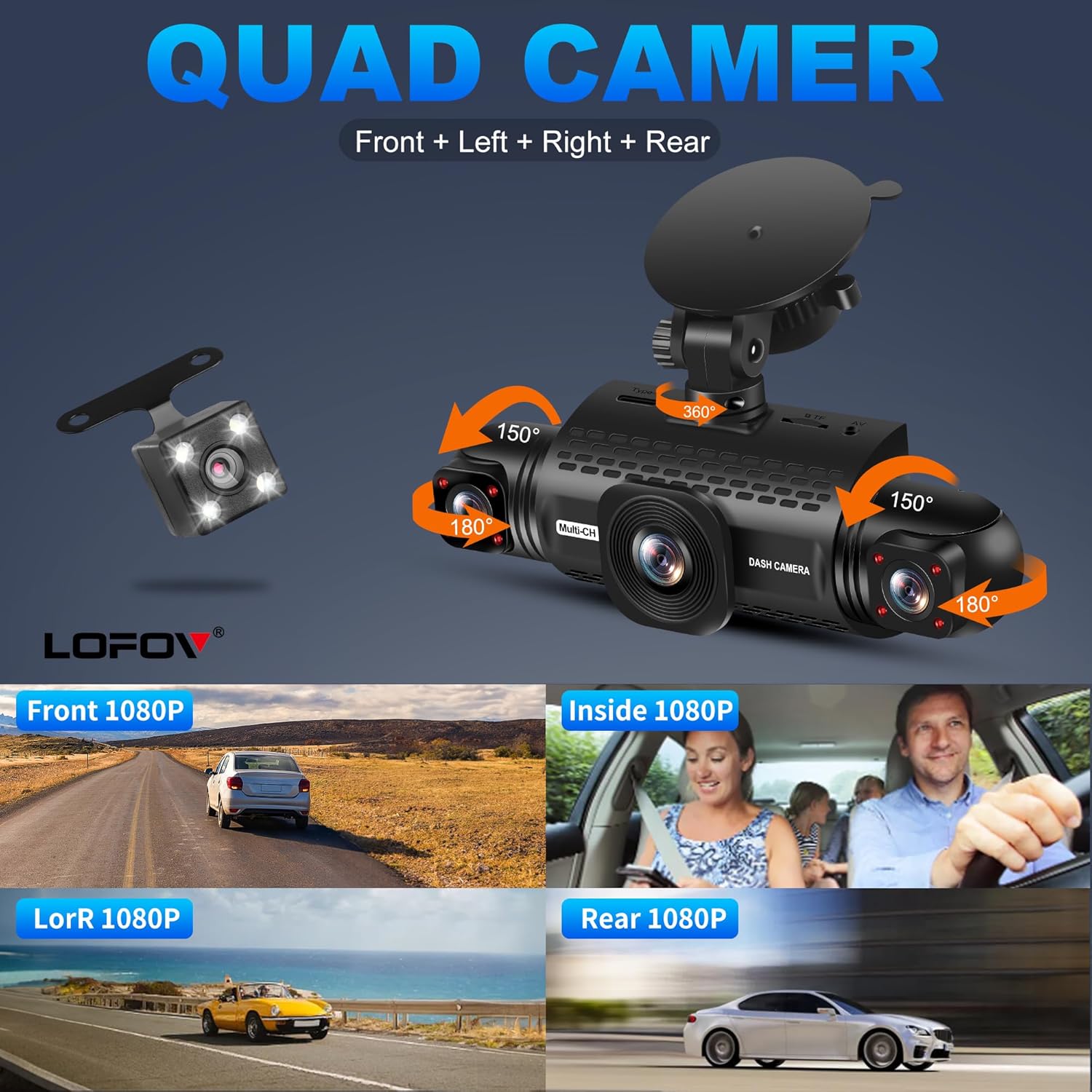
Image: The dash cam's 3-inch screen showing simultaneous feeds from the front, left, right, and rear cameras.
Loop Recording
- The dash cam records video in 3-minute segments.
- When the SD card is full, the oldest unlocked video files will be automatically overwritten by new recordings.
G-Sensor & Emergency Lock
- The built-in G-sensor detects sudden impacts or collisions.
- Upon detection, the current video segment is automatically locked and saved to a separate "Event" folder, preventing it from being overwritten by loop recording.
- The sensitivity of the G-sensor can be adjusted in the settings menu.

Image: Illustration of the G-Sensor activating during a collision, securing video evidence.
24-Hour Parking Mode
- When the vehicle is parked and turned off, the dash cam can automatically switch to parking mode.
- This feature requires the dash cam to be connected to a hardwire kit (not included) or a power bank for continuous power.
- In parking mode, the camera monitors the area around the vehicle. If motion or impact is detected, it will automatically record a 1-minute video.
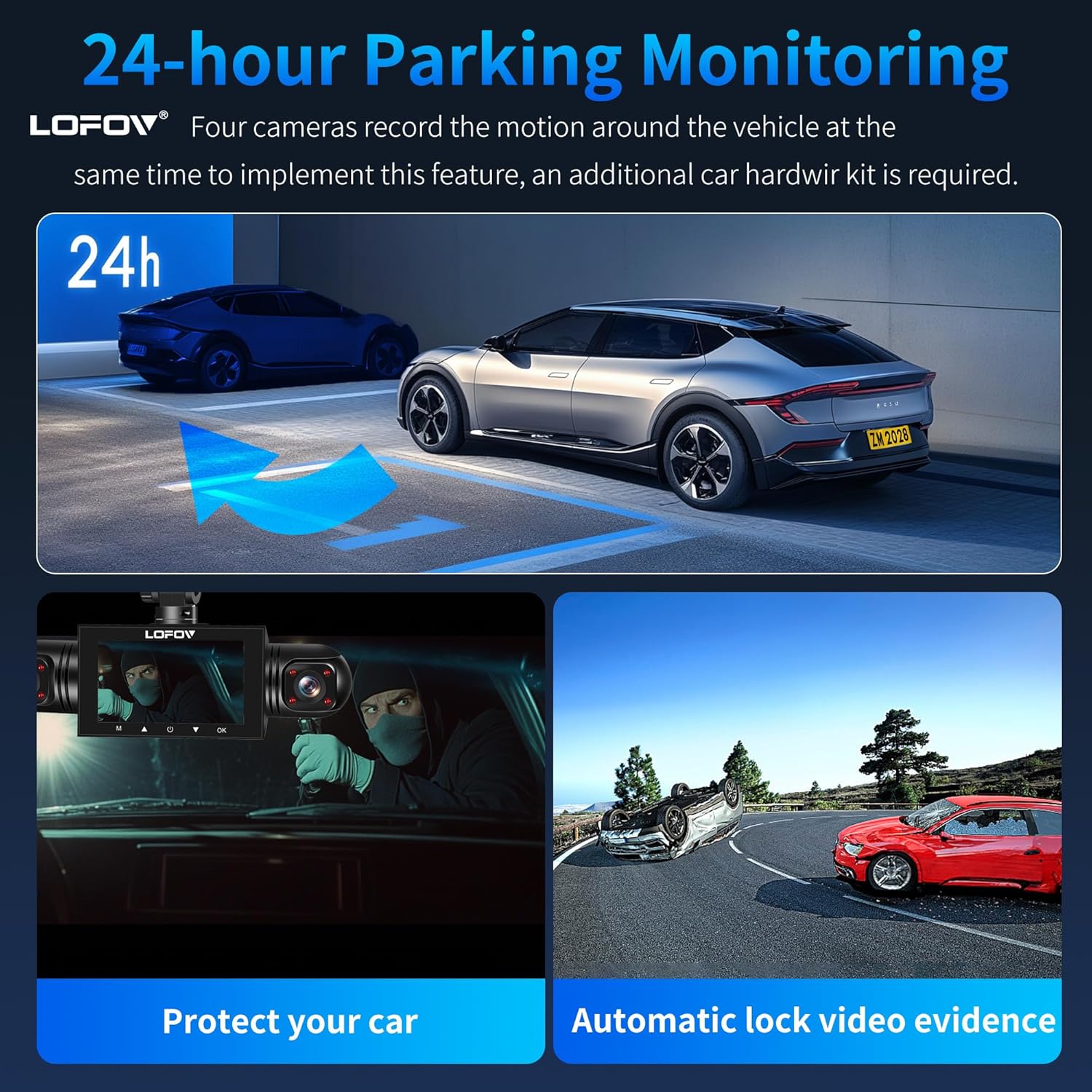
Image: Visual representation of the 24-hour parking monitoring feature, showing vehicle surveillance.
Super Night Vision
- Equipped with 8 infrared LEDs and Wide Dynamic Range (WDR) technology, the dash cam enhances video clarity in low-light conditions.
- It automatically adjusts brightness to prevent overexposure from headlights and ensures clear recording of the cabin and exterior at night.
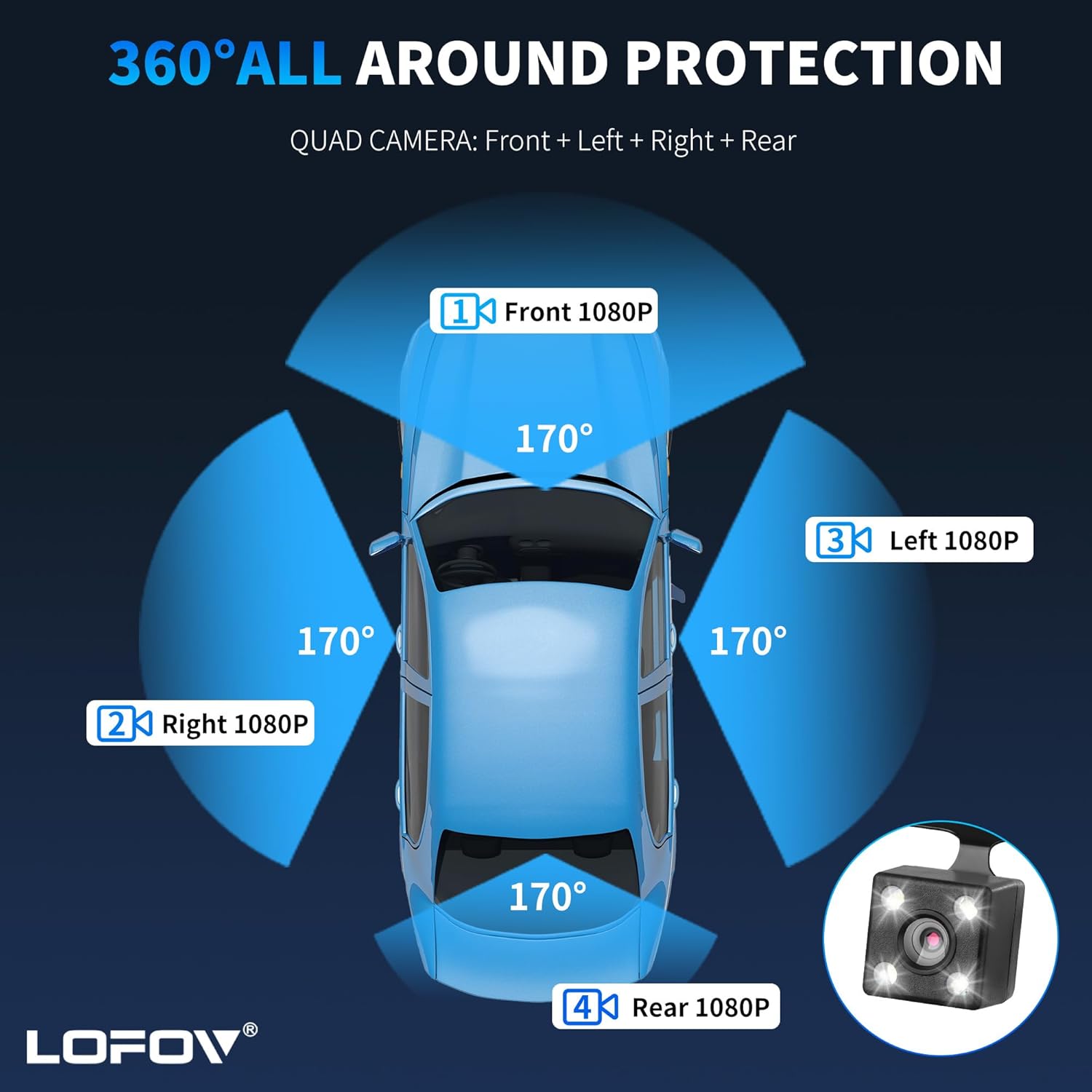
Image: Comparison of video quality in bright, WDR, and dark conditions, highlighting the Super Night Vision feature.
Voice Control
- The dash cam supports voice control for hands-free operation of certain functions. Refer to the Quick Guide for a list of supported voice commands.
Maintenance
- SD Card Formatting: Regularly format the micro-SD card (at least once a month) to ensure optimal performance and prevent data corruption. This can typically be done through the dash cam's settings menu. If formatting on a computer, ensure it is formatted to FAT32.
- Cleaning: Use a soft, dry cloth to clean the camera lenses and the display screen. Avoid using abrasive cleaners or solvents that could damage the device.
- Firmware Updates: Check the official LOFOV website periodically for any available firmware updates. Follow the instructions provided with the update carefully.
- Storage: When not in use for extended periods, store the dash cam in a cool, dry place away from direct sunlight.
Troubleshooting
- Dash Cam Not Powering On:
- Ensure the power cable is securely connected to both the dash cam and the 12V car charger.
- Check if the vehicle's cigarette lighter socket is functioning correctly.
- Recording Issues (e.g., not recording, corrupted files):
- Format the micro-SD card.
- Ensure the SD card is a U3 Class 10 speed or higher.
- Try a different compatible micro-SD card.
- Screen Freezing/Unresponsive:
- Press and hold the power button to force a restart.
- If the issue persists, try resetting the device to factory settings (refer to the settings menu).
- Poor Night Vision Quality:
- Ensure the camera lenses are clean and free from smudges or dirt.
- Verify that WDR is enabled in the settings.
Specifications
| Brand | LOFOV |
| Model Name | 360° Dash Cam Front and Rear Inside |
| Video Capture Resolution | 1080p (FHD) |
| Number of Channels | 4 (Front, Left, Right, Rear) |
| Field Of View | 360 Degrees (overall), 170 Degrees (individual cameras) |
| Screen Size | 3 Inches |
| Flash Memory Supported Size Maximum | 256 GB (64GB SD Card included) |
| Frame Rate | 30 FPS |
| Connectivity Technology | USB |
| Control Method | Touch, Voice Control |
| Special Features | 360 degree dash cam, Voice Control, 24 Hour Parking Monitoring, G-Sensor, Loop Recording, Super Night Vision, WDR Technology |
| Item Dimensions (D x W x H) | 3.15"D x 8.66"W x 4.33"H |
| Are Batteries Included | Yes |
| Battery Cell Type | Lithium Ion |
Warranty and Support
Specific warranty information for the LOFOV 360° 4-Channel 1080P Dash Cam is not provided in the product details. For warranty claims, technical support, or further assistance, please refer to the contact information provided in the Quick Guide or visit the official LOFOV website.