
1. Product Overview
The ZTE F50 is an ultra-thin 5G portable Wi-Fi device designed for high-speed, stable network connections. Its compact and lightweight design makes it suitable for various uses, including business travel and daily home internet access. This device operates without an internal battery and requires an external power source.
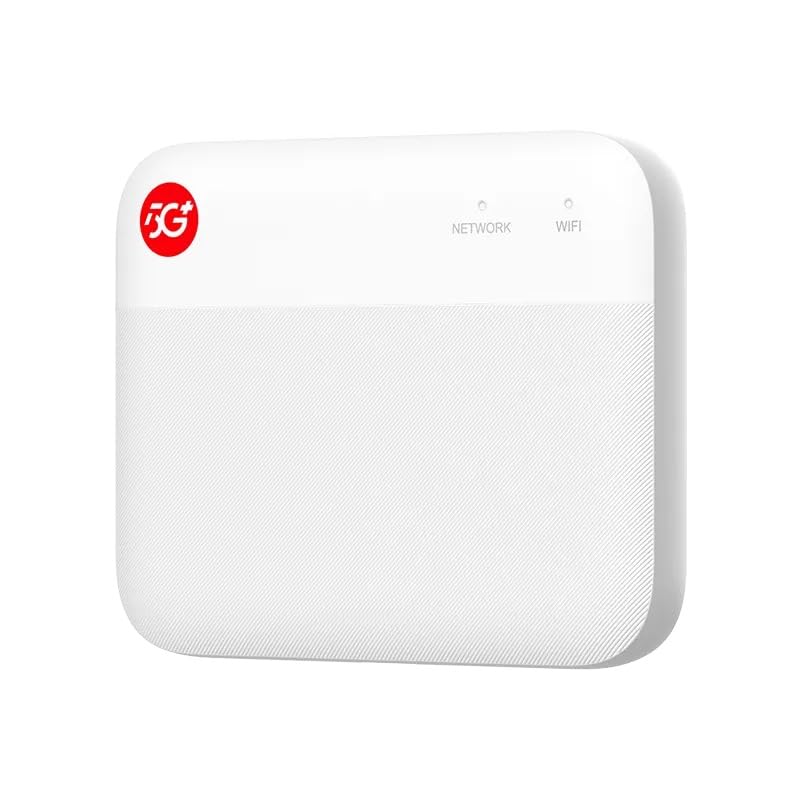
Image: Front view of the ZTE F50 5G Portable Pocket WiFi Router, showing the 5G+ logo and LED indicators for Network and WiFi status.

Image: The ZTE F50 5G Portable Pocket WiFi Router being held in a hand, illustrating its compact size and portability.
2. Setup Guide
2.1. SIM Card Insertion
The ZTE F50 requires a 5G-enabled SIM card for network access. Locate the SIM card slot on the side of the device.
- Gently open the SIM card slot cover.
- Insert your 5G SIM card into the designated slot, ensuring correct orientation.
- Close the SIM card slot cover securely.
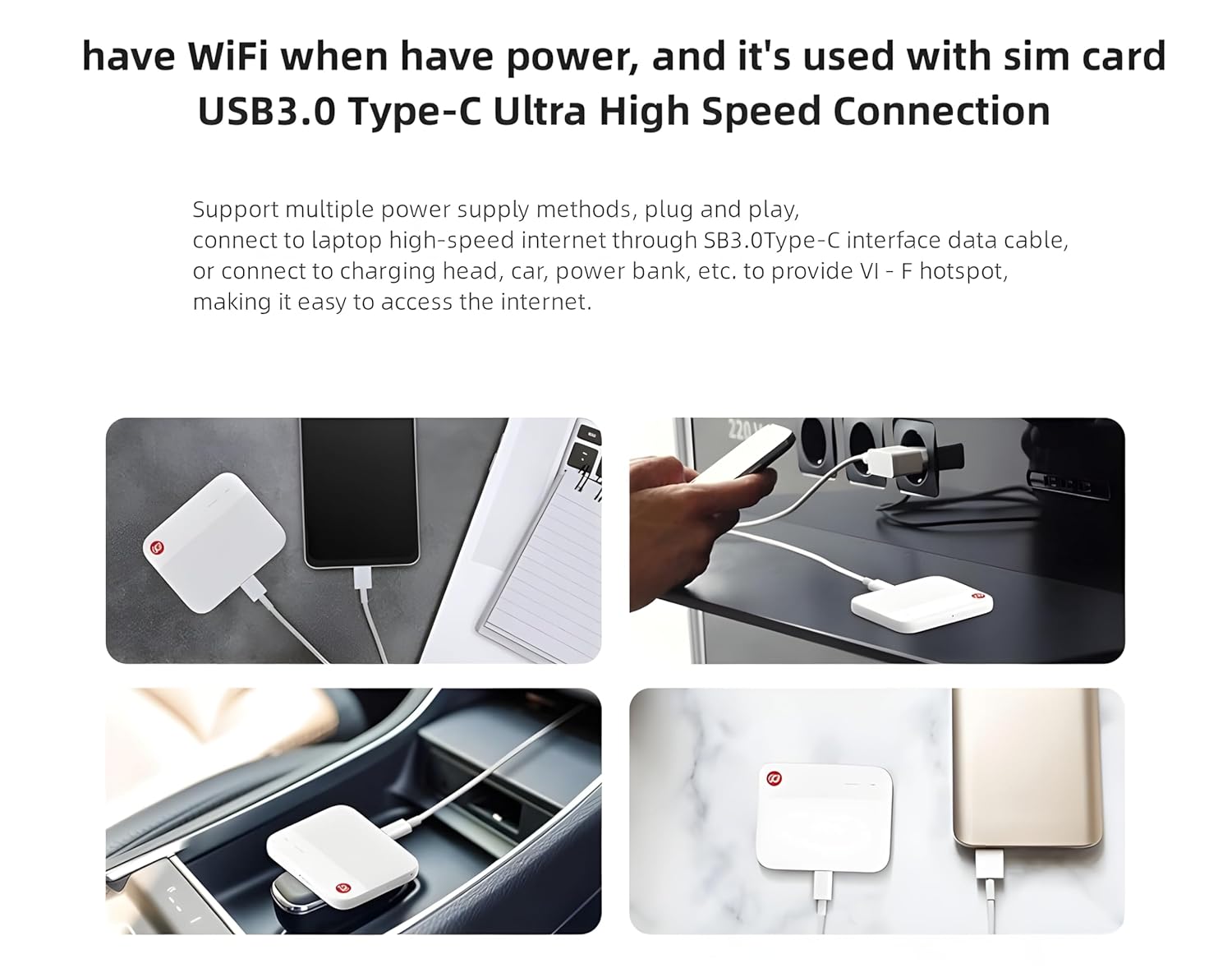
Image: The ZTE F50 5G Portable Pocket WiFi Router with its SIM card slot clearly visible on the side.
2.2. Power Connection
The ZTE F50 does not contain an internal battery and requires continuous external power. Use the provided USB Type-C to Type-C cable to connect the device to a power source.
- Connect one end of the USB Type-C cable to the ZTE F50.
- Connect the other end to a compatible power source such as a laptop, wall charger, car charger, or power bank.
- The device will power on automatically upon receiving power.

Image: The ZTE F50 5G Portable Pocket WiFi Router shown connected to a laptop, a wall adapter, a car charger, and a power bank, demonstrating its versatile power options.
2.3. Initial Internet Configuration (APN Settings)
The device typically configures internet settings automatically based on the inserted SIM card. However, for certain providers (e.g., Jio), manual configuration may be necessary.
- Connect a device (e.g., laptop, smartphone) to the ZTE F50's Wi-Fi network.
- Open a web browser and navigate to the router's administration page (usually
192.168.0.1or similar, check device documentation for exact address). - Log in using the default credentials (refer to the device label or packaging).
- Navigate to Connection Settings > Network Selection > APN.
- Select Manual mode and click Add New Profile.
- Set PDP Type to
IPV6orIPV4V6. - Set APN to the specific APN for your provider (e.g.,
jionetfor Jio). - Save the new profile and set it as default.

Image: A screenshot of the ZTE F50's web interface, showing the APN settings page with options for manual configuration, including PDP Type and APN name.
3. Operating Instructions
3.1. Connecting Devices via Wi-Fi
The ZTE F50 supports Wi-Fi 5 (802.11ac) with dual-band capabilities (2.4GHz and 5GHz, one active at a time) and can connect up to 10 devices simultaneously.
- Ensure the ZTE F50 is powered on and the Wi-Fi LED indicator is active.
- On your device (smartphone, tablet, laptop, etc.), search for available Wi-Fi networks.
- Select the network name (SSID) broadcast by your ZTE F50. The SSID and default password are usually found on a label on the device.
- Enter the Wi-Fi password when prompted.
- Your device should now be connected to the internet via the ZTE F50.

Image: The ZTE F50 5G Portable Pocket WiFi Router shown providing Wi-Fi connectivity to multiple devices, including a laptop, tablet, and smartphone.
3.2. USB Tethering
The ZTE F50 supports USB tethering, allowing you to connect a single device directly via a USB cable for internet access. This feature is compatible with Linux, Windows, and MacBook operating systems.
- Connect the ZTE F50 to your computer using the USB Type-C cable.
- The computer should automatically detect the device and establish an internet connection.
- If prompted, select the option to use the device as a network adapter or for internet sharing.
3.3. LED Indicators
The device features LED indicators to display its operational status:
- NETWORK LED: Indicates the status of the mobile network connection (e.g., connected to 5G, 4G, or no signal).
- WIFI LED: Indicates the status of the Wi-Fi broadcast (e.g., Wi-Fi active, Wi-Fi off).
3.4. Extended Storage (SD Card Support)
The ZTE F50 includes support for extended storage via an SD card slot, functioning as a TF card reader. It supports cards up to 2TB.
- Locate the SD card slot on the device.
- Insert a compatible SD card into the slot.
- The device can then be connected to a computer via USB to access the contents of the SD card, allowing for easy data transfer.
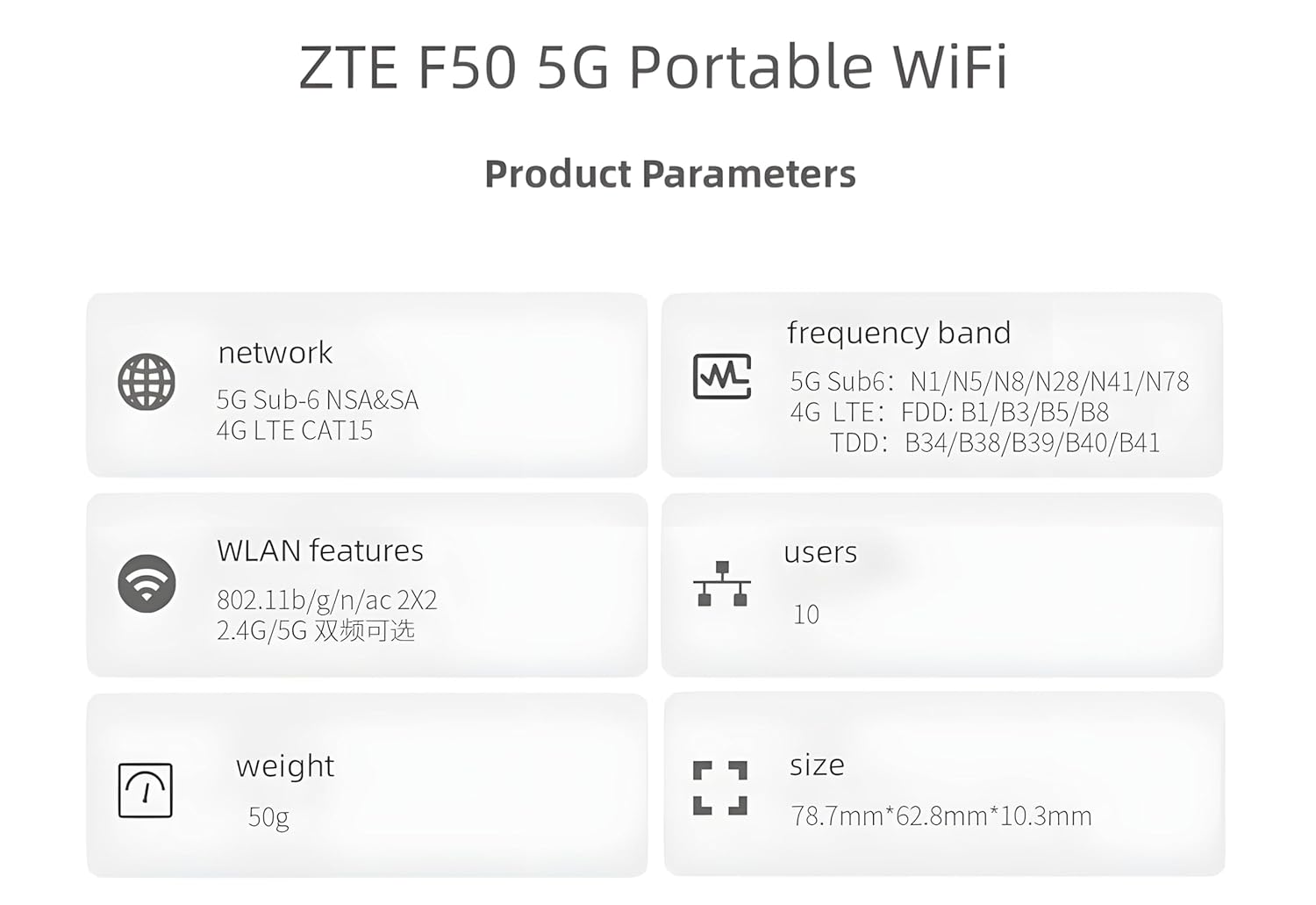
Image: The ZTE F50 5G Portable Pocket WiFi Router with an SD card inserted, highlighting its extended storage capability.
4. Maintenance
4.1. Heat Management
The ZTE F50 may generate heat during prolonged use or when handling high data traffic. To ensure optimal performance and longevity:
- Place the device in a well-ventilated area.
- Avoid covering the device or placing it in enclosed spaces during operation.
- If the device feels excessively hot, temporarily disconnect it from power and allow it to cool down.
4.2. Cleaning
To clean the device:
- Ensure the device is disconnected from all power sources.
- Use a soft, dry, lint-free cloth to wipe the exterior.
- Avoid using liquid cleaners, aerosols, or solvents, as these can damage the device.
5. Troubleshooting
5.1. No Internet Connection
- Check SIM Card: Ensure the SIM card is correctly inserted and active.
- APN Settings: Verify that the APN settings are correctly configured for your mobile network provider (refer to Section 2.3).
- Signal Strength: Check the network LED indicator. If there is no signal or a weak signal, try moving the device to a location with better network coverage.
- Power Source: Ensure the device is receiving stable power.
5.2. Slow Internet Speed
- Network Coverage: Weak 5G/4G signal can lead to slower speeds. Relocate the device.
- Connected Devices: Too many devices connected simultaneously can reduce individual speeds. Disconnect unnecessary devices.
- Network Congestion: During peak hours, network congestion from your mobile provider can affect speeds.
- Device Overheating: If the device is overheating, performance may be throttled. Refer to Section 4.1.
5.3. Wi-Fi Connectivity Issues
- Wi-Fi LED: Ensure the Wi-Fi LED indicator is on.
- Password: Double-check that you are entering the correct Wi-Fi password.
- Dual-Band Selection: The device supports 2.4GHz and 5GHz, but only one is active at a time. Ensure your connecting device is compatible with the active band.
- Restart Device: Power cycle the ZTE F50 by disconnecting and reconnecting its power source.
6. Specifications
Detailed technical specifications for the ZTE F50 5G Portable Pocket WiFi Router:
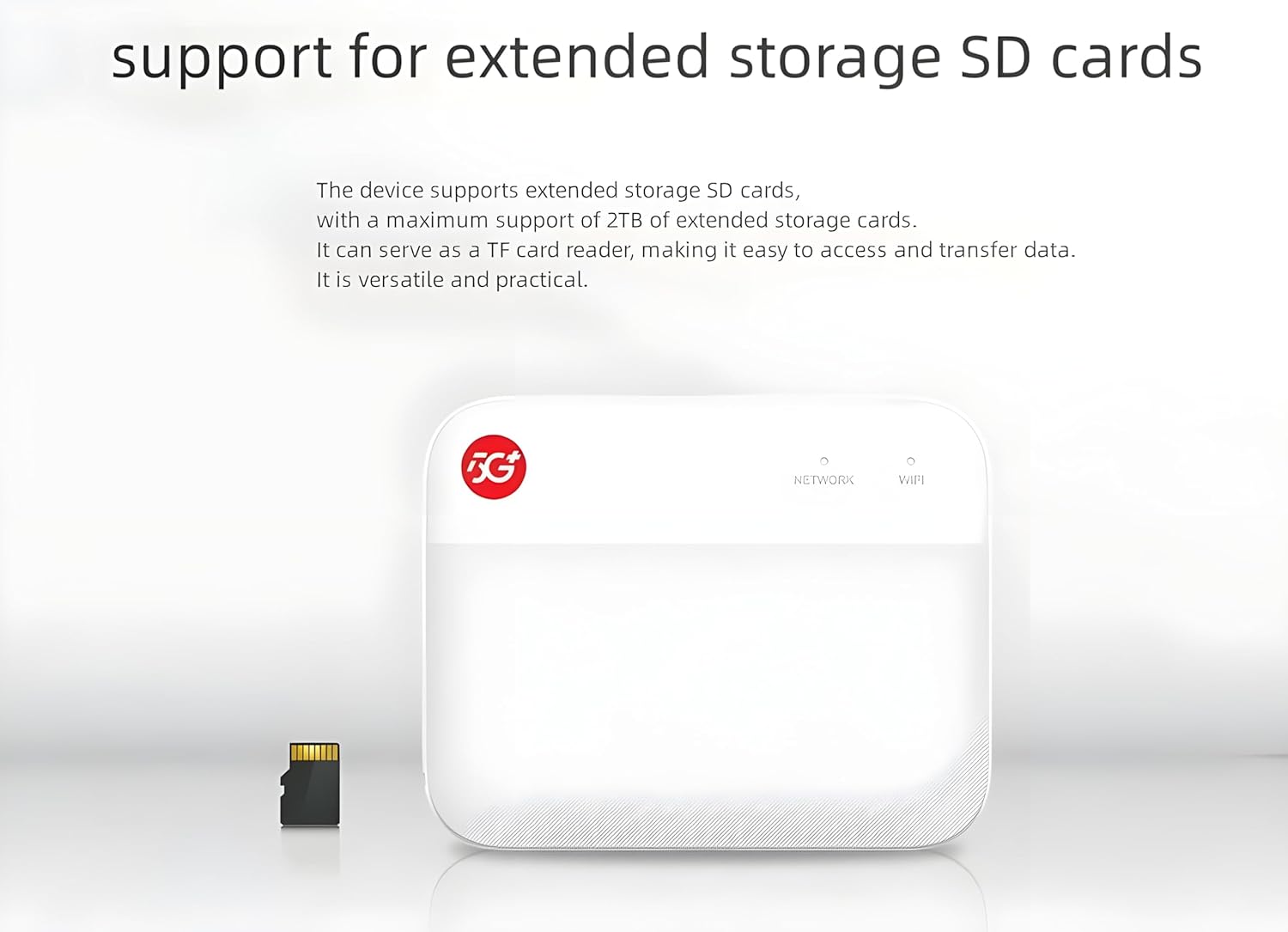
Image: A graphic displaying key product parameters for the ZTE F50, including network support, frequency bands, WLAN features, number of users, weight, and size.
| Feature | Detail |
|---|---|
| Brand | ZTE |
| Model | F50 |
| Dimensions (LxWxH) | 6.2 x 1 x 8 cm |
| Weight | 50 g |
| 5G Connectivity | Dual-mode 5G (SA/NSA) |
| 4G LTE | CAT15 |
| Wi-Fi Standard | Wi-Fi 5 (802.11ac), 802.11b/g/n |
| Wi-Fi Features | 2x2 MIMO, Dual-band (2.4GHz/5GHz, one active) |
| Max Connected Devices | 10 |
| Data Transfer Rate | Up to 1600 Mbps (5G peak download) |
| Processor | Octa-core chipset |
| RAM | 128 MB |
| Operating System | RouterOS |
| Ports | 1x USB 3.0 Type-C |
| Special Features | LED Indicator, SD Card Support (up to 2TB) |
| Power Input | 5 Volts (No internal battery) |
| Mounting Hardware | Router, Type C to C Cable |
7. Warranty Information
Please note that for this imported product, a local warranty may not be provided. It is advisable to clarify warranty terms with your retailer at the time of purchase. The product is generally covered by a 7-day return policy from the seller, if applicable.
8. Support
For further assistance or if you encounter issues not covered in this manual, please refer to the official ZTE support website or contact your product retailer. Ensure you have your product model (F50) and any relevant purchase information available when seeking support.


