
Introduction
This user guide provides comprehensive instructions and expert tips for mastering your eufy Smart Home Security System. It covers everything from initial setup of your eufy cameras, motion sensors, and entry sensors to advanced features like live view monitoring, motion detection alerts, event recording, and using the eufy Security app for real-time management. You will also find guidance on troubleshooting common issues, setting up geofencing and automation, understanding privacy and security settings, and maintaining your devices for optimal performance and longevity.
1. System Setup
Proper setup is crucial for the optimal performance of your eufy Home Security System. Follow these steps to install and configure your devices.
1.1 Unboxing and Initial Preparation
- Carefully unbox all components, including the HomeBase, cameras, and sensors.
- Ensure all listed items are present according to your product's packaging.
- Charge all battery-powered devices fully before initial setup.
1.2 Installing the eufy Security App
- Download the "eufy Security" app from your device's app store (App Store for iOS, Google Play Store for Android).
- Open the app and create a new account or log in with an existing one.
1.3 HomeBase Setup
- Connect the HomeBase to power using the provided adapter.
- Connect the HomeBase to your router using an Ethernet cable.
- Wait for the HomeBase indicator light to turn solid blue, indicating a successful connection.
- In the eufy Security app, tap "Add Device" and select "HomeBase" to pair it.
1.4 Adding Cameras and Sensors
- In the eufy Security app, tap "Add Device" and select the type of device you wish to add (e.g., "eufyCam", "Entry Sensor").
- Follow the on-screen instructions to pair each device with your HomeBase. This typically involves pressing a sync button on the device.
- Mount cameras and sensors in desired locations, ensuring optimal coverage and signal strength. Refer to the specific device's quick start guide for mounting details.
2. Operating Your eufy System
Once your system is set up, you can utilize its various features for enhanced home security and convenience.
2.1 Live View Monitoring
- Open the eufy Security app.
- Select the camera you wish to view from the device list.
- You can now see a real-time feed from your camera. Options for recording, taking screenshots, and two-way audio are available during live view.
2.2 Motion Detection and Alerts
- Navigate to the settings of individual cameras or sensors within the app.
- Adjust motion detection sensitivity and activity zones to minimize false alerts.
- Enable push notifications to receive instant alerts on your smartphone when motion is detected or a sensor is triggered.
2.3 Event Recording and Playback
- Recorded events are stored on the HomeBase's local storage or in the cloud (if subscribed).
- Access the "Events" or "Playback" section in the app to review past recordings.
- You can download or share specific event clips from the app.
2.4 Geofencing and Automation
- Set up geofencing to automatically arm or disarm your system based on your location.
- Create automation rules (e.g., turn on lights when motion is detected, record video when a door opens) to customize your security responses.
2.5 Privacy and Security Settings
- Review and configure privacy zones for cameras to exclude certain areas from recording.
- Ensure strong passwords for your eufy account and Wi-Fi network.
- Enable two-factor authentication (2FA) for added account security.
3. Maintenance and Care
Regular maintenance ensures the longevity and reliability of your eufy security devices.
- Cleaning: Gently wipe camera lenses and device surfaces with a soft, dry cloth. Avoid abrasive cleaners.
- Battery Management: Monitor battery levels through the app and recharge devices as needed. For optimal battery life, avoid extreme temperatures.
- Firmware Updates: Regularly check for and install firmware updates via the eufy Security app. Updates often include performance improvements and security enhancements.
- Network Stability: Ensure your Wi-Fi network is stable and strong where devices are located to prevent connectivity issues.
4. Troubleshooting Common Issues
This section addresses frequently encountered problems and their solutions.
| Problem | Possible Cause | Solution |
|---|---|---|
| Device offline | Weak Wi-Fi signal, low battery, HomeBase offline | Check Wi-Fi signal strength, recharge device, ensure HomeBase is powered and connected to the internet. |
| Motion detection not working | Incorrect sensitivity settings, activity zone not set, obstruction | Adjust sensitivity in app, define activity zones, clear any obstructions from camera's view. |
| Cannot pair new device | Device too far from HomeBase, low battery, HomeBase in pairing mode | Move device closer to HomeBase, ensure device is charged, verify HomeBase is in pairing mode. |
| Poor video quality | Dirty lens, weak Wi-Fi, insufficient lighting | Clean camera lens, improve Wi-Fi signal, add supplementary lighting if needed. |
For more detailed troubleshooting or issues not listed here, refer to the eufy Security app's help section or the official eufy support website.
5. Product Specifications (User Guide)
This section provides details about the user guide itself.
- ASIN: B0DB7T4V2K
- Publisher: Independently published
- Publication Date: July 25, 2024
- Language: English
- Print Length: 72 pages
- ISBN-13: 979-8334115439
- Item Weight: 3.84 ounces
- Dimensions: 6 x 0.17 x 9 inches
Note: These specifications pertain to the physical user guide document. For specifications of eufy security system components, please refer to the individual product manuals or the eufy official website.
6. Warranty and Support
For warranty information regarding your eufy Home Security System components, please refer to the official eufy website or the documentation included with your specific eufy products. Warranty terms and conditions may vary by region and product type.
For technical support, customer service, or to access the latest FAQs and troubleshooting guides, visit the official eufy support portal. You can typically find contact information and online resources at eufylife.com/support.
Product Images
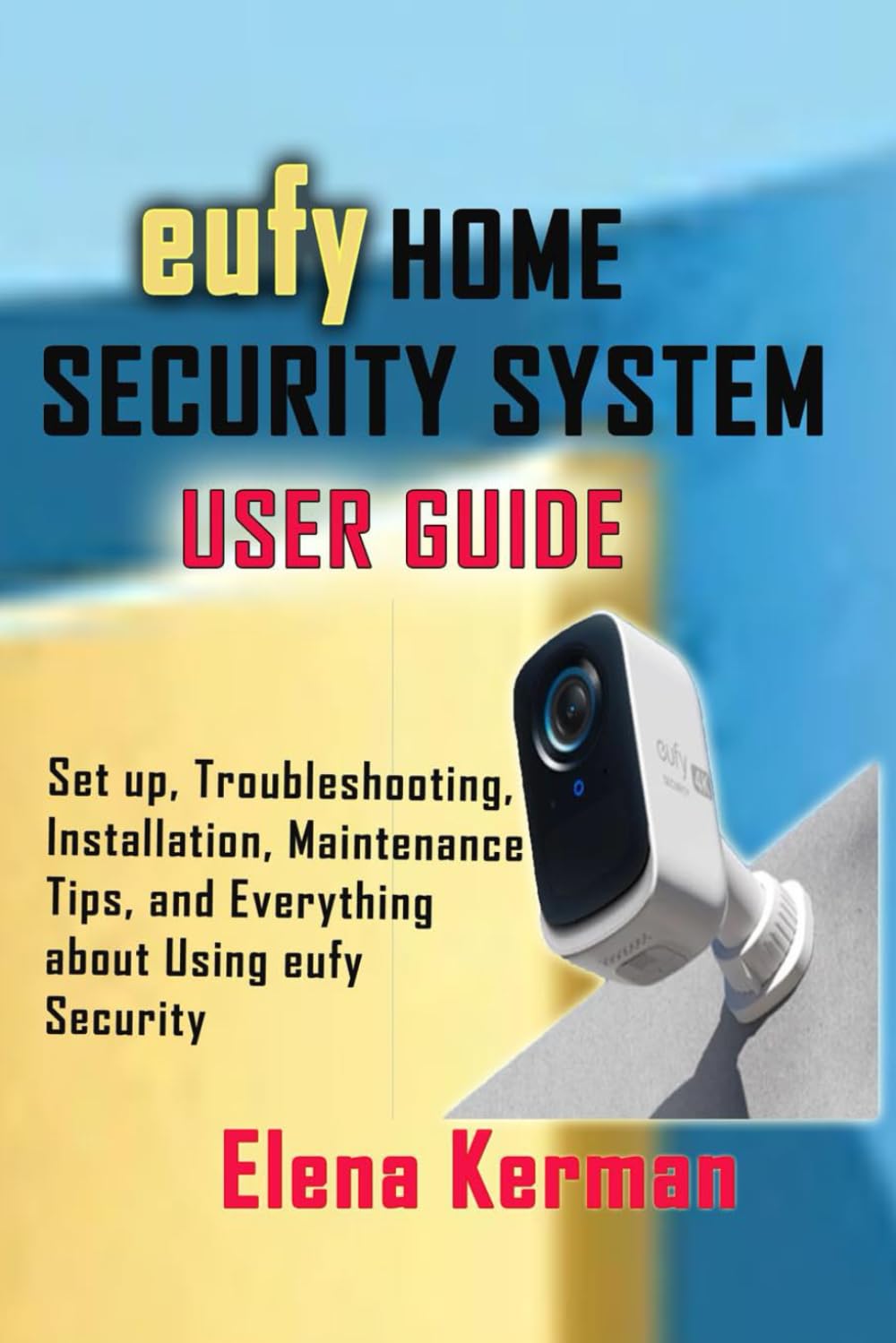
Image 1: Front cover of the "eufy HOME SECURITY SYSTEM USER GUIDE" book. The cover features the eufy logo and title prominently, with a white eufy security camera visible on the right side against a blue and yellow background. The subtitle lists topics covered: "Set up, Troubleshooting, Installation, Maintenance Tips, and Everything about Using eufy Security." The author's name, Elena Kerman, is at the bottom.

Image 2: Back cover of the "eufy HOME SECURITY SYSTEM USER GUIDE" book. This image displays a brief author biography for Elena Kerman, highlighting her background as a journalist, tech enthusiast, and security analyst. It also includes the ISBN-13 barcode at the bottom right corner.