1. Introduction
Thank you for choosing the Hodozzy 10-inch Android Car Stereo. This manual provides essential information for the safe and efficient operation of your new car multimedia system. Please read this manual thoroughly before installation and use, and keep it for future reference.
This device features a 10.1-inch 2.5D touchscreen, Android 13 operating system, GPS navigation, Bluetooth, Wi-Fi, Mirror Link for iOS/Android, FM/RDS radio, steering wheel control support, and a backup camera input.
2. Safety Information
- Do not operate the device in a manner that distracts you from driving. Always prioritize road safety.
- Ensure proper installation by a qualified professional to prevent damage to the vehicle or the device.
- Avoid exposing the device to extreme temperatures, direct sunlight for prolonged periods, or excessive moisture.
- Do not attempt to disassemble or modify the unit. This may void the warranty and cause damage.
- Keep the volume at a level that allows you to hear external traffic sounds.
3. Package Contents
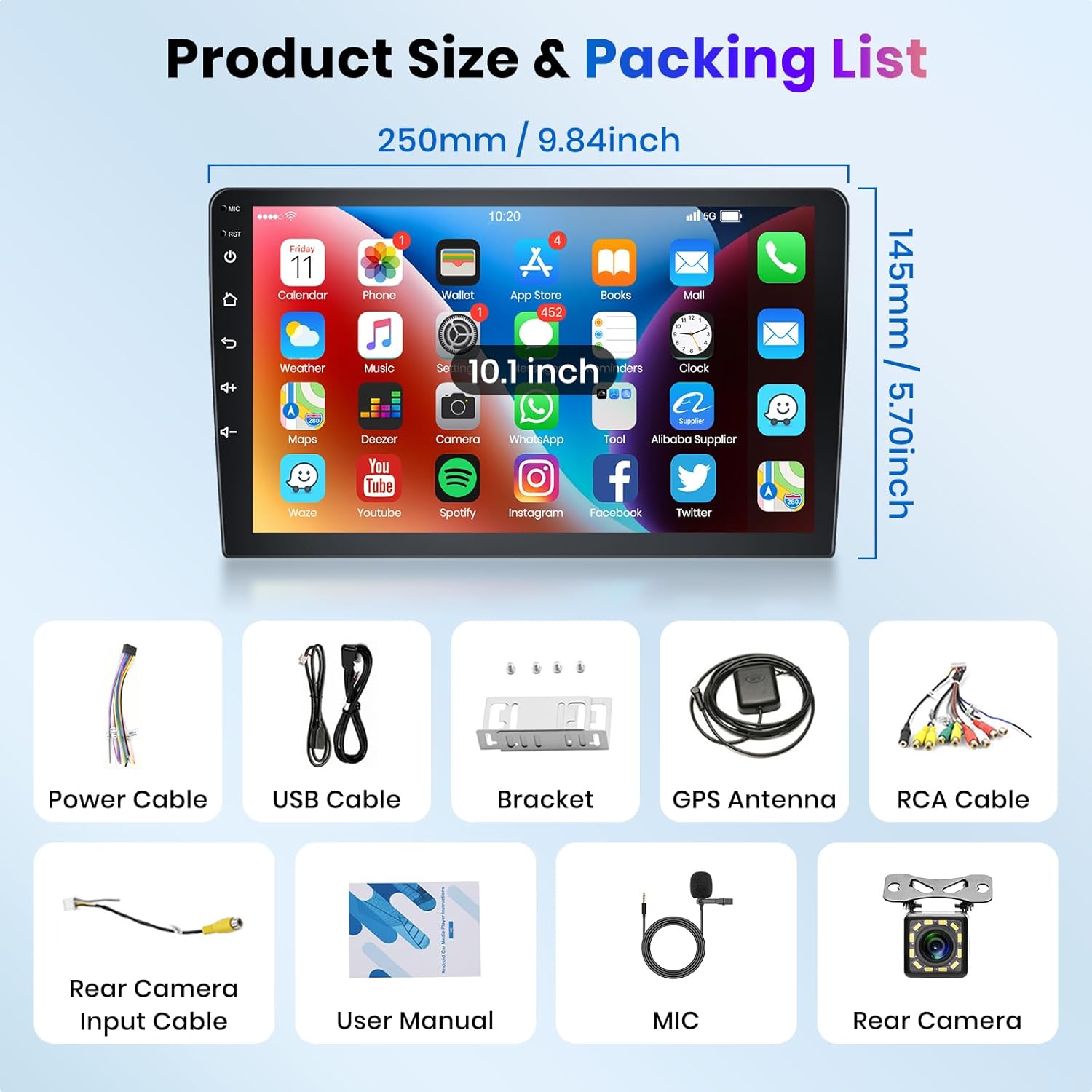
Verify that all items listed below are included in your package:
- 1 x Car Player
- 1 x Power Cable
- 1 x GPS Antenna
- 1 x Rear Camera Input Cable
- 1 x RCA Cable
- 2 x USB Cables
- 2 x Mounting Brackets
- 4 x Screws
- 1 x AHD Rear Camera
- 1 x Microphone
- 1 x Instruction Manual
4. Product Overview
4.1 Key Features
- Operating System: Android 13
- Processor: MT8163, 1.3GHz
- Display: 10.1-inch 2.5D IPS Capacitive Touchscreen, 1024*600 resolution
- Memory: 1GB RAM + 32GB ROM
- Connectivity: Bluetooth 4.1, Wi-Fi
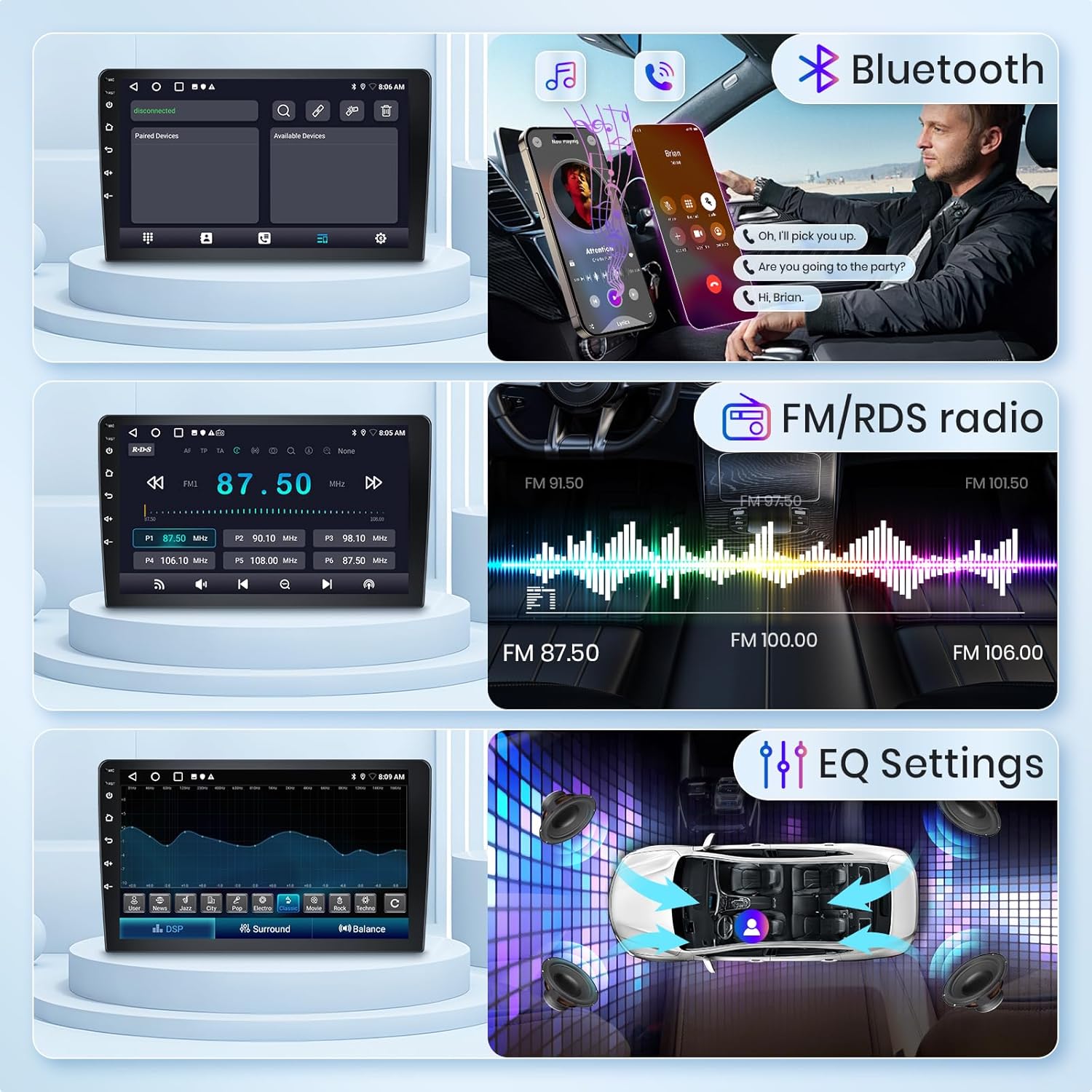
- Audio Output: 4*45W, YD7388 Amplifier Chip, various EQ settings
- Radio: FM/RDS with 18 preset stations
- Navigation: Integrated GPS with offline map support
- Mirror Link: Supports iOS (one-way) and Android (two-way)
- Camera Input: AHD/CVBS rear camera support
- Additional Features: Steering Wheel Control (SWC), Split Screen, Dual USB interface, External Microphone support

5. Setup and Installation
Professional installation is recommended for this car stereo. Incorrect wiring can cause damage to the unit or your vehicle's electrical system. Refer to the wiring diagram provided in the separate installation guide (if applicable) or consult a professional installer.
5.1 General Installation Steps
- Preparation: Disconnect the vehicle's battery before starting any electrical work.
- Mounting: Use the provided mounting brackets and screws to secure the car stereo into your vehicle's dashboard. Ensure a stable fit.
- Power Connection: Connect the power cable to the vehicle's power supply, ensuring correct polarity (ACC, B+, GND).
- GPS Antenna: Mount the GPS antenna in a location with a clear view of the sky, typically on the dashboard or under the windshield.
- USB Cables: Route the dual USB cables to an accessible location, such as the glove compartment or center console.
- Rear Camera: Connect the AHD rear camera to the dedicated input cable and install the camera at the rear of the vehicle.
- Microphone: Connect the external microphone and position it for optimal voice pickup.
- RCA Cables: Connect any external amplifiers or subwoofers using the RCA cables if desired.
- Steering Wheel Control (SWC): Connect the SWC wires to your vehicle's steering wheel control interface (if applicable).
- Final Check: Double-check all connections before reconnecting the vehicle's battery.
6. Operating Instructions
6.1 Power On/Off
The unit will power on automatically when the vehicle's ignition is turned on. To manually power off, press and hold the power button (if available) or turn off the vehicle's ignition.
6.2 Touchscreen Interface
The 10.1-inch HD capacitive touchscreen provides intuitive control. Tap, swipe, and pinch gestures are supported for navigation and interaction with applications. The system offers 26 UI desktop themes for personalization.

6.3 Mirror Link (iOS/Android)
Mirror Link allows you to display your smartphone's screen on the car stereo. For iOS devices, it supports one-way projection. For Android devices, it supports two-way connection, allowing control from the car stereo's screen.
- Access the 'Mirror Link' application on the car stereo.
- Follow the on-screen instructions to connect your iOS or Android device via USB or Wi-Fi.

6.4 GPS Navigation
The unit comes with integrated GPS and supports offline maps. You can also use online navigation apps like Google Maps when connected to Wi-Fi.
- Tap the 'Navigation' icon on the home screen.
- For offline maps, ensure map data is downloaded (requires internet connection initially).
- For online navigation, connect to Wi-Fi and use your preferred navigation app.

6.5 Bluetooth Functionality
Connect your smartphone via Bluetooth for hands-free calling and audio streaming (A2DP).
- Go to the 'Bluetooth' application.
- Enable Bluetooth on your smartphone and search for available devices.
- Select 'Hodozzy' (or similar device name) from the list and pair.
- Once paired, you can make/receive calls and play music from your phone.

6.6 FM/RDS Radio
Enjoy your favorite radio stations with FM and RDS (Radio Data System) support.
- Open the 'Radio' application.
- Use the scan function to find available stations or manually tune to a frequency.
- Save your preferred stations to the 18 available presets.
6.7 Steering Wheel Control (SWC)
If your vehicle supports it, you can configure the steering wheel buttons to control the car stereo functions.
- Go to 'Settings' > 'Steering Wheel Control'.
- Follow the on-screen instructions to map your vehicle's steering wheel buttons to the desired functions (e.g., volume up/down, track skip, mode).
6.8 Backup Camera
The included AHD rear camera provides a clear view behind your vehicle, automatically displaying when reverse gear is engaged.
- Ensure the rear camera is correctly installed and connected.
- When the vehicle is shifted into reverse, the display will automatically switch to the camera view.
6.9 Split Screen / Picture-in-Picture
Multitask by running two applications simultaneously on the screen, such as navigation and music playback.
- Open the first application.
- Press and hold the recent apps button or swipe up from the bottom (depending on UI) to enter split-screen mode.
- Select the second application to display alongside the first.
6.10 USB Connectivity
The dual USB interfaces allow for connecting USB drives for media playback or charging devices.
- Insert a USB drive into one of the USB ports.
- Access the 'File Manager' or 'Music/Video Player' app to browse and play media files.
6.11 Wi-Fi Connection
Connect to a Wi-Fi hotspot (e.g., from your smartphone) to access online features, download apps, and use online navigation.
- Go to 'Settings' > 'Network & Internet' > 'Wi-Fi'.
- Turn on Wi-Fi and select your desired network.
- Enter the password if prompted and connect.
7. Specifications
| Feature | Specification |
|---|---|
| System | Android 13 |
| Chipset | MT8163 |
| Operating Speed | 1.3GHz |
| Screen Size | 10.1 inches |
| Memory | 1GB (RAM) + 32GB (ROM) |
| Screen Resolution | 1024*600 |
| Bluetooth Version | 4.1 |
| Radio Chip | MT6625N |
| Power Output | 4*45W |
| Operating Temperature | -20℃ to 75℃ |
| Amplifier Chip | YD7388 |
| Radio Band | FM/RDS |
| Video Output | Not supported |
| Reversing Input | AHD/CVBS |
| External Microphone | Supported |
| Split Screen | Supported |
| Maps | Built-in offline maps (requires internet for data download) |
| WIFI | Supported |
| USB Interface | Dual USB |
| Audio Formats | APE/FLAC/WAV/MP3/WMA, etc. |
| Video Formats | MKV/RMVB/AVI/MP4/MDV etc. |
| Image Formats | PNG/JPEG/JPG/GIF/WBMP/BNP etc. |
8. Troubleshooting
If you encounter issues with your Hodozzy car stereo, refer to the following common problems and solutions:
- No Power:
- Check all power connections (ACC, B+, GND) and ensure they are secure.
- Verify the vehicle's fuse for the stereo is not blown.
- Ensure the vehicle's battery is properly connected and charged.
- No Sound:
- Check speaker wiring connections.
- Ensure the volume is not muted or set too low.
- Verify audio settings and EQ are configured correctly.
- GPS Signal Issues:
- Ensure the GPS antenna is properly installed and has a clear view of the sky.
- Check for any obstructions that might block the GPS signal.
- Verify that map data is downloaded for offline navigation.
- Bluetooth Connection Problems:
- Ensure Bluetooth is enabled on both the car stereo and your smartphone.
- Delete previous pairings and attempt to re-pair the devices.
- Move your smartphone closer to the car stereo.
- Mirror Link Not Working:
- Ensure your phone's USB debugging (for Android) or trust settings (for iOS) are correctly configured.
- Try a different USB cable if connecting via wired Mirror Link.
- Update the Mirror Link application on the car stereo if an update is available.
- Rear Camera Not Displaying:
- Check the rear camera's power and video signal connections.
- Ensure the camera input cable is securely connected to the car stereo.
- Verify that the reverse trigger wire is correctly connected to the vehicle's reverse light circuit.
9. Maintenance
- Cleaning the Screen: Use a soft, lint-free cloth to gently wipe the touchscreen. For stubborn smudges, slightly dampen the cloth with water or a screen cleaner designed for electronics. Avoid harsh chemicals.
- General Cleaning: Keep the unit free from dust and debris. Use a soft brush or compressed air to clean vents and buttons.
- Software Updates: Periodically check for software updates to ensure optimal performance and access to new features. Updates can usually be found on the manufacturer's website or through the device's settings.
- Avoid Extreme Conditions: Do not expose the unit to extreme heat or cold, as this can affect its lifespan and performance.
10. Warranty and Support
The Hodozzy 10-inch Android Car Stereo comes with a 2-year manufacturer's warranty. Please retain your proof of purchase for warranty claims.
For technical support, troubleshooting assistance, or warranty inquiries, please contact Hodozzy customer support:
- Email: hodozzyofficial@163.com
Hodozzy is committed to providing excellent service and support for its automotive customers worldwide.


