
HONOR Honor 200
Honor 200 5G ELI-NX9 Dual Sim Smartphone
User Manual
Model: Honor 200 (ELI-NX9)
1. Product Overview
The Honor 200 5G ELI-NX9 is a global version dual SIM smartphone designed for advanced mobile communication and multimedia experiences. This manual provides essential information for setting up, operating, maintaining, and troubleshooting your device.
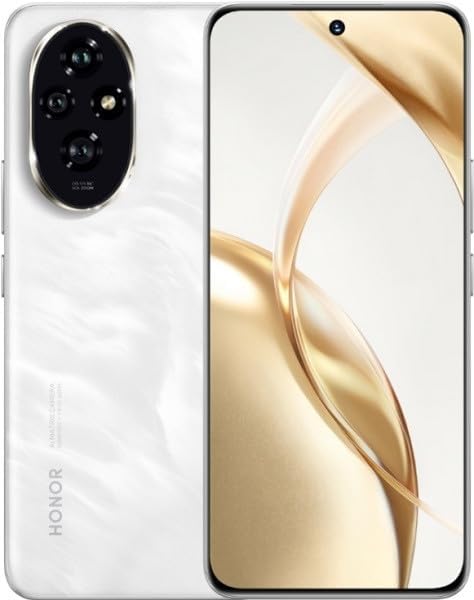
Figure 1: Front and rear view of the Honor 200 5G ELI-NX9 smartphone in Moonlight White. The rear features a prominent oval camera module with multiple lenses, and the front displays a large screen with a punch-hole camera.
2. Setup Guide
Follow these steps to prepare your Honor 200 for first use.
2.1 SIM Card Installation
The Honor 200 supports Dual SIM functionality. Locate the SIM card tray on the side of the device. Use the provided SIM ejector tool to open the tray. Carefully place your Nano-SIM cards into the designated slots, ensuring the gold contacts face downwards. Reinsert the tray firmly into the device.
2.2 Initial Charging
Before first use, it is recommended to fully charge your device. Connect the USB Type-C cable to the charging port at the bottom of the phone and the other end to a compatible power adapter. Plug the adapter into a power outlet. The charging indicator will appear on the screen.
2.3 Powering On and Initial Setup
Press and hold the Power button (located on the right side) until the Honor logo appears. Follow the on-screen prompts to complete the initial setup, including language selection, Wi-Fi connection, Google account setup, and data transfer (if applicable).
3. Operating Instructions
This section covers the basic operation of your Honor 200 smartphone.
3.1 Basic Navigation
The Honor 200 features a responsive touchscreen. Use gestures such as tap, swipe, pinch-to-zoom, and long-press to navigate the interface, open applications, and interact with content.
3.2 Making Calls and Sending Messages
To make a call, open the "Phone" app, enter the number, and tap the call icon. To send a message, open the "Messages" app, tap the new message icon, enter the recipient and your message, then send.
3.3 Network Connectivity (5G & Wi-Fi)
Access network settings via Settings > Network & internet. Enable Wi-Fi to connect to wireless networks or ensure Mobile data is on for 5G cellular connectivity. The device automatically prioritizes 5G where available for faster speeds.
3.4 Camera Usage
Open the "Camera" app to capture photos and videos. Tap the shutter button to take a picture. Swipe left or right to switch between modes like Photo, Video, Portrait, and Night. Tap on the screen to focus on a specific area.
3.5 Application Management
Download new applications from the Google Play Store. To manage installed apps, go to Settings > Apps. From here, you can uninstall apps, clear cache, or manage permissions.
4. Maintenance
Proper maintenance ensures the longevity and optimal performance of your Honor 200.
4.1 Cleaning the Device
Use a soft, lint-free cloth to gently wipe the screen and back of the phone. Avoid using harsh chemicals or abrasive materials. For stubborn smudges, slightly dampen the cloth with water or a screen cleaner designed for electronics.
4.2 Software Updates
Regularly check for software updates to ensure your device has the latest features, security patches, and performance improvements. Go to Settings > System & updates > Software update to check for and install available updates.
4.3 Battery Care
To maximize battery life, avoid extreme temperatures. Do not let the battery completely drain frequently. For long-term storage, charge the battery to about 50% and power off the device.
4.4 Storage Management
Periodically review your device's storage usage. Delete unnecessary files, clear app caches, and uninstall unused applications to free up space. You can check storage status in Settings > Storage.
5. Troubleshooting
This section addresses common issues you might encounter with your Honor 200.
5.1 Device Not Powering On
Ensure the battery is charged. Connect the charger and wait a few minutes before attempting to power on again. If the issue persists, try a forced restart by holding the Power button for 10-15 seconds.
5.2 Network Connectivity Issues
Check if Airplane mode is off. Restart your device. Verify that your SIM card is properly inserted and active. For Wi-Fi issues, forget the network and reconnect, or restart your router.
5.3 Applications Crashing or Freezing
Force close the problematic app via Settings > Apps, then clear its cache and data. If the issue continues, uninstall and reinstall the app. Ensure your device's software is up to date.
5.4 Slow Performance
Close unused background apps. Clear app caches. Free up storage space. Restart your device periodically. If performance remains slow, consider a factory reset (back up your data first).
6. Specifications
Key technical specifications for the Honor 200 5G ELI-NX9.
| Feature | Specification |
|---|---|
| Brand | HONOR |
| Model Name | Honor 200 |
| Memory Storage Capacity | 256 GB |
| RAM Memory Installed Size | 12 GB |
| Standing Screen Display Size | 6.4 Inches |
| Display Type | LCD |
| Cellular Technology | 5G |
| Connector Type | 5G, Wi-Fi |
| Form Factor | Slate |
| SIM Card Slot Count | Dual SIM |
| Country/Region of Origin | China |
7. Warranty and Support
For detailed warranty information, please refer to the warranty card included with your product or visit the official HONOR website. HONOR provides customer support for technical assistance and service inquiries.
You can typically find support resources, FAQs, and contact information on the official HONOR support page. Please have your device's model number (Honor 200 / ELI-NX9) and serial number ready when contacting support.
Related documentsHonor 200


Ask a question about this manual
Ask about setup, troubleshooting, compatibility, parts, safety, or missing instructions. Manuals+ will review the question and use this page’s manual context to help answer it.