
1. Product Overview
The Logitech Zone 305 is a wireless Bluetooth headset designed for business use, offering clear audio and reliable connectivity for calls and video meetings. It is certified for Microsoft Teams over native Bluetooth, eliminating the need for a USB dongle and freeing up a valuable USB-C port. This headset is compatible with a wide range of operating systems, including Windows, Mac, Chrome, Linux, iOS, iPadOS, and Android devices.
Key features include dual noise-canceling microphones on an adjustable boom, dynamic speaker drivers for clear sound, and intuitive on-headset controls. The lightweight design ensures comfort during extended use, and its construction incorporates 55% post-consumer recycled plastic with FSC-certified paper packaging.
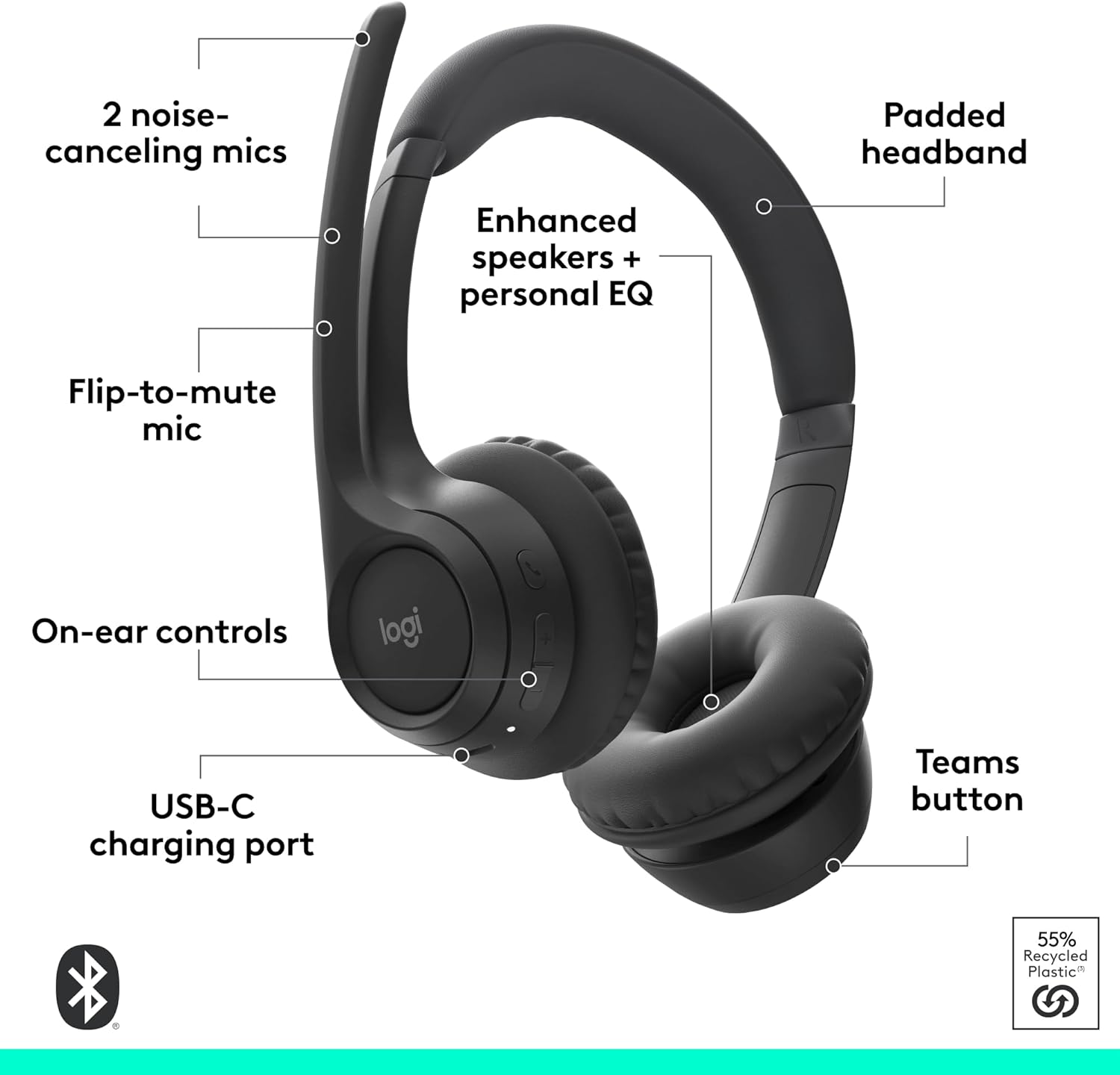
Figure 1: Key features of the Logitech Zone 305 headset.
2. What's in the Box
Upon unboxing your Logitech Zone 305 headset, you should find the following components:
- Logitech Zone 305 Wireless Headset
- USB-C Charging Cable
- Protective Case / Travel Bag
- User Manual (this document)
- Ear Cushions (pre-installed or as spares)

Figure 2: Contents included with the Logitech Zone 305 headset.
3. Setup and Connection
3.1 Initial Charging
Before first use, fully charge your headset using the provided USB-C cable. Connect the USB-C end to the headset's charging port and the other end to a compatible USB power source. A 5-minute quick charge provides up to 1 hour of talk time, while a full charge offers up to 20 hours of listening time or 16 hours of talk time.

Figure 3: Charging the Logitech Zone 305 headset.
3.2 Bluetooth Pairing
The Zone 305 connects via native Bluetooth 5.3, allowing for a strong signal up to 30 meters (98 feet) away. It can connect to two devices simultaneously.
- Turn on the headset by pressing and holding the power button until the LED indicator flashes.
- On your device (computer, smartphone, tablet), navigate to the Bluetooth settings.
- Select "Logitech Zone 305" from the list of available devices to pair.
- The LED indicator on the headset will turn solid when successfully paired.
For advanced settings and firmware updates, download the Logitech Tune app on your computer.
Video 1: A user demonstrating the Logitech Zone 305 headset, highlighting its compatibility with various devices and platforms, lightweight design, dual omnidirectional microphones, and battery life. The video also shows the flip-to-mute microphone feature.
4. Operating Instructions
4.1 On-Ear Controls
The headset features intuitive buttons on the earcups for easy management of calls and audio playback:
- Volume Up/Down: Adjust audio levels.
- Call Answer/End: Press to accept or conclude a call.
- Microsoft Teams Button: Dedicated button for quick access to Teams functions.
- Power Button: Turns the headset on/off and initiates Bluetooth pairing.
4.2 Microphone Usage
The adjustable boom microphone features dual noise-canceling mics to ensure your voice is captured clearly while suppressing background noise.
- Flip-to-Mute: Lifting the microphone boom upwards automatically mutes your microphone. Lowering it unmutes the microphone.
- Microphone Positioning: For optimal voice clarity, position the microphone approximately two fingers' width from your mouth.

Figure 4: Dual noise-canceling microphones on the boom.
5. Maintenance and Care
To ensure the longevity and optimal performance of your Logitech Zone 305 headset, follow these maintenance guidelines:
- Cleaning: Use a soft, dry cloth to clean the headset. Avoid abrasive cleaners or solvents.
- Storage: When not in use, store the headset in its protective case to prevent dust and damage.
- Earpads: The earpads are replaceable, allowing for extended product life and hygiene. Refer to Logitech's support website for replacement instructions and parts.
- Charging: Always use the provided USB-C cable for charging. Avoid exposing the headset to extreme temperatures or moisture.
6. Troubleshooting
If you encounter issues with your Logitech Zone 305 headset, refer to the following common troubleshooting steps:
6.1 Connectivity Issues
- Headset Not Pairing: Ensure the headset is in pairing mode (flashing LED). Turn off and on your device's Bluetooth, then try pairing again.
- Intermittent Connection: Move closer to your connected device to ensure you are within the 30-meter Bluetooth range. Avoid obstacles that may interfere with the signal.
- Unable to Connect to Second Device: Ensure the headset is not actively connected to another device or that the previous connection is stable before attempting to pair with a second device.
6.2 Audio Quality Problems
- Low Volume: Adjust the volume using the on-ear controls and your device's volume settings.
- Unclear Microphone Audio: Ensure the microphone boom is properly positioned near your mouth. Check that the microphone is not muted (boom down position).
- Background Noise: While the headset has noise-canceling mics, excessive ambient noise can still be picked up. Try to use the headset in a quieter environment if possible. Ensure your communication software (e.g., Microsoft Teams) has its own noise suppression settings enabled.
6.3 Battery and Charging
- Headset Not Charging: Verify the USB-C cable is securely connected to both the headset and the power source. Try a different USB port or power adapter.
- Short Battery Life: Ensure the headset is fully charged before use. Battery life can vary based on usage patterns and volume levels.
7. Specifications
| Feature | Specification |
|---|---|
| Brand | Logitech |
| Model Name | Zone 305 |
| Model Number | 981-001457 |
| Connectivity Technology | Wireless (Bluetooth) |
| Wireless Technology | Bluetooth 5.0 |
| Bluetooth Range | Up to 30 Meters |
| Ear Placement | On Ear |
| Microphone | Dual Noise-Canceling, Flip-to-Mute Boom |
| Battery Life (Listening) | Up to 20 Hours |
| Battery Life (Talk Time) | Up to 16 Hours |
| Quick Charge | 5 minutes for 1 hour talk time |
| Weight | 122 Grams |
| Compatible Devices | Desktops, Laptops (Windows, Mac, Chrome, Linux, iOS, iPadOS, Android) |
| Material | Plastic (55% Post-Consumer Recycled) |
| Frequency Range | 100-7000 Hz |
8. Warranty and Support
8.1 Product Warranty
The Logitech Zone 305 headset comes with a 1-Year Limited Hardware Warranty from Logitech. This warranty covers defects in materials and workmanship under normal use. For specific terms and conditions, please refer to the warranty information provided with your product or visit the official Logitech support website.
Additionally, extended protection plans may be available for purchase:
- 2-Year Protection Plan
- 3-Year Protection Plan
8.2 Customer Support
For technical assistance, troubleshooting, or warranty claims, please contact Logitech customer support through their official website. You can also utilize the Logitech Tune app for device management and firmware updates.


