
THOMSON TDF-1002
THOMSON Digital Photo Frame 10.1 Inch WiFi User Manual
Model: TDF-1002
Introduction
This manual provides comprehensive instructions for setting up, operating, and maintaining your THOMSON Digital Photo Frame 10.1 Inch WiFi. Please read this manual carefully before using the device to ensure proper functionality and longevity.
The THOMSON Digital Photo Frame is designed to display your precious memories with ease. Featuring a 10.1-inch HD IPS touch screen, internal battery, and 32GB memory, it offers a convenient way to share photos, music, and videos with family and friends.

Figure 1: THOMSON Digital Photo Frame 10.1 Inch WiFi in use, showing its touch screen and app connectivity.
Setup
1. Unboxing and Initial Charge
Carefully remove the digital photo frame and all accessories from the packaging. Before first use, it is recommended to fully charge the device using the provided power adapter. The built-in 3800mAh battery allows for portable use.

Figure 2: Rear view of the digital photo frame, illustrating the internal battery for untethered use.
2. Connecting to Wi-Fi
- Power on the photo frame.
- Navigate to the settings menu on the touch screen.
- Select "Wi-Fi" and choose your network from the list.
- Enter your Wi-Fi password and connect.
A stable Wi-Fi connection (2.4GHz or 5GHz) is essential for sharing photos and accessing online features like weather and calendar.
3. Installing the Thomson Smart Frame App
To easily share photos and videos from your smartphone, download the "Thomson Smart Frame" app. It is available on both iOS and Android app stores.
- Search for "Thomson Smart Frame" in your device's app store.
- Download and install the app.
- Follow the in-app instructions to pair your smartphone with the digital photo frame.

Figure 3: The Thomson Smart Frame app facilitates wireless sharing of memories from your mobile device.
Operating Instructions
1. Touch Screen Navigation
The 10.1-inch HD IPS touch screen allows for intuitive control. Tap to select, swipe to navigate, and pinch-to-zoom on photos. The interface is designed for ease of use, even for elderly users and children.
2. Photo and Video Playback
The frame supports playback of photos, music, and videos. You can upload media directly to the built-in 32GB memory or use an SD/SDHC/MMC card or USB drive (up to 256GB) for expanded storage.

Figure 4: The frame offers ample internal storage and supports external memory cards and USB drives.
3. Slideshow Customization
Customize your slideshow experience by adjusting speed, transition effects, and background music. Access these settings through the frame's menu.
4. Auto-Rotation Function
The frame features an auto-rotation function that automatically adjusts the display orientation (horizontal or vertical) based on how the frame is positioned. This ensures optimal viewing regardless of placement.
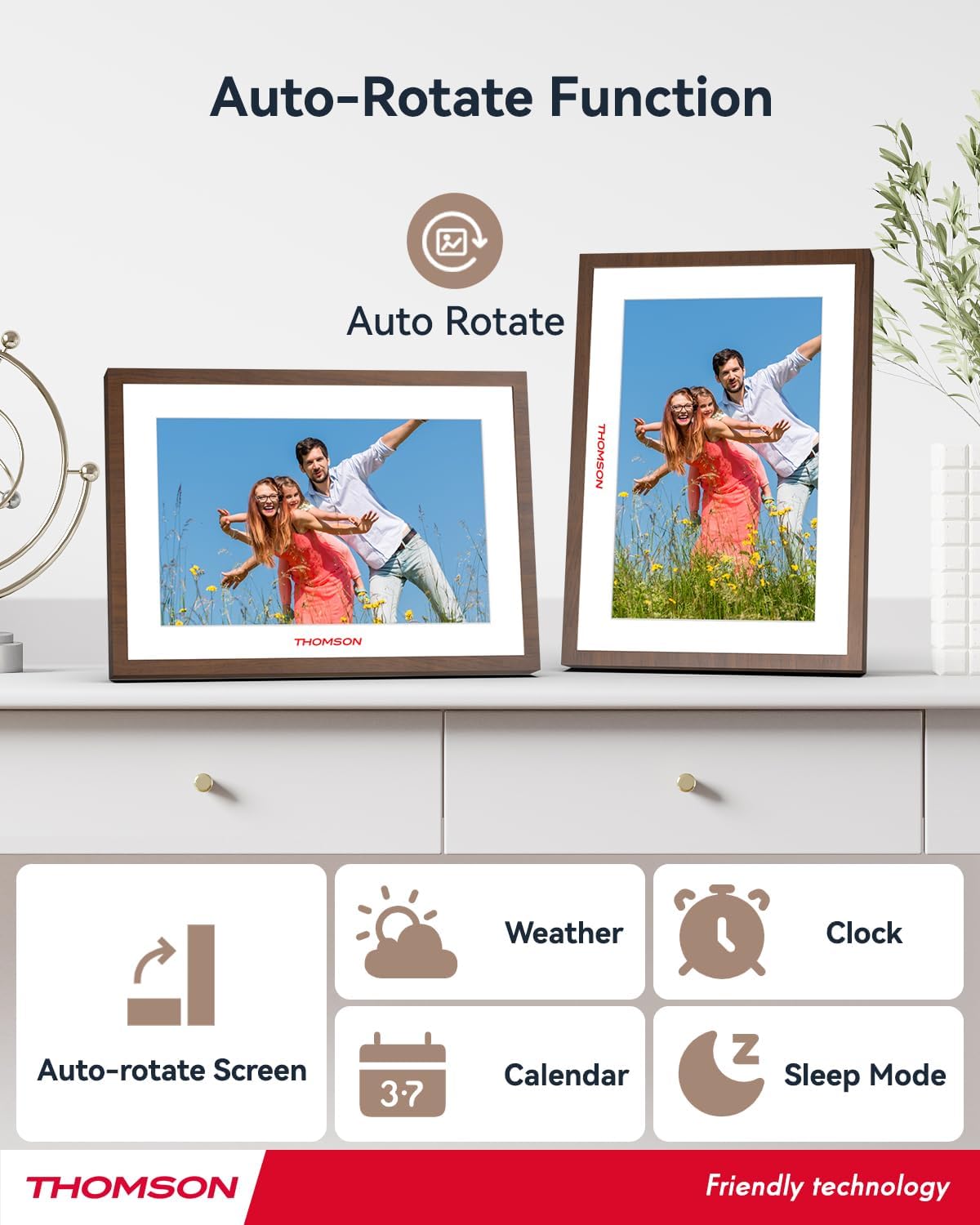
Figure 5: The auto-rotate feature ensures photos are always displayed in the correct orientation.
5. Additional Features
- Adjustable Brightness: Modify screen brightness to suit your environment.
- Calendar, Clock, and Weather: Access these functions via Wi-Fi connection for real-time updates.
- Sleep Mode: Configure the frame to enter sleep mode during specified times to save power.

Figure 6: Key features of the THOMSON Digital Photo Frame.
Maintenance
1. Cleaning the Screen and Frame
To clean the IPS touch screen, gently wipe it with a soft, lint-free cloth. For stubborn smudges, slightly dampen the cloth with water or a screen-safe cleaning solution. Avoid using harsh chemicals or abrasive materials. Clean the frame's plastic and walnut surfaces with a dry or slightly damp cloth.
2. Software Updates
Periodically check for software updates through the frame's settings menu. Updates can improve performance, add new features, and enhance security. Ensure the frame is connected to Wi-Fi and has sufficient battery charge before initiating an update.
3. Battery Care
To prolong the life of the built-in 3800mAh battery, avoid fully discharging it frequently. If storing the frame for an extended period, charge it to approximately 50% before storage and recharge every few months.
Troubleshooting
| Problem | Possible Cause | Solution |
|---|---|---|
| Frame does not power on. | Low battery or power adapter issue. | Connect the power adapter and allow it to charge for at least 30 minutes. Ensure the adapter is securely connected. |
| Cannot connect to Wi-Fi. | Incorrect password, out of range, or network issue. | Double-check the Wi-Fi password. Move the frame closer to the router. Restart your router and the photo frame. Ensure you are connecting to a 2.4GHz or 5GHz network. |
| Photos not appearing or loading slowly. | Large file sizes, network congestion, or storage issues. | Ensure stable Wi-Fi for cloud transfers. Check available internal memory or external storage. Optimize photo sizes if transferring manually. |
| Touch screen unresponsive. | Temporary software glitch or screen dirt. | Restart the photo frame. Clean the screen with a soft, dry cloth. |
| Auto-rotation not working. | Sensor obstruction or software issue. | Ensure the frame is on a flat, stable surface. Restart the device. Check settings to ensure auto-rotation is enabled. |
For further assistance, refer to the "Thomson Smart Frame" app's help section or visit the official THOMSON support website.
Specifications
| Feature | Detail |
|---|---|
| Model Number | TDF-1002 |
| Screen Size | 10.1 Inches |
| Display Resolution | 1280x800 HD IPS |
| Internal Memory | 32GB |
| Expandable Storage | SD/SDHC/MMC cards or USB drives up to 256GB |
| Connectivity | Wi-Fi (2.4GHz, 5GHz), DC-4.0/USB-A/Type-C/USB/SD Card/3.5MM |
| Battery Capacity | 3800mAh |
| Human Interface Input | Touchscreen |
| Aspect Ratio | 16:10 |
| Product Dimensions | 28 x 19.9 x 2.51 cm |
| Weight | 640 g |
| Frame Material | Plastic |
| Compatible Devices | Android and iOS smartphones (via Thomson Smart Frame App) |
Warranty and Support
For information regarding product warranty, please refer to the warranty card included in your product packaging or visit the official THOMSON website. Support resources, including FAQs and contact information, can also be found on the manufacturer's website or within the "Thomson Smart Frame" application.
Always ensure you are using official support channels for assistance.
Ask a question about this manual
Ask about setup, troubleshooting, compatibility, parts, safety, or missing instructions. Manuals+ will review the question and use this page’s manual context to help answer it.