
1. Introduction
This manual provides essential information for the setup, operation, and maintenance of your ZZA 27-inch 1080P 200Hz Curved Gaming Monitor. Please read this manual thoroughly before using the product to ensure proper functionality and safety.

Image 1.1: Front view of the ZZA 27-inch curved gaming monitor.
The ZZA 27-inch 1080P 200Hz Curved Gaming Monitor features a VA panel with an 1800R curvature, designed to provide an immersive viewing experience. It offers a 200Hz refresh rate and 1ms response time, complemented by FreeSync technology for smooth visuals. The monitor supports FHD 1080P resolution, has an adjustable angle, and is VESA compatible for flexible mounting options.
2. Safety Information
Observe the following safety precautions to prevent damage to the monitor and ensure user safety:
- Do not expose the monitor to rain or moisture to avoid fire or electric shock hazards.
- Do not open the monitor casing. There are no user-serviceable parts inside. Refer all servicing to qualified personnel.
- Place the monitor on a stable, flat surface to prevent it from falling.
- Ensure proper ventilation around the monitor. Do not block ventilation openings.
- Use only the power adapter and cables supplied with the monitor.
- Disconnect the power cable from the outlet during lightning storms or when unused for extended periods.
3. Package Contents
Verify that all items are present in the package:
- ZZA 27-inch Curved Gaming Monitor
- Monitor Stand (Base and Neck)
- Power Adapter and Cable
- DisplayPort (DP) Cable
- User Manual
4. Setup
4.1 Assembling the Stand
- Carefully remove the monitor from its packaging, keeping it protected on a soft surface.
- Attach the stand neck to the monitor panel.
- Secure the stand base to the stand neck using the provided screws.
4.2 Connecting Cables
Connect the necessary cables to the monitor and your computer or gaming console.

Image 4.1: Rear view of the monitor with available ports.
- Power Cable: Connect the power adapter to the monitor's power input, then plug the power cable into a wall outlet.
- DisplayPort (DP) Cable: For optimal performance (200Hz refresh rate), connect the included DP cable from your computer's graphics card to the monitor's DisplayPort input.
- HDMI Cable (Optional): Connect an HDMI cable from your device to the monitor's HDMI input for alternative connectivity.
- Audio Output (Optional): Connect external speakers or headphones to the 3.5mm audio output jack. Note: This monitor does not have built-in speakers.
4.3 Initial Power-On
Press the power button located on the monitor to turn it on. The monitor will automatically detect the input signal. If no signal is detected, ensure all cables are securely connected and your device is powered on.
5. Operating Instructions
5.1 On-Screen Display (OSD) Menu
The OSD menu allows you to adjust various monitor settings. Use the control buttons (typically located on the back or bottom of the monitor) to navigate the menu.
- Menu Button: Press to open the OSD menu.
- Navigation Buttons: Use to move through menu options.
- Enter/Select Button: Confirm a selection or enter a sub-menu.
- Exit Button: Exit the current menu or OSD.
5.2 Display Settings
- Brightness/Contrast: Adjust these settings to optimize image visibility.
- Color Temperature: Select from preset modes (e.g., Warm, Cool, User) or adjust RGB values manually.
- Picture Mode: Choose from various modes optimized for different content (e.g., Standard, Game, Movie).
- Aspect Ratio: Set the display aspect ratio (e.g., 16:9, 4:3).
5.3 Gaming Features

Image 5.1: Visual representation of 200Hz refresh rate performance.
- Refresh Rate: The monitor supports up to 200Hz refresh rate. Ensure your graphics card and cable support this setting. Adjust in your operating system's display settings.
- Response Time: The monitor features a 1ms GTG response time, reducing motion blur in fast-paced scenes.

Image 5.2: Demonstration of AMD FreeSync technology reducing screen tearing.
- AMD FreeSync Technology: This technology synchronizes the monitor's refresh rate with your graphics card's frame rate, eliminating screen tearing and stuttering. Enable FreeSync in the OSD menu and your graphics card's control panel.
5.4 Ergonomic Adjustments
The monitor allows for angle adjustment from -5° to 15° (±2°) to help reduce fatigue during prolonged use.
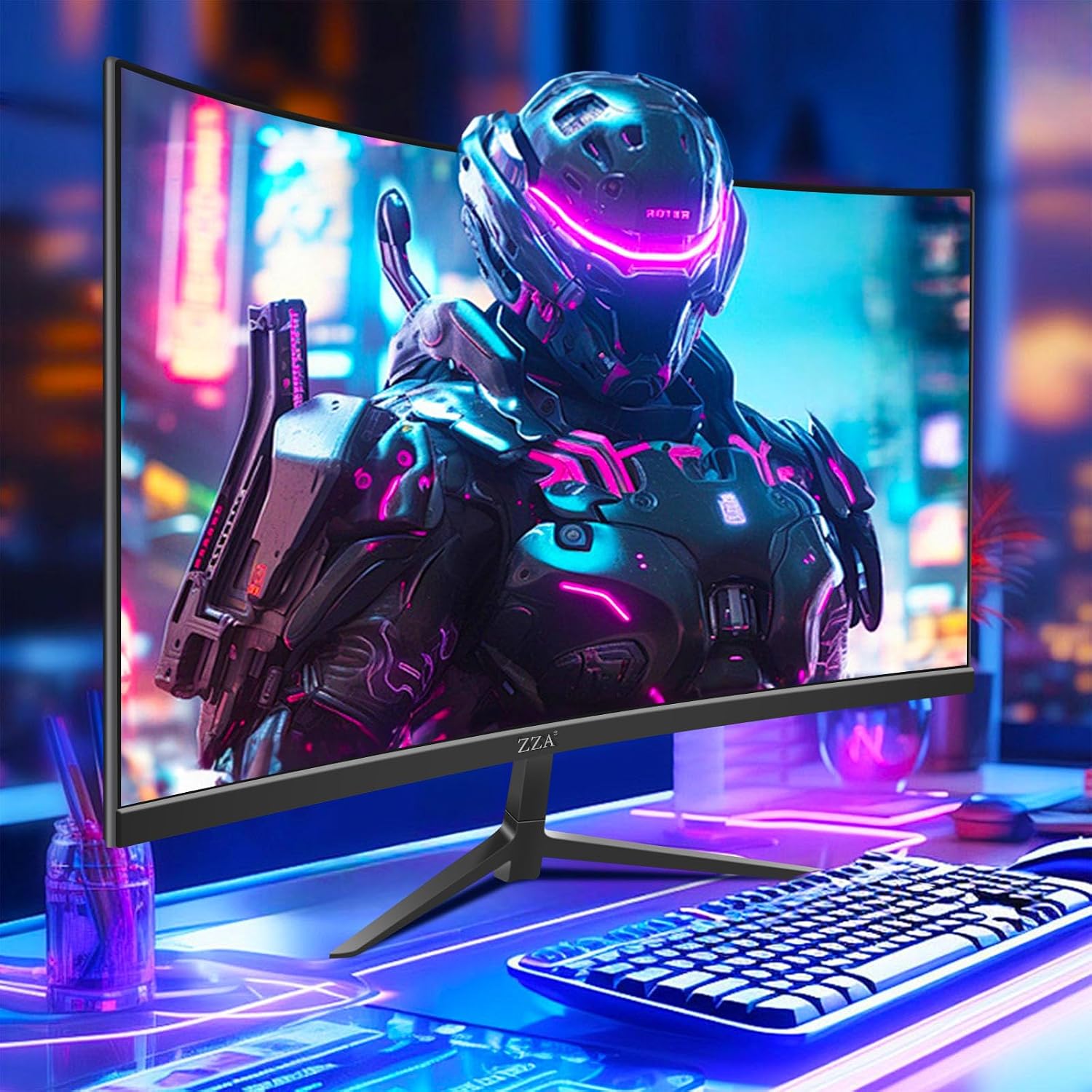
Image 5.3: ZZA monitor in a typical desk setup.
6. Maintenance
6.1 Cleaning the Monitor
- Always unplug the monitor before cleaning.
- Use a soft, lint-free cloth lightly dampened with water or a mild, non-abrasive screen cleaner.
- Do not spray cleaner directly onto the screen.
- Avoid using harsh chemicals, abrasives, or solvents.
6.2 General Care
- Keep the monitor away from direct sunlight and heat sources.
- Avoid placing heavy objects on the monitor or its cables.
- Do not block the ventilation slots.
7. Troubleshooting
If you encounter issues with your monitor, refer to the following common problems and solutions:
| Problem | Possible Cause | Solution |
|---|---|---|
| No image on screen | Power cable disconnected; Signal cable disconnected; Incorrect input source selected. | Check power and signal cable connections; Ensure the correct input source (HDMI/DP) is selected via the OSD menu. |
| Image flickering or unstable | Loose signal cable; Graphics card driver issue; FreeSync setting. | Secure the signal cable; Update graphics card drivers; Try disabling FreeSync temporarily to see if the issue persists. |
| Colors appear incorrect | Color settings in OSD; Graphics card settings. | Reset color settings to default in the OSD menu; Adjust color settings in your operating system or graphics card control panel. |
| Monitor does not turn on | Power cable disconnected; Faulty power adapter. | Ensure the power cable is securely connected to both the monitor and the power outlet; Test the outlet with another device. |
If the problem persists after trying these solutions, please contact ZZA customer support.
8. Specifications
Detailed technical specifications for the ZZA 27-inch 1K 200HZ Gaming Monitor:
| Feature | Specification |
|---|---|
| Screen Size | 27 Inches |
| Panel Type | VA |
| Curvature | 1800R |
| Resolution | 1920 x 1080 (FHD 1080p) |
| Aspect Ratio | 16:9 |
| Refresh Rate | 200Hz |
| Response Time | 1ms GTG |
| Brightness | 250 cd/m² |
| Contrast Ratio | 3000:1 (Static) |
| Color Gamut | 95% sRGB |
| Color Support | 16.7 Million Colors |
| Viewing Angle | Not specified, typical for VA panels |
| Connectivity | 1x HDMI, 1x DisplayPort 1.4, 1x Audio Out |
| VESA Compatibility | 100mm x 100mm |
| Adjustability | Tilt (-5° to 15° ±2°) |
| Features | AMD FreeSync, Flicker-Free, Low Blue Light |
| Item Weight | 10.23 pounds |
| Package Dimensions | 27.4 x 17.3 x 5 inches |
9. Warranty and Support
ZZA is committed to providing high-quality computer monitors and premium services. For any questions or assistance, please contact ZZA customer support. We are available to assist you 24 hours a day.
Please refer to your purchase documentation for specific warranty terms and conditions.

Image 9.1: ZZA brand commitment.