
Product Overview
The Atomos Ninja Phone is a 10-bit video co-processor designed to enhance your professional video workflow. It allows you to record from professional HDMI cameras and monitor video directly on your iPhone's display. The device supports encoding to ProRes or H.265 formats and offers versatile connectivity with HDMI input, USB-C video output, and dedicated USB-C accessory and power ports. It is compatible with NP-F type batteries or battery eliminators for extended operation and supports capturing footage in both 16:9 and 9:16 aspect ratios via the Ninja Phone iPhone App.
What's in the Box
- Atomos Ninja Phone Video Co-Processor
- NP-F770 Lithium-Ion Battery Pack
- Compact AC/DC Charger
- Screen Cleaning Wipes
- USB-C Video Cable
- USB-C Power Cable
Setup
1. Attaching the Ninja Phone to Your Camera
The Ninja Phone is designed to mount onto your camera rig. It typically attaches via a cold shoe mount or a 1/4"-20 screw. Ensure the mounting is secure to prevent accidental detachment during use.

Image: Atomos Ninja Phone securely mounted on a camera, displaying the camera's feed on an attached iPhone.
2. Connecting to Your iPhone
The Ninja Phone integrates with your iPhone via a USB-C connection. Slide your iPhone into the dedicated slot on the Ninja Phone. Ensure the USB-C connector is properly aligned and inserted for a stable connection.
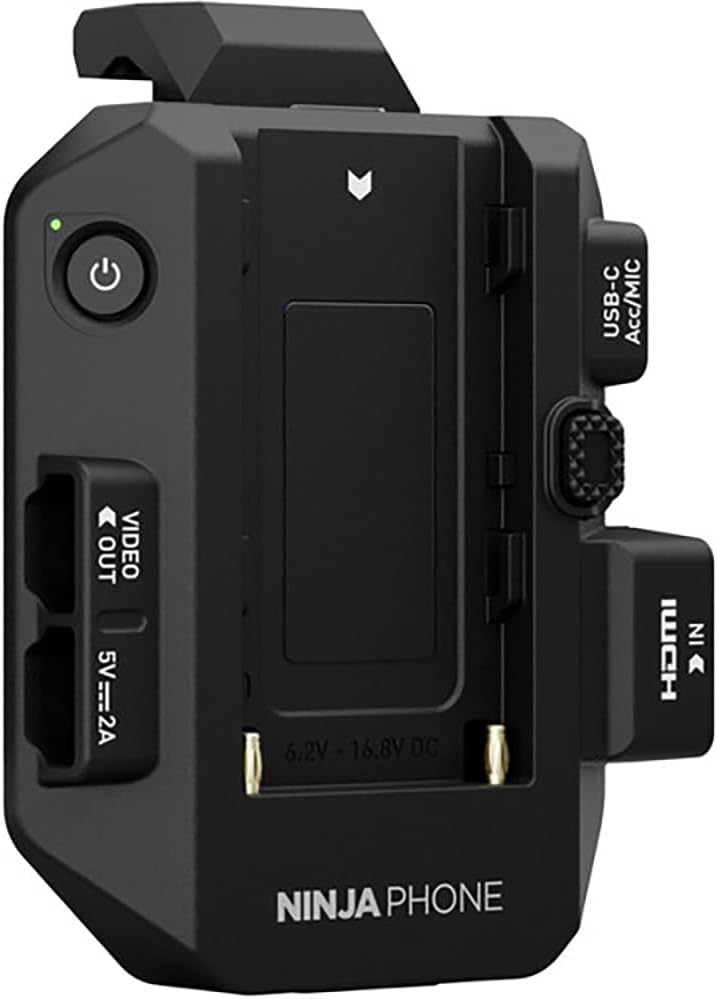
Image: An iPhone connected to the Atomos Ninja Phone, showing the live video feed from a camera.
3. Powering the Ninja Phone
The Ninja Phone can be powered using the included NP-F770 Lithium-Ion Battery Pack or a compatible battery eliminator. Insert the battery into the designated battery slot on the rear of the Ninja Phone. Alternatively, use the USB-C Power Port for continuous power.
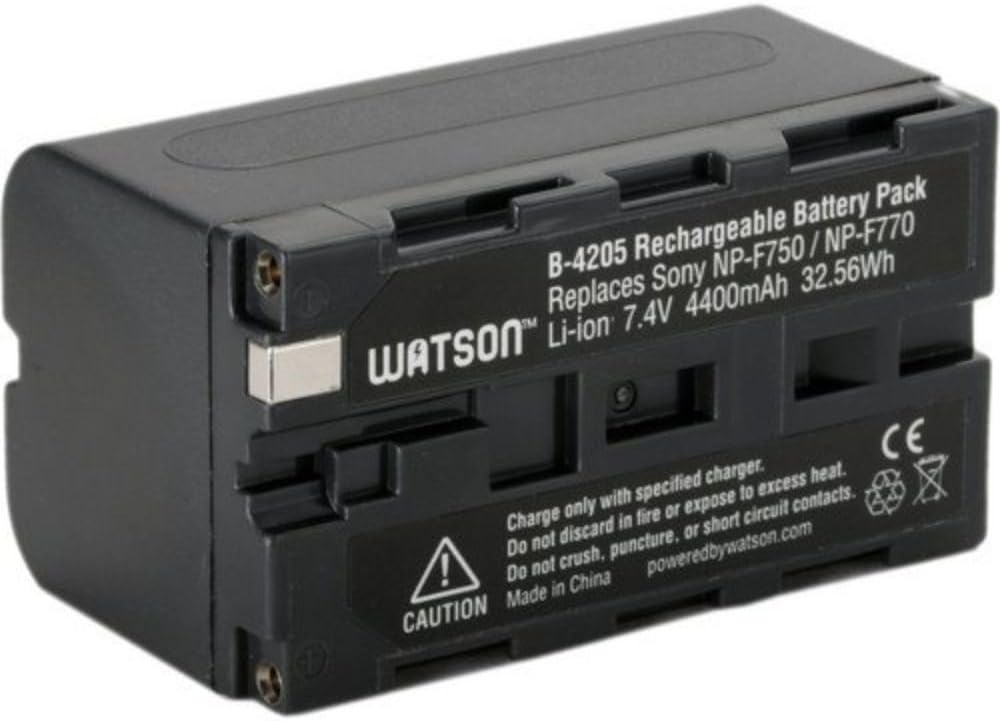
Image: A Watson NP-F770 Lithium-Ion Battery Pack, used to power the Ninja Phone.

Image: A compact AC/DC charger for NP-F type batteries.
4. HDMI Input Connection
Connect your professional HDMI camera to the Ninja Phone's HDMI input port using a compatible HDMI cable. This port receives the video signal from your camera for processing and display on your iPhone.
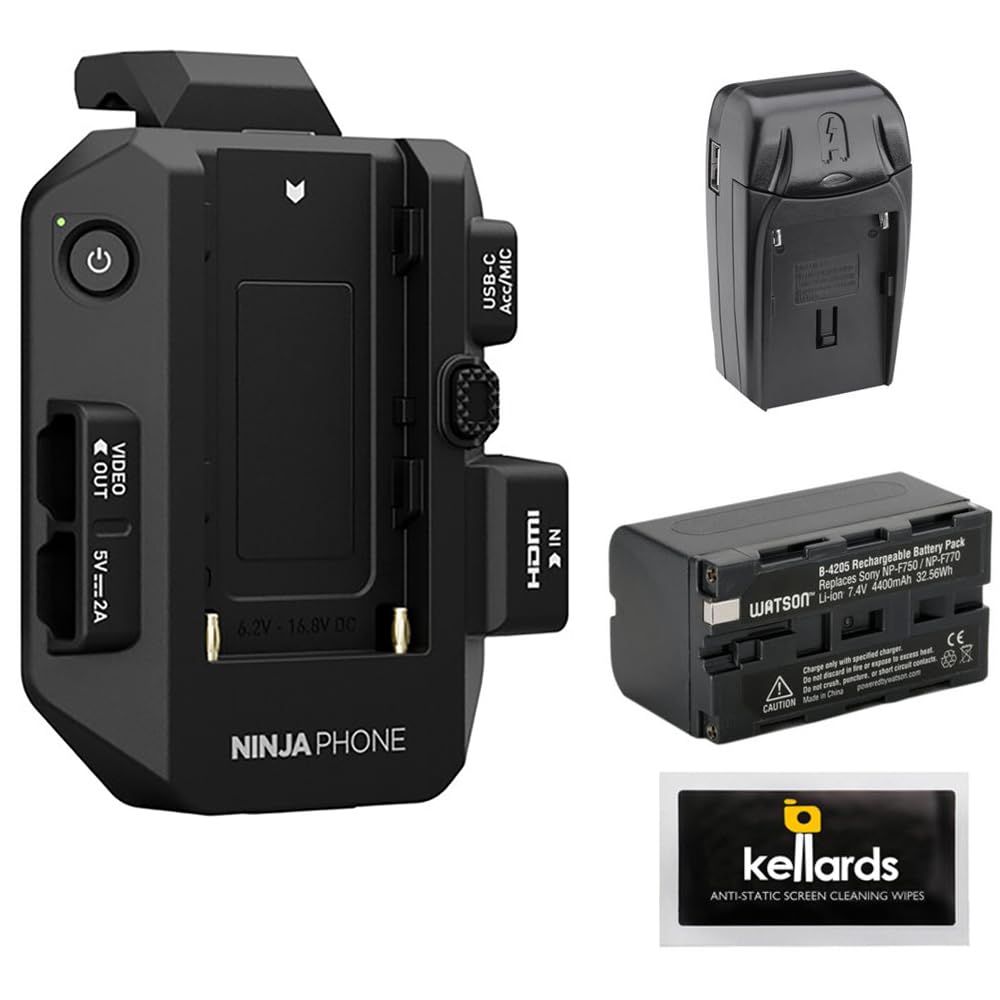
Image: Top-down view of the Atomos Ninja Phone, highlighting the HDMI IN port on the right side.
Operating
1. Using the Ninja Phone iPhone App
Download and install the dedicated Ninja Phone iPhone App from the App Store. This app is your primary interface for controlling the co-processor, monitoring your feed, and accessing recording features. The app allows you to encode video to ProRes or H.265 and capture footage in various aspect ratios.
2. Monitoring and Recording
Once connected, your iPhone will display the live feed from your camera. The app provides monitoring tools such as waveforms, focus peaking, and zebra patterns to assist with exposure and focus accuracy. You can initiate and stop recording directly from the app interface.
Video: A demonstration of the Atomos Ninja Phone connected to a Canon camera, showing the live feed and controls on the iPhone app. This video illustrates the monitoring capabilities and ease of use for recording.
3. 10-Bit Video Co-Processing
The Ninja Phone acts as a 10-bit video co-processor, allowing for high-quality recording from professional HDMI cameras. This ensures superior color depth and detail in your captured footage, suitable for professional post-production workflows.
Maintenance
1. Cleaning
Regularly clean the Ninja Phone's screen and body using the provided screen cleaning wipes or a soft, lint-free cloth. Avoid abrasive materials or harsh chemicals that could damage the device. Ensure all ports are free from dust and debris.

Image: Kellards Anti-Static Screen Cleaning Wipes, suitable for maintaining the Ninja Phone's display.
2. Battery Care
Store NP-F770 batteries in a cool, dry place. Charge them fully before extended use and avoid completely draining them to prolong battery life. Use only the provided compact AC/DC charger or a compatible alternative.
3. Firmware Updates
Periodically check the Atomos website or the Ninja Phone app for firmware updates. Keeping your device's firmware up-to-date ensures optimal performance, new features, and bug fixes.
Troubleshooting
No Video Signal on iPhone
- Ensure the HDMI cable is securely connected between your camera and the Ninja Phone.
- Verify that your camera's HDMI output is active and configured correctly.
- Check the USB-C connection between the Ninja Phone and your iPhone.
- Confirm the Ninja Phone app is open and running on your iPhone.
Power Issues
- Ensure the NP-F770 battery is fully charged and correctly inserted.
- If using external power, verify the USB-C power cable is connected to a reliable power source.
- Check the power indicator light on the Ninja Phone.
App Not Responding
- Close and restart the Ninja Phone app.
- Restart your iPhone.
- Ensure your iPhone's operating system is up-to-date.
Specifications
- Video Co-Processor: 10-Bit
- Recording Formats: ProRes, H.265
- Inputs: HDMI, USB-C (Accessory, Power)
- Outputs: USB-C (Video)
- Power Source: NP-F Type Battery / Battery Eliminator
- Supported Aspect Ratios: 16:9, 9:16
- Item Weight: 2.05 pounds
- Package Dimensions: 8.19 x 6.69 x 6.42 inches
- Manufacturer: Atomos
Warranty and Support
For warranty information and technical support, please refer to the official Atomos website or contact their customer service directly. Keep your purchase receipt for warranty claims.


