
1. Introduction
Thank you for choosing the FERIETELF T6 1080P HD RC Drone. This manual provides essential information for safe operation, setup, and maintenance of your drone. The T6 drone is designed for both kids and beginners, featuring easy-to-use controls and stable flight capabilities.
Key features include:
- 1080P HD Camera for clear photo and video capture.
- Altitude Hold for stable hovering.
- Headless Mode for simplified control.
- 360° Flip function for exciting aerial maneuvers.
- Gravity Sensor for intuitive smartphone control.
- Durable, non-folding design for enhanced stability and wind resistance.
- Child Protection Module Battery for safe handling.

Figure 1.1: FERIETELF T6 Drone and included accessories.
2. Package Contents
Please verify that all items are present in your package:
- FERIETELF T6 Drone × 1
- Remote Controller × 1
- Rechargeable Battery × 2
- Protection Bracket × 4
- Pair of Spare Propellers × 1
- Spare Propeller Cap × 4
- Battery Charging Cable × 1
- Screwdriver × 1
- User Manual × 1
- App Software Instruction Manual × 1
3. Setup
3.1 Battery Installation (Drone)
The T6 drone features a Press-Push Child Protection Module Battery. To install or remove the battery, you must firmly press on the snap part at the end of the battery module with your thumb and simultaneously push it into the battery compartment. Important: Pushing directly into the battery without pressing the snap will result in damage to the battery slot.
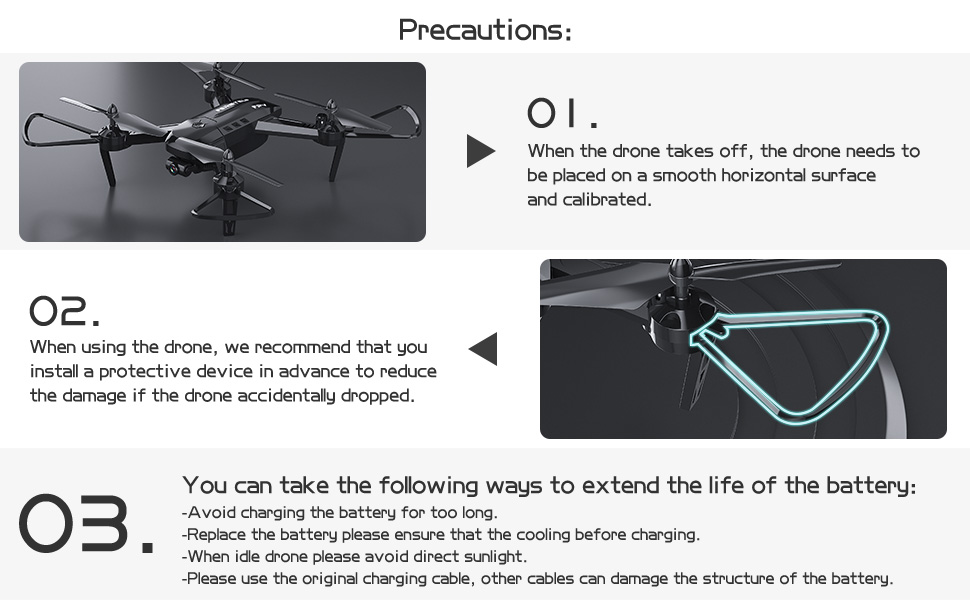
Figure 3.1: Correct battery installation method.
Video 3.1: Official guide for T6 drone battery installation.
3.2 Propeller and Protection Bracket Installation
Attach the protection brackets to each motor arm to prevent damage during collisions. Ensure propellers are securely fastened according to the markings (A/B) on the propellers and motor arms.
3.3 Remote Controller Setup
Insert 3 AAA batteries (not included) into the remote controller. Power on the controller. The indicator light will blink, awaiting connection to the drone.
3.4 App Installation and Wi-Fi Connection
Download the dedicated FPV app for your smartphone (refer to the App Software Instruction Manual for details). Turn on the drone. On your smartphone, connect to the drone's Wi-Fi network (e.g., 'KY1080' followed by a serial number). Once connected, open the app to establish a live video feed and control interface.
Video 3.2: Comprehensive guide on setting up and connecting the T6 drone.
4. Operating Instructions
4.1 Pre-Flight Calibration
Before every take-off, and after the drone has tipped on its side, it must be recalibrated. Place the drone on a smooth, horizontal surface. Follow the calibration steps outlined in the App Software Instruction Manual. Failure to calibrate on a level surface will cause the drone to fly diagonally and become uncontrollable, leading to potential loss.
4.2 Take-off and Landing
Press the “One Key Start/Landing” button on the remote controller or in the app, and the drone will automatically take off or land.
4.3 Flight Modes and Controls
- Altitude Hold: The drone can automatically hover at a certain height, ensuring stable flight, especially in low wind conditions. Use the trim buttons on the remote if the drone tilts.
- 360° Flip: Press the dedicated flip button and control the right joystick to perform a 360° rotation in the air.
- Speed Modes: The drone offers 3 flight speed modes. Low speed is recommended for children and beginners.
- Headless Mode: Simplifies flight by eliminating the need to adjust the drone's position before flying. The direction of the drone will be the same as the remote controller.
- Gravity Sensor: Enable gravity sensor mode in the app to control the drone's movement by tilting your smartphone.
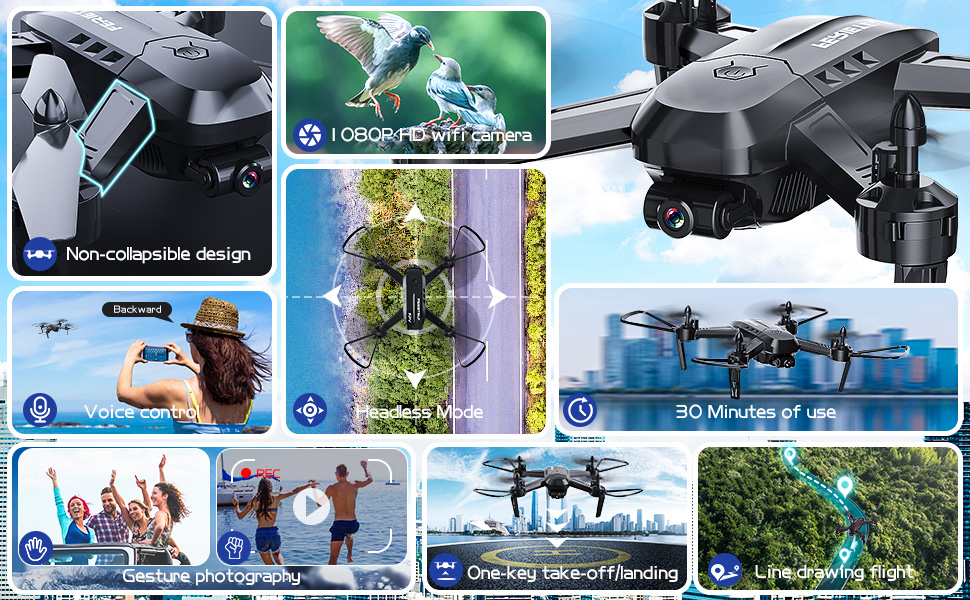
Figure 4.1: Overview of drone features and flight capabilities.
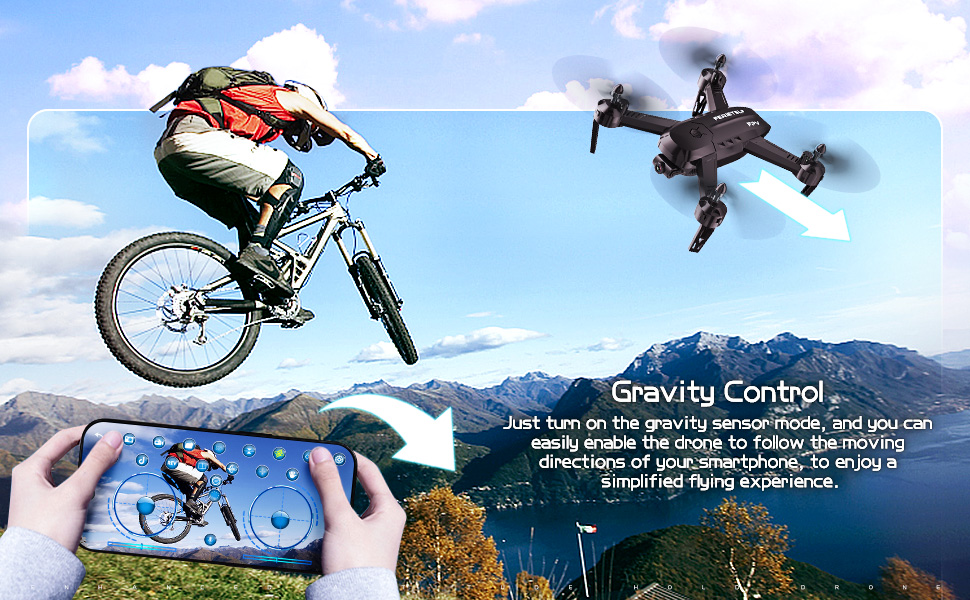
Figure 4.2: Gravity Control feature in action.
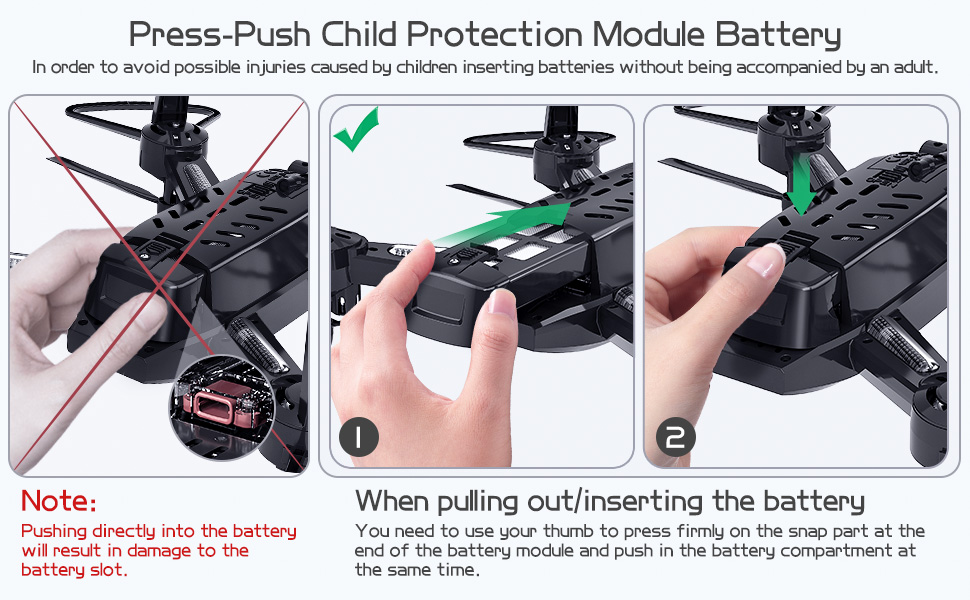
Figure 4.3: Visual representation of Altitude Hold, 360° Flip, and Low Battery Alarm.
4.4 Camera Operation
The drone is equipped with a 1080P HD camera. Pictures and videos taken by the camera will be stored directly on your mobile phone via the app. The camera angle is manually adjustable before flight to achieve desired shots (e.g., straight out for first-person view or angled down for aerial photography).
5. Maintenance
5.1 Battery Care
- Avoid charging the battery for too long.
- Ensure the battery cools down before recharging.
- When the drone is idle, avoid direct sunlight exposure to the battery.
- Always use the original charging cable. Using other cables may damage the battery structure.
- The battery pack includes charge over-expansion protection for safer charging.
5.2 General Care
The drone has a non-folding design, which increases the fuselage's force area and weight, contributing to more stable altitude maintenance and stronger wind resistance. For added protection, it is recommended to install the included protection brackets to reduce damage from accidental drops.
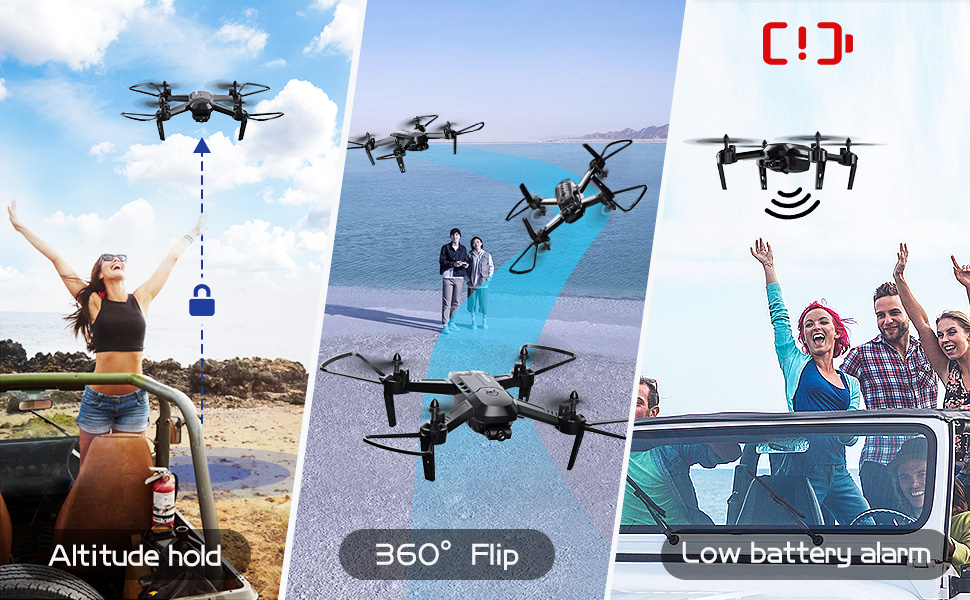
Figure 5.1: Important precautions for drone operation and care.
6. Troubleshooting
- Drone flies diagonally or is uncontrollable: Ensure the drone is calibrated on a level surface before take-off. Recalibrate if it has tipped over.
- Low Battery Alert: If the battery of the transmitter or drone is low, the transmitter and drone lights will flash to sound the alarm. Land the drone immediately and recharge the batteries.
- Out of Control: The maximum remote control distance is 80 meters. Do not exceed this distance to prevent the drone from going out of control.
- No SD Card Function: The T6 drone does not support SD cards. All photos and videos are saved directly to your connected mobile phone.
- Unstable Hovering: If the drone tilts left or right during altitude hold, use the trim buttons on the remote controller to adjust and stabilize.
7. Specifications
| Feature | Specification |
|---|---|
| Brand | FERIETELF |
| Model Name | TY-T6 |
| Color | Black |
| Material | Plastic |
| Item Weight | 87 Grams (3.07 ounces) |
| Product Dimensions | 13.4"L x 8.6"W x 4.3"H |
| Video Capture Resolution | 1080p |
| Video Capture Format | MP4 |
| Supported Image Format | JPEG |
| Connectivity Technology | Wi-Fi |
| Remote Control Technology | Wi-Fi |
| Maximum Range | 0.08 Kilometers (80 meters) |
| Battery Capacity | 1200 Milliamp Hours (per battery) |
| Flight Time | 15 minutes per battery (total 40 minutes with 2 batteries) |
| Skill Level | Beginner |
8. Warranty and Support
For warranty information and technical support, please refer to the official FERIETELF website or contact the seller directly through your purchase platform. Keep your proof of purchase for any warranty claims.

