
1. Introduction
The CHERRY XTRFY M64 Wireless Gaming Mouse is engineered for competitive gaming, offering ultra-fast 8000 Hz polling rate technology for extremely low click latency and precise cursor movements. This ergonomic mouse features a reinvented design for enhanced grip and control, combined with a lightweight construction for swift and accurate gameplay. It utilizes a high-performance Pixart 3395 sensor and refined wireless technology to ensure uncompromised speed and responsiveness.
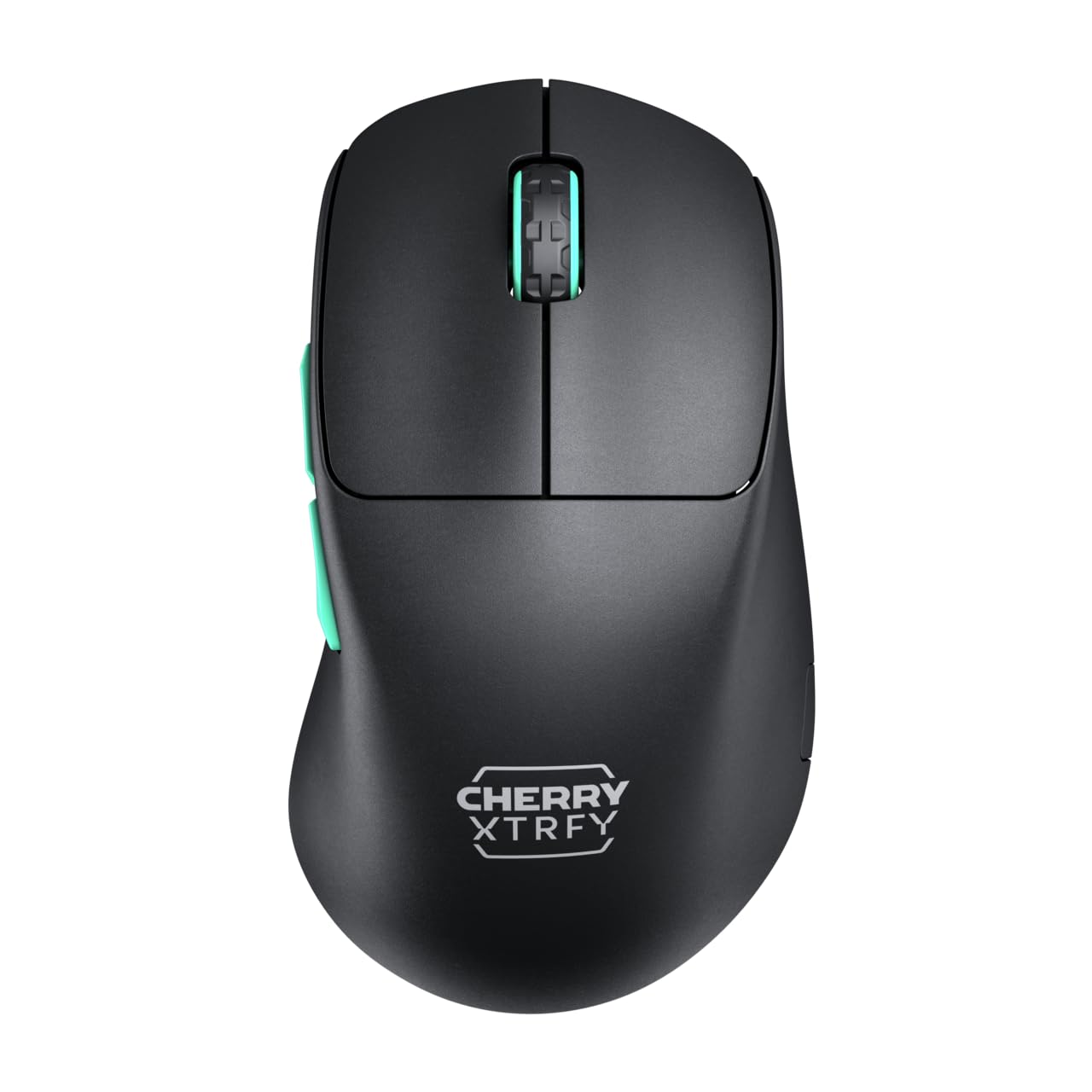
Image 1: CHERRY XTRFY M64 Wireless Gaming Mouse. This image shows the ergonomic design of the mouse, highlighting its black body and distinctive teal scroll wheel and side buttons.
2. Package Contents
Verify that all items are present in the package:
- CHERRY XTRFY M64 Wireless Gaming Mouse
- USB-C Charging Cable (flexible CHERRY XTRFY EZcord)
- USB-A Wireless Receiver
- USB-A to USB-C Adapter (for receiver extension)
- User Manual (this document)

Image 2: Included accessories. This image displays the USB-C charging cable, the USB-A wireless receiver, and an adapter, which are essential for connecting and charging the mouse.
3. Setup
- Connect the Wireless Receiver: Insert the USB-A wireless receiver into an available USB port on your computer. For optimal signal strength and reduced latency, use the provided USB-A to USB-C adapter and charging cable to position the receiver closer to the mouse.
- Power On the Mouse: Locate the power switch on the underside of the mouse and slide it to the "ON" position. The mouse should automatically connect to the receiver.
- Initial Charge: For first-time use, it is recommended to fully charge the mouse. Connect the USB-C end of the charging cable to the mouse and the USB-A end to your computer or a USB power adapter. The mouse can be used while charging.
4. Operating Instructions
4.1. Button Functions
- Left Click Button: Primary action.
- Right Click Button: Secondary action.
- Scroll Wheel: Scroll up/down, middle click.
- Side Buttons: Typically configured for forward/backward navigation in web browsers or custom functions in games.
4.2. DPI Adjustment
The M64 Wireless mouse allows for on-the-fly DPI (Dots Per Inch) adjustment without requiring software. The DPI button is located on the underside of the mouse. Press this button to cycle through preset DPI levels. An indicator light will typically change color to show the current DPI setting.

Image 3: Underside of the mouse. This view highlights the various switches and buttons on the bottom of the mouse, including the DPI adjustment button and polling rate switch.
4.3. Polling Rate Adjustment
The M64 Pro Wireless supports up to an 8000 Hz polling rate, providing extremely fast response times. A switch on the underside of the mouse allows you to select between different polling rates (e.g., 1000 Hz, 8000 Hz) to suit your preference and system capabilities. Refer to the markings on the mouse for specific settings.
4.4. Battery and Charging
The mouse is equipped with a rechargeable Lithium Ion battery. A full charge can provide up to 90 hours of playtime in Standard Gaming Mode. When the battery is low, the indicator light on the mouse will signal this condition. Connect the mouse using the provided USB-C cable to charge. You can continue using the mouse while it is connected via cable.
5. Maintenance
- Cleaning: Use a soft, dry cloth to clean the mouse surface. For stubborn dirt, a slightly damp cloth can be used, ensuring no liquid enters the mouse. Avoid harsh chemicals or abrasive materials.
- Storage: Store the mouse in a cool, dry place away from direct sunlight and extreme temperatures.
- Battery Care: To prolong battery life, avoid fully discharging the mouse frequently. Charge it when the low battery indicator appears.
6. Troubleshooting
- Mouse Not Responding:
- Ensure the mouse is powered on.
- Check if the wireless receiver is securely plugged into a USB port.
- Verify the mouse battery has sufficient charge.
- Try plugging the receiver into a different USB port.
- Ensure no other wireless devices are causing interference.
- Lag or Disconnects:
- Move the wireless receiver closer to the mouse, using the extension cable if necessary.
- Ensure there are no large metal objects or other strong wireless signals between the mouse and receiver.
- Reduce the polling rate if your system struggles to maintain 8000 Hz.
- Charging Issues:
- Ensure the USB-C cable is properly connected to both the mouse and the power source.
- Try a different USB port or power adapter.
7. Specifications
| Model | M64 Wireless |
| Connectivity Technology | Wireless (2.4 GHz), USB (for charging/wired use) |
| Sensor | Pixart 3395 |
| Polling Rate | Up to 8000 Hz (Pro models) |
| Weight | Approx. 55 grams (Pro Wireless) |
| Battery Type | 1 Lithium Ion battery (included) |
| Battery Life | Up to 90 hours (Standard Gaming Mode) |
| Dimensions (Package) | 4.7 x 2.5 x 1.5 inches |
| Item Weight | 1.94 ounces |
| Manufacturer | Cherry Xtrfy |
8. Warranty and Support
CHERRY XTRFY products are covered by a manufacturer's warranty. For detailed warranty information, technical support, or service inquiries, please visit the official CHERRY XTRFY website or contact their customer support directly.
Official Websites: cherryxtrfy.com, cherry.de


