1. Introduction
The XUDA Smart Carplay Pro Mini Wireless Adapter V11122B is a versatile 2-in-1 device designed to transform your car's wired CarPlay or Android Auto system into a wireless experience. This compact adapter enables seamless integration of your smartphone with your vehicle's infotainment system, supporting both Apple CarPlay and Android Auto wirelessly. Enjoy navigation, music, calls, and more directly from your car's display without the need for cables.
This manual provides detailed instructions for setting up, operating, and maintaining your XUDA Smart Carplay Pro Mini Wireless Adapter to ensure optimal performance and a convenient driving experience.
2. Key Features
- Multifunctional: A 2-in-1 car adapter compatible with both wireless Apple CarPlay and wireless Android Auto.
- Wireless Connection: Provides a smooth and fast connection utilizing 5G WiFi technology.
- Wide Compatibility: Works with iPhone, Samsung, and other Android devices that support CarPlay or Android Auto.
- Easy Installation: Designed for plug-and-play operation, connecting directly to your car's USB port without complex wiring.
- Compact Design: Mini size ensures it is discreet and easy to store within your vehicle.
- Automatic Connection: Once initially paired, the adapter automatically connects to your smartphone when you start your car.
3. Package Contents
Please check the package for the following items:
- XUDA Smart Carplay Pro Mini Wireless Adapter (V11122B)
- USB-C to USB-A Adapter (additional type C rotater)
- User Manual (this document)
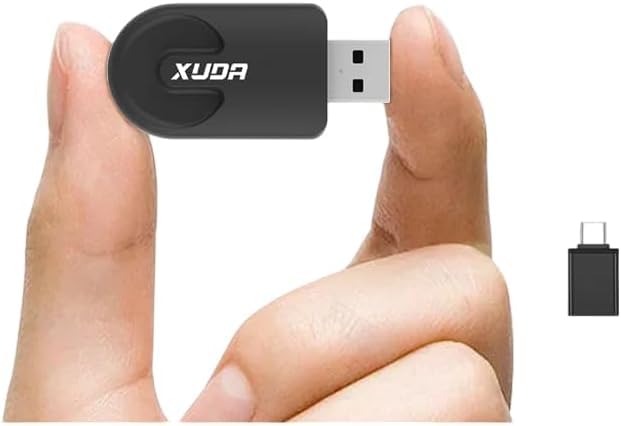
Image: The XUDA Smart Carplay Pro Mini Wireless Adapter shown with its accompanying USB-C adapter.
4. Setup Guide
Follow these steps to set up your XUDA Smart Carplay Pro Mini Wireless Adapter:
- Ensure Car Compatibility: Verify that your car supports wired Apple CarPlay or wired Android Auto from the factory. This adapter converts your existing wired system to wireless.
- Connect the Adapter:
- Locate your car's USB port that is used for wired CarPlay or Android Auto.
- Plug the XUDA Mini Wireless Adapter directly into this USB port. If your car has a USB-C port, use the provided USB-C to USB-A adapter if necessary.

Image: Illustration showing the XUDA adapter connected to a car's USB port, enabling wireless CarPlay/Android Auto.
- Pair with Your Smartphone:
- Once the adapter is plugged in, your car's infotainment screen should display a message or icon indicating the adapter is ready for connection.
- On your smartphone, enable Bluetooth and Wi-Fi.
- Go to your phone's Bluetooth settings and search for available devices. Select the XUDA adapter (it may appear as "SmartBox" or a similar name).
- Confirm the pairing request on both your phone and the car's screen if prompted.
- After successful Bluetooth pairing, the adapter will establish a Wi-Fi connection for data transfer.
- Initial Connection: The first connection may take a few moments. Once connected, your car's screen will display the wireless CarPlay or Android Auto interface.

Image: The XUDA adapter highlighting its 2-in-1 functionality for both wireless CarPlay and Android Auto, with plug-and-play and automatic connection features.
5. Operating Instructions
Once the XUDA Smart Carplay Pro Mini Wireless Adapter is successfully set up, operating it is straightforward:
- Automatic Connection: After the initial pairing, the adapter will automatically connect to your smartphone each time you start your car, provided your phone's Bluetooth and Wi-Fi are enabled.

Image: A smartphone displaying Android Auto connecting automatically to a car's infotainment system via the wireless adapter.
- Using CarPlay/Android Auto: The car's display will show the familiar CarPlay or Android Auto interface. You can interact with it using your car's existing controls.
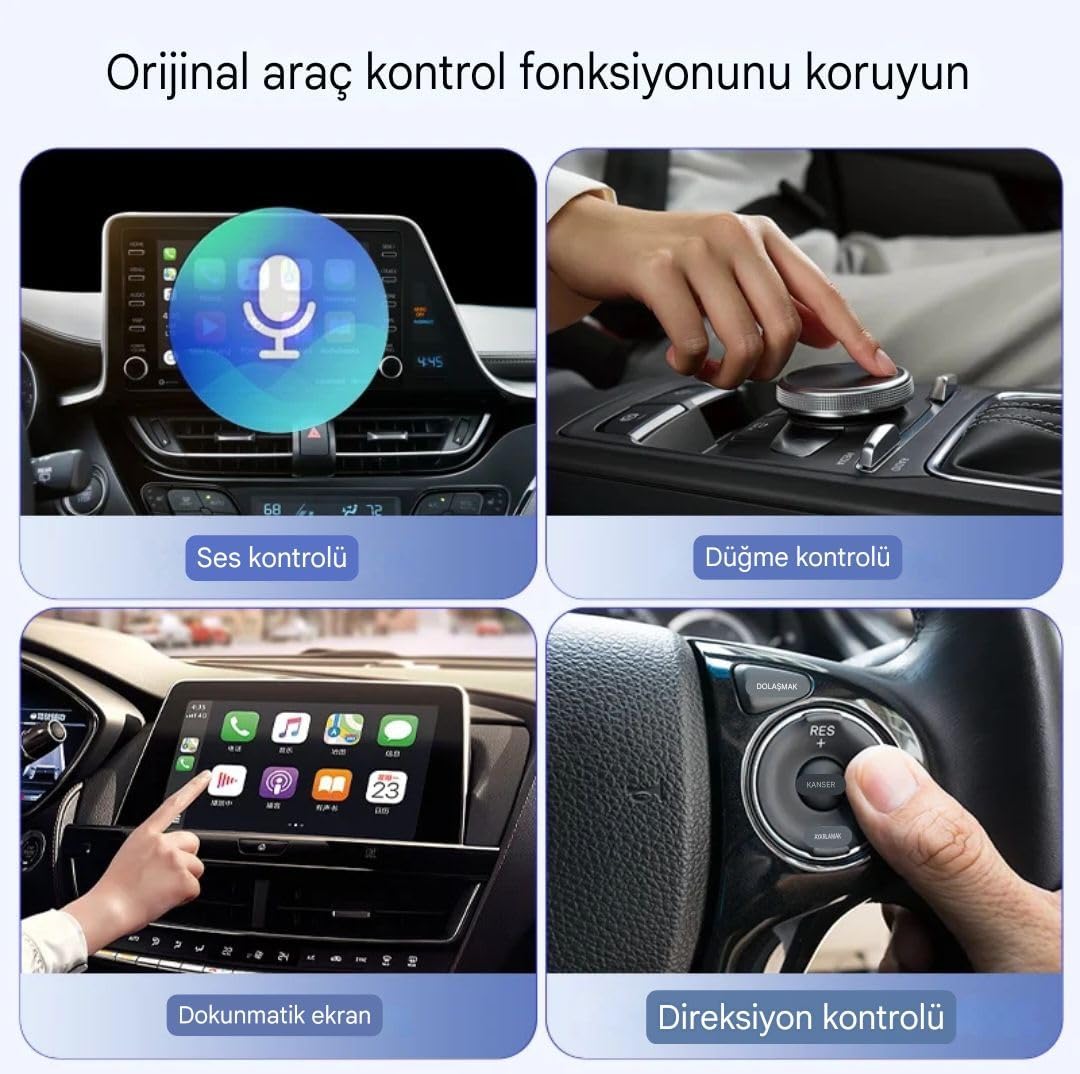
Image: Demonstrates various control methods for the car's infotainment system, including voice control, rotary knob control, touchscreen interaction, and steering wheel controls.
- Control Methods:
- Voice Control: Use your car's voice assistant button or say "Hey Siri" / "Hey Google" to activate voice commands for navigation, calls, messages, and music.
- Touchscreen: If your car has a touchscreen, you can directly interact with the CarPlay or Android Auto interface.
- Rotary Knob/Buttons: Utilize your car's physical controls, such as rotary knobs or dashboard buttons, to navigate the interface.
- Steering Wheel Controls: Your car's steering wheel controls for volume, track skipping, and voice commands will typically function as usual.
- Disconnecting: To disconnect, simply turn off your car. The adapter will power down. To manually disconnect, turn off Bluetooth on your smartphone.
6. Maintenance
To ensure the longevity and optimal performance of your XUDA Smart Carplay Pro Mini Wireless Adapter, follow these simple maintenance guidelines:
- Keep Dry: Avoid exposing the adapter to water, moisture, or excessive humidity.
- Clean Gently: Use a soft, dry cloth to clean the adapter. Do not use harsh chemicals, solvents, or abrasive cleaners.
- Avoid Extreme Temperatures: Do not leave the adapter in direct sunlight or in environments with extremely high or low temperatures for extended periods.
- Handle with Care: Avoid dropping or subjecting the adapter to strong impacts.
- Firm Connection: Ensure the adapter is securely plugged into the USB port to prevent intermittent connections.
7. Troubleshooting
If you encounter issues with your XUDA Smart Carplay Pro Mini Wireless Adapter, refer to the following troubleshooting tips:
| Problem | Possible Solution |
|---|---|
| Adapter not recognized by car. |
|
| Cannot pair with smartphone. |
|
| Intermittent connection or lag. |
|
| CarPlay/Android Auto not launching. |
|
8. Specifications
| Feature | Detail |
|---|---|
| Brand | XUDA (Manufacturer) / Genel (Brand listed) |
| Model Number | V11122B |
| Hardware Interface | 802.11 ac/b/g/n |
| Data Link Protocol | IEEE 802.11ac |
| Wireless Technology | 5G WiFi, Bluetooth 5.0 |
| Compatible Devices | Smartphones (iPhone, Android devices supporting CarPlay/Android Auto) |
| Mounting Hardware | Adapter, additional Type-C rotater |
| Color | Black |
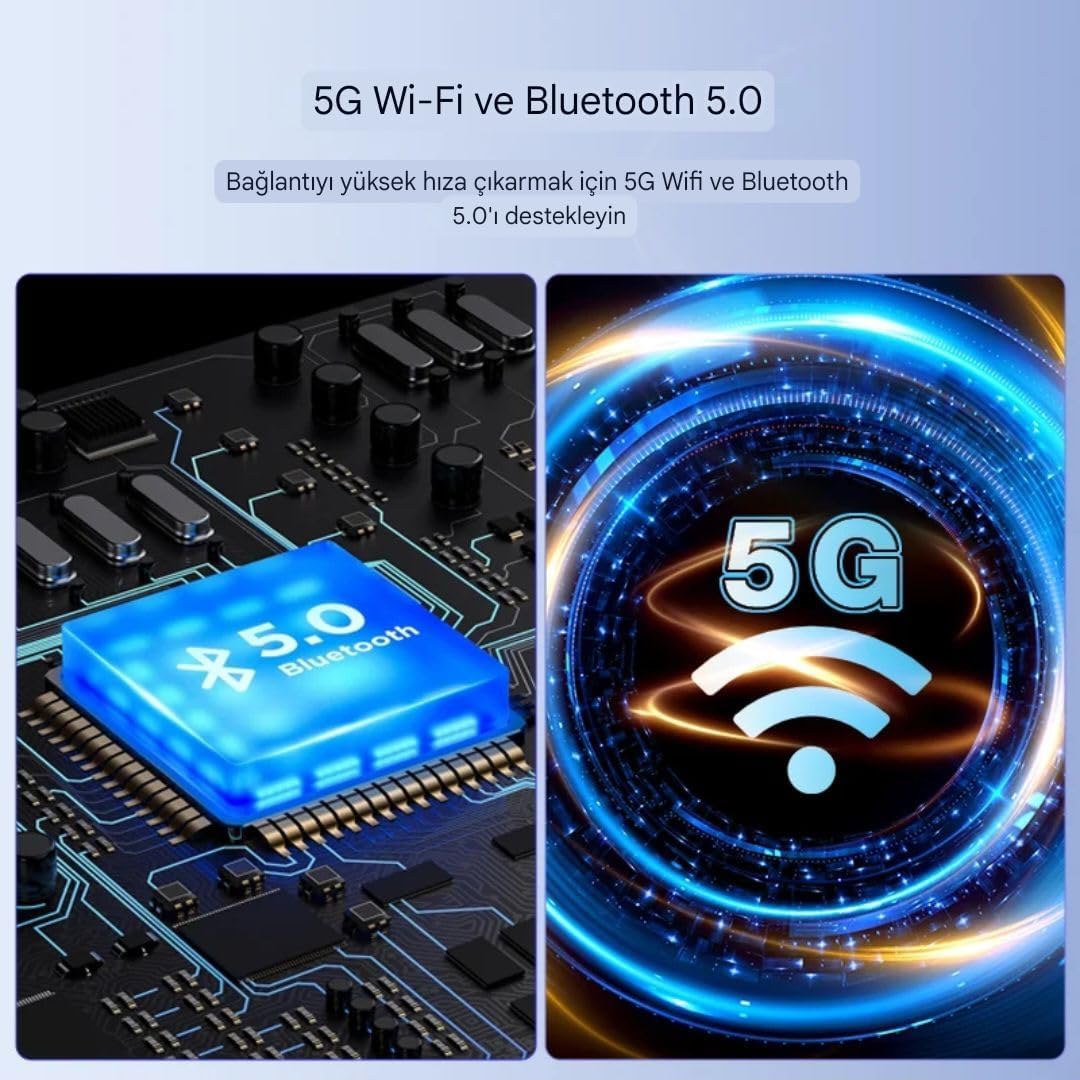
Image: Visual representation of the 5G Wi-Fi and Bluetooth 5.0 capabilities of the adapter, ensuring high-speed connectivity.
9. Warranty and Support
This product comes with a standard manufacturer's warranty. For specific warranty details, including duration and coverage, please refer to the packaging or contact the retailer where the product was purchased.
For technical support, troubleshooting assistance beyond this manual, or inquiries about product updates, please contact XUDA customer service through their official website or the contact information provided with your purchase.


