Introduction
The Tangxi Scrolling Ring Remote Control is a versatile Bluetooth device designed to enhance your mobile phone experience. This compact, finger-worn remote allows for convenient control of various applications, including media playback, page turning, and remote camera functions. It is compatible with iOS 15 and Android 8.0+ devices, offering a stable connection up to 10 meters.

Image: The Tangxi Scrolling Ring Remote Control, highlighting its ergonomic finger-ring design and intuitive button layout for various functions.
Key features include:
- Smart Control: Remotely scroll, swipe, like, play/pause, adjust volume, lock screen, and trigger photo/video recording.
- Easy Operation: Capture photos and videos from up to 10 meters away, simplifying selfies and group shots.
- Wide Compatibility: Supports iOS 15 and Android 8.0+ devices with advanced Bluetooth 5.3 for stable connectivity.
- Multifunctional Design: Comfortable finger-ring design with a built-in 50mAh lithium battery providing up to 72 hours of usage per charge.
- Versatile Usage: Dedicated buttons for left, right, up, and down actions, enabling control over various phone screen functions for media consumption and content creation.

Image: A graphic illustrating the remote's core capabilities: 10-meter remote control range, extended battery life for many actions, single-touch operation, and broad device compatibility.
Setup Guide
1. Charging the Device
Before first use, ensure the remote control is fully charged. Connect the provided USB charging cable to the remote and a standard USB power source (e.g., computer USB port, wall adapter). The charging indicator light will typically show charging status and turn off or change color when fully charged. A full charge provides approximately 72 hours of usage.

Image: The remote control shown alongside its USB charging cable, indicating the charging method.
2. Bluetooth Pairing
- Ensure your mobile phone's Bluetooth is enabled.
- Turn on the Tangxi Scrolling Ring Remote Control.
- On your phone, navigate to the Bluetooth settings.
- Search for available devices. The remote control should appear as "Tangxi Remote" or a similar identifier.
- Select the remote control from the list to pair. A confirmation message may appear on your phone once paired successfully.
The remote uses Bluetooth 5.3 for a stable connection up to 10 meters. It is compatible with iOS 15 and Android 8.0 or newer operating systems.
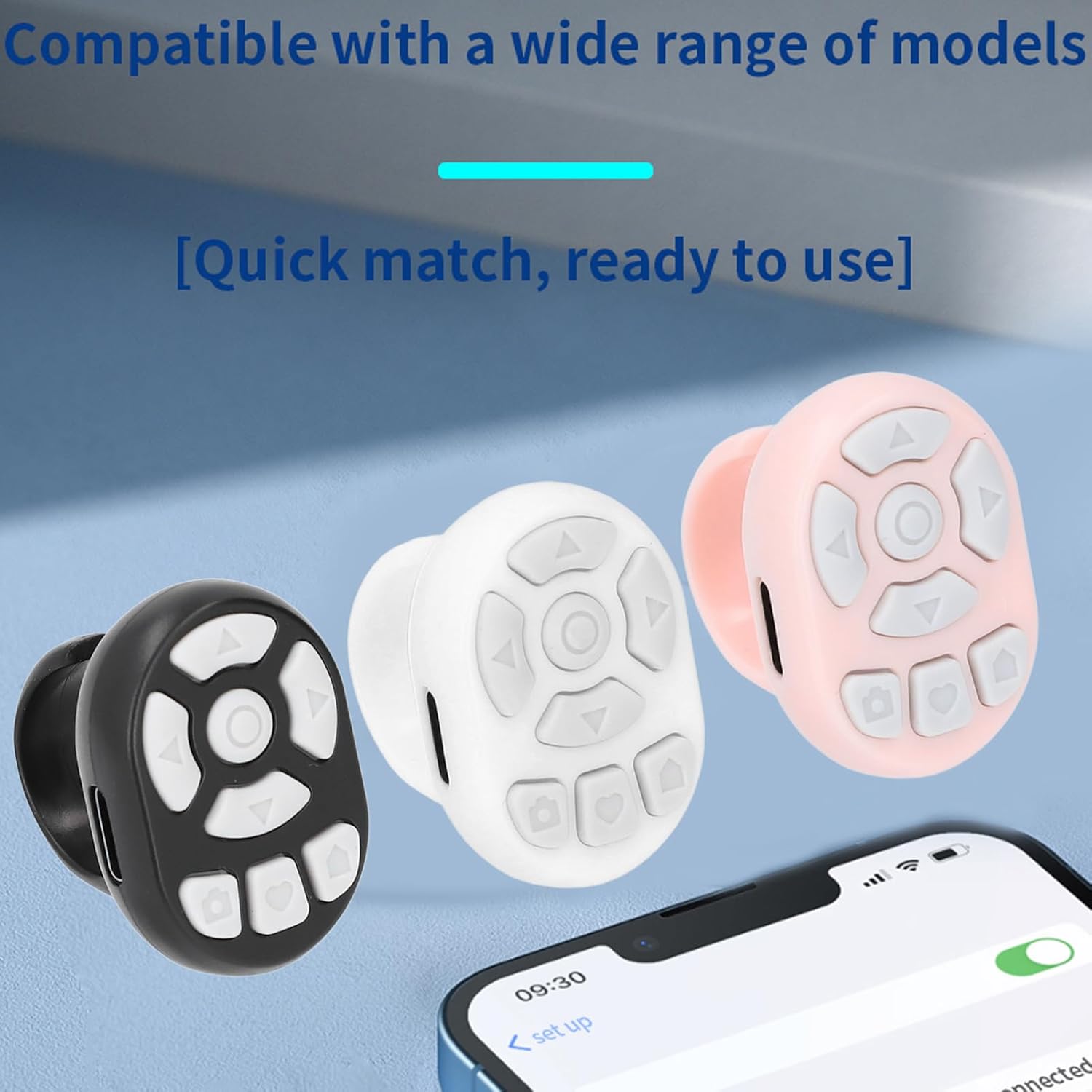
Image: Multiple color variants of the remote control positioned near a smartphone, illustrating its broad compatibility with various mobile devices.
Operating Instructions
The Tangxi Scrolling Ring Remote Control features an intuitive button layout for various functions. Wear the remote comfortably on your finger for easy access to controls.
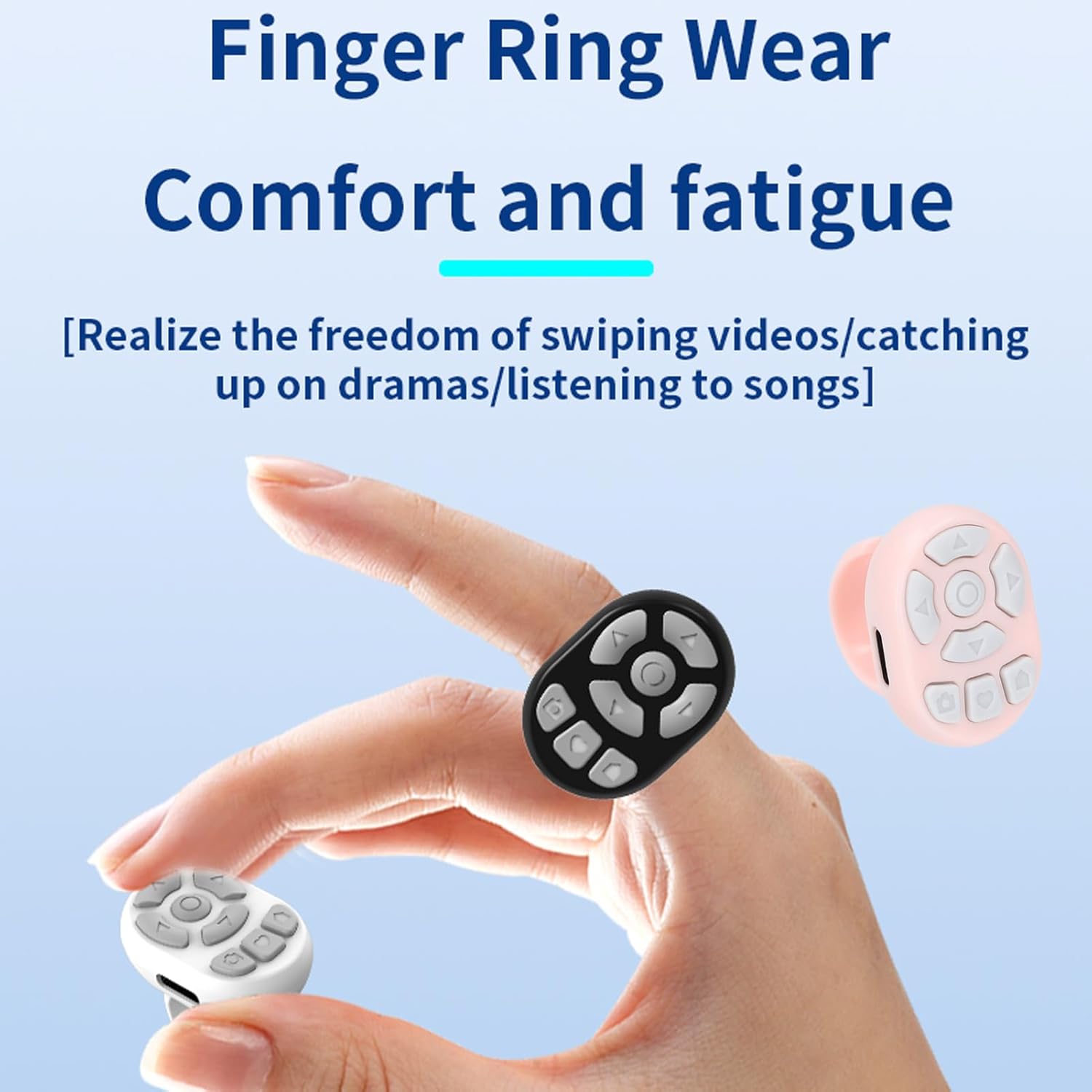
Image: A close-up of the remote control being worn on a finger, emphasizing its comfortable and ergonomic design for extended use.
Basic Functions:
- Scrolling/Page Turning: Use the designated up/down buttons to scroll through content or turn pages in e-books and social media feeds.
- Media Control: The remote can play/pause videos, adjust volume, and "like" content in compatible applications.
- Camera Shutter: Activate your phone's camera shutter remotely for photos and videos. This function works within a 10-meter range.
- Screen Lock: A dedicated button allows for quick screen locking.
Specific Button Actions:
The left, right, up, and down buttons on the remote correspond to various actions depending on the application in use. For example:
- Up/Down Buttons: Typically control vertical scrolling or volume adjustment.
- Left/Right Buttons: May control horizontal swiping, track skipping, or other directional inputs.
- Center Button: Often acts as a confirmation, play/pause, or shutter button.
- Home/Return Button: Can return to the home screen or act as a back button.

Image: The remote control is shown with examples of its practical applications, such as taking selfies, group photos, and recording videos, highlighting its utility for content creation.

Image: A visual representation of the remote's ability to switch between an active application (navigation) and a locked screen with a single touch.

Image: The remote controls are shown alongside a smartphone displaying an audio application with text, indicating its functionality for controlling media playback and scrolling through content.
Video Demonstrations:
Video: A demonstration of the Tangxi Scrolling Ring Remote Control's various functions and how it interacts with a mobile device. (Duration: 1:51)
Video: An extended overview showcasing the remote control's capabilities, including app navigation and media management. (Duration: 1:56)
Maintenance
Charging
Recharge the remote control using the provided USB cable when the battery is low. Avoid using damaged cables or chargers. Do not overcharge the device.
Cleaning
Wipe the remote control with a soft, dry cloth. Do not use harsh chemicals or abrasive cleaners. Avoid exposing the device to excessive moisture.
Storage
Store the remote control in a cool, dry place away from direct sunlight and extreme temperatures when not in use for extended periods.
Troubleshooting
- Device not pairing:
- Ensure the remote control is charged and powered on.
- Verify Bluetooth is enabled on your phone.
- Make sure the remote is within the 10-meter range of your phone.
- Try restarting both the remote control and your phone.
- Forget the device in your phone's Bluetooth settings and attempt to pair again.
- Functions not working in an app:
- Check if the app supports external Bluetooth controls.
- Some apps may require specific settings adjustments to enable remote control.
- Ensure your phone's operating system is iOS 15+ or Android 8.0+.
- Short battery life:
- Ensure the device is fully charged before use.
- Battery performance can vary based on usage patterns and environmental conditions.
Specifications
| Feature | Detail |
|---|---|
| Model Number | Tangxif96i4yrz17-13 |
| Brand | Tangxi |
| Connectivity Technology | Bluetooth 5.3 |
| Compatible Devices | Smartphones (iOS 15+, Android 8.0+), Kindle, Spotify-compatible devices, Tablets |
| Battery Type | 1 Lithium Ion battery (built-in 50mAh) |
| Battery Life | Up to 72 hours of usage |
| Operating Range | Up to 10 meters (33 feet) |
| Item Weight | 1.06 ounces |
| Package Dimensions | 3.94 x 3.54 x 1.18 inches |
| Special Feature | Touch-Screen Interface (controls touch screen via remote) |
| Color | Pink |
Warranty and Support
Information regarding product warranty and customer support was not provided in the available product data. Please refer to the product packaging or the retailer's website for details on warranty coverage and how to contact customer support for assistance.


