
Introduction
Thank you for choosing the Enzemit G10 Z Smart Glasses. These audio sunglasses combine visual protection with integrated sound functionality, allowing for music playback, hands-free calls, and voice assistant access. This manual provides essential information for the proper setup, operation, and maintenance of your device.

Image: A front-angle view of the Enzemit G10 Z Smart Glasses, showcasing their design.
Package Contents
Please verify that all items are present in your package:
- 1 x Enzemit G10 Z Smart Glasses
- 1 x Charging Cable
- 1 x Glasses Cleaning Cloth
- 1 x Glasses Storage Box
- 1 x User Manual (this document)
Safety Information
Read all safety instructions before using the product to prevent injury or damage. Keep this manual for future reference.
- Do not expose the glasses to extreme temperatures, moisture, or corrosive substances.
- Avoid disassembling or modifying the device, as this may void the warranty and cause damage.
- Use only the provided charging cable or a certified equivalent.
- Keep out of reach of children.
- Do not use the glasses in situations where reduced situational awareness could be dangerous (e.g., driving in complex traffic, operating heavy machinery).
Setup
1. Charging the Smart Glasses
Before first use, fully charge your Enzemit G10 Z Smart Glasses.
- Connect the provided charging cable to the magnetic charging port on the glasses.
- Connect the other end of the cable to a USB power adapter (not included) or a computer's USB port.
- The charging indicator light will illuminate. Charging typically takes approximately 1.5 to 2 hours.
- Once fully charged, the indicator light may change or turn off. Disconnect the glasses from the charger.

Image: The magnetic charging connection point on the arm of the smart glasses.

Image: An illustration showing the internal battery and estimated usage times: 4 hours music play, 5 hours phone call, 1.5-2 hours recharging, and 100 hours standby.
2. Powering On/Off
- Power On: Tap and hold the touch control area on the temple for approximately 2 seconds until you hear a power-on prompt.
- Power Off: Tap and hold the touch control area on the temple for approximately 5 seconds until you hear a power-off prompt.
3. Bluetooth Pairing
To connect your smart glasses to a smartphone or other Bluetooth-enabled device:
- Ensure the glasses are powered on and in pairing mode (indicated by a flashing LED or audio prompt).
- On your smartphone, navigate to the Bluetooth settings.
- Search for available devices. The glasses should appear as "G10 Z" or similar.
- Select the glasses to pair. Once connected, you will hear a confirmation sound.

Image: An illustration showing the Enzemit G10 Z Smart Glasses wirelessly connected to a smartphone, indicating music playback and phone call functionality.
Operating Instructions
Touch Controls
The Enzemit G10 Z Smart Glasses feature intuitive touch controls located on the temples. Refer to the diagram below for specific functions:

Image: A diagram illustrating the touch control functions on the smart glasses: ON/OFF (tap for 2s to switch on, 5s to switch off), Voice Assistant (tap for 2s), Pause/Play (one tap), Phone Call (tap on right temple), Hang Off (one tap), Reject (tap on left temple).
- Power On/Off: Tap and hold for 2 seconds to power on, tap and hold for 5 seconds to power off.
- Play/Pause Music: One tap on either temple.
- Answer/End Call: One tap on the right temple to answer, one tap on either temple to hang off.
- Reject Call: Tap on the left temple.
- Activate Voice Assistant (Siri/Google Assistant): Tap and hold for 2 seconds.
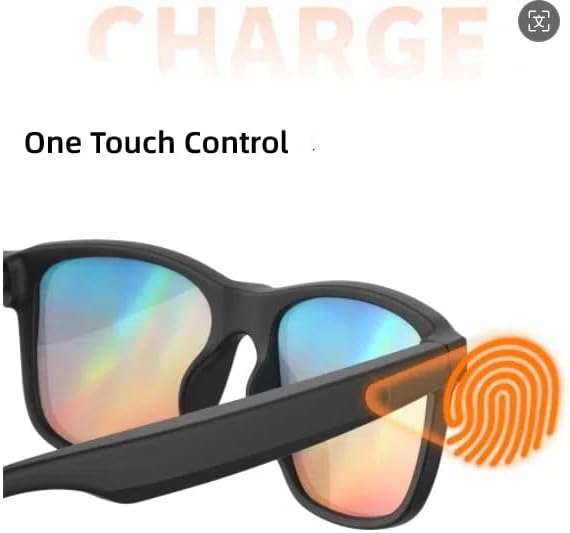
Image: An illustration highlighting the "One Touch Control" area on the temple of the smart glasses, indicated by a fingerprint icon.
Audio Features
The G10 Z Smart Glasses feature an open-ear audio design, allowing you to hear your surroundings while enjoying audio.
- Music Playback: Stream audio from your connected device.
- Hands-Free Calling: The built-in microphone allows for clear communication during calls.
- Voice Assistant: Access your smartphone's voice assistant (e.g., Siri) for commands and information.
Lens Features
- UV400 Polarized Lenses: These lenses block harmful UVA/UVB rays, providing eye protection and reducing glare.
- Blue Light Blocking: The lenses are designed to reduce exposure to blue light, which can help minimize eye strain.

Image: A collage showing various usage scenarios for the smart glasses (driving, running, hiking) and an exploded view of the lens layers demonstrating eye protection features.
Maintenance
Cleaning
- Use the provided glasses cleaning cloth to gently wipe the lenses and frame.
- For stubborn smudges, use a lens cleaning spray specifically designed for eyewear. Do not use harsh chemicals or abrasive materials.
- Avoid getting water directly into the electronic components.
Storage
- When not in use, store the glasses in the provided protective case to prevent scratches and damage.
- Store in a cool, dry place away from direct sunlight and extreme temperatures.
Battery Care
- To prolong battery life, avoid fully discharging the battery frequently.
- If storing for an extended period, charge the battery to about 50% every few months.
Troubleshooting
If you encounter issues with your Enzemit G10 Z Smart Glasses, please refer to the following common solutions:
| Problem | Possible Solution |
|---|---|
| Cannot power on | Ensure the battery is charged. Connect to the charger and try again. |
| Cannot pair via Bluetooth |
|
| No sound or low volume |
|
| Charging issues |
|
Specifications
| Feature | Detail |
|---|---|
| Model | G10 Z |
| Connectivity | Bluetooth V5.3 + EDR |
| Bluetooth Protocols | HFP, HSP, A2DP, AVRCP |
| Connection Distance | Approx. 10-15 meters (32.81-49.21 ft) |
| Microphone | Built-in |
| Battery Type | Built-in 160mAh Lithium-ion battery |
| Music Playback Time | About 4 hours |
| Talk Time | About 5 hours |
| Charging Time | About 1.5-2 hours |
| Standby Time | About 100 hours |
| Lens Features | UV400 Polarized, Blue Light Blocking |
| Frame Material | TR (Thermoplastic Rubber) |

Image: A technical drawing showing the dimensions of the Enzemit G10 Z Smart Glasses, including front width (141mm), lens width (40mm), temple length (155mm), and total frame width (157mm).
Warranty and Support
Enzemit products are designed for quality and reliability. This product comes with a standard manufacturer's warranty against defects in materials and workmanship. Please refer to the warranty card included in your package or contact customer support for specific warranty terms and conditions.
For technical support, troubleshooting assistance, or warranty claims, please contact Enzemit customer service through the retailer where you purchased the product or visit the official Enzemit website for contact information.
Manufacturer: Shenzhen Gonbes Technology Co.,Ltd