
NUROUM AW-V11-NEW
NUROUM V11 2K Webcam User Manual
Model: AW-V11-NEW
1. Introduction
Welcome to the NUROUM V11 2K Webcam user manual. This guide provides detailed instructions for setting up, operating, and maintaining your webcam to ensure optimal performance for all your video communication needs. The NUROUM V11 is designed to deliver high-quality video and audio, making it ideal for online meetings, streaming, and remote learning.
2. Product Overview
The NUROUM V11 2K Webcam is a versatile and high-performance camera equipped with advanced features for superior video and audio quality. It features a 2K resolution sensor, 90-degree wide-angle lens, dual noise-canceling microphones, and an integrated privacy cover.

Figure 2.1: Front view of the NUROUM V11 2K Webcam with its integrated USB cable.
3. Key Features
- Full HD Webcam for Video Calling: Equipped with a 4-megapixel CMOS sensor and multi-layers premium glass lens, capturing 1440P@30fps and 1080P@60fps images with a wide 90-degree field of view. Delivers bright, crisp, and natural true-to-life videos with fine-tuned colors and smooth motion.
- Built-in Noise-Canceling Microphones: Dual integrated microphones capture natural stereo audio within a 7ft radius. The 90° circular-sector directional voice pickup technology enhances human voice quality and filters out unwanted ambient noises for clear communication.
- Automatic Light Correction & Privacy Protection: Intelligent exposure control and automatic low light correction ensure you always look well-lit. A physical lens cover and LED indicator provide real-time working status and reliable privacy.
- Easy Setup & Plug and Play: Automatically recognized by your computer without software or driver installation. Powered by a single USB cable. The universal mounting clip fits laptops, LCDs, or monitors, and a 1/4'' screw hole allows tripod mounting.
- Strong Compatibility & Wide Application: Compatible with Windows, macOS, Linux, and ChromeOS. Works seamlessly with popular platforms like Zoom, Teams, Webex, Google Meet, Skype, Slack, Google Hangouts, OBS, Twitch, Facebook Live, and YouTube Live.
- Nuroum NearSync for Tailored Configuration: The Nuroum NearSync application (available on Nuroum's official website for Windows and MacOS) facilitates firmware updates and allows customization of image settings such as brightness and saturation.
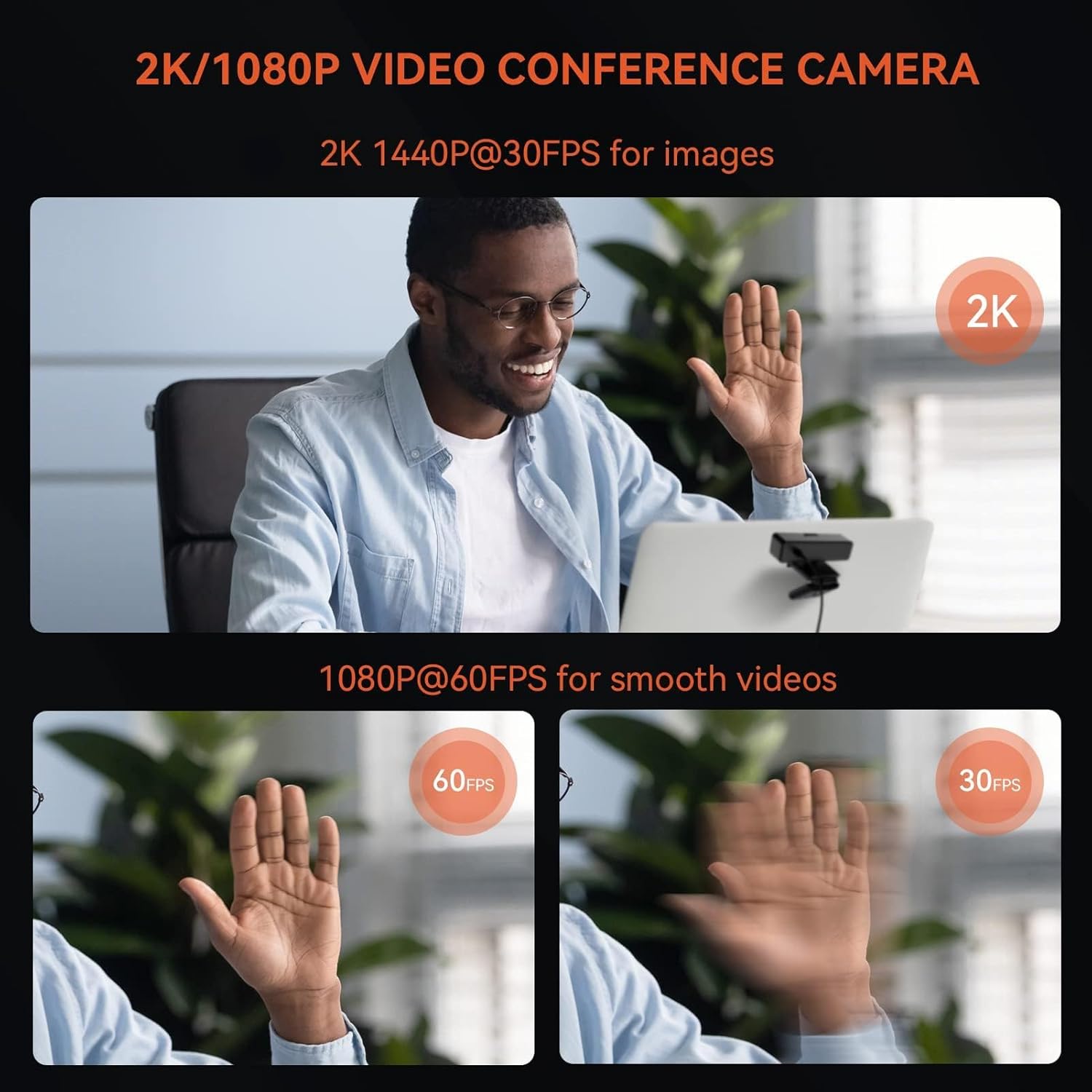
Figure 3.1: Visual representation of 2K 1440P@30fps for images and 1080P@60fps for smooth videos.

Figure 3.2: Illustration of the dual noise-canceling microphones and their 90-degree voice pickup range.
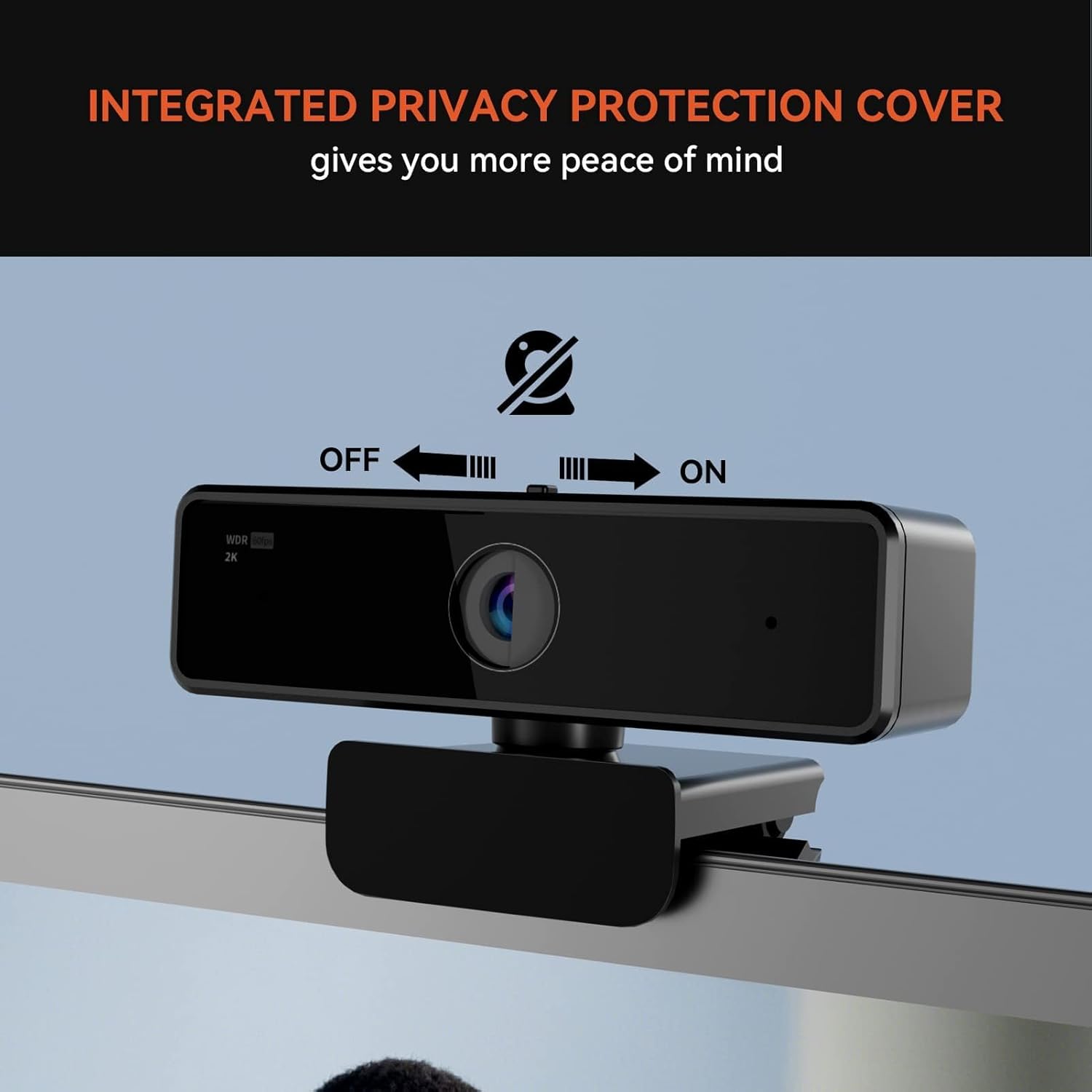
Figure 3.3: The integrated privacy cover provides peace of mind when the webcam is not in use.

Figure 3.4: Various flexible installation methods for the NUROUM V11 webcam.
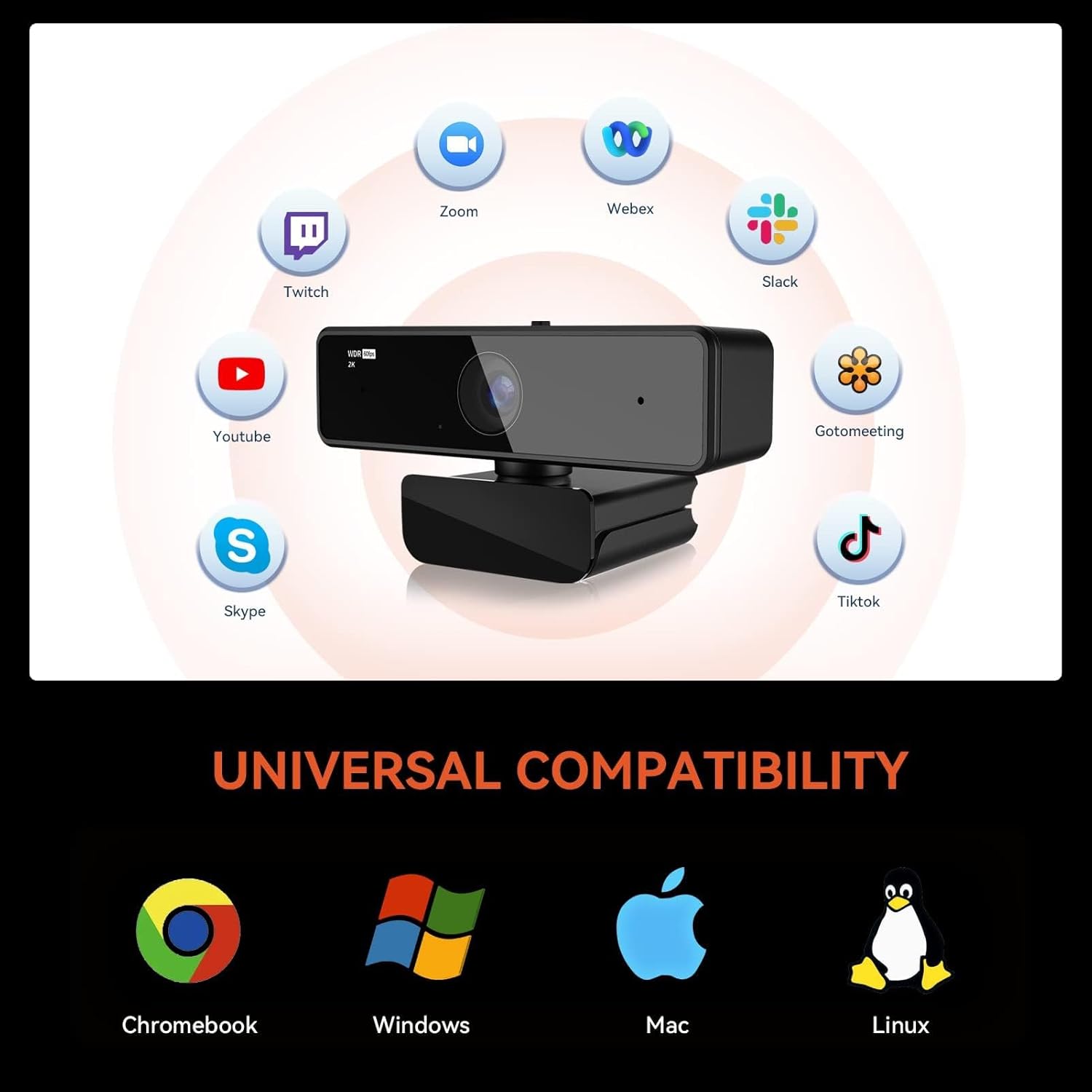
Figure 3.5: The NUROUM V11 offers universal compatibility with major operating systems and communication platforms.
4. What's in the Box
Upon unboxing your NUROUM V11 2K Webcam, you should find the following items:
- 1x V11 Webcam
- 1x User Manual
5. Setup Guide
- Unpack the Webcam: Carefully remove the NUROUM V11 webcam and its accessories from the packaging.
- Mount the Webcam: The universal mounting clip allows for flexible placement.
- On a Monitor/Laptop: Open the clip and place it securely on top of your monitor or laptop screen. Adjust the angle to ensure the camera is facing you correctly.
- On a Tripod: If using a tripod (not included), screw the webcam onto the 1/4'' screw hole located on the base of the mounting clip.
- On a Flat Surface: Fold the clip to create a stable stand and place the webcam on a flat surface such as a desk.
- Connect to Computer: Plug the integrated USB cable from the webcam into an available USB port on your computer (desktop or laptop).
- Automatic Recognition: The webcam is plug-and-play. Your operating system (Windows, macOS, Linux, ChromeOS) should automatically detect and install the necessary drivers. No manual driver installation is typically required.
- Verify Connection: The LED indicator on the webcam will illuminate when it is active and in use.
6. Operating Instructions
- Launch Application: Open your preferred video conferencing, streaming, or recording application (e.g., Zoom, Microsoft Teams, OBS Studio, Skype).
- Select Webcam: In the application's video settings, select "NUROUM V11" as your camera device.
- Select Microphone: In the application's audio settings, select "NUROUM V11" as your microphone device.
- Adjust Settings (Optional): For advanced customization, download and install the Nuroum NearSync application from the official Nuroum website. This software allows you to adjust image settings like brightness, contrast, saturation, and perform firmware updates.
- Privacy Cover: When the webcam is not in use, slide the physical privacy cover over the lens to ensure your privacy. Slide it back to expose the lens when ready to use.
7. Maintenance
- Cleaning the Lens: Use a soft, lint-free cloth specifically designed for optics to gently wipe the webcam lens. Avoid using harsh chemicals or abrasive materials that could scratch the lens.
- Cleaning the Body: Wipe the body of the webcam with a dry or slightly damp soft cloth. Do not use excessive moisture.
- Storage: When not in use for extended periods, store the webcam in a cool, dry place, ideally in its original packaging or a protective pouch, to prevent dust accumulation and damage.
- Cable Care: Avoid bending or twisting the USB cable excessively, as this can damage the internal wires.
8. Troubleshooting
| Problem | Possible Cause | Solution |
|---|---|---|
| Webcam not detected | Loose USB connection, faulty USB port, driver issue. | Ensure the USB cable is securely plugged into both the webcam and the computer. Try a different USB port. Restart your computer. Check Device Manager (Windows) or System Information (macOS) to see if the webcam is listed. |
| No video output | Privacy cover closed, incorrect camera selection in software, low light. | Slide the privacy cover open. Ensure "NUROUM V11" is selected as the camera in your application's settings. Ensure adequate lighting in your environment. |
| No audio from microphone | Incorrect microphone selection, microphone muted, software volume too low. | Ensure "NUROUM V11" is selected as the microphone in your application's settings. Check if the microphone is muted in your system settings or application. Increase microphone volume. |
| Poor video quality (blurry, grainy) | Dirty lens, insufficient lighting, internet bandwidth issues. | Clean the webcam lens with a soft cloth. Improve lighting conditions. Check your internet connection speed. Ensure your application is set to the desired resolution (e.g., 1080P or 2K). |
9. Technical Specifications
| Feature | Detail |
|---|---|
| Brand | NUROUM |
| Model Number | AW-V11-NEW |
| Video Capture Resolution | 2K (1440P@30fps), 1080P@60fps |
| Photo Sensor Technology | CMOS (4 Megapixel) |
| Field of View | 90° Wide-Angle |
| Microphone | Dual Noise-Canceling Microphones (7ft/2m pickup) |
| Connectivity Technology | USB Plug & Play |
| Special Features | Integrated Privacy Cover, Automatic Low Light Correction, Lightweight |
| Operating System Compatibility | Windows, macOS, Linux, ChromeOS |
| Product Dimensions | 3.94 x 1.97 x 2.17 inches |
| Item Weight | 6.7 ounces |
10. Warranty and Support
NUROUM products are designed for reliability and performance. For specific warranty details and support information, please refer to the warranty card included with your product or visit the official NUROUM website. If you encounter any issues or have questions, our professional after-sales team is available to assist you.
Online Support: Visit the official NUROUM website for FAQs, driver downloads (Nuroum NearSync), and contact information.
Contact Information: Refer to your product packaging or the official website for the most up-to-date contact details for customer service.
Related documentsAW-V11-NEW


Ask a question about this manual
Ask about setup, troubleshooting, compatibility, parts, safety, or missing instructions. Manuals+ will review the question and use this page’s manual context to help answer it.