
1. Introduction
This manual provides detailed instructions for the setup, operation, and maintenance of your SABLUTE Wireless Backlit Keyboard and Mouse Combo. Please read this manual thoroughly before use to ensure optimal performance and longevity of your device.

Image 1.1: SABLUTE Wireless Backlit Keyboard and Mouse Combo (Purple)
2. Package Contents
Verify that all items are present in your package:
- 1 x Wireless Backlit Keyboard
- 1 x Wireless Mouse
- 1 x USB Receiver (shared for both keyboard and mouse)
- 1 x USB-A to Type-C Adapter
- 1 x USB-C Charging Cable
- 1 x User Manual (this document)

Image 2.1: Included components: keyboard, mouse, USB receiver, and USB-A to Type-C adapter.
3. Setup Instructions
3.1 Charging the Devices
Both the keyboard and mouse are equipped with rechargeable batteries. Use the provided USB-C charging cable to charge them. The power indicator on the keyboard will flash when the battery is low.
- Connect the USB-C end of the charging cable to the charging port on the keyboard or mouse.
- Connect the USB-A end of the cable to a USB power source (e.g., computer USB port, USB wall adapter).
- Allow the devices to charge fully before first use. Charging time is approximately 3 hours for the keyboard.

Image 3.1: Keyboard and mouse being recharged via USB-C cables.
3.2 Connecting to Your Computer
The keyboard and mouse share a single USB receiver for wireless connectivity.
- Locate the USB receiver, typically stored in the mouse's battery compartment.
- Plug the USB receiver into an available USB-A port on your computer. If your computer only has USB-C ports, use the provided USB-A to Type-C adapter.
- Turn on the keyboard and mouse using their respective ON/OFF switches.
- The devices are plug-and-play; no additional drivers are required. Your computer should automatically recognize them.
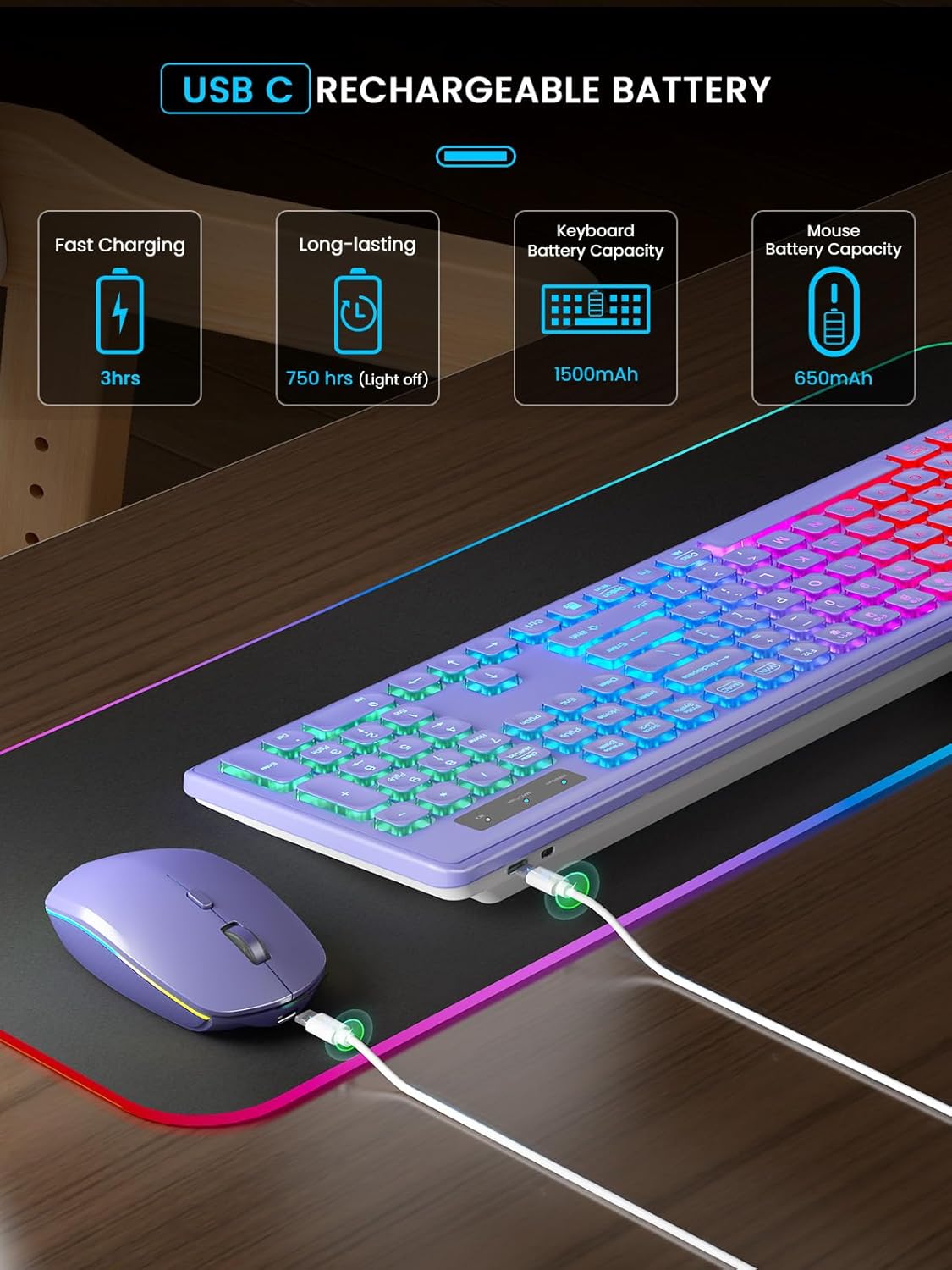
Image 3.2: USB receiver connected to a laptop, demonstrating both USB-A and Type-C adapter usage.
3.3 System Switching (Windows/Mac)
The keyboard supports both Windows and Mac layouts. You can switch between systems with a dedicated key.
- Press the WIN/Num key to activate Windows mode. The corresponding indicator light will illuminate.
- Press the MAC/Caps key to activate Mac mode. The corresponding indicator light will illuminate.

Image 3.3: Illustration of switching between Windows and Mac operating system layouts on the keyboard.
4. Operating Instructions
4.1 Keyboard Backlight Control
The keyboard features rainbow backlighting with adjustable brightness.
- To turn the backlight ON/OFF or adjust brightness, press Fn + Right Shift.

Image 4.1: Keyboard backlight control using Fn + Shift keys.
4.2 Mouse Backlight and Tracking Speed
The mouse features multiple lighting modes and adjustable tracking speed.
- To cycle through the 15 lighting modes, press the dedicated backlight switching button on the mouse.
- To turn off the mouse backlight, long press the backlight switching button for 3 seconds.
- The mouse offers 3 tracking speeds. Adjust as needed for your preference.

Image 4.2: Mouse features including 15 lighting modes, 3 tracking speeds, and quiet click.
4.3 Smart Energy Saving (Sleep Mode)
To conserve battery life, both devices enter a sleep mode after periods of inactivity.
- The keyboard enters sleep mode after 30 minutes of inactivity. Press any key to wake it.
- The mouse enters sleep mode after 1.5 minutes of inactivity. Move or click to wake it.
- Both devices have an ON/OFF switch for manual power control.

Image 4.3: Energy-saving features with sleep mode durations for keyboard and mouse.
4.4 Efficient Shortcut Keys
The keyboard includes dedicated function keys for quick access to common commands.
- Fn + Esc: Enable one-key operation for F1-F12 functions.
- F1: Mute
- F2: Volume Down
- F3: Volume Up
- F4: Previous Track
- F5: Pause/Play
- F6: Next Track
- F7: Brightness Down
- F8: Brightness Up
- F9: Select All
- F10: Copy
- F11: Paste
- F12: Shear (Cut)

Image 4.4: Overview of keyboard shortcut keys (F1-F12) and their functions.
4.5 Adjustable Tilt Legs
The keyboard features adjustable tilt legs to enhance typing comfort and reduce hand fatigue.
- Flip out the tilt legs located on the underside of the keyboard to achieve a 15-degree ergonomic angle.
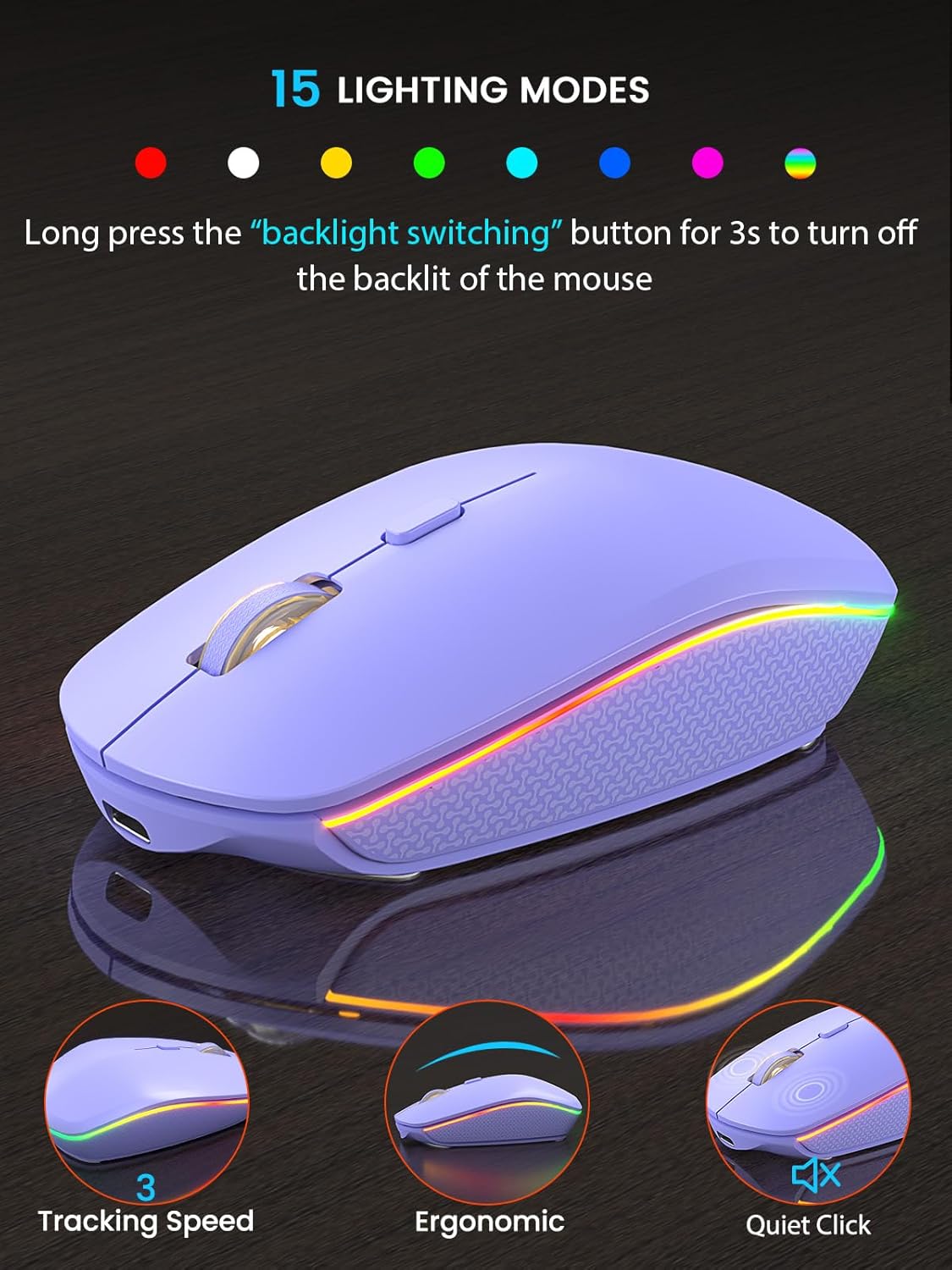
Image 4.5: Keyboard demonstrating the adjustable tilt angle for ergonomic use.
5. Features
- Quiet and Comfortable Typing: Soft membrane keys provide a quiet and smooth typing experience. The mouse operates with 90% less noise compared to standard mice.
- Rechargeable and Long-Lasting: Built-in rechargeable batteries offer extended usage. Keyboard standby time: 365 days. Mouse standby time: 270 days. Keyboard battery lasts approximately 4 weeks with backlight off during typical 9-5 workdays.
- Reliable Wireless Connection: Utilizes upgraded chips and 2.4GHz RF technology for a stable, lag-free connection up to 33 feet (10 meters).
- Ergonomic Design: Features an ergonomic tilt angle and water droplet-shaped keycaps for enhanced comfort during prolonged use.
- Wide Compatibility: Compatible with Windows XP/7/8/10/11, Mac OS, iOS, and Android operating systems.

Image 5.1: Wide compatibility with various operating systems and devices.
6. Specifications
| Feature | Detail |
|---|---|
| Product Dimensions (Keyboard) | 17.44 x 5.35 x 1.18 inches |
| Item Weight | 1.54 pounds |
| Batteries | 1 Lithium Ion battery required (included) |
| Connectivity Technology | 2.4GHz USB Wireless |
| Special Features | Backlit, Rechargeable, Sleep Modes, Silent, Ergonomic |
| Compatible Devices | Laptop, PC, iMac, Android, iOS |
| Color | Purple |

Image 6.1: Physical dimensions of the keyboard and mouse.
7. Troubleshooting
7.1 Connection Issues
- No connection: Ensure the USB receiver is securely plugged into a working USB port. Check that both the keyboard and mouse are turned ON.
- Lag or intermittent connection: Ensure the devices are within the 33ft (10m) operating range. Avoid placing the receiver near large metal objects or other wireless devices that may cause interference.
7.2 Backlight Not Working
- Keyboard backlight: Press Fn + Right Shift to cycle through brightness levels or turn the backlight on. Ensure the keyboard battery is charged.
- Mouse backlight: Press the backlight switching button on the mouse. Long press for 3 seconds to turn it off/on. Ensure the mouse battery is charged.
7.3 Device Not Responding
- Check battery: If the power indicator is flashing, recharge the device.
- Wake from sleep: For the keyboard, press any key. For the mouse, move or click.
- Power cycle: Turn the device OFF, then ON again using the switch.
8. Maintenance
- Clean the keyboard and mouse regularly with a soft, dry cloth. For stubborn dirt, a slightly damp cloth can be used, ensuring no moisture enters the device.
- Avoid exposing the devices to extreme temperatures, direct sunlight, or liquids.
- Store the USB receiver in the mouse's compartment when not in use to prevent loss.
9. Warranty and Support
SABLUTE is committed to quality and customer satisfaction. Your product is covered by the following:
- 90-Day Replacement: For manufacturing defects.
- 360-Day Manufacturer Warranty: Covers defects in materials and workmanship.
- Brand Care: Dedicated customer support.
For technical support or warranty claims, please contact SABLUTE customer service:
Phone: 1-888-905-9607 (US)
Operating Hours: Monday - Friday, 9:00 AM - 1:00 PM PST and 2:00 PM - 6:00 PM PST
