
Aigo A87 Starry Blue
Aigo A87 Starry Blue Wireless Mechanical Gaming Keyboard User Manual
Model: A87 Starry Blue | Brand: Aigo
1. Introduction
This manual provides detailed instructions for the Aigo A87 Starry Blue Wireless Mechanical Gaming Keyboard. Designed for both professional gamers and daily users, this keyboard offers a superior typing and gaming experience with its advanced features and robust construction.
Key Features:
- Yellow Switches: Silent, soft, and highly responsive for optimal performance.
- Dual-Mode Connectivity: Seamlessly switch between 2.4G wireless and USB-C wired connections.
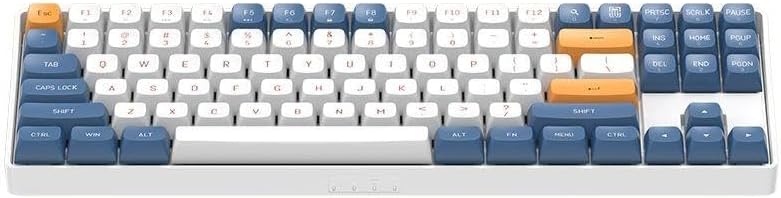
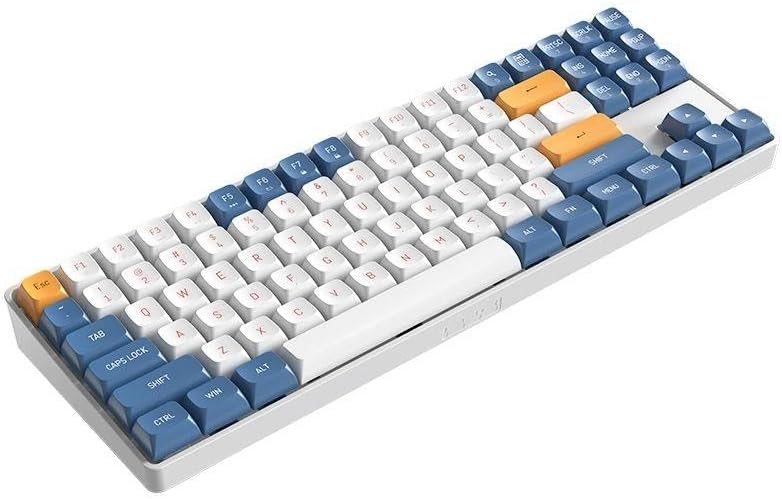
- Compact 87-Key Layout (TKL): Space-saving design with 100% anti-ghosting for simultaneous key detection.
- Long-Lasting Battery: Integrated 1200mAh lithium battery with fast USB-C charging.
- Hot-Swap Support: Easily customize your keyboard by changing switches.
- Double-Shot PBT Keycaps: Durable, wear-resistant, and non-slip keycaps for a premium feel.
2. Package Contents
Upon unboxing your Aigo A87 keyboard, please ensure all the following items are present:
- Aigo A87 Starry Blue Mechanical Keyboard
- USB-C Cable
- Key Puller
- Extra Keycaps
- Spare Switches
- Storage Box
3. Setup
3.1. Charging the Keyboard
Before first use, it is recommended to fully charge the keyboard. Connect the provided USB-C cable to the keyboard's USB-C port and the other end to a powered USB port (e.g., computer, wall adapter). The charging indicator (if available, refer to keyboard LEDs) will show charging status and turn off when fully charged.
3.2. Connecting the Keyboard
The Aigo A87 supports two connection modes: 2.4G Wireless and USB-C Wired.
3.2.1. 2.4G Wireless Connection
- Locate the 2.4G USB receiver, usually found in a dedicated slot on the keyboard or in the packaging.
- Plug the 2.4G USB receiver into an available USB port on your computer.
- Turn on the keyboard using the power switch (location may vary, typically on the back or side).
- The keyboard should automatically connect to the receiver. If not, press the designated pairing key combination (refer to keyboard markings or a quick start guide if provided) to initiate pairing.
3.2.2. USB-C Wired Connection
- Connect one end of the provided USB-C cable to the keyboard's USB-C port.
- Connect the other end of the USB-C cable to an available USB port on your computer.
- The keyboard will automatically switch to wired mode and function without needing battery power.
4. Operating the Keyboard
4.1. Basic Key Functions
The Aigo A87 features a standard 87-key (TKL) layout. All standard alphanumeric, symbol, and function keys operate as expected.
4.2. Function (FN) Key Combinations
Many keyboards utilize an FN key for secondary functions. While specific combinations are not detailed here, common FN key uses include:
- FN + F1-F12: Multimedia controls (volume, play/pause), brightness adjustment, application shortcuts.
- FN + Win: Lock/unlock Windows key.
- FN + Arrow Keys: Backlight brightness or effect control.
Refer to the keycap legends for specific FN key combinations on your Aigo A87 keyboard.
4.3. Switching Between Modes
The keyboard typically automatically switches to wired mode when the USB-C cable is connected. To switch back to 2.4G wireless mode, simply disconnect the USB-C cable and ensure the keyboard's power switch is on.
5. Maintenance
5.1. Cleaning the Keyboard
Regular cleaning helps maintain the keyboard's performance and appearance.
- Keycaps: Use the provided key puller to carefully remove keycaps. Clean them with a mild soap solution and a soft cloth, then dry thoroughly before reattaching.
- Keyboard Body: Wipe the surface with a soft, damp cloth. Avoid excessive moisture.
- Between Keys: Use compressed air to remove dust and debris from between the switches.
5.2. General Care
- Avoid exposing the keyboard to extreme temperatures, direct sunlight, or high humidity.
- Do not spill liquids on the keyboard. In case of accidental spills, immediately disconnect the keyboard and allow it to dry completely before use.
- Store the keyboard in the provided storage box when not in use for extended periods.
6. Troubleshooting
If you encounter issues with your Aigo A87 keyboard, please refer to the following common problems and solutions:
- Keyboard Not Responding:
- Ensure the keyboard is charged or connected via USB-C.
- For wireless mode, check if the 2.4G receiver is properly plugged in and the keyboard is powered on. Try re-pairing if necessary.
- Try connecting to a different USB port on your computer.
- Keys Not Registering or Repeating Presses:
- This can sometimes occur due to software conflicts or debris under the keycap/switch.
- Ensure your operating system and keyboard drivers are up to date.
- Carefully remove the affected keycap using the key puller and inspect the switch for any visible obstructions. Use compressed air to clean around the switch.
- If the issue persists, consider replacing the switch with a spare one, utilizing the hot-swap feature.
- Wireless Connection Issues:
- Ensure the keyboard is within range of the 2.4G receiver (typically up to 10 meters).
- Avoid interference from other wireless devices (e.g., Wi-Fi routers, other 2.4G devices).
- Try plugging the receiver into a different USB port, preferably a USB 2.0 port if available, as some USB 3.0 ports can cause interference.
- Charging Problems:
- Ensure the USB-C cable is securely connected to both the keyboard and the power source.
- Try a different USB port or power adapter.
- Verify the USB-C cable is not damaged.
7. Specifications
| Feature | Detail |
|---|---|
| Brand | Aigo |
| Model Name | Aigo A87 Starry Blue Wireless Mechanical Gaming Keyboard |
| Compatible Devices | Laptop, Desktop Computer, Gaming Console |
| Key Features | Silent, Rechargeable, Hot-Swappable |
| Included Hardware | Key Puller, USB Cable, Extra Keycaps, Spare Switches |
| Power Source | Battery Powered (1200mAh Lithium) |
| Keyboard Layout | 87-Key TKL, English Q Layout |
| Connectivity Technology | USB-C, 2.4G Wireless |
| Material Type | Polybutylene Terephthalate (PBT) Keycaps |
| Product Dimensions | 33 x 10 x 2 cm |
| Product Weight | 900 grams |
| Country of Origin | China |
| Recommended Uses | Personal, Student, Education, Gaming, Business, Daily Use, Programming |
8. Product Images


9. Warranty and Support
The Aigo A87 Starry Blue Mechanical Gaming Keyboard comes with a standard manufacturer's warranty. For specific warranty terms, duration, and claim procedures, please refer to the warranty card included in your product packaging or visit the official Aigo website.
For technical support, troubleshooting assistance beyond this manual, or inquiries regarding replacement parts, please contact Aigo customer service through their official support channels.
Ask a question about this manual
Ask about setup, troubleshooting, compatibility, parts, safety, or missing instructions. Manuals+ will review the question and use this page’s manual context to help answer it.