1. Introduction
This manual provides detailed instructions for the installation, operation, and maintenance of your Hikity Android Car Stereo. Please read this manual thoroughly before using the product to ensure proper functionality and safety.
2. Product Features
- Compatibility: Designed for Jeep Grand Cherokee 2004-2007 (LHD).
- Display: 10.1-inch capacitive IPS 2.5D touchscreen with 1024 x 600 resolution.
- Operating System: Latest Android 13 system.
- Memory: 2GB RAM and 64GB ROM for application storage and smooth operation.
- Connectivity: Built-in Wireless/Wired CarPlay, Wireless/Wired Android Auto, Mirror Link, Bluetooth, WiFi, USB, FM, AUX.
- Navigation: Integrated GPS with offline map support (HereWego) and online map capabilities via WiFi/hotspot.
- Audio: High-quality FM radio with RDS (18 preset stations), EQ adjustment (classical, rock, pop, etc.), Stereo audio output.
- Camera Support: Includes AHD rear view camera with night vision and 170-degree viewing angle.
- Control: Supports steering wheel controls (SWC).
- User Interface: Split-screen functionality, 53 UI themes.
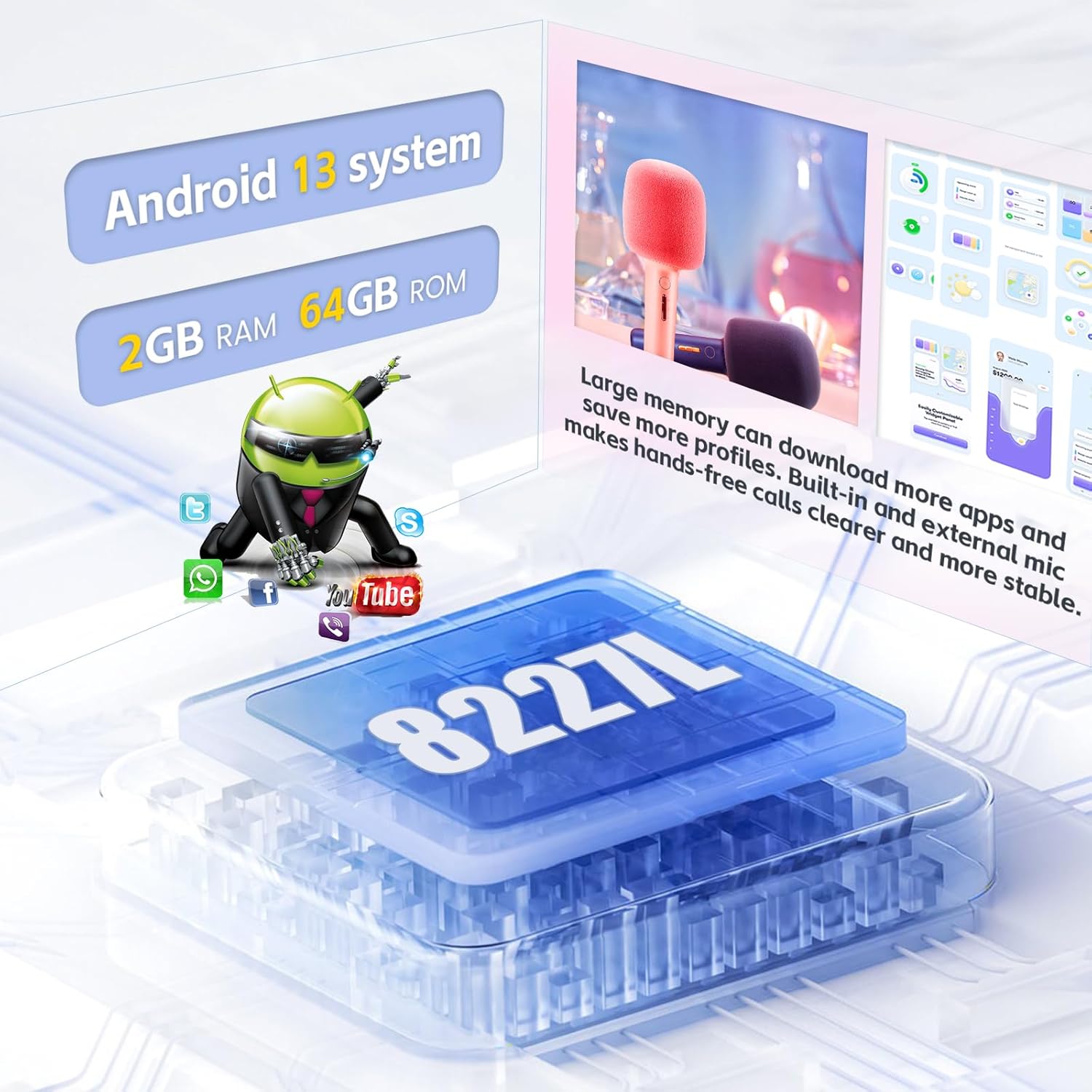
Figure 2.1: Android 13 System with 2GB RAM and 64GB ROM.
3. Package Contents
Verify that all items listed below are included in your package:
- 1 x Android Car Stereo
- 1 x Power Cable
- 1 x Backup Camera
- 2 x USB Adapter
- 1 x Radio Antenna
- 1 x GPS Antenna
- 1 x CAM-VIN Cable
- 1 x User Manual
- 1 x Canbus Decoder

Figure 3.1: Product Size and Package List.
4. Setup and Installation
Professional installation is recommended. Ensure the vehicle's power is disconnected before beginning installation.
4.1 Wiring Connections
Refer to the wiring diagram for proper connection of all components. Incorrect wiring can damage the unit or vehicle.
- Power Cable: Connect to the vehicle's power harness.
- RCA Cable: For audio/video input/output.
- USB Cable: For USB devices and data transfer.
- Rear Camera Input: Connect the AHD backup camera.
- Radio Antenna: Connect the vehicle's radio antenna.
- GPS Antenna: Mount in a location with a clear view of the sky for optimal signal reception.
- Canbus: Connect the Canbus decoder if your vehicle requires it for steering wheel controls or other integrated functions.

Figure 4.1: Wiring Port Diagram.
4.2 Backup Camera Installation
The included AHD rear view camera provides a clear image when reversing. Connect the camera as shown in the diagram below.
- Connect the camera's video output to the "CAM-VIN" input on the stereo.
- Connect the red wire of the camera power cable to the vehicle's reversing lamp power (+12V).
- Connect the black wire of the camera power cable to ground (GND).

Figure 4.2: AHD Rear View Camera Wiring.
4.3 Initial Power-On
After installation, turn on the vehicle's ignition. The stereo should power on automatically. Follow any on-screen prompts for initial setup.

Figure 4.3: Before and After Installation View.
5. Operating Instructions
5.1 CarPlay and Android Auto
The unit supports both Wireless/Wired CarPlay and Wireless/Wired Android Auto. Connect your smartphone via USB or Bluetooth/WiFi for seamless integration.
- Wireless Connection: Enable Bluetooth and WiFi on your phone, then pair with the car stereo. Follow on-screen instructions.
- Wired Connection: Connect your phone to the stereo's USB port using a certified USB cable.
- Once connected, you can access navigation, make calls, send messages, and play music using voice commands (Siri/Google Assistant) or the touchscreen.

Figure 5.1: CarPlay and Android Auto Interface.
5.2 GPS Navigation and WiFi
The stereo comes with pre-installed offline maps (HereWego). For online maps and app downloads, connect to WiFi or a mobile hotspot.
- Offline Maps: Download map data via WiFi during initial setup.
- Online Maps: Connect to a WiFi network or your phone's hotspot to use real-time navigation and traffic updates.
- App Downloads: Access the app store to download navigation apps (e.g., Waze), streaming services (e.g., YouTube, Spotify), and other applications.
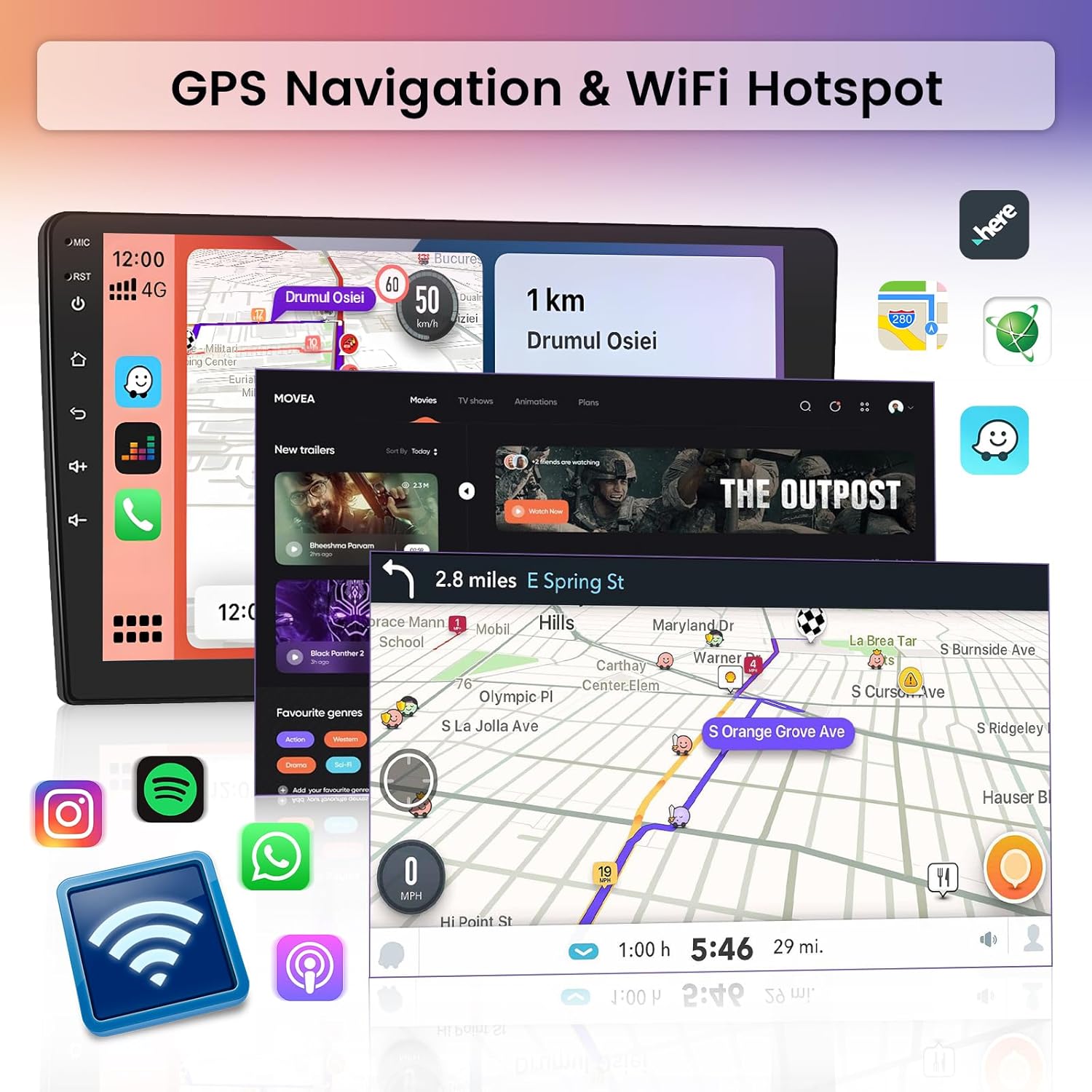
Figure 5.2: GPS Navigation and WiFi Hotspot Functionality.
5.3 FM Radio and RDS
Tune into your favorite radio stations with the built-in FM tuner. RDS (Radio Data System) provides additional information like station name and traffic updates.
- Access the "Radio" application from the main menu.
- Use the scan function to find available stations or manually tune.
- Save up to 18 preferred stations for quick access.

Figure 5.3: FM/RDS Radio, Bluetooth, and Steering Wheel Control Interface.
5.4 Bluetooth Connectivity
Pair your phone via Bluetooth for hands-free calling and audio streaming.
- Go to "Settings" > "Bluetooth" on the stereo.
- Enable Bluetooth on your phone and search for available devices.
- Select the stereo's Bluetooth name (e.g., "Hikity Car Stereo") and pair.
- Once paired, you can make/receive calls and play music from your phone.
5.5 Equalizer (EQ) and Multimedia Playback
Customize your audio experience with the built-in equalizer and enjoy multimedia from various sources.
- EQ Settings: Access the EQ settings to adjust sound profiles (e.g., Classical, Rock, Pop) or create custom settings.
- Multimedia: Play music and videos from USB drives, SD cards, or connected smartphones.

Figure 5.4: Multimedia Playback and EQ Settings.
5.6 Split Screen Functionality
Utilize the split-screen feature to run two applications simultaneously, such as navigation and music playback.
- Long-press the recent apps button or follow specific gestures (depending on UI theme) to activate split-screen mode.
- Select the two applications you wish to display side-by-side.
6. Maintenance
- Screen Cleaning: Use a soft, lint-free cloth to clean the touchscreen. Avoid abrasive cleaners or solvents.
- Software Updates: Periodically check for software updates via WiFi to ensure optimal performance and access to new features.
- General Care: Avoid exposing the unit to extreme temperatures, direct sunlight for prolonged periods, or excessive moisture.
7. Troubleshooting
7.1 Common Issues and Solutions
- No Power:
- Check all power connections and fuses.
- Ensure the vehicle's ignition is on.
- No Sound:
- Verify speaker connections.
- Check volume levels and mute settings.
- Ensure the correct audio source is selected.
- GPS Signal Loss:
- Ensure the GPS antenna is mounted in a clear location.
- Check antenna connection to the unit.
- Update map data if necessary.
- Bluetooth Pairing Issues:
- Ensure Bluetooth is enabled on both the stereo and your phone.
- Delete previous pairings and try again.
- Restart both devices.
- Backup Camera Not Displaying:
- Check camera power and video signal connections.
- Ensure the vehicle is in reverse gear.
If issues persist, contact customer support for assistance.
8. Specifications
| Feature | Detail |
|---|---|
| Model | B0DB1NTZSF |
| Compatible Vehicles | Jeep Grand Cherokee 2004-2007 (LHD) |
| Operating System | Android 13 |
| RAM | 2GB |
| ROM | 64GB |
| Screen Size | 10.1 Inches |
| Resolution | 1024 x 600 |
| Connectivity | Bluetooth, USB, FM, AUX, Wireless, WiFi |
| Special Features | Touchscreen, Carplay, Android Auto, GPS Navigation, FM RDS, EQ, Mirror Link, Split Screen, AHD Backup Camera Support, SWC |
| Map Type | Worldwide (Offline HereWego) |
| Audio Output Mode | Stereo |
| Mounting Type | Dashboard Mount |
| Item Weight | 6.14 pounds |
| Product Dimensions | 16.7 x 6.88 x 4.1 inches |
9. Warranty and Support
Hikity offers a comprehensive warranty and support for this product:
- Money-Back Guarantee: 15-day.
- Replacement Warranty: 12-month.
- Technical Support: Life-time technical support.
For technical assistance or warranty claims, please contact Hikity customer service through the retailer where the product was purchased or visit the official Hikity website.


