1. Introduction and Overview
The avedio links 8K HDMI Splitter 1 in 2 Out allows you to connect one HDMI source device to two HDMI display devices, such as TVs or monitors, and duplicate the same video and audio output to both displays simultaneously. This device is ideal for home entertainment, presentations, and other applications where identical content needs to be shown on multiple screens. It supports high resolutions up to 8K@60Hz and 4K@120Hz, ensuring a high-quality visual experience.
Important Note: This splitter supports mirror mode only. It does not support extended display mode (showing different content on each screen), connecting two HDMI input signals to one monitor (acting as a switcher), or audio extraction (ARC/eARC).
2. What's in the Box
- 8K HDMI Splitter
- 8K HDMI Cable (4ft)
- Power Cable with Adapter
- User Manual

3. Key Features
- HDMI 2.1 Splitter 1 in 2 Out: Duplicates one HDMI source to two displays simultaneously in mirror mode.
- High Resolution Support: Supports 8K@60Hz, 4K@120Hz/144Hz/60Hz, 1080P@240Hz/120Hz, 3D, HDR10, Dolby Vision, HDR10+, RGB 4:4:4, VRR ALLM. Backward compatible with 1080i, 720P, 576P.
- High Bandwidth: Features 48Gbps transmission speed for uncompressed video and audio.
- Smart EDID Management: Includes Auto and Copy EDID modes for optimal compatibility. Auto mode automatically recognizes the lower resolution, while Copy mode duplicates the resolution of output 1.
- Wide Compatibility: Works with most HDMI-enabled devices.
- No Lag or Flash: Designed for stable and consistent signal transmission.


4. Setup and Installation
- Power Connection: Connect the provided power cable with adapter to the splitter's USB power port and then to a power outlet. Ensure you are using a 5V 1A power adapter.
- Input Connection: Connect your HDMI source device (e.g., computer, game console, Blu-Ray player) to the HDMI IN port on the splitter using a high-quality HDMI cable.
- Output Connections: Connect your two HDMI display devices (e.g., TV, monitor, projector) to the HDMI OUT1 and HDMI OUT2 ports on the splitter using high-quality HDMI cables.
- EDID Setting: Use the AUTO/COPY switch on the splitter to select the desired EDID mode. For best performance in Copy mode, connect the lower resolution display device to Output 1.
- Cable Requirements: Ensure appropriate HDMI cable versions and lengths are used for optimal performance based on resolution:
- For 8K@60Hz: Use HDMI 2.1 (AWG 30) cable; input/output length ≤ 9.8ft (3m).
- For 4K@120Hz/144Hz or 1080P@240Hz/120Hz: Use HDMI 2.1 (AWG 30) cable; input length ≤ 16.4ft (5m), output length ≤ 32.8ft (10m).
- For 4K@60Hz or 1080P@60Hz: Use HDMI 2.0 (AWG 26) cable; input length ≤ 16.4ft (5m), output length ≤ 32.8ft (10m).


5. Operating Instructions
Once all connections are made and the splitter is powered on, the connected displays should automatically mirror the content from the HDMI source. The EDID management switch allows for fine-tuning display compatibility:
- Auto Mode: The splitter will automatically detect and output the lower resolution common to both connected displays. This is generally the recommended setting for most setups.
- Copy Mode: The splitter will duplicate the resolution and EDID information from the display connected to Output 1. If using this mode, ensure the display connected to Output 1 is the one with the lowest resolution to ensure compatibility with both displays.


6. Compatibility
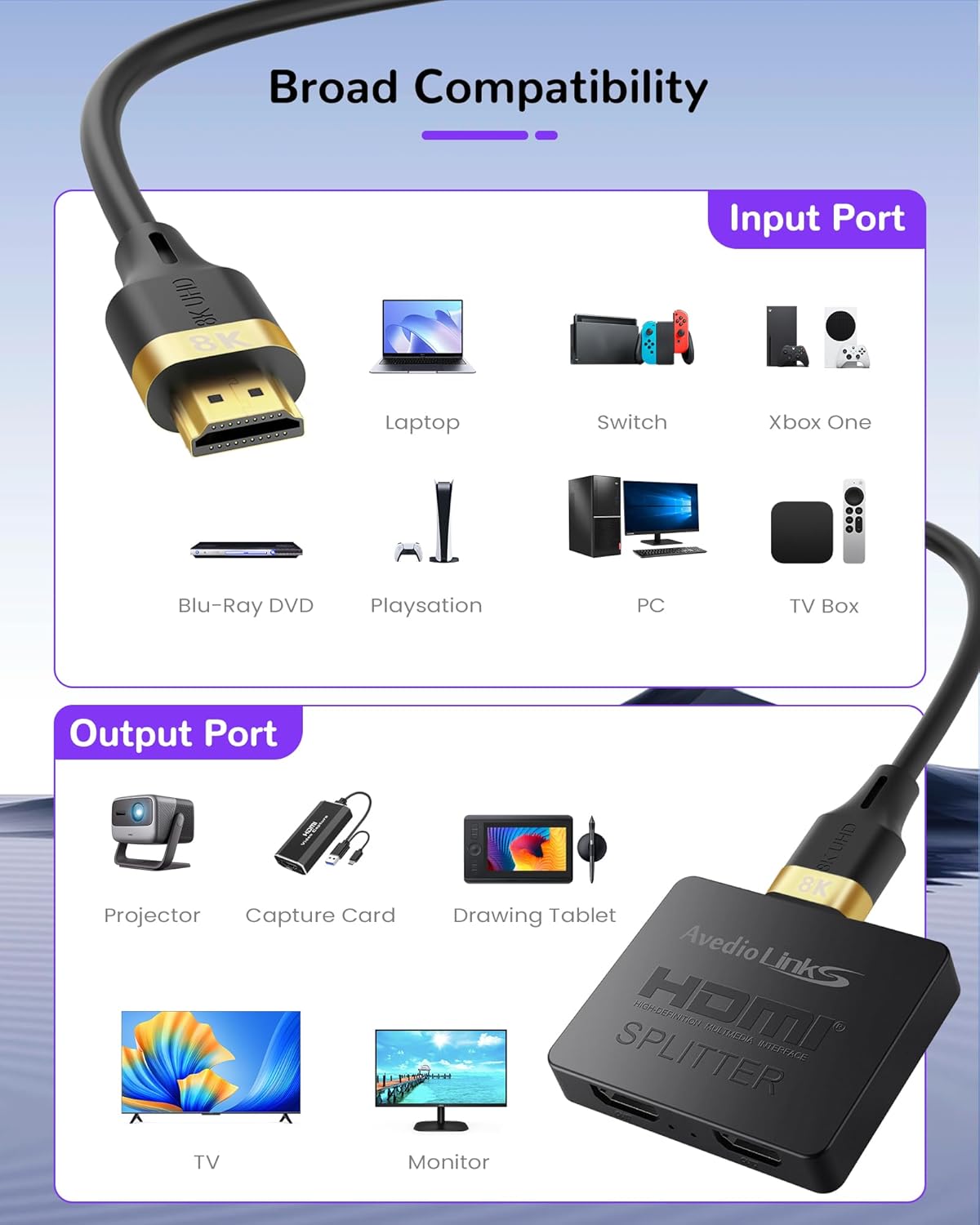
Input Devices:
- Computer (Laptops, PCs)
- Game Consoles (PlayStation 4/5, Xbox One, Nintendo Switch)
- Streaming Devices (Chromecast, Fire Stick, Roku)
- Blu-Ray Players, DVD Players
- Satellite Receivers
- TV Boxes
Output Devices:
- 8K TVs, HDTVs
- Monitors
- Projectors
- VR Headsets
- Capture Cards
- Drawing Tablets
Unsupported Functions:
- Extended Display Mode (MST)
- Connecting two HDMI input signals to one monitor (acting as a switcher)
- Audio extraction (ARC/eARC) or connection to any audio-only device like a soundbar.


7. Troubleshooting
Q: HDMI splitter can't work, how to set?
A: 1. Ensure you are using a 5V 1A power adapter to supply power to the splitter. 2. Make sure the input and output devices are connected to the correct ports. 3. Adjust Resolution & Cable as below requirement:
| Resolution / Refresh Rate | Input Length | Output Length | HDMI Cable Spec |
|---|---|---|---|
| 8K@60Hz | ≤3m/9.8ft | ≤3m/9.8ft | HDMI 2.1 (AWG 30) |
| 4K@120Hz/4K@144Hz 1080P@240Hz/1080P@120Hz | ≤5m/16.4ft | ≤10m/32.8ft | HDMI 2.1 (AWG 30) |
| 4K@60Hz / 1080P@60Hz | ≤5m/16.4ft | ≤10m/32.8ft | HDMI 2.0 (AWG 26) |
4. Try dial EDID to AUTO. Or connect the lower resolution's display device to splitter's out 1 port. 5. If using a laptop, make sure the external display is recognized and set to mirror mode.
Q: Audio output failure or cut in and out, how to set?
A: 1. If connected the laptop on splitter, but no sound, please try to process as: Setting -> system(display, audio ,notification,power) -> audio -> choose output the audio device; 2. If connected the other device like DVD player, please try to set the audio format of the input source to PCM mode. 3. If has sound, but sound cut in and out, suggest change HDMI 2.1 (AWG 30) cable.
Q: Only one screen worked, how to set?
A: Try dial the EDID to AUTO first. Or connect the lower resolution's display device to splitter's out 1 port. If issue not solved, suggest adjust the resolution of the input source to the lowest monitor's resolution like 1080P or lower.
Q: The screen always flicker, signal cut in and off, how to set?
A: Make sure to use a 5V 1A power adapter to power the splitter. According resolution and refresh rate to adjust the HDMI cable as below requirement (refer to the table above). Q: Not compatible with PS5 or other high refresh rate devices - How to set up? A: For PS5 or other high refresh rate devices, suggest using HDMI 2.1 (AWG 30) cable, input cable length ≤ 5m/16.4ft, output cable length ≤ 10m/32.8ft; If you're unsure about the monitor's resolution, please set the DIP switch to AUTO mode.


8. Specifications
- Product Dimensions: 2.4 x 2 x 0.6 inches
- Item Weight: 5.9 ounces
- Color: Black
- Connector Type: HDMI
- Cable Type: HDMI
- Manufacturer: avedio links
- ASIN: B0DB1C6XP9
9. Warranty and Support
Warranty information for your avedio links 8K HDMI Splitter is typically included with the product packaging. Please refer to the documentation provided in the box for details regarding the warranty period and terms. For additional support, troubleshooting, or to inquire about product registration, please visit the official avedio links website or contact their customer service directly. Protection plans may also be available for extended coverage.


