
1. Introduction
This manual provides detailed instructions for the setup, operation, maintenance, and troubleshooting of your AULA F98 Tri-Mode Mechanical Keyboard. Please read this manual thoroughly to ensure proper use and to maximize your keyboard's performance and lifespan.

Image 1.1: Overview of the AULA F98 Tri-Mode Mechanical Keyboard.
2. Product Features
- Tri-Mode Connectivity: Supports Bluetooth 5.0, 2.4GHz wireless, and USB-C wired connections.
- Hot-Swappable Switches: Compatible with 3-pin/5-pin mechanical switches for easy customization and maintenance.
- RGB Backlighting: Features 16.8 million colors with multiple preset lighting effects and music rhythm modes.
- Programmable Keys & Macros: All keys support macro customization via driver software.
- 99-Key Layout: Compact design with a numeric keypad, N-key rollover, and WIN key lock.
- Long Battery Life: Equipped with a 4000mAh battery.
- Premium Keycaps: Side-printed PBT keycaps for durability and comfort.
- Gasket Structure: Enhances typing feel and sound.
3. Setup Guide
3.1 Package Contents
Before proceeding, ensure all items are present:
- AULA F98 Mechanical Keyboard
- USB-C Cable
- 2.4GHz Wireless Receiver (stored in the keyboard)
- User Manual (this document)
3.2 Connecting the Keyboard
The AULA F98 keyboard supports three connection modes: USB-C wired, 2.4GHz wireless, and Bluetooth 5.0. You can switch between up to 5 connected devices.
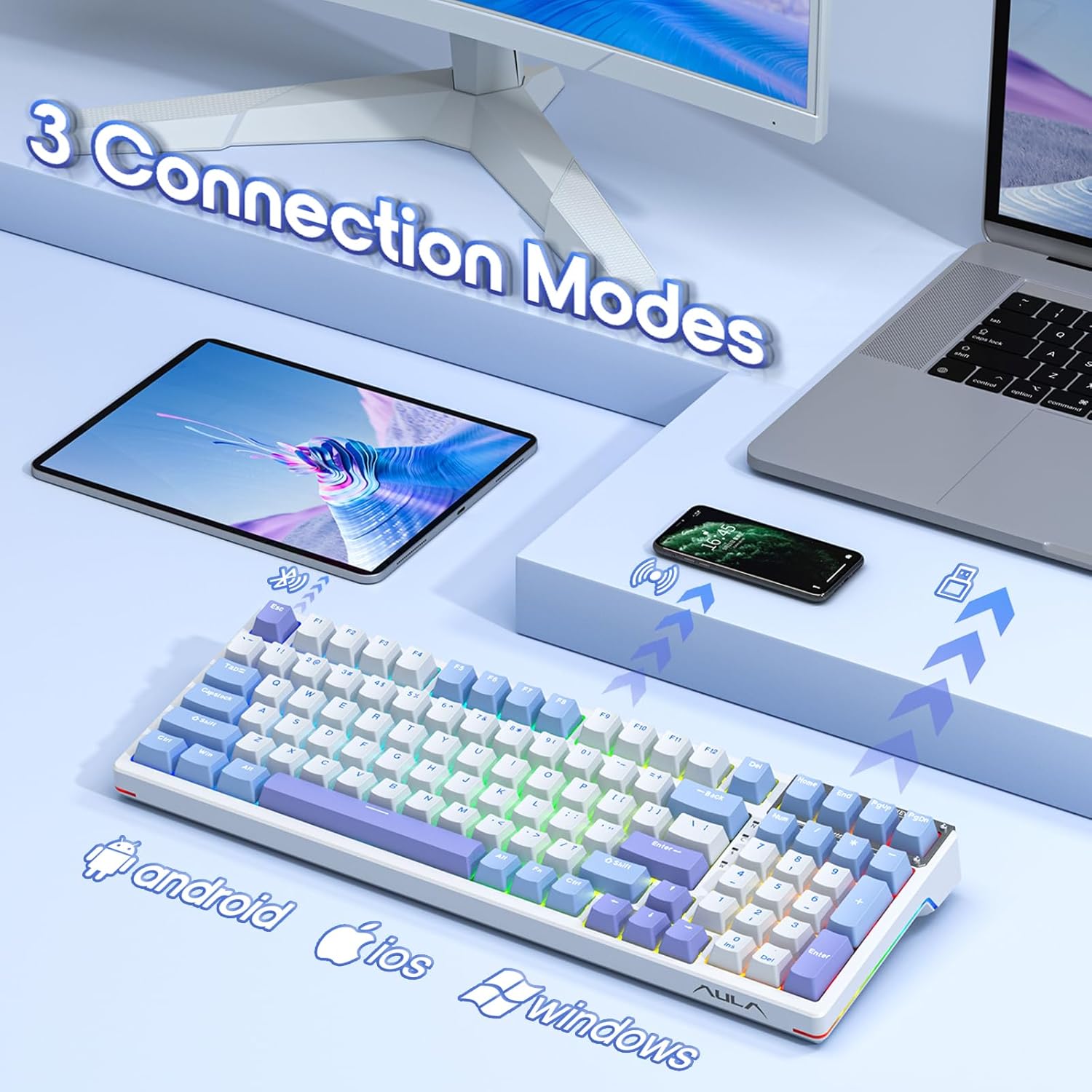
Image 3.1: The AULA F98 keyboard supports three connection modes for various devices.
3.2.1 USB-C Wired Connection
- Locate the USB-C port on the keyboard.
- Connect the provided USB-C cable to the keyboard and to an available USB port on your computer.
- The keyboard will automatically be recognized and ready for use.
3.2.2 2.4GHz Wireless Connection
- Locate the 2.4GHz wireless receiver, typically stored in a magnetic compartment on the keyboard's underside or side.
- Plug the 2.4GHz receiver into an available USB port on your computer.
- Turn on the keyboard using the power switch (usually located on the back or side).
- The keyboard should automatically connect. If not, press FN + ~ to activate 2.4GHz mode.
3.2.3 Bluetooth 5.0 Connection
- Turn on the keyboard.
- Press and hold FN + 1, FN + 2, or FN + 3 for 3-5 seconds until the indicator light flashes rapidly. This indicates pairing mode.
- On your device (computer, tablet, phone), open Bluetooth settings and search for new devices.
- Select "AULA F98" from the list of available devices to pair.
- Once paired, the indicator light will stop flashing and remain solid.
- To switch between paired Bluetooth devices, press FN + 1/2/3 briefly.
3.3 Charging the Battery
The keyboard is equipped with a 4000mAh rechargeable battery. Connect the USB-C cable to the keyboard and a power source (computer USB port or USB wall adapter) to charge. The indicator light will show charging status and turn off when fully charged.
4. Operating Instructions
4.1 Basic Key Functions
- N-Key Rollover: Allows multiple keys to be pressed simultaneously without conflict.
- WIN Key Lock: Press FN + Win to lock/unlock the Windows key, preventing accidental presses during gaming.
4.2 RGB Backlighting Control
The AULA F98 features extensive RGB backlighting. Use the following FN key combinations to control lighting effects:
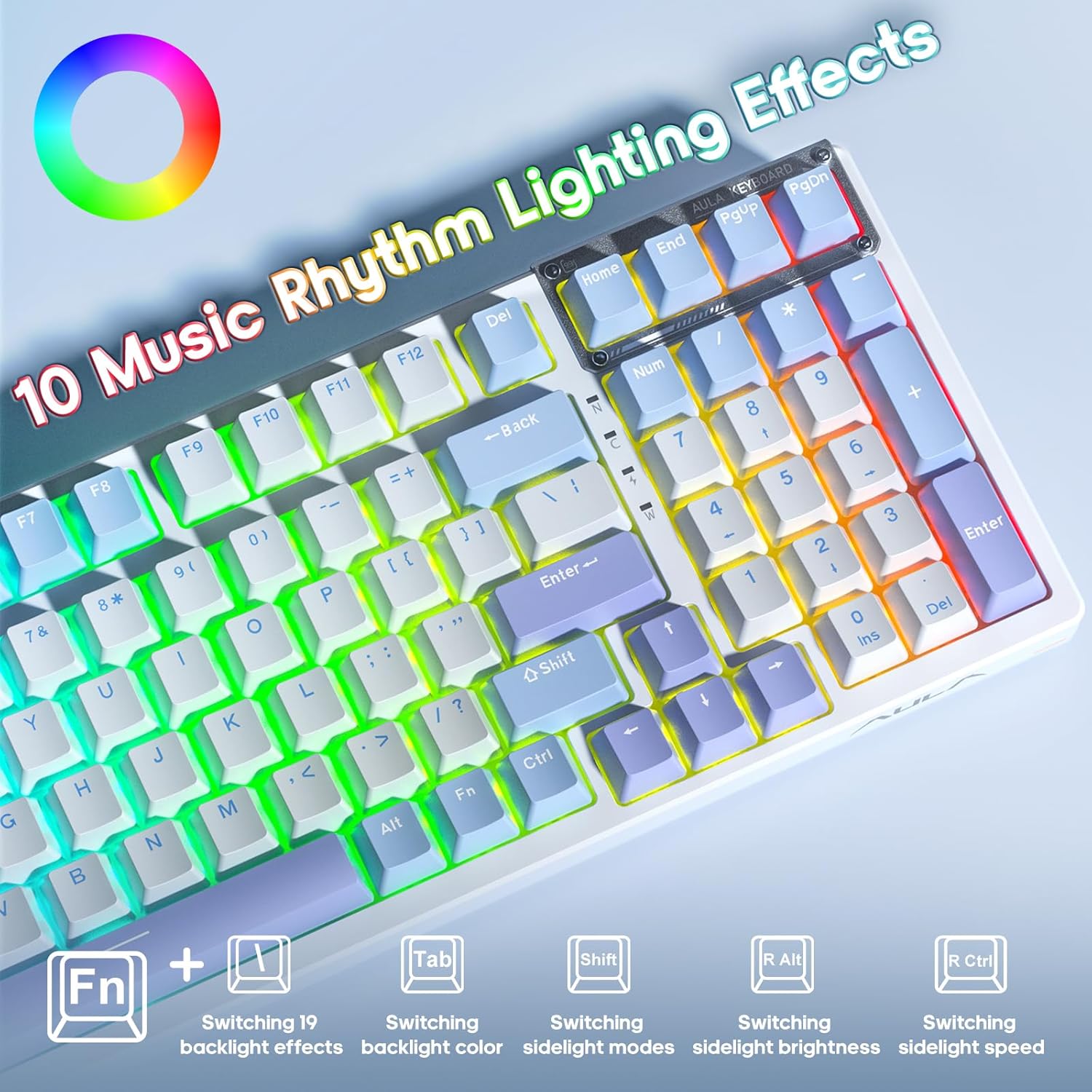
Image 4.1: FN key combinations for controlling RGB lighting effects and music rhythm modes.
- FN + \|: Switch between 19 preset backlight effects.
- FN + TAB: Switch backlight colors.
- FN + R Shift: Switch sidelight modes.
- FN + R Alt: Adjust sidelight brightness.
- FN + R Ctrl: Adjust sidelight speed.
- FN + ↑ / ↓: Adjust backlight brightness.
- FN + → / ←: Adjust backlight speed.

Image 4.2: The keyboard features customizable RGB side lighting.
4.3 Macro Programming
The AULA F98 keyboard supports macro customization for all keys using the dedicated driver software. The driver software is compatible with Windows operating systems.
- Download and install the AULA F98 driver software from the official AULA website.
- Launch the software.
- Navigate to the 'Macro Manager' section.
- Record or edit macros as desired.
- Assign macros to specific keys.
- Save your configurations. The keyboard has onboard memory to store these settings.
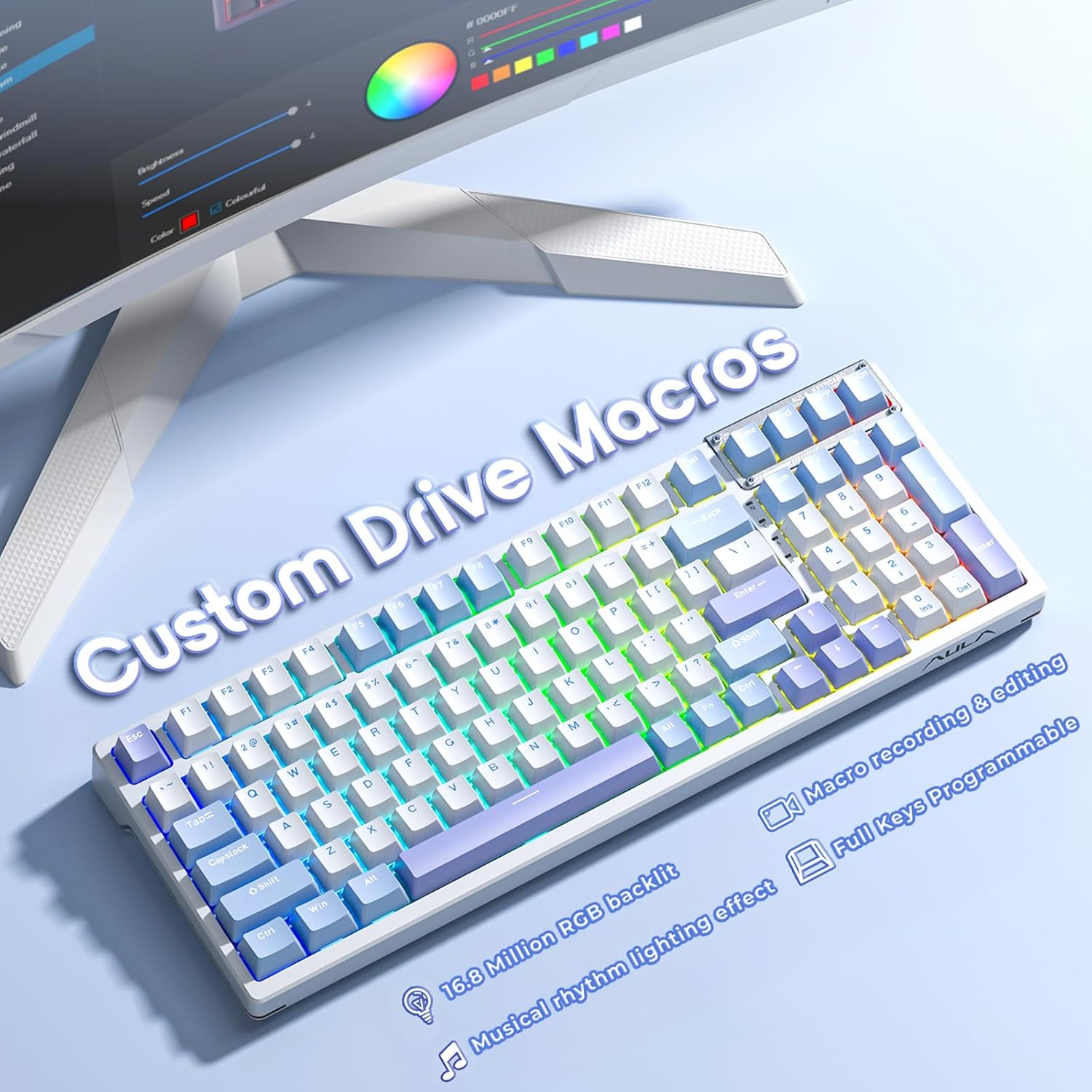
Image 4.3: The keyboard supports custom macros and is fully programmable via software.
4.4 Hot-Swapping Switches and Keycaps
The AULA F98 is designed with hot-swappable sockets, allowing you to easily change mechanical switches and keycaps without soldering.

Image 4.4: The hot-swappable design allows for easy switch replacement, supporting 3-pin/5-pin switches.
4.4.1 Replacing Keycaps
- Use a keycap puller to gently remove the desired keycap.
- Align the new keycap with the switch stem and press down firmly until it clicks into place.
4.4.2 Replacing Switches
- First, remove the keycap using a keycap puller.
- Use a switch puller to carefully grip the top and bottom clips of the switch.
- Gently pull the switch upwards to remove it from the PCB.
- Align the pins of the new switch with the holes on the PCB. Ensure the pins are straight.
- Press the new switch down firmly until it is seated correctly. Do not force it if resistance is met; check pin alignment.
- Test the new switch to ensure it functions correctly before replacing the keycap.
5. Maintenance
5.1 Cleaning the Keyboard
Regular cleaning helps maintain the keyboard's appearance and functionality.
- Disconnect the keyboard from all power sources before cleaning.
- Use a soft brush or compressed air to remove dust and debris from between the keycaps.
- For stubborn dirt, gently wipe the keycaps and surface with a slightly damp, lint-free cloth. Avoid excessive moisture.
- Do not use harsh chemicals or abrasive cleaners.
5.2 General Care
- Avoid exposing the keyboard to extreme temperatures, direct sunlight, or liquids.
- Do not drop or subject the keyboard to strong impacts.
- Store the 2.4GHz receiver in its designated magnetic compartment when not in use to prevent loss.
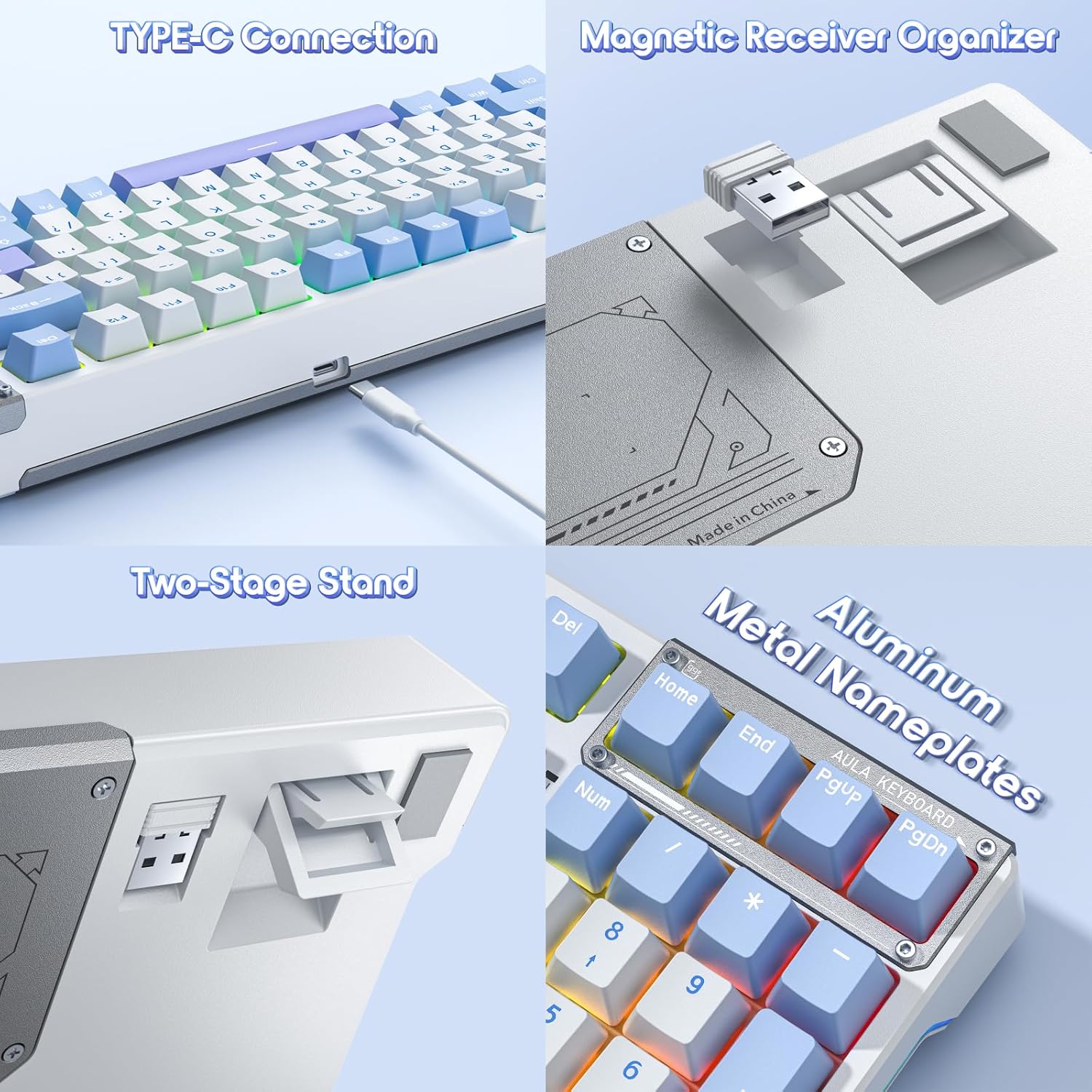
Image 5.1: Features like the Type-C connection, magnetic receiver organizer, two-stage stand, and aluminum nameplates contribute to the keyboard's design and functionality.
6. Troubleshooting
If you encounter issues with your AULA F98 keyboard, refer to the following common problems and solutions:
| Problem | Possible Cause | Solution |
|---|---|---|
| Keyboard not responding (wired) | Loose USB-C cable connection; faulty USB port. | Ensure the USB-C cable is securely connected. Try a different USB port or cable. |
| Keyboard not responding (2.4GHz wireless) | Receiver not plugged in; low battery; incorrect mode. | Plug in the 2.4GHz receiver. Charge the keyboard. Press FN + ~ to ensure 2.4GHz mode is active. |
| Keyboard not responding (Bluetooth) | Not paired; low battery; incorrect mode; device Bluetooth off. | Ensure Bluetooth is enabled on your device. Re-pair the keyboard (see Section 3.2.3). Charge the keyboard. Press FN + 1/2/3 to select the correct Bluetooth channel. |
| Backlighting not working or incorrect | Backlight turned off; brightness too low; software conflict. | Adjust brightness with FN + ↑. Cycle through effects with FN + \|. Check driver software settings. |
| Keys not registering input | Faulty switch; debris under keycap. | Remove keycap and clean. If hot-swappable, replace the switch (see Section 4.4.2). |
| Macros not working | Macro not saved; driver software issue. | Ensure macros are correctly configured and saved in the driver software. Reinstall the driver if necessary. |
7. Specifications
| Feature | Detail |
|---|---|
| Model Number | F98 |
| Connectivity Technology | 2.4GHz Wireless, Bluetooth 5.0, USB-C Wired |
| Keyboard Description | Mechanical |
| Switch Type | LEOBOG Reaper Linear Switches (Pre-lubed), Hot-Swappable (3-pin/5-pin) |
| Keycaps | Side-printed PBT |
| Backlighting | RGB (16.8 Million Colors), 19 Preset Effects, 10 Music Rhythm Effects |
| Battery Capacity | 4000mAh |
| Product Dimensions | 38.98 x 13.82 x 0.4 inches (99 x 35.1 x 1.0 cm) |
| Item Weight | 3.01 pounds (1.36 kg) |
| Compatible Devices | PC, Laptop, Gaming Console |
| Included Components | USB Cable |
8. Warranty and Support
AULA products are designed for reliability and performance. For warranty information, please refer to the documentation included with your purchase or visit the official AULA website. For technical support or further assistance, please contact AULA customer service through their official channels.
Please retain your proof of purchase for warranty claims.


