
1. Introduction
This manual provides comprehensive instructions for the installation, operation, and maintenance of your SHANNA 3MP Light Bulb Security Camera. Please read this manual thoroughly before using the product to ensure correct usage and optimal performance. Keep this manual for future reference.
2. Product Overview
The SHANNA 3MP Light Bulb Security Camera integrates a high-definition surveillance camera with a functional 12W LED light bulb. Designed for outdoor use, it offers 3MP HD video recording, color night vision, human detection with automatic tracking, two-way audio communication, and siren alarm capabilities. It connects wirelessly via 2.4GHz Wi-Fi and is controlled through a dedicated mobile application.

Figure 2.1: Two SHANNA 3MP Light Bulb Security Cameras. Each camera features a large light bulb design with an integrated camera unit below, equipped with multiple LED lights and a lens.

Figure 2.2: Illustration showing the benefit of the integrated light. The top image depicts a house exterior that would be dark without a separate light source. The bottom image shows the same house illuminated by the SHANNA Light Bulb Security Camera, demonstrating its dual function as both a light and a camera.
3. Setup Instructions
- Power Source: Ensure you have a standard E27/E26 light socket available at the desired installation location. The camera operates on 100-120 Volts, 60 Hertz AC power.
- Installation: Screw the SHANNA Light Bulb Security Camera into the E27/E26 light socket like a regular light bulb. No additional wiring or tools are required for physical installation.
- App Download: Download the dedicated security camera application to your smartphone. The name of the application is typically provided in the packaging or a quick start guide.
- Device Pairing:
- Open the security camera application.
- Select "Add Device" or a similar option within the app.
- Enable Bluetooth on your smartphone. The app will automatically detect and attempt to match with your camera.
- Follow the on-screen prompts to connect the camera to your 2.4GHz Wi-Fi network. Enter your Wi-Fi password when requested.
- Initial Configuration: Once connected, follow the app's instructions to complete initial setup, including setting a device name and adjusting basic settings.
Important Note: This camera requires a 2.4GHz Wi-Fi network for connection. It is not compatible with 5GHz Wi-Fi networks.
4. Operating Instructions
4.1. Light Control
The integrated 12W high-brightness light bulb can be controlled via the security camera application. It supports both manual and smart modes:
- Manual Mode: Turn the light on or off directly through the app interface.
- Smart Mode: Configure the light to activate automatically based on motion detection or a schedule.
4.2. Camera Movement (Pan & Tilt)
The camera offers a 355° pan and 90° tilt range, allowing comprehensive coverage of the monitored area. You can control the camera's direction remotely through the mobile application.

Figure 4.1: The SHANNA Light Bulb Security Camera illustrating its 355° horizontal rotation (pan) and 90° vertical movement (tilt) capabilities, enabling monitoring from multiple angles.
4.3. Human Detection & Automatic Tracking
The camera features advanced AI human detection to minimize false alarms. When human motion is detected, the camera can:
- Send alerts to your smartphone.
- Automatically track the detected human subject within its pan and tilt range.
- Activate a loud siren and emit white light to deter intruders.

Figure 4.2: A visual representation of the human detection and automatic tracking feature. The image shows a child and a dog in a yard, with the camera detecting and tracking the child's movement, highlighting the camera's ability to distinguish human figures.

Figure 4.3: This image demonstrates the camera's deterrent features: a siren, the integrated big light bulb, and a smartphone alert push notification. An intruder is shown being illuminated by the camera's light, with the app interface visible on a phone.
4.4. Two-Way Audio
The built-in microphone and speaker enable real-time two-way communication through the app. This allows you to speak with visitors or deter unwanted individuals remotely.

Figure 4.4: An illustration of the two-way audio feature. A person outside is shown receiving a package, while a person indoors communicates with them via the camera's app, demonstrating seamless remote interaction.
4.5. Night Vision
The camera provides 3MP HD color night vision, ensuring clear and detailed footage even in low-light conditions. The powerful light sensor enhances visibility at night.
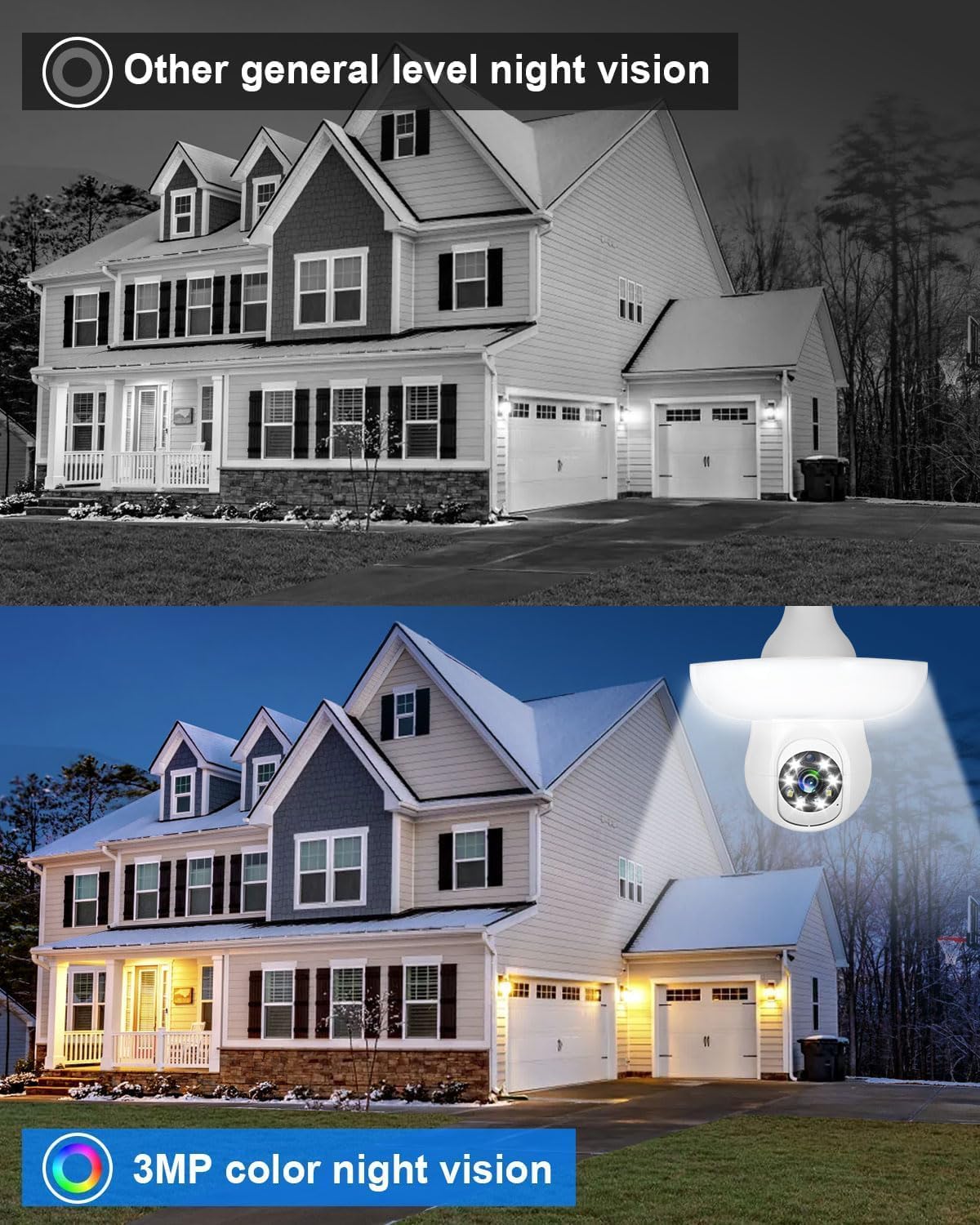
Figure 4.5: A comparison demonstrating the camera's 3MP color night vision. The top image shows a typical black and white night vision view of a house. The bottom image shows the same house with the SHANNA camera's color night vision activated, providing a much clearer and more detailed view with natural colors.
4.6. Storage Options
The camera supports two storage methods for recorded footage:
- Micro-SD Card: A built-in micro-SD slot allows for 24/7 local recording. Supports up to 128GB SD cards (not included).
- Cloud Storage: An optional cloud storage service is available for secure, encrypted video storage. This service typically requires a paid subscription.
5. Maintenance
- Cleaning: Gently wipe the camera lens and light bulb surface with a soft, dry cloth. Avoid using harsh chemicals or abrasive materials that could damage the components.
- Firmware Updates: Regularly check the mobile application for available firmware updates. Keeping the camera's firmware updated ensures optimal performance, security, and access to new features.
- Network Stability: Ensure your 2.4GHz Wi-Fi network is stable and provides sufficient signal strength to the camera for uninterrupted operation and recording.
- Storage Management: If using a micro-SD card, periodically review and manage stored footage to prevent the card from becoming full. For cloud storage, ensure your subscription is active.
6. Troubleshooting
- Camera Not Connecting to Wi-Fi:
- Ensure your Wi-Fi network is 2.4GHz. The camera does not support 5GHz networks.
- Verify the Wi-Fi password entered in the app is correct.
- Check the distance between the camera and your Wi-Fi router. Move the camera closer or consider a Wi-Fi extender.
- Restart your router and the camera (by unscrewing and re-screwing it into the socket).
- No Image/Video Feed:
- Confirm the camera is properly powered and the light socket is active.
- Check your internet connection on your smartphone and the camera's Wi-Fi status in the app.
- Restart the camera and the app.
- Light Bulb Not Functioning:
- Ensure the light function is enabled in the app (manual or smart mode).
- Verify the camera is receiving power.
- If the light has failed after extended use, it may indicate a component lifespan issue.
- False Motion Alerts:
- Adjust the motion detection sensitivity settings in the app.
- Ensure AI human detection is enabled to filter out non-human movements.
- Review the camera's field of view for objects that might trigger alerts (e.g., swaying branches, reflections).
- Two-Way Audio Issues:
- Check the microphone and speaker settings within the app.
- Ensure your smartphone's volume is up and microphone access is granted to the app.
- Verify a stable internet connection for clear audio transmission.
7. Specifications
| Brand | SHANNA |
| Model | 3MP Light Bulb Security Camera |
| Resolution | 3 Megapixels (HD) |
| Night Vision | Color Night Vision |
| Pan/Tilt Range | 355° Pan, 90° Tilt |
| Light Type | LED |
| Light Wattage | 12 Watts |
| Light Brightness | 1200 Lumens (White Light) |
| Bulb Base | E26 (compatible with E27) |
| Wi-Fi Connectivity | 2.4GHz (IEEE 802.11b/g/n) |
| Power Source | Corded Electric |
| Voltage/Frequency | 100-120 Volts AC, 60 Hertz |
| Storage Options | Micro-SD Card (up to 128GB, not included), Cloud Storage (subscription required) |
| Control Method | Mobile Application |
| Indoor/Outdoor Usage | Outdoor |
| Item Weight (per unit) | Approximately 0.88 lbs (1.76 lbs for 2 units) |
8. Warranty and Support
For warranty information and technical support, please refer to the contact details provided with your product packaging or visit the official SHANNA website. Keep your purchase receipt as proof of purchase for warranty claims.