
ECHTPower ES03GN
ECHTPower Wireless Switch Controller User Manual
Model: ES03GN
Brand: ECHTPower
1. Introduction
This manual provides comprehensive instructions for the ECHTPower Wireless Switch Controller (Model: ES03GN). Please read this manual carefully before use to ensure proper operation and to maximize your gaming experience. This controller is designed for multi-platform compatibility, offering advanced features such as Hall Effect joysticks, programmable macro buttons, adjustable vibration, and 6-axis gyro.
Package Contents:
- 1x ECHTPower Wireless Switch Controller
- 1x USB Charging Cable
- 1x User Manual
2. Setup and Connection
Initial Activation:
Before first use, the controller must be charged with the provided USB data cable to activate it. Connect the USB charging cable to the controller and a power source (e.g., a USB port on your console or a USB wall adapter).
Pairing Instructions:
The ECHTPower Wireless Switch Controller supports both wireless (Bluetooth) and wired connections across multiple platforms.
2.1. Nintendo Switch / Switch 2:
To pair wirelessly with your Nintendo Switch:
- From the HOME Menu, select Controllers, then Change Grip/Order.
- While on the Change Grip/Order screen, press and hold the Home button (unicorn icon) and the Y button on the controller simultaneously for 3-5 seconds until the indicator lights flash rapidly.
- Once paired, the player indicator lights on the bottom of the controller will illuminate solid.
Note: Some users report that connecting the controller directly to the Switch dock via USB cable for the first time can facilitate pairing. After initial wired connection, wireless pairing should be straightforward.

Image: Front view of the ECHTPower Wireless Switch Controller, showcasing its ergonomic design and button layout.

Image: The ECHTPower controller positioned among various devices, illustrating its multi-platform compatibility with Switch, PC, Android, and iOS.
2.2. PC (Windows):
For PC connection, the controller can be used wirelessly via Bluetooth or wired via USB cable. When connected via USB, it typically registers as an Xbox controller, offering broad compatibility with PC games.
- Wired Connection: Connect the controller to your PC using the USB charging cable. The PC should automatically detect and install the necessary drivers.
- Wireless (Bluetooth) Connection:
- Ensure your PC has Bluetooth enabled.
- On the controller, press and hold the Home button (unicorn icon) and the X button simultaneously for 3-5 seconds to enter pairing mode.
- On your PC, go to Bluetooth & other devices settings, click "Add Bluetooth or other device", select "Bluetooth", and choose the controller from the list.
2.3. iOS / Android:
To connect wirelessly with iOS or Android devices:
- Ensure Bluetooth is enabled on your mobile device.
- On the controller, press and hold the Home button (unicorn icon) and the A button (for Android) or B button (for iOS) simultaneously for 3-5 seconds to enter pairing mode.
- On your mobile device, search for Bluetooth devices and select the ECHTPower controller from the list to pair.
3. Key Features and Functions
3.1. Hall Effect Joysticks:
The controller is equipped with advanced Hall Effect joysticks. These joysticks use magnetic fields instead of physical contacts, which eliminates joystick drift, provides precise control, and ensures a longer lifespan. This technology is particularly beneficial for games requiring high accuracy, such as FPS titles.

Image: An exploded view diagram illustrating the internal components and magnetic operation of a Hall Effect joystick, highlighting its no-drift design.
3.2. Programmable Macro Buttons (ML/MR):
The controller features two programmable macro buttons (ML and MR) on the back. These buttons allow you to map single or multiple button functions to a single press, enabling complex actions or skill combinations with ease. This can significantly enhance gameplay in arcade or action games.

Image: Rear view of the ECHTPower controller, highlighting the ML and MR programmable buttons and their location.
3.3. Turbo Function:
The turbo function allows for rapid, repeated input of a button press. This controller supports both automatic and manual turbo modes with three adjustable speeds.
- To activate/deactivate turbo for a button: Press and hold the T button, then press the desired action button (A/B/X/Y/L1/L2/R1/R2/D-pad).
- To adjust turbo speed: While turbo is active, press and hold the T button and move the right joystick up or down to cycle through the three speeds.
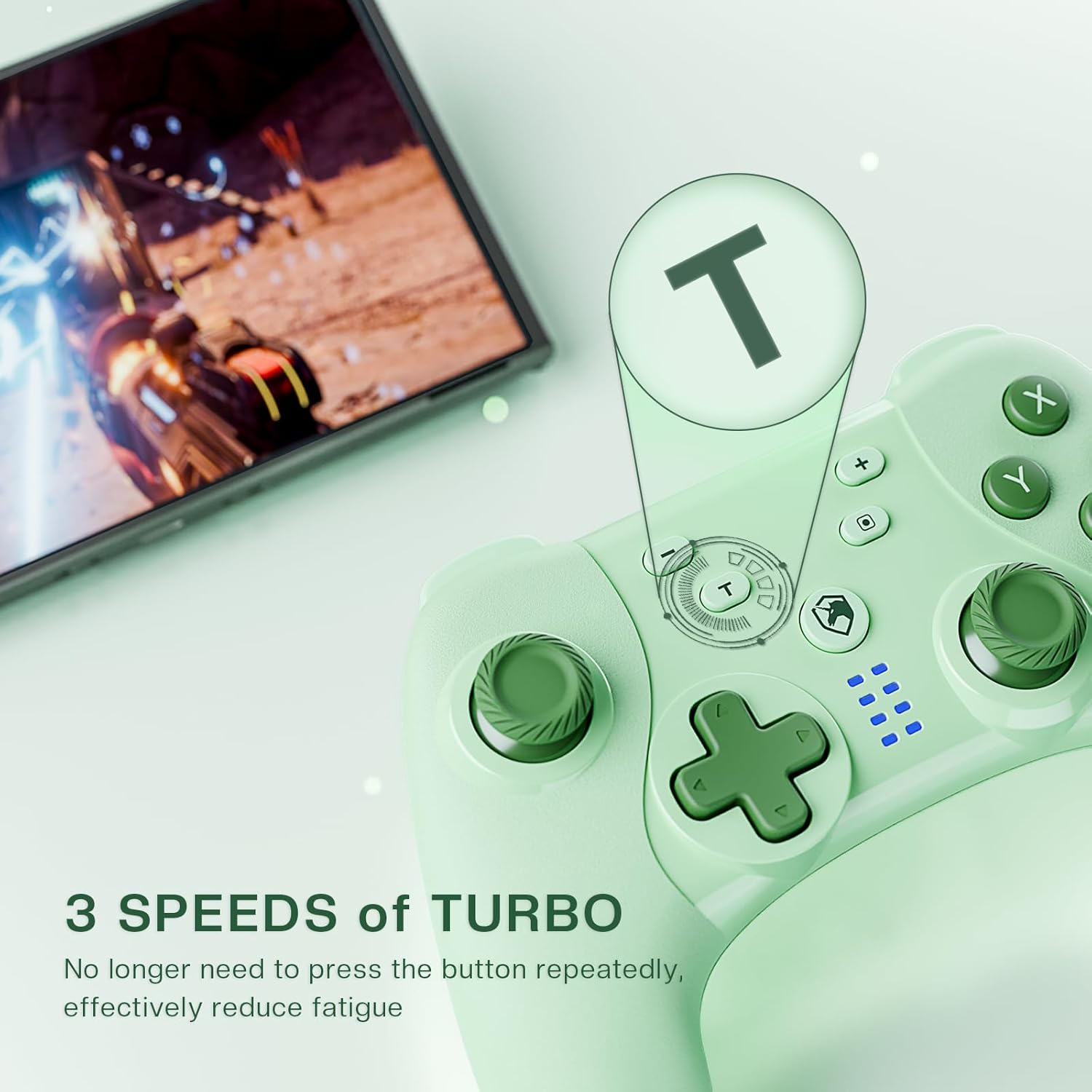
Image: Close-up of the controller's face, emphasizing the 'T' (Turbo) button and its function in reducing repetitive button presses.
Video: An official product video demonstrating various features of the ECHTPower Wireless Switch Controller, including Hall Effect joysticks, programmable buttons, and turbo function. (Source: ECHTPower.USA)
3.4. Adjustable Vibration & 6-Axis Gyro:
The controller features built-in 6-axis gyro sensors for precise motion control, enhancing game immersion. It also offers five levels of adjustable vibration feedback (0%, 25%, 50%, 75%, 100%) to provide a realistic gaming experience.
- To adjust vibration intensity: Press and hold the Vibration button (usually a small button near the Home button, or a combination with the T button, refer to specific manual for exact button) and move the left joystick up or down to cycle through vibration levels. The controller will vibrate at the selected intensity to confirm the setting.

Image: The controller with a visual representation of adjustable vibration levels, from 0% to 100%, indicating customizable haptic feedback.
3.5. One-Click Wake-Up Function:
The controller supports a convenient one-click wake-up feature for the Nintendo Switch. Simply press the Home button (unicorn icon) to wake your Switch console from standby mode and immediately resume gameplay.
4. Operating the Controller
4.1. Basic Controls:
Familiarize yourself with the standard button layout:
- A/B/X/Y Buttons: Standard action buttons.
- D-Pad: Directional input.
- Left/Right Joysticks: Analog movement and camera control.
- L1/R1 (Shoulder Buttons): Top triggers.
- L2/R2 (Trigger Buttons): Bottom triggers.
- +/- Buttons: Plus and Minus buttons (Nintendo Switch equivalent).
- Screenshot Button: Capture screenshots.
- Home Button (Unicorn Icon): System menu access, wake-up function.

Image: The ECHTPower controller resting on a clean desk alongside a keyboard and mouse, illustrating its integration into a gaming setup.
4.2. Joystick Calibration:
Important: Do not move the joysticks while the controller is powering on. This may lead to Hall Effect joystick drift. If drift occurs, connect the controller to your Switch console and perform joystick calibration through the system settings.
- On your Nintendo Switch, go to System Settings.
- Scroll down and select Controllers and Sensors.
- Select Calibrate Control Sticks.
- Follow the on-screen prompts to calibrate the affected joystick.
5. Maintenance and Battery Life
5.1. Charging the Controller:
The controller is equipped with a 400mAh rechargeable battery. A full charge takes approximately 2-3 hours and provides up to 8 hours of playtime.
- Connect the provided USB charging cable to the Type-C charging port on the controller and a USB power source.
- The indicator lights on the controller will show charging status and turn off when fully charged.

Image: An X-ray style view of the controller's interior, highlighting the battery and the USB-C charging port, illustrating its power components.
Note: The USB-C charging port is designed to be snug. Ensure the cable is properly seated for effective charging.
5.2. Care and Storage:
- Keep the controller away from extreme temperatures, direct sunlight, and moisture.
- Clean the controller with a soft, dry cloth. Avoid using harsh chemicals or abrasive materials.
- Store the controller in a safe place when not in use to prevent damage.
6. Troubleshooting
| Problem | Possible Cause | Solution |
|---|---|---|
| Controller does not turn on/respond. | Low battery; not activated. | Charge the controller for 2-3 hours. Ensure it is activated by initial charging. |
| Cannot pair with Nintendo Switch. | Incorrect pairing mode; interference; first-time connection issue. | Ensure you are pressing Home + Y. Try connecting via USB to the Switch dock first, then attempt wireless pairing. Move closer to the console. |
| Joystick drift or inaccurate input. | Joystick moved during power-on; calibration needed. | Avoid moving joysticks when powering on. Calibrate joysticks via Nintendo Switch system settings (Controllers and Sensors > Calibrate Control Sticks). |
| Vibration not working or too weak/strong. | Vibration setting is off or at incorrect level. | Adjust vibration intensity using the T button + left joystick (up/down). |
| Turbo function not working. | Incorrect activation; button not supported. | Ensure you are pressing and holding the T button, then pressing the desired action button. Verify the button supports turbo. |
7. Specifications
- Model: ES03GN
- Connectivity: Wireless (Bluetooth), Wired (USB)
- Compatibility: Nintendo Switch, Nintendo Switch 2, PC (Windows), iOS, Android
- Battery Capacity: 400mAh
- Charging Time: Approximately 2-3 hours
- Playtime: Up to 8 hours on a full charge
- Joysticks: Hall Effect
- Vibration: Adjustable (5 levels)
- Motion Control: 6-Axis Gyro
- Programmable Buttons: ML, MR
- Turbo Function: 3 adjustable speeds (Automatic/Manual)
- Wake-Up Function: One-click (for Nintendo Switch)
- Item Weight: 8.8 ounces (approx. 249 grams)
- Package Dimensions: 6.46 x 4.49 x 2.64 inches
- Manufacturer: ECHTPOWER
8. Warranty and Support
ECHTPower is committed to providing quality products and personalized service. For any questions, concerns, or technical support regarding your ECHTPower Wireless Switch Controller, please do not hesitate to contact our customer service team. Refer to the contact information provided in your product packaging or visit the official ECHTPower website for support details.
This product comes with a standard manufacturer's warranty. Please retain your proof of purchase for warranty claims. The warranty covers defects in materials and workmanship under normal use. It does not cover damage caused by misuse, accidents, unauthorized modifications, or normal wear and tear.
Related documentsES03GN


Ask a question about this manual
Ask about setup, troubleshooting, compatibility, parts, safety, or missing instructions. Manuals+ will review the question and use this page’s manual context to help answer it.