
Fookoo DW7Y504
Fookoo HD 4 Cameras Wireless RV Backup System User Manual
Model: DW7Y504
1. Introduction
This user manual provides detailed instructions for the installation, operation, and maintenance of your Fookoo HD 4 Cameras Wireless RV Backup System. This system is designed to enhance driving safety and convenience for RVs, campers, trailers, buses, vans, pickups, and farm machinery, especially those with Furrion pre-wired setups. It features a 7-inch split-screen monitor, two rear-view cameras, and two side-view cameras, offering comprehensive visibility around your vehicle.

Figure 1.1: Fookoo HD 4 Cameras Wireless RV Backup System components.
2. What's in the Box
Please verify that all items listed below are included in your package:
- 7-inch IPS Split-Screen Monitor
- Rear-View Camera x2
- Side-View Camera x2
- Antennas (6 total)
- Suction Cup Mount
- Car Charger
- Power Cord
- Installation Kit
- User Manual
- U-shaped Bracket
- Sunshade
- Camera Power Cord x4
- Monitor Power Cord
- T-Taps x8
- DC Power Adapter
- SD Card Cover
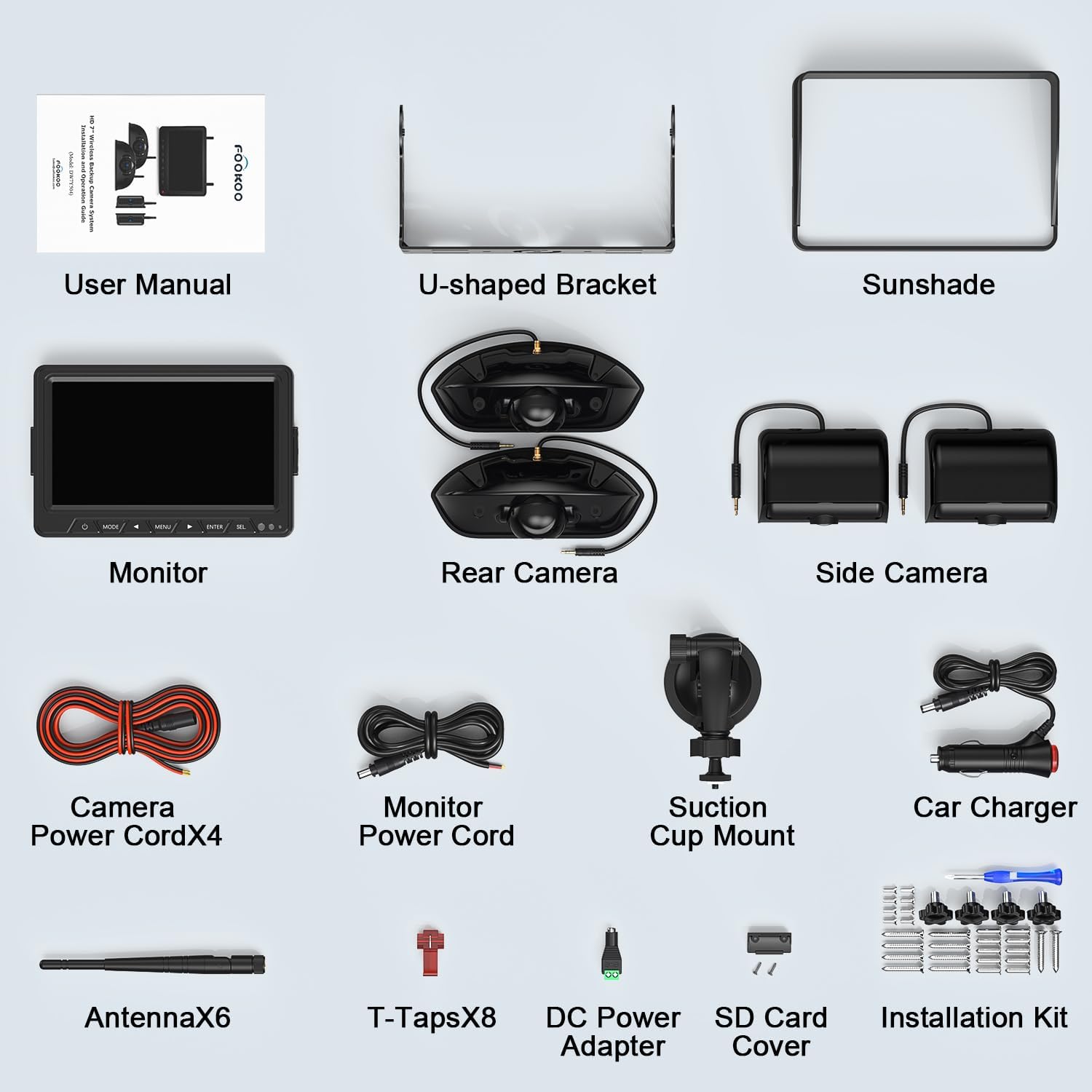
Figure 2.1: Contents of the Fookoo HD 4 Cameras Wireless RV Backup System package.
3. Setup and Installation
3.1 General Installation Guidelines
It is recommended to test the system before permanent installation to ensure proper functionality and to identify optimal mounting positions. The system operates on a DC 12-24V voltage range.
3.2 Camera Installation
Rear-View Cameras:
- For RVs equipped with Furrion pre-wired mounts, the Fookoo rear camera is designed to fit directly, simplifying installation by eliminating the need for extensive drilling.
- If your vehicle does not have a pre-wired bracket, fix the camera securely and connect it to the vehicle's power supply.
- The rear camera features a 120-degree viewing angle and 6 infrared lights for night vision.
Side-View Cameras:
- Note: Our side-view camera cannot be mounted directly onto the Furrion's side camera mount. You will need to drill holes for installation, preserving existing marker lights.
- The side camera also features a 120-degree viewing angle and 15 IR lights for night vision.
- The antenna on the side camera is adjustable (up or down, folded down) for optimal signal reception.
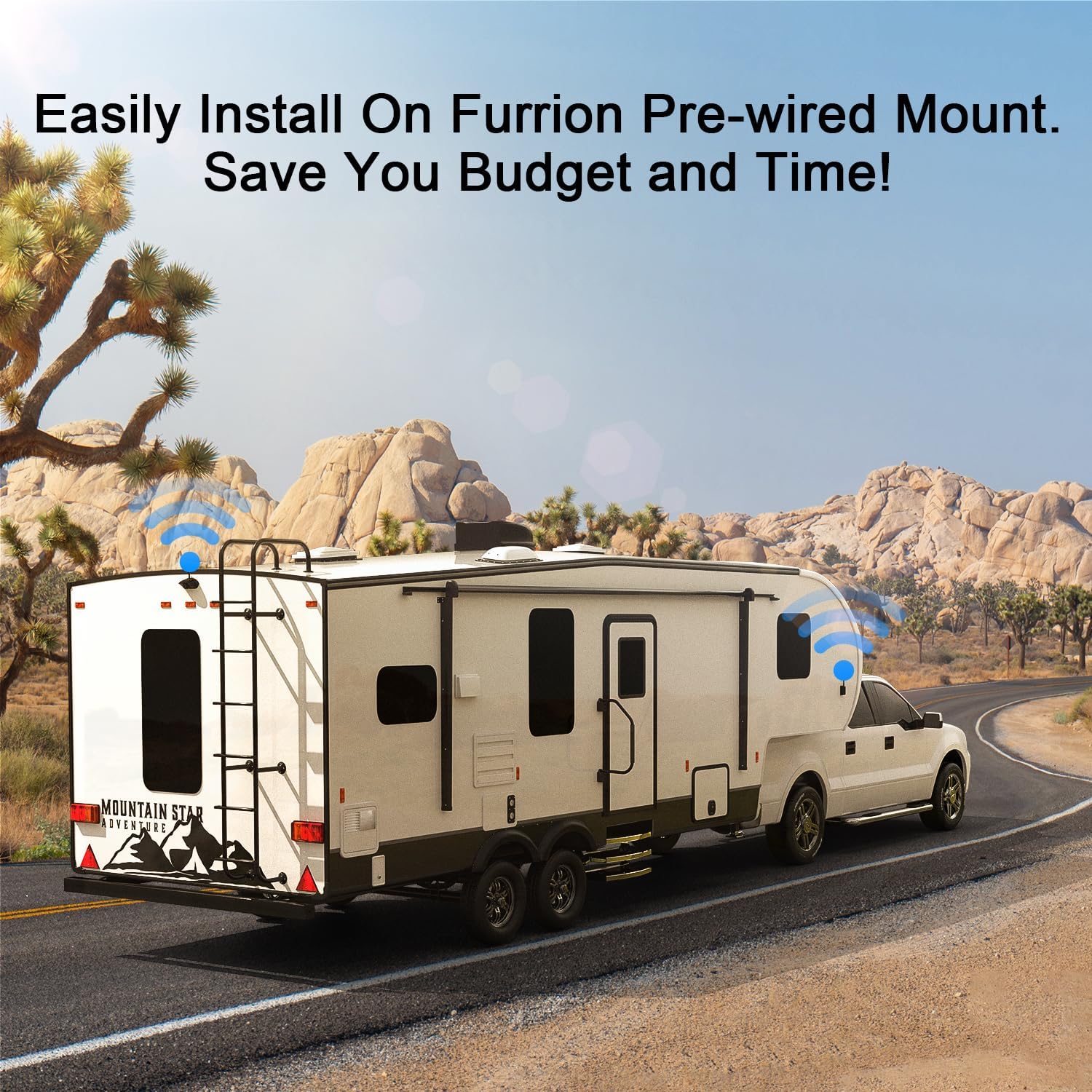
Figure 3.1: Easy installation on Furrion pre-wired mount.

Figure 3.2: Rear and side camera placement for blind spot reduction.
3.3 Monitor Installation
The 7-inch IPS monitor can be mounted using the included suction cup mount or U-shaped bracket. Connect the monitor to a 12-24V DC power source using the car charger or power cord.

Figure 3.3: Monitor features and dimensions.
3.4 Power Connection
The cameras and monitor require a power connection. Wireless functionality refers to the signal transmission between components, not power. The system is compatible with DC 12-24V power sources.
- If your vehicle lacks a cigarette lighter socket and you prefer not to hardwire, a USB to 12V Cigarette Lighter Socket Cable can be requested.
- For certain Chevrolet or GMC models (after 2010) and some Ford models (after 2015, e.g., F-150, F-250, F-350) that use PWM (Pulse Width Modulation) power signals, the taillights or running lights may not provide a constant 12-volt supply. This can cause flickering or system malfunction. This issue can be bypassed using a Furrion 7-way power adapter or a PWM filter.

Figure 3.4: Simple energization methods.
3.5 Signal Transmission
The system utilizes advanced 2.4GHz wireless signal technology and a dual antenna design for reliable and stable signal transmission, minimizing delay and lag. It offers a reception range of up to 200ft in open areas, providing real-time views even at speeds up to 102 mph.

Figure 3.5: Dual antenna design for stable signal.

Figure 3.6: 2.4GHz Signal + HD IPS Screen for clearer picture.
4. Operating Instructions
4.1 Monitor Functions
The 7-inch IPS monitor provides crisp 1080P images and parking lines. It features touch buttons for convenient operation. The auto-dimming function automatically adjusts screen brightness based on ambient light, ensuring clear visibility day and night.

Figure 4.1: 7-inch IPS FHD Screen - Stunning Visuals.
4.2 Split-Screen Modes
The monitor supports up to 4 cameras for full coverage and can display views in various split-screen modes (dual or quad). You can easily switch between full-screen, dual-split, or quad-split screens as needed.

Figure 4.2: Feature-rich System & Split Screen Mode for Selection.

Figure 4.3: Easily Switch Display Modes At Will.
4.3 Night Vision
Both rear and side cameras are equipped with infrared (IR) lights and photoreceptors. The IR lights automatically activate when ambient light is low, providing clear images in dark conditions to ensure driving safety.

Figure 4.4: Camera features including IP69 Waterproof and IR Night Vision.

Figure 4.5: The Best Night Vision with IR Lights & Auto-dimming.
4.4 Loop Recording
Insert an SD card (32-128GB, not included) into the monitor and enable the loop recording function. The system will record the displayed footage, which can serve as evidence or for review. When the SD card is full, older videos will be automatically overwritten.

Figure 4.6: Loop Recording with Easy Playback.
4.5 Enhanced Driving Safety
The system significantly reduces blind spots, aiding in safer driving, cornering, and parking. Parking guide lines on the monitor assist in precise maneuvering.

Figure 4.7: Reduced Blind Spots For Safer Driving.

Figure 4.8: Cornering with More Safety and Confidence.

Figure 4.9: Park Quickly and Safely By Yourself.
Video 4.1: Fookoo HD Wireless RV Backup Cameras for Furrion Pre-Wired. This video demonstrates the ease of installation and the comprehensive monitoring capabilities of the system, including high-definition video and all-round monitoring for improved driving safety.
5. Maintenance
To ensure optimal performance and longevity of your Fookoo RV Backup System, follow these maintenance guidelines:
- Cleaning: Regularly clean the camera lenses and monitor screen with a soft, damp cloth. Avoid abrasive cleaners that could scratch surfaces.
- Waterproof Integrity: The cameras are IP69 waterproof. However, avoid directing high-pressure water jets directly at the camera housing during cleaning to prevent potential damage over time.
- Cable Connections: Periodically check all cable connections for tightness and signs of wear or corrosion. Ensure power cords are securely plugged in.
- Antenna Position: Ensure antennas are positioned correctly for the best signal. Adjust them as needed, especially after driving through rough terrain or performing maintenance.
- SD Card: If using the recording function, periodically check the SD card for proper function and ensure it is not corrupted. Format the card occasionally to maintain performance.
- Storage: If storing the RV for an extended period, consider disconnecting the system from power to prevent battery drain.
6. Troubleshooting
This section addresses common issues you might encounter with your Fookoo RV Backup System.
6.1 No Image on Monitor / Flickering Image
- Check Power: Ensure the monitor and all cameras are properly connected to a stable 12-24V DC power source. Verify that the vehicle's ignition is on if connected to an ignition-switched circuit.
- Signal Interference: Ensure there are no large metallic objects or other 2.4GHz wireless devices directly obstructing the signal path between cameras and monitor.
- Antenna Position: Adjust the antennas on both the cameras and the monitor to ensure optimal signal reception.
- PWM Signal Issue: For certain GMC, Chevrolet (after 2010), and Ford models (after 2015, e.g., F-150, F-250, F-350) that use PWM (Pulse Width Modulation) power signals in their taillight/running light circuits, this can cause flickering or prevent the system from working. This can be resolved by using a Furrion 7-way power adapter or a PWM filter. Contact Fookoo support for purchasing guidance if needed.
- Re-pairing: If a camera image is missing, try re-pairing the camera with the monitor according to the user manual's pairing instructions.
6.2 Poor Image Quality / Blurred Image
- Clean Lens: Ensure camera lenses are clean and free from dirt, dust, or water spots.
- Adjust Lens: For rear cameras, adjust the lens angle (90° up and down) to get the best view. For side cameras, adjust the lens (45° left and right).
- Lighting Conditions: While the system has night vision, extreme low light or direct bright light (e.g., sun glare) can affect image clarity.
6.3 Recording Issues
- SD Card: Ensure an SD card (32-128GB) is inserted correctly. Check if the SD card is full; if so, older files should be overwritten automatically if loop recording is enabled. Try formatting the SD card.
- Recording Function: Verify that the loop recording function is enabled in the monitor settings.
7. Specifications
| Feature | Specification |
|---|---|
| Product Dimensions | 11.8 x 9.8 x 3.4 inches |
| Item Weight | 4.9 pounds |
| Screen Size | 7.2 Inches |
| Video Capture Resolution | 1080p |
| Voltage | 12-24 Volts (DC) |
| Optical Sensor Technology | CMOS infrared |
| Lens Type | Wide Angle, Fixed |
| Real Angle of View | 120 Degrees |
| Wireless Technology | 2.4GHz Digital Wireless Signal |
| Waterproof Rating | IP69 (Cameras) |
| SD Card Support | 32-128GB (for loop recording) |
8. Warranty and Support
Fookoo offers a 24-month replacement policy and lifetime after-sales service for this product. If you encounter any defects or require assistance, please contact Fookoo customer support. They are available 24 hours a day to provide support and guidance.
For additional accessories or specific adapters (e.g., USB to 12V Cigarette Lighter Socket Cable, 7 Way Vehicle Power Adapter for PWM issues), please reach out to Fookoo support for purchasing guidance.
Related documentsDW7Y504

Ask a question about this manual
Ask about setup, troubleshooting, compatibility, parts, safety, or missing instructions. Manuals+ will review the question and use this page’s manual context to help answer it.