
1. Introduction
The Triplett WS230 Wall Scanner is a versatile and compact tool designed for accurately detecting hidden objects behind walls. It features advanced capabilities to locate wood studs, metal objects (ferrous and non-ferrous), and live AC wiring, providing essential information for construction, home improvement, and maintenance tasks. This manual provides detailed instructions for safe and effective use of your WS230 Wall Scanner.
2. Safety Information
Please read all safety warnings and instructions carefully before using the device. Failure to follow these instructions may result in electric shock, fire, or serious injury.
- Always assume that live electrical wires are present behind walls. Exercise extreme caution.
- Do not rely solely on the detection results. Always verify findings through other means if possible.
- Keep the device dry and clean. Do not expose it to moisture or extreme temperatures.
- Do not attempt to open or modify the device. Refer all servicing to qualified personnel.
3. Package Contents
Verify that all items are present in your package:
- Triplett WS230 Wall Scanner
- 3.7V/300mAh Lithium Ion Battery (pre-installed)
- Soft Protective Pouch Case
- User Manual (this document)
- USB Type C Charging Cable

Figure 3.1: WS230 Wall Scanner with Pouch and USB-C Cable
4. Product Overview
Familiarize yourself with the components of your Triplett WS230 Wall Scanner.

Figure 4.1: Front View of WS230 Wall Scanner

Figure 4.2: Back View of WS230 Wall Scanner (QR Code: C242594011)
4.1 Key Components
- Color LCD Screen: Displays detection mode, depth, battery status, and object location.
- Power Button: Turns the device on/off.
- Mode Selection Buttons: Allows switching between Stud, Metal, and AC Voltage detection modes.
- Sensor Area: Located on the back of the device, this area must be in contact with the wall for accurate scanning.
- USB-C Charging Port: For recharging the internal Lithium-ion battery.
5. Setup and Charging
5.1 Charging the Battery
The WS230 is equipped with a rechargeable 3.7V/300mAh Lithium-ion battery. Before first use, ensure the device is fully charged.
- Connect the provided USB Type C charging cable to the charging port on the device.
- Connect the other end of the USB cable to a standard USB power adapter (not included) or a computer USB port.
- The battery indicator on the LCD screen will show charging status. A full charge typically takes a few hours.
5.2 Powering On/Off
- To power on, press and hold the Power Button (red button) until the screen illuminates.
- To power off, press and hold the Power Button again until the screen turns off.
6. Operation
6.1 General Usage Guidelines
- Ensure the wall surface is clean and dry.
- Avoid scanning over freshly painted or wallpapered surfaces until they are completely dry, as moisture can affect accuracy.
- Hold the scanner flat against the wall, ensuring the sensor area is in full contact.
- Move the scanner slowly and steadily across the surface.
6.2 Automatic Calibration
The WS230 features automatic calibration for accurate results. Calibration occurs automatically upon power-on or when switching detection modes.
- Place the scanner flat against the wall in an area where you are certain there are no studs, metal, or live wires.
- Press the Power Button or select your desired mode. The screen will display "Calibrating, please wait."
- Keep the device still against the wall until calibration is complete.

Figure 6.1: Calibration in Progress
6.3 Detection Modes
The WS230 offers three primary detection modes:

Figure 6.2: Multiple Detection Mode Displays
6.3.1 Stud Detection
This mode locates the center and edges of wood or metal studs behind walls.
- Select the Stud Detection mode using the appropriate button.
- Place the scanner flat against the wall and slowly move it horizontally.
- The display will indicate the presence of a stud, its center, and depth (up to 1.5 inches / 38mm). Audio alerts will also sound.

Figure 6.3: Wood Stud Detection
6.3.2 Metal Detection
This mode identifies ferrous and non-ferrous metals, such as pipes and electrical wiring (even if not live).
- Select the Metal Detection mode.
- Scan the wall slowly. The display will show "Detect metal" and indicate the object's location and type (magnetic/non-magnetic).
- Maximum detection depth is 4.0 inches (100mm).

Figure 6.4: Metal Detection

Figure 6.5: Non-Magnetic Metal Detection
6.3.3 AC Voltage Detection
This mode specifically detects live AC wires behind walls, providing an essential safety feature.
- Select the AC Voltage Detection mode.
- Scan the wall slowly. The display will show a lightning bolt icon and indicate the presence of live AC wiring.
- Maximum detection depth is 2 inches (50mm).
7. Maintenance
- Clean the device with a soft, dry cloth. Do not use abrasive cleaners or solvents.
- Store the device in its protective pouch in a cool, dry place when not in use.
- Regularly charge the battery to maintain its health, even if the device is not used frequently.
8. Troubleshooting
If you encounter issues with your WS230 Wall Scanner, try the following:
- Inaccurate Readings: Ensure the device is properly calibrated on a clear section of the wall. Check for moisture on the wall surface.
- No Power: Verify the battery is charged. Connect the USB-C cable and allow it to charge for at least 30 minutes before attempting to power on again.
- Intermittent Detection: Ensure the sensor area is in full contact with the wall and you are moving the device slowly and steadily.
If problems persist, contact Triplett customer support.
9. Specifications
| Feature | Specification |
|---|---|
| Product Dimensions | 4.8 x 1 x 2.4 inches |
| Item Weight | 4 Ounces |
| Model Number | WS230 |
| Batteries | 1 Lithium Ion battery (included) |
| Power Source | Battery Powered |
| Stud Detection Depth | Up to 1.5 inches (38mm) |
| Metal Detection Depth | Up to 4.0 inches (100mm) |
| AC Voltage Detection Depth | Up to 2 inches (50mm) |
| Optimum Operating Temperature | 0 to 40°C |
| Storage Temperature | -20 to 60°C |
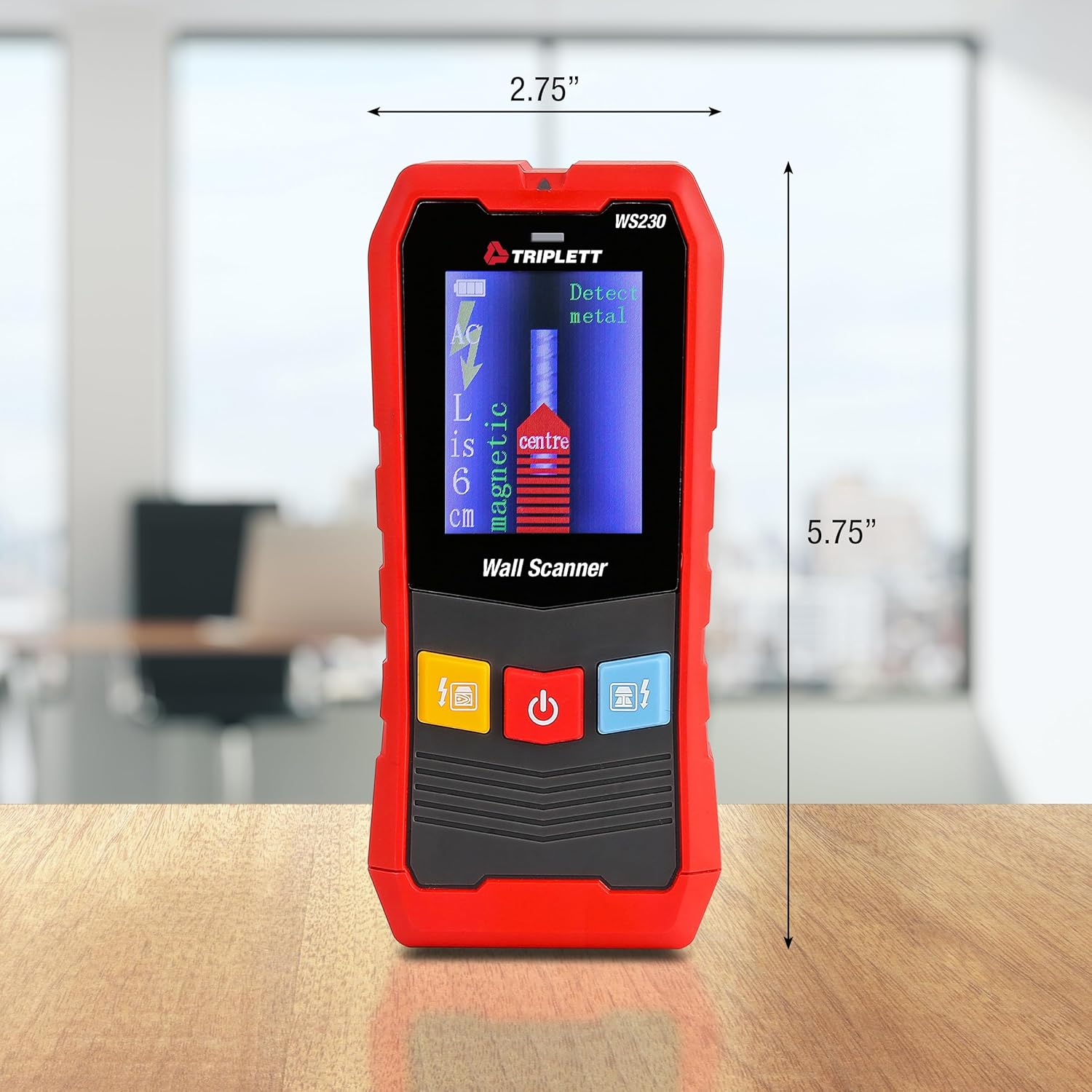
Figure 9.1: WS230 Dimensions
10. Warranty and Support
For warranty information or technical support, please refer to the official Triplett website or contact their customer service department. Keep your purchase receipt as proof of purchase.
Visit the official Triplett Store: Triplett Store on Amazon


