Introduction
This manual provides essential information for setting up, operating, maintaining, and troubleshooting your ASUS BR1102FGA 11.6-inch HD Touchscreen 2-in-1 Educational Laptop. Designed for versatility, this device functions as both a traditional laptop and a tablet, featuring an Intel Celeron N100 processor, 4GB RAM, and a 128GB SSD, running on Windows 11 Pro. Its spill-resistant design and anti-glare coating enhance durability and usability in various environments.
What's in the Box
Carefully unpack all items from the box. Ensure all components are present before proceeding with setup.
- ASUS BR1102FGA 11.6-inch 2-in-1 Educational Laptop
- Power Adapter and Cable
- 9H HDMI Cable (Accessory)
- Documentation (Quick Start Guide, Warranty Card)
Setup
1. Initial Charging and Power On
Before first use, connect the power adapter to the laptop's charging port and a power outlet. Allow the battery to charge for at least 30 minutes. Press the power button located on the right side of the device to turn it on.

Image: Right side view of the ASUS BR1102FGA laptop, highlighting the power button and various ports.
2. Windows 11 Pro Setup
Follow the on-screen instructions to complete the initial Windows 11 Pro setup. This includes selecting your region, language, connecting to a Wi-Fi network, and creating a user account.
3. Connecting to Wi-Fi
During the Windows setup, you will be prompted to connect to a wireless network. Select your network from the list and enter the password. If you skip this step, you can connect later via the Windows Settings menu (Start > Settings > Network & internet > Wi-Fi).
4. Port Identification
Familiarize yourself with the available ports for connecting peripherals.
- Left Side: 1 x USB 2.0 Type-C, 1 x USB 3.2 Gen 2 Type-C, 1 x USB 3.2 Gen 2 Type-A, NETWORK (RJ-45), HDMI.
- Right Side: Power Button, Audio Jack, USB-A, USB-C, Volume Buttons.

Image: Left side view of the ASUS BR1102FGA laptop, displaying the Ethernet, HDMI, USB-C, and USB-A ports.
Operating
1. 2-in-1 Functionality
Your ASUS BR1102FGA is a versatile 2-in-1 device, allowing you to switch between laptop and tablet modes. The hinge allows for a full 360-degree rotation of the screen.
- Laptop Mode: Traditional clamshell configuration for typing and productivity.
- Tablet Mode: Fold the screen back completely to use as a tablet. The keyboard and touchpad will automatically disable.
- Tent/Stand Mode: Position the laptop in a tent or stand configuration for media consumption or presentations.

Image: The ASUS BR1102FGA laptop in its traditional laptop configuration.

Image: The ASUS BR1102FGA laptop converted into tablet mode.

Image: The ASUS BR1102FGA laptop configured in a tent or stand mode.
2. Touchscreen Operation
The 11.6-inch HD display supports multi-touch gestures. Use your fingers to navigate, tap, swipe, pinch-to-zoom, and interact with applications. The anti-glare coating helps reduce reflections for better visibility.
3. Keyboard and Touchpad
The integrated keyboard and touchpad provide standard input functionality. The keyboard is designed to be spill-resistant, offering protection against minor liquid spills.
4. Using the Cameras
The laptop features two cameras for various uses, including video conferencing and capturing images.

Image: The ASUS BR1102FGA laptop highlighting the locations of both the front-facing and keyboard-facing cameras.
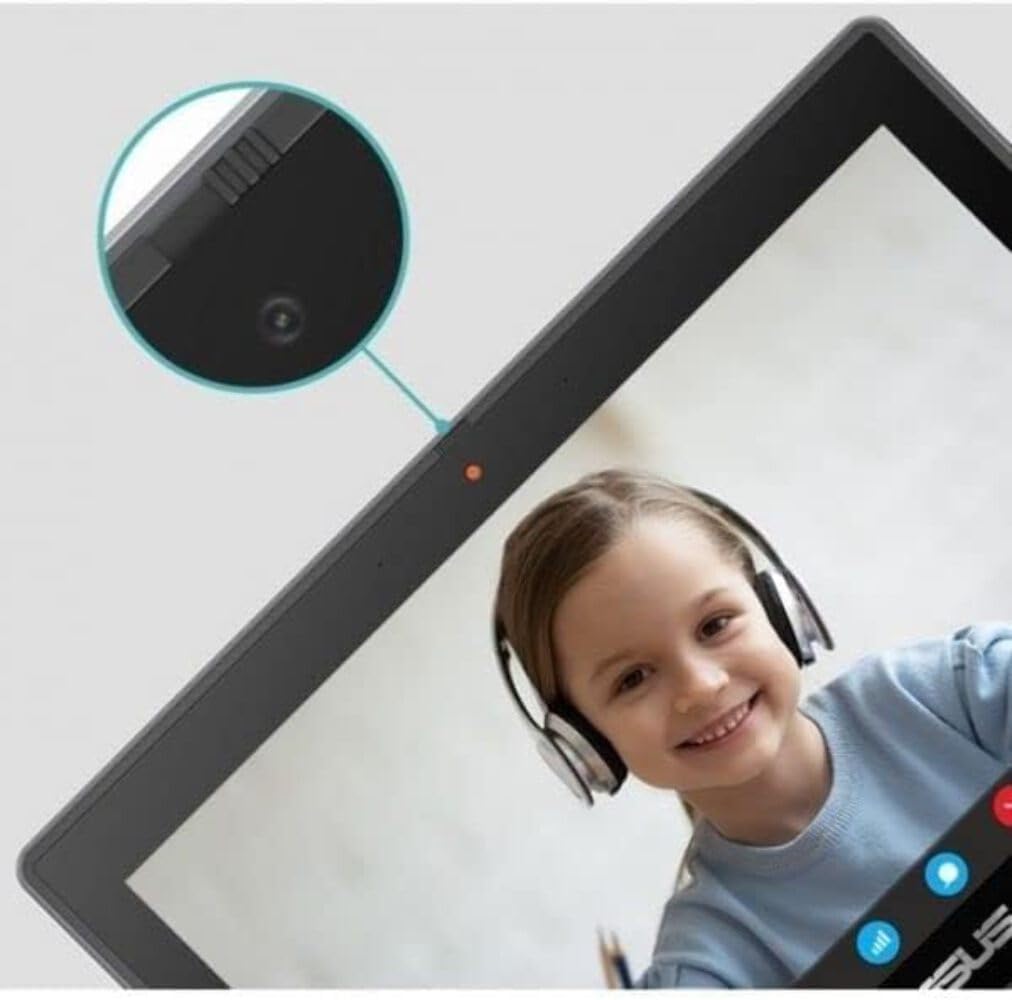
Image: A close-up view of the front-facing webcam on the ASUS BR1102FGA laptop.
Maintenance
1. Cleaning Instructions
- Screen: Use a soft, lint-free cloth slightly dampened with water or a screen cleaner. Avoid harsh chemicals.
- Keyboard and Chassis: Use a soft, dry cloth. For stubborn dirt, a slightly damp cloth can be used. Ensure no liquid enters openings.
2. Battery Care
To prolong battery life, avoid extreme temperatures. Do not fully discharge the battery frequently. For long-term storage, charge the battery to about 50-60% and store in a cool, dry place.
3. Software Updates
Regularly check for and install Windows updates to ensure optimal performance, security, and compatibility. Go to Start > Settings > Windows Update.
4. Storage Management
Periodically review and delete unnecessary files to maintain sufficient free space on the 128GB SSD. Utilize cloud storage or external drives for large files.
Troubleshooting
1. Laptop Not Powering On
- Ensure the power adapter is securely connected to both the laptop and a working power outlet.
- Check if the power outlet is functional by plugging in another device.
- Allow the laptop to charge for a period before attempting to power on again.
2. Slow Performance
- Close unnecessary applications running in the background.
- Check for and install any pending Windows updates.
- Ensure sufficient free space on the SSD.
- Restart the laptop.
3. Wi-Fi Connectivity Issues
- Verify that Wi-Fi is enabled in Windows Settings.
- Restart your router and modem.
- Forget the Wi-Fi network and reconnect.
- Ensure your laptop is within range of the Wi-Fi signal.
4. Touchscreen Not Responding
- Restart the laptop.
- Ensure the screen is clean and free of debris.
- Check for updated display drivers via Windows Update or the ASUS support website.
Specifications
| Feature | Specification |
|---|---|
| Model Name | ASUS BR1102FGA |
| Display | 11.6-inch HD (1366 x 768) Touchscreen, Anti-Glare |
| Processor | Intel Celeron N100 (up to 3.4GHz, 4-Cores) |
| Graphics | Intel UHD Graphics |
| RAM | 4GB DDR4 |
| Storage | 128GB SSD |
| Operating System | Windows 11 Pro |
| Wireless Connectivity | Wi-Fi 6 (802.11ax), Bluetooth 5.1 |
| Ports | 1x USB 2.0 Type-C, 1x USB 3.2 Gen 2 Type-C, 2x USB 3.2 Gen 2 Type-A, 1x HDMI, 1x RJ-45 (Ethernet), 1x Audio Jack |
| Battery | 3-cell Li-ion |
| Dimensions (LxWxH) | 11.7 x 8.2 x 0.83 inches |
| Weight | 3.24 pounds |
| Color | Mineral Gray |
Warranty and Support
1. Product Warranty
Your ASUS BR1102FGA laptop is covered by a manufacturer's warranty. Please refer to the warranty card included in your product packaging for specific terms, conditions, and duration of coverage. Keep your proof of purchase for warranty claims.
2. Technical Support
For technical assistance, driver downloads, or further support, please visit the official ASUS support website. You can typically find support resources by searching for your model number (BR1102FGA) on their website.
ASUS Support Website: https://www.asus.com/support/
ASUS Store: Visit the ASUS Store on Amazon


