
1. Introduction
This manual provides detailed instructions for the operation and maintenance of your Docooler Digital Voice Recorder. Please read this manual thoroughly before using the device to ensure proper function and to maximize its capabilities. This device is designed for recording audio in various settings, including lectures, meetings, and interviews, featuring noise reduction and voice-activated recording.
2. Product Overview
The Docooler Digital Voice Recorder is a compact and portable audio recording device. It features a clear digital display, intuitive controls, and a robust design for reliable performance. Key features include intelligent noise cancellation, voice-activated recording, and a choice of 8GB or 32GB storage capacity.

Figure 2.1: Front view of the Docooler Digital Voice Recorder, showing the display and control buttons.

Figure 2.2: The compact size of the Docooler Digital Voice Recorder, shown held in a hand.

Figure 2.3: Illustration of the voice-activated recording feature, automatically starting when sound reaches a detectable level.
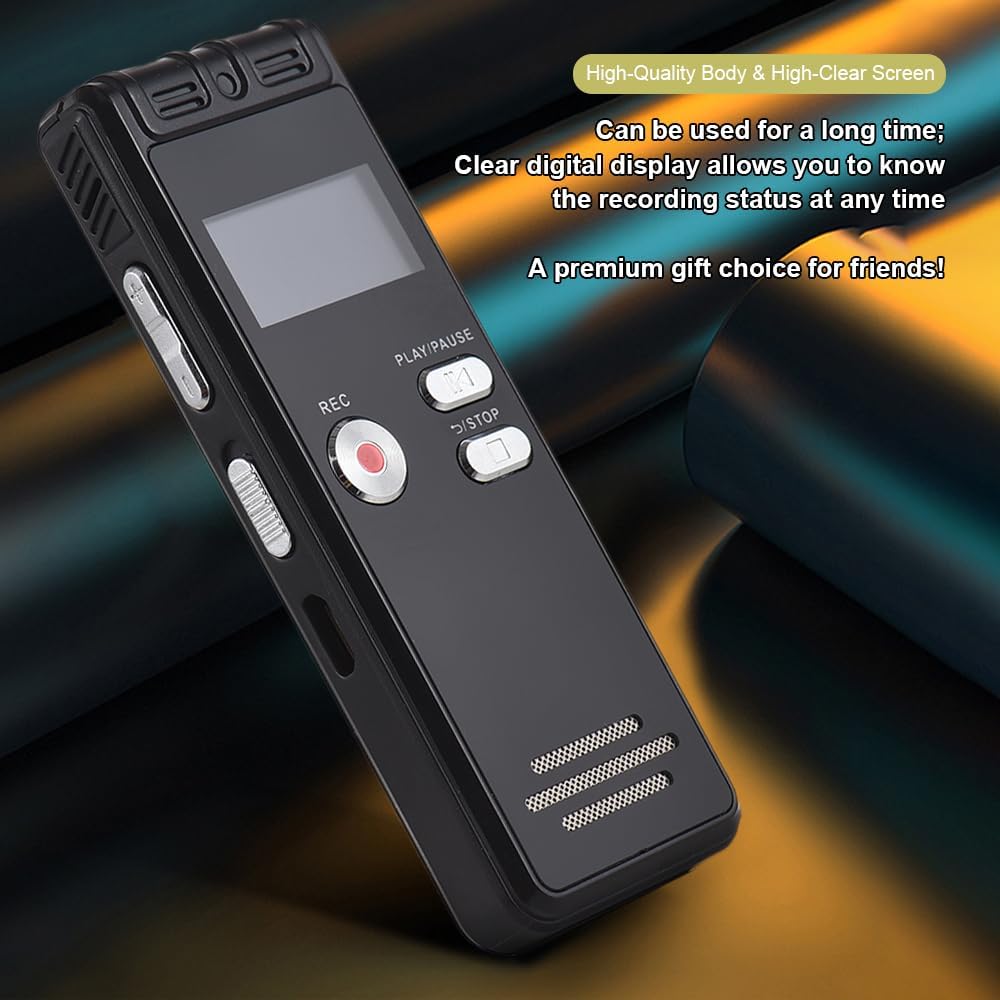
Figure 2.4: The durable construction and clear digital display of the recorder, providing real-time recording status.

Figure 2.5: The device features a built-in high-quality omnidirectional microphone for 360-degree panoramic sound capture.

Figure 2.6: The recorder's compact dimensions allow it to be easily carried in a pocket or bag.

Figure 2.7: The device supports one-click recording and saving, simplifying the recording process.

Figure 2.8: Examples of various environments where the recorder can be effectively used, such as meetings, lectures, training sessions, and teaching.
3. Package Contents
Please verify that all items listed below are included in your package:
- 1x Voice Recorder
- 1x USB Cable
- 1x Headphone
- 1x Adapters (likely phone line adapter)
- 1x Connect Cable (likely for phone recording)
- 1x Manual (this document)

Figure 3.1: The Docooler Digital Voice Recorder shown with its complete set of accessories, including USB cable, headphones, and connection cables.
4. Setup
4.1 Charging the Device
- Connect the included USB cable to the recorder's USB port.
- Plug the other end of the USB cable into a computer's USB port or a compatible USB wall adapter (not included).
- The device's screen will indicate charging status. A full charge typically takes approximately 2-3 hours.
4.2 Powering On/Off
- To power on: Press and hold the Power button until the screen illuminates.
- To power off: Press and hold the Power button until the screen turns off.
4.3 Connecting Headphones
Insert the included headphones into the 3.5mm headphone jack on the device for private playback of recordings.
5. Operating Instructions
5.1 Basic Recording
- Ensure the device is powered on.
- Press the REC button to start recording. The recording indicator will illuminate.
- To pause recording, press the PLAY/PAUSE button. Press again to resume.
- To stop recording and save the file, press the STOP button. The recording will be saved automatically.
5.2 Voice-Activated Recording (VOR)
This feature allows the recorder to automatically start recording when sound is detected and pause when silence occurs, conserving memory and battery life.
- Navigate to the VOR settings in the device menu.
- Enable the VOR function and adjust the sensitivity level as needed.
- Press the REC button. The device will now record only when sound is present.
- Press the STOP button to end the voice-activated recording session.
5.3 Playback
- From the main menu, select the 'Recordings' or 'Files' option.
- Use the navigation buttons to select the desired audio file.
- Press the PLAY/PAUSE button to start playback.
- Use the volume controls on the side of the device to adjust the playback volume.
- Press the STOP button to end playback.
5.4 Noise Reduction
The device is equipped with an intelligent noise reduction feature. This function is typically active by default to enhance audio clarity. Refer to the device's settings menu for options to adjust or disable noise reduction if available.
6. Maintenance
- Keep the device dry. Avoid exposure to moisture or liquids.
- Clean the device with a soft, dry cloth. Do not use abrasive cleaners or solvents.
- Avoid dropping the device or subjecting it to strong impacts.
- Store the device in a cool, dry place away from direct sunlight and extreme temperatures.
- Regularly back up important recordings to a computer to prevent data loss.
7. Troubleshooting
7.1 Device Does Not Power On
- Ensure the battery is charged. Connect the device to a power source using the USB cable and allow it to charge for at least 30 minutes.
- Press and hold the Power button for several seconds.
7.2 Poor Recording Quality
- Ensure the microphone is not obstructed.
- Record in a quieter environment to minimize background noise.
- Check the microphone sensitivity settings in the device menu.
- Ensure the device is placed close enough to the sound source.
7.3 Cannot Play Back Recordings
- Verify that recordings exist in the device's memory.
- Check the volume level during playback.
- Ensure headphones are properly connected if using them.
7.4 Device Not Recognized by Computer
- Ensure the USB cable is securely connected to both the device and the computer.
- Try connecting to a different USB port on your computer.
- Restart your computer and try again.
8. Specifications
| Brand | Docooler |
| Model | Digital Voice Recorder |
| Capacity Options | 8GB, 32GB |
| Color | Black |
| Material | ABS |
| Battery | 300mAh |
| Item Weight | 2.38 ounces (approx. 67.5g) |
| Package Dimensions | 4.65 x 3.23 x 0.59 inches (11.8 x 8.2 x 1.5 cm) |
| Manufacturer | docooler |
| ASIN | B0D9WB349S (for 8GB variant) |
9. Warranty and Support
For warranty information and customer support, please refer to the documentation provided at the time of purchase or contact your retailer. Keep your purchase receipt as proof of purchase for any warranty claims.