1. Introduction
This manual provides detailed instructions for the operation and maintenance of your LIJIANI RD239 Multi-Band Shortwave Radio. The RD239 is a compact, versatile radio designed for receiving various frequency bands, including AM, FM, Shortwave (SW), Aviation (AIR), Very High Frequency (VHF), and Weather Band (WB). It also features Bluetooth connectivity, TF card playback, digital recording, an integrated flashlight, alarm clock, and sleep timer functions.
2. Product Overview
2.1 Key Features
- Multi-Band Reception: Supports AIR/VHF/AM/FM/Shortwave/Weather bands for comprehensive listening.
- Digital Recording: Record radio broadcasts or external audio directly to a TF card.
- Bluetooth & TF Card Playback: Stream audio wirelessly via Bluetooth or play MP3/WAV/WMA files from a TF card. Includes 6 EQ modes.
- Integrated Lighting: Features a high-power flashlight and a reading lamp for various situations.
- Time Management: Includes an alarm clock and a programmable sleep timer.
- Power Options: Operates on 3 AA batteries or a BL-5C rechargeable battery, with Type-C input for charging and external power.
- User Interface: Backlit display and keys for visibility in low-light conditions.
2.2 Package Contents
- LIJIANI RD239 Shortwave Radio
- Owner's Manual
2.3 Component Identification

Figure 1: Front view of the LIJIANI RD239 Shortwave Radio, showing the display, keypad, speaker, and extended antenna.

Figure 2: Side view illustrating the radio's dimensions (3"L x 5.3"W x 1"H) and port locations including the 3.5mm audio input (AUX IN), Type-C charging port, and headphone jack.
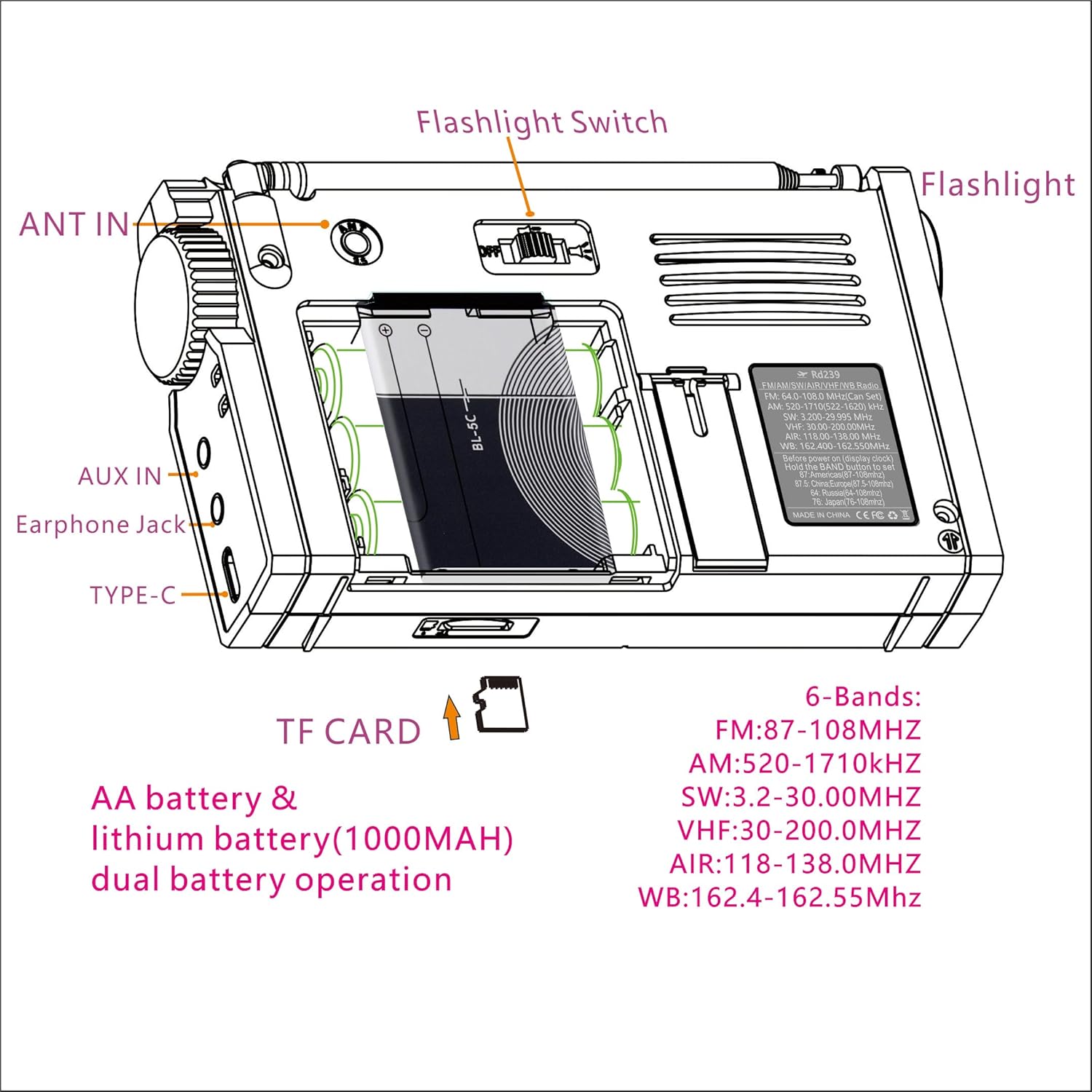
Figure 3: Rear view of the radio, highlighting the battery compartment, ANT IN jack, AUX IN jack, Earphone Jack, Type-C port, Flashlight Switch, and TF Card slot.
3. Setup
3.1 Battery Installation

Figure 4: Schematic for installing BL-5C lithium-ion battery and AA batteries.
- Open the battery compartment cover on the back of the radio.
- For BL-5C Lithium-Ion Battery: Insert the BL-5C battery (1000mAh) into the compartment, ensuring the correct polarity (+/-) as indicated. Insert the electrode end first.
- For AA Batteries: Insert three (3) 1.5V AA batteries, observing the correct polarity.
- Close the battery compartment cover securely.
Important Note on AA Batteries: When using AA batteries, especially with high volume, the radio may experience early shutdown, screen flickering, or sound lag due to insufficient current supply. To mitigate this, reduce the volume or use headphones. It is recommended to use the BL-5C lithium-ion battery for optimal performance, reserving AA batteries for emergency backup.
3.2 Initial Power On
Press the power button once to activate the display, then press it a second time to turn on the radio. This two-step process helps prevent accidental power-on.
4. Operating Instructions
4.1 Power On/Off
- To turn on: Press the Power button once to wake the display, then press it again to power on the radio.
- To turn off: Press and hold the Power button.
4.2 Band Selection and Tuning

Figure 5: Radio displaying various frequency bands and their ranges.
- Press the BAND button to cycle through available frequency bands: FM, AM, SW, AIR, VHF, WB.
- Use the tuning knob on the side of the radio for manual frequency adjustment.
- For direct frequency input, use the numeric keypad and press ENTER.
- To save a station, tune to the desired frequency, then press MEMORY followed by a numeric key to assign a preset.
- To recall a saved station, press the corresponding numeric key.
4.3 Bluetooth Mode
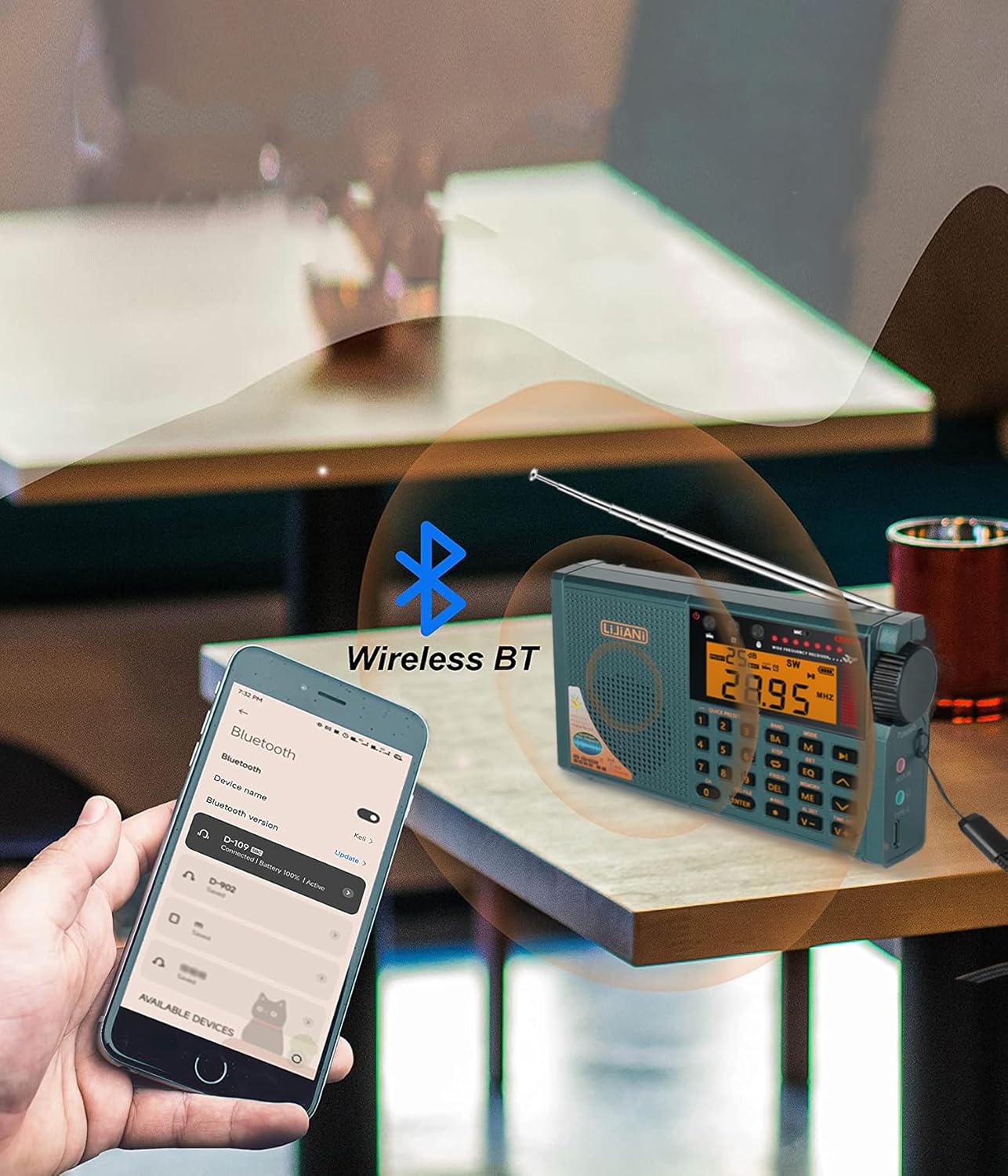
Figure 6: The radio wirelessly connected to a smartphone via Bluetooth.
- Press the MODE button until "BT" or the Bluetooth icon appears on the display.
- On your smartphone or other Bluetooth device, search for available devices and select "RD239" to pair.
- Once paired, you can stream audio from your device to the radio.
4.4 TF Card Playback
- Insert a TF (Micro SD) card into the designated slot on the side of the radio.
- Press the MODE button until "TF" or the TF card icon appears.
- Use the navigation buttons (PREV/NEXT) to select tracks and PLAY/PAUSE to control playback.
- Press the EQ button to cycle through 6 available equalizer modes.
4.5 Digital Recording
- Ensure a TF card is inserted.
- To record radio broadcasts: Tune to the desired station, then press the REC button to start recording. Press REC again to stop.
- To record external audio: Connect an external audio source to the AUX IN jack (if applicable for external recording, otherwise use built-in microphone). Press REC to start and stop.
- To play recordings: Press REC FILE to access recorded files on the TF card. Use navigation buttons to select and play.
- To delete recordings: While playing a recording, press the DEL button.
4.6 Flashlight and Reading Lamp

Figure 7: The radio's integrated flashlight providing illumination.
- The radio features a high-power flashlight on one end and a reading lamp on the side.
- Locate the Flashlight Switch on the top/back of the radio (refer to Figure 3).
- Slide the switch to activate the flashlight or reading lamp.
4.7 Alarm Clock and Sleep Timer
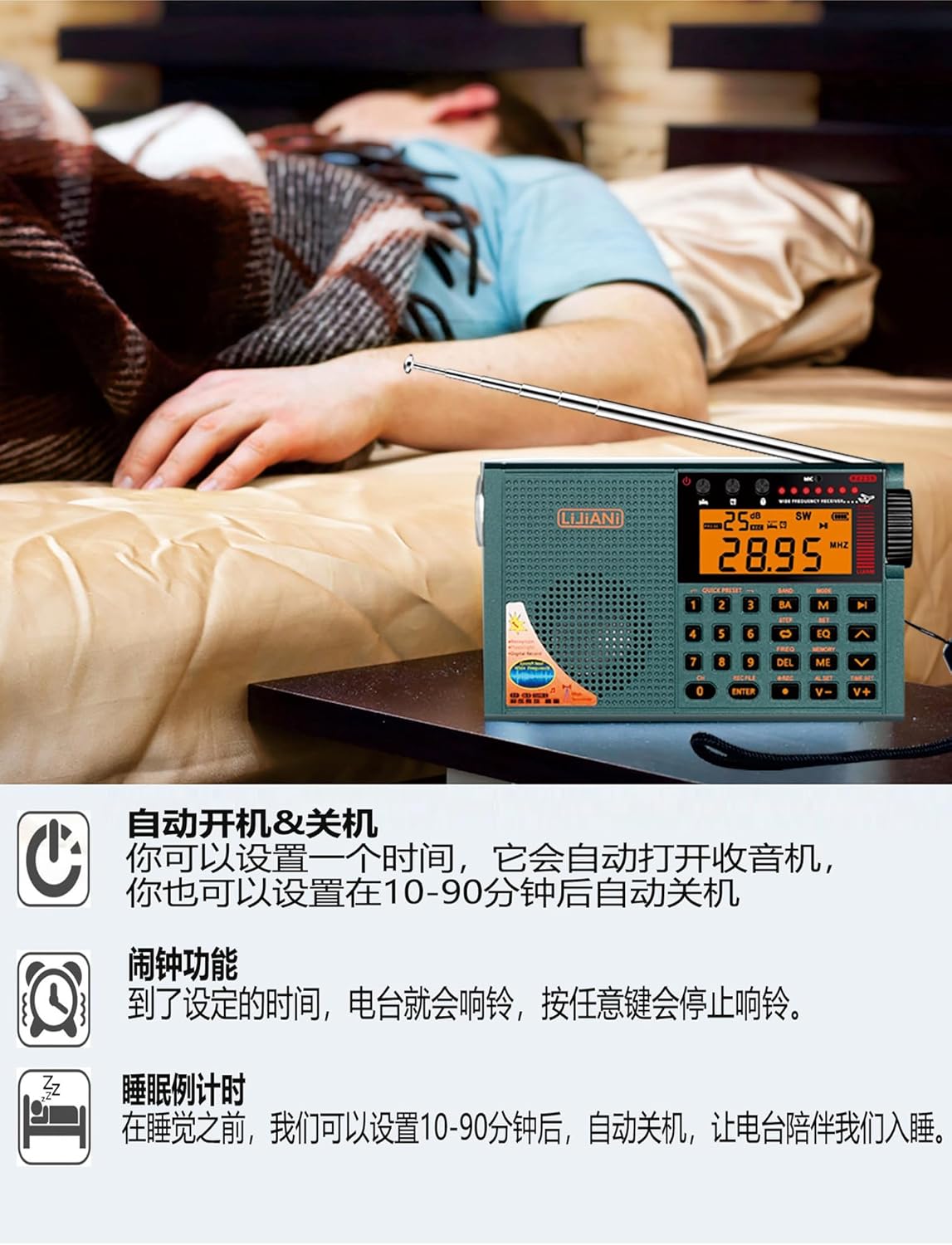
Figure 8: The radio functioning as an alarm clock and sleep timer.
- Setting the Clock: While the radio is off and displaying the clock, press and hold the TIME SET button. Use the numeric keys or tuning knob to adjust the time, then press TIME SET again to confirm.
- Setting the Alarm: Press the AL SET button. Use the numeric keys or tuning knob to set the alarm time. Press AL SET again to confirm. When the alarm sounds, press any button to stop it.
- Setting the Sleep Timer: Press the SLEEP button repeatedly to cycle through sleep timer durations (e.g., 10-90 minutes). The radio will automatically turn off after the selected time.
4.8 Backlit Keys and Display
- The keypad and display feature backlighting for improved visibility.
- To adjust the backlight duration: Before turning on the radio (when the clock is displayed), press and hold the SET button until the duration options appear (e.g., 5, 10, 15, 20 seconds). Press SET again to select the desired duration. The setting will automatically apply after 3 seconds.
5. Advanced Features
5.1 Squelch (SQ) Function (AIR Band)
- The SQ function is effective only for the AIR band.
- When listening to an AIR band station, press and hold the SET button for 2 seconds. "ON" or "OFF" will appear.
- Press the SET button to select "ON" to enable squelch. The setting will automatically exit and take effect after 3 seconds.
- Squelch automatically mutes the output signal when the radio does not receive a signal or the signal is weak, preventing noise.
5.2 FM/VHF Bandwidth Setting
- When listening to FM, long press the SET button for 2 seconds. Characters like "50K-100K-150K-200K" will appear.
- Press the SET button again to select the desired bandwidth (e.g., 100K).
- The setting will automatically exit after 3 seconds and the FM frequency bandwidth will operate at the selected value.
6. Power Management
6.1 Battery Usage Guidelines
- The radio is designed to use either a BL-5C lithium-ion battery or 3 AA batteries.
- For optimal performance and to avoid issues like early shutdown or sound distortion at high volumes, prioritize using the BL-5C lithium-ion battery.
- If using AA batteries, especially with high volume, it is recommended to reduce the volume or use headphones to prevent power-related issues. Avoid using inferior quality AA batteries.
6.2 Charging
- Connect the radio to a power source using a standard Type-C cable.
- Charging is only effective for the BL-5C lithium-ion battery. The Type-C input does not charge AA batteries.
- The Type-C port can also function as an external computer speaker connector or allow the device to act as a card reader when a TF card is inserted and connected to a computer.
7. Troubleshooting
- No Power/Early Shutdown: Ensure batteries are correctly installed and charged. If using AA batteries, consider replacing them with fresh, high-quality ones or switching to the BL-5C battery. High volume with AA batteries can cause premature shutdown.
- Poor Reception: Extend the telescopic antenna fully. Try repositioning the radio to a location with better signal. For AM, rotate the radio for optimal reception.
- Screen Flickering/Sound Lag: This can occur with low battery power, especially when using AA batteries at high volume. Reduce volume or replace/recharge batteries.
- No Sound from TF Card/Bluetooth: Ensure the correct mode is selected. Check if the TF card is properly inserted and contains compatible audio files. For Bluetooth, ensure the radio is paired correctly with your device.
- Recording Issues: Verify that a TF card is inserted and has sufficient free space.
8. Specifications
| Feature | Specification |
|---|---|
| Model Number | RD239 |
| Product Dimensions | 3 x 5.3 x 1 inches (7.62 x 13.46 x 2.54 cm) |
| Item Weight | 8.8 ounces (249.5 grams) |
| Radio Bands Supported | FM, AM, SW, AIR, VHF, WB |
| Connectivity Technology | Bluetooth |
| Power Source | 3 AA batteries or BL-5C LI-ION battery |
| Special Features | Built-In AM Antenna, Built-In Clock, Built-In Flashlight, Digital Recording, TF Card Playback |
| Manufacturer | LIJIANI |
9. Warranty and Support
9.1 Warranty Information
Specific warranty details for the LIJIANI RD239 radio are typically provided at the point of purchase or within separate warranty documentation. Please refer to your purchase receipt or contact the retailer for information regarding warranty coverage and terms.
9.2 Customer Support
For technical assistance, troubleshooting, or further inquiries regarding your LIJIANI RD239 Shortwave Radio, please contact the manufacturer or your authorized dealer. Contact information can usually be found on the product packaging or the seller's website.


