
1. Introduction
This manual provides detailed instructions for the setup, operation, maintenance, and troubleshooting of your Bettdow AC1041 1080P Full HD Smart Projector. Please read this manual thoroughly before using the product to ensure proper function and longevity.

Image 1.1: The Bettdow AC1041 projector and its remote control, showcasing its compact design and key features like Bluetooth 5.0, WiFi 6, 1080P Full HD resolution, and 13000 lumens brightness.
2. Packing List
Verify that all items are present in the packaging upon unboxing:
- Projector x 1
- Remote control x 1
- HDMI cable x 1
- AV cable x 1
- Power Adapter x 1
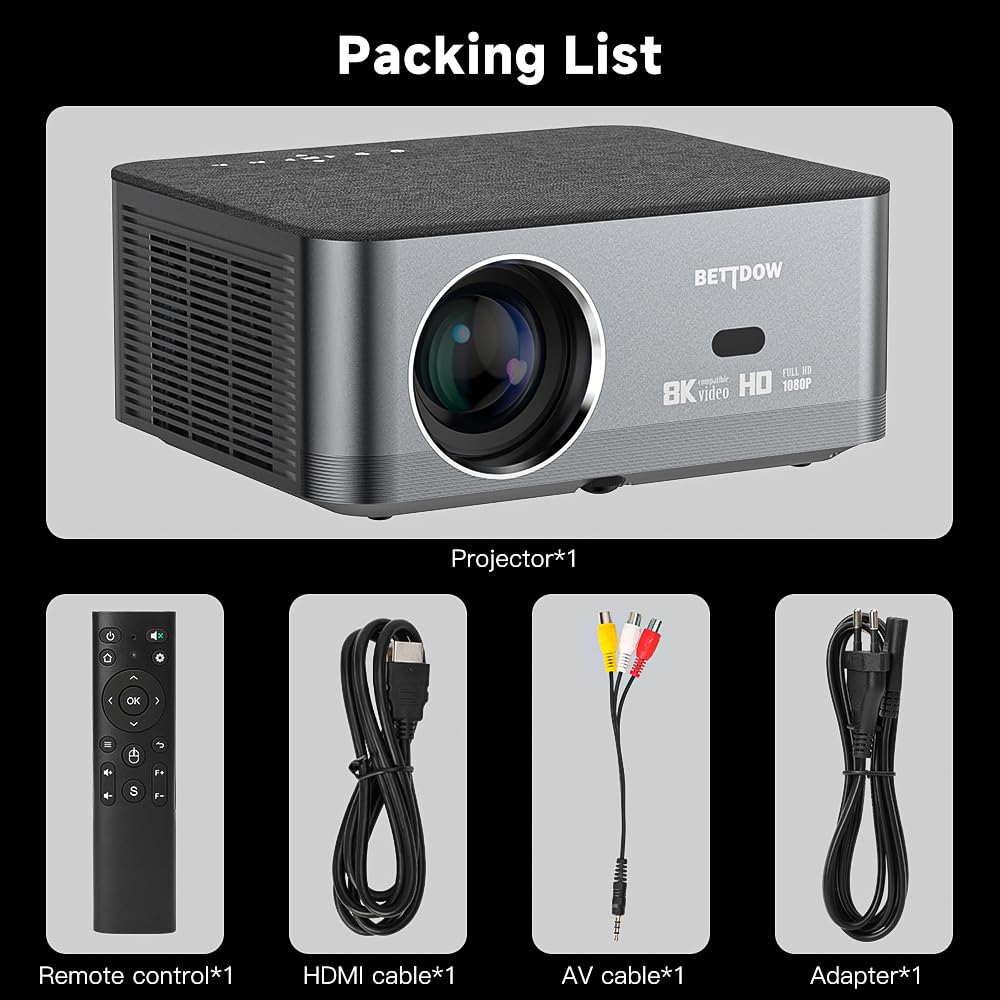
Image 2.1: Contents of the Bettdow AC1041 projector package, including the projector unit, remote control, HDMI cable, AV cable, and power adapter.
3. Setup
3.1 Placement
Place the projector on a stable, flat surface. Ensure adequate ventilation around the unit. The projection distance can range from 1.4 to 4.8 meters, supporting screen sizes from 35 to 200 inches.

Image 3.1: The Bettdow AC1041 projector placed on a table, demonstrating its compact and portable design suitable for home use.
3.2 Power Connection
- Connect the power adapter to the projector's power input port.
- Plug the power adapter into a suitable electrical outlet.
- Press the power button on the projector or remote control to turn on the device.
3.3 Focus and Keystone Correction
The projector features electronic focus and automatic keystone correction (±30 degrees) to ensure a clear and properly aligned image.
- Electronic Focus: The projector will automatically adjust focus. Manual adjustments can typically be made via the remote control if needed.
- Keystone Correction: The projector automatically corrects trapezoidal distortion. If the image appears skewed, manual adjustment options are available in the settings menu.
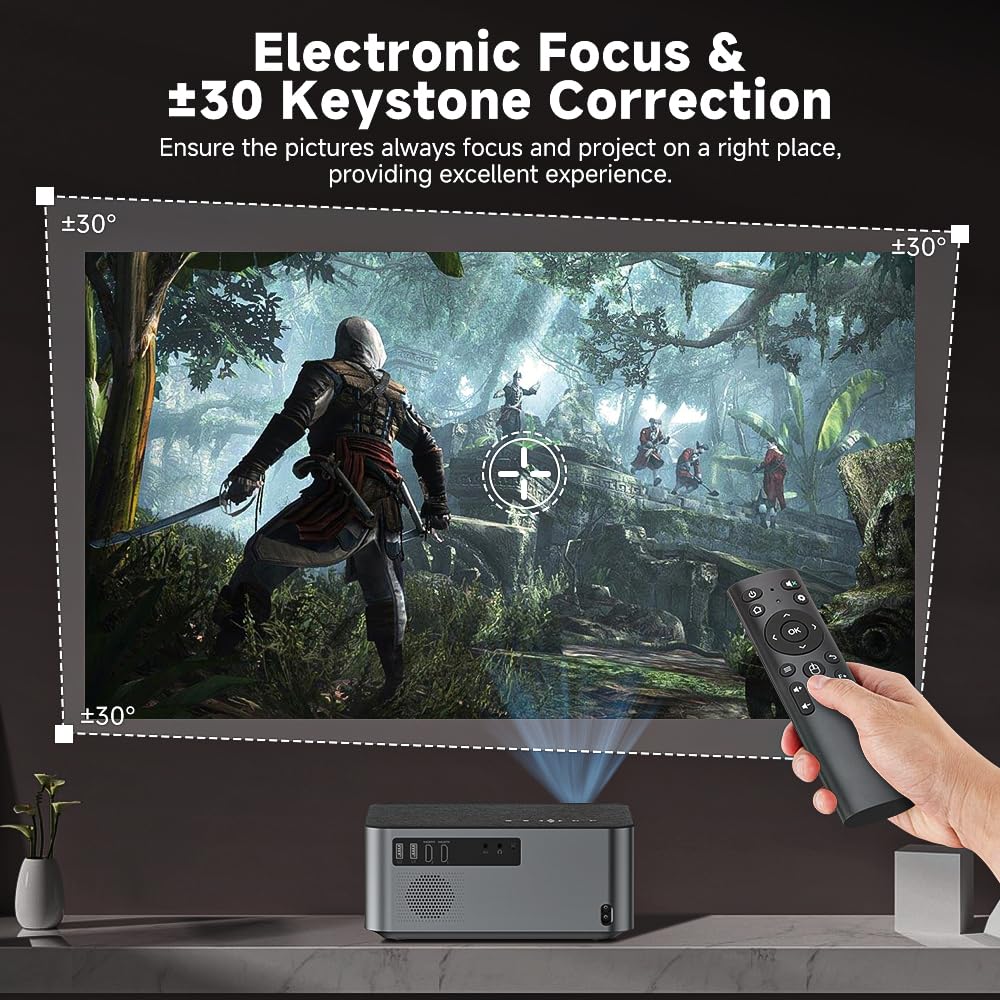
Image 3.2: Illustration of the electronic focus and ±30 degree keystone correction capabilities of the Bettdow AC1041 projector, ensuring a perfectly rectangular and sharp image.
3.4 Connectivity
The Bettdow AC1041 projector offers various connectivity options:
- HDMI: Connect to laptops, TV sticks, DVD players, gaming consoles (PS4/PS5), and computers.
- USB: Connect U-disks, mice, keyboards, and other USB devices.
- AV: Connect to older devices using the provided AV cable.
- 3.5mm Audio Jack: Connect external headphones or speakers.
- Bluetooth 5.0: For wireless audio connections to Bluetooth speakers or headphones.
- Wi-Fi 6 (2.4G/5G Dual Band): For network connectivity and screen mirroring.

Image 3.3: Rear view of the Bettdow AC1041 projector showing its various input ports including USB, HDMI, AV, and audio jack, along with examples of compatible devices.
4. Operating Instructions
4.1 Navigating the Interface
The projector runs on Android TV 12.0, providing access to various applications. Use the remote control to navigate the on-screen menu.
- Power Button: Turns the projector on/off.
- Directional Buttons: Navigate through menus.
- OK Button: Selects an option.
- Back Button: Returns to the previous screen.
- Home Button: Returns to the main home screen.
- Volume Buttons: Adjust audio output.
4.2 Screen Mirroring / Casting
The projector supports screen mirroring from Android and iOS devices via Wi-Fi 6.
- Ensure both the projector and your mobile device are connected to the same Wi-Fi network.
- Select the "Screen Mirroring" or "Cast" option from the projector's main menu.
- On your mobile device, activate the screen mirroring/casting feature (e.g., "Smart View" on Android, "Screen Mirroring" on iOS).
- Select the projector from the list of available devices.

Image 4.1: The Bettdow AC1041 projector displaying a game, highlighting its smooth Wi-Fi 6 and Bluetooth 5.0 capabilities for online streaming and screen synchronization from Android and iOS devices.
4.3 Media Playback
You can play media from various sources:
- USB Drive: Insert a USB drive into the USB port. Navigate to the file browser on the projector to select and play media files.
- HDMI Input: Select the appropriate HDMI input source from the projector's menu to display content from connected HDMI devices.
- Streaming Apps: Access pre-installed apps like Google Play, YouTube, Netflix, Disney+, and Amazon Prime via the Android TV 12.0 operating system.
5. Maintenance
Regular maintenance ensures optimal performance and extends the lifespan of your projector.
- Cleaning the Lens: Use a soft, lint-free cloth specifically designed for optical lenses. Do not use abrasive cleaners or excessive force.
- Cleaning the Exterior: Wipe the projector's exterior with a soft, dry cloth. For stubborn marks, slightly dampen the cloth with water. Avoid harsh chemicals.
- Ventilation: Ensure the projector's ventilation openings are clear of dust and obstructions to prevent overheating.
- Storage: When not in use for extended periods, store the projector in a cool, dry place, away from direct sunlight and extreme temperatures.
6. Troubleshooting
Refer to the following common issues and solutions before contacting customer support.
| Problem | Possible Cause | Solution |
|---|---|---|
| No image displayed | Power cable disconnected, incorrect input source, device not powered on. | Check power connection, select correct input source (HDMI, AV), ensure connected device is on. |
| Image is blurry | Out of focus, dirty lens. | Use electronic focus adjustment. Clean the projector lens. |
| Image is distorted (trapezoid) | Projector not perpendicular to screen. | Adjust keystone correction in settings or reposition the projector. |
| No sound | Volume too low, external audio device not connected, incorrect audio output selected. | Increase volume. Check external speaker/headphone connection. Verify audio output settings. |
| Wi-Fi connection issues | Incorrect password, out of range, router issues. | Verify Wi-Fi password. Move projector closer to router. Restart router. |
| Remote control not working | Dead batteries, obstruction, remote not paired. | Replace batteries. Remove obstructions. Re-pair remote if necessary (refer to specific pairing instructions if available). |
7. Specifications
Key technical specifications for the Bettdow AC1041 Projector:
- Model: AC1041
- Native Resolution: 1920x1080P (Full HD)
- Brightness: 600 ANSI Lumens (13000 Lumens marketing value)
- Contrast Ratio: 800:1
- Operating System: Android TV 12.0
- Wireless Connectivity: Wi-Fi 6 (2.4G/5G Dual Band), Bluetooth 5.0
- Keystone Correction: Electronic, ±30 degrees
- Focus: Electronic Focus
- Projection Size: 35-200 inches
- Projection Distance: 1.4-4.8 meters
- Aspect Ratio: 16:9 / 4:3
- Lamp Life: 30,000 hours
- Ports: HDMI, USB, AV, 3.5mm Audio Jack
- Speaker: Built-in 5W Hifi speaker
- Power Source: AC/DC
- Item Weight: 2.43 kg
- Package Dimensions: 33.2 x 25.6 x 15.6 cm
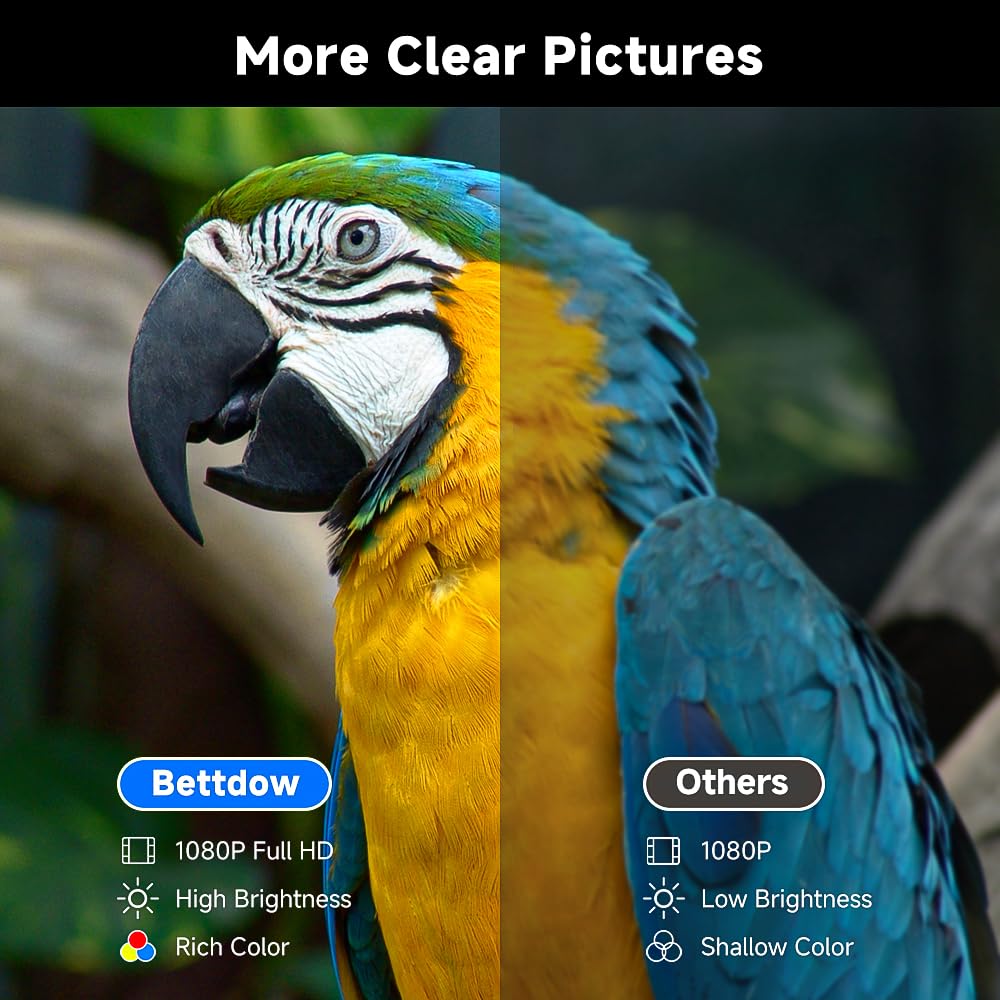
Image 7.1: A visual comparison demonstrating the clear and rich color reproduction of the Bettdow AC1041 projector (left) versus a standard 1080P projector (right).
8. Warranty and Support
For warranty information and customer support, please refer to the documentation provided with your purchase or contact Bettdow customer service directly. Details regarding warranty periods and service procedures are typically available on the manufacturer's official website or through your retailer.
