
1. Safety Information
Before using the monitor, please read all safety instructions carefully to prevent electric shock, fire, and damage to the product. Keep this manual for future reference.
- Do not expose the monitor to rain or moisture.
- Do not open the monitor casing. Refer all servicing to qualified personnel.
- Ensure proper ventilation around the monitor.
- Use only the power adapter supplied with the monitor.
- Avoid placing the monitor on an unstable surface.
2. Package Contents
Verify that all items are present in your product package:
- SAMSUNG 32" ViewFinity UJ59 Monitor
- Stand Base
- Stand Neck
- Power Adapter
- Power Cable
- HDMI Cable
- Installation CD (User Manual)
- Quick Setup Guide
3. Setup
3.1 Assembling the Stand
- Place the monitor face down on a soft, clean cloth to prevent scratches.
- Attach the stand neck to the back of the monitor until it clicks into place.
- Connect the stand base to the stand neck and secure it with the captive screw.

Figure 3.1: Front view of the SAMSUNG 32" ViewFinity UJ59 monitor assembled with its stand.
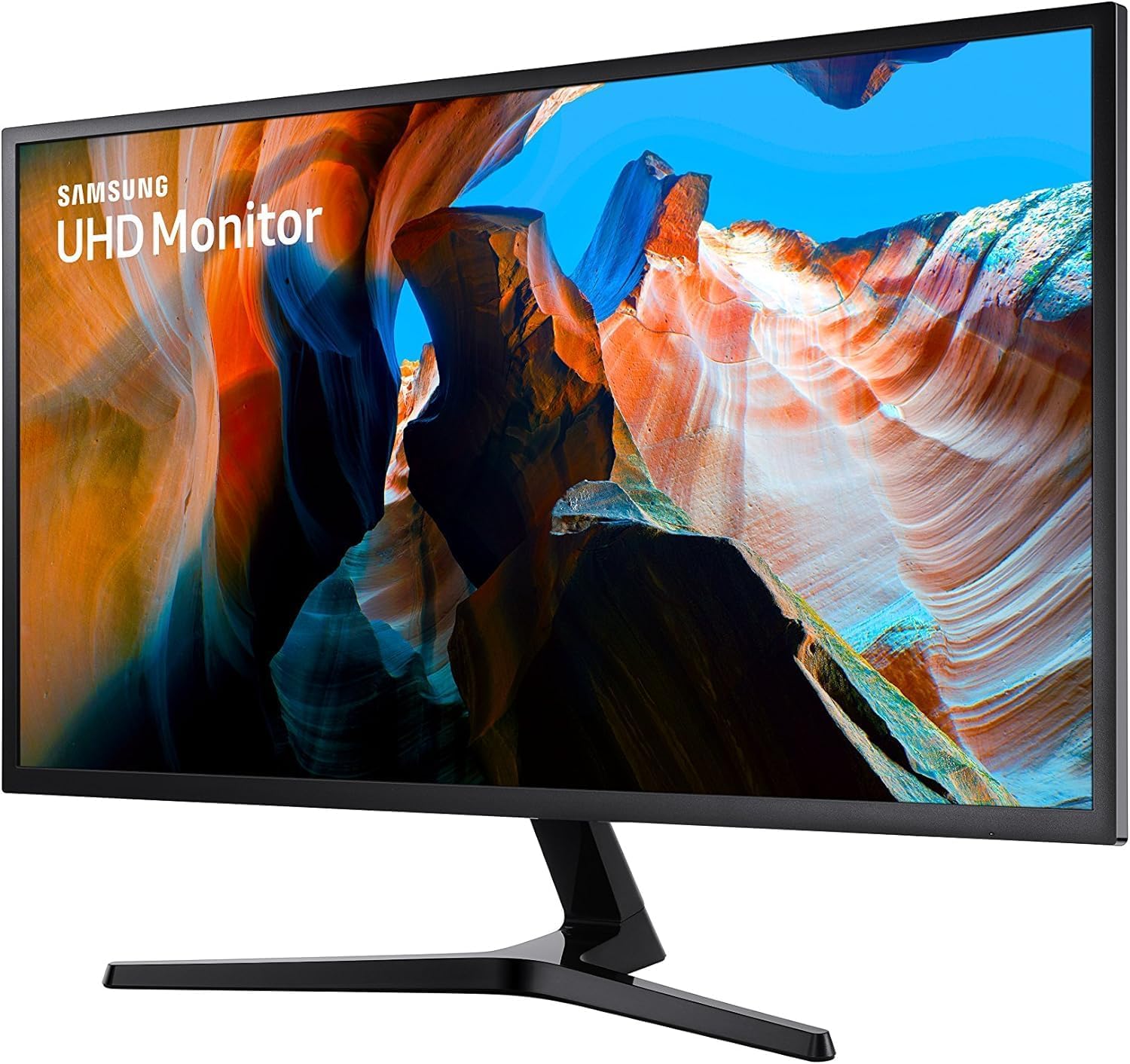
Figure 3.2: Side profile of the SAMSUNG 32" ViewFinity UJ59 monitor, showing its slim design.

Figure 3.3: Rear view of the SAMSUNG 32" ViewFinity UJ59 monitor, showing the textured back panel and stand attachment point.
3.2 Connecting the Monitor
Connect the monitor to your computer or other devices using the appropriate cables.
- Power Connection: Connect the power adapter to the monitor's DC 19V port, then plug the power cable into a wall outlet.
- Video Connection:
- HDMI: Connect one end of the HDMI cable to an HDMI IN port (HDMI IN 1 or HDMI IN 2) on the monitor and the other end to the HDMI port on your computer.
- DisplayPort: Connect one end of the DisplayPort cable to the DP IN port on the monitor and the other end to the DisplayPort on your computer.

Figure 3.4: Rear view of the monitor showing labeled input ports: 1. HDMI IN 1, 2. HDMI IN 2, 3. DP IN, 4. DC 19V power input.

Figure 3.5: Close-up of the monitor's connectivity panel, detailing the HDMI, DisplayPort, and power input connections.
3.3 Initial Power On
After connecting all cables, press the power button located on the bottom right side of the monitor to turn it on. The monitor will automatically detect the input source. If no signal is detected, ensure your computer is powered on and the video cable is securely connected.
4. Operating the Monitor
4.1 On-Screen Display (OSD) Menu Navigation
The monitor's settings can be adjusted using the OSD menu, accessed via the joystick button on the bottom right of the monitor.
- Press the joystick button to open the OSD menu.
- Move the joystick up/down/left/right to navigate through menu options.
- Press the joystick button to select an option or confirm a setting.
- Move the joystick left to go back to the previous menu or exit the OSD.
4.2 Key Features
- 4K UHD Display: The 32" UJ59 monitor provides a 3840x2160 resolution, offering increased screen space and detailed images. This allows for reduced scrolling on documents and webpages, and improved multitasking with multiple windows.
- Color Reproduction: Supporting a billion shades of color, the UJ59 delivers vivid and accurate images, suitable for photo, video, and graphics applications.
- AMD FreeSync: This technology synchronizes the monitor's refresh rate with your graphics card to minimize image tearing and stuttering during gaming.
- Low Input Lag: Reduces the delay between input devices (mouse, keyboard) and on-screen response, providing a smoother gaming experience.
- Picture-by-Picture (PBP): Allows connection of two separate input devices to the monitor simultaneously, displaying both sources side-by-side at their native resolution.
- Picture-in-Picture (PIP): Displays a second input source in a smaller window (up to 25% of the screen) that can be positioned anywhere on the main screen, facilitating multitasking.
- UHD Upscaling Technology: Samsung's technology enhances standard definition (SD), high definition (HD), and Full HD content to near UHD picture quality through signal analysis and detail enhancement.
- Eye Saver Mode / Flicker Free: These modes reduce blue light emissions and eliminate screen flickering, respectively, to minimize eye strain during extended use. Activate these features through the OSD menu.
5. Maintenance
5.1 Cleaning the Monitor
- Always unplug the monitor from the power outlet before cleaning.
- Use a soft, lint-free cloth lightly dampened with water or a specialized screen cleaner.
- Do not spray cleaner directly onto the screen. Apply it to the cloth first.
- Avoid using abrasive cleaners, waxes, or solvents as they can damage the screen or casing.
5.2 General Care
- Keep the monitor away from direct sunlight, heat sources, and excessive dust.
- Ensure adequate ventilation around the monitor to prevent overheating.
- Do not place heavy objects on the monitor or its cables.
6. Troubleshooting
If you encounter issues with your monitor, refer to the following common problems and solutions:
- No Power:
- Check if the power cable is securely connected to the monitor and the power outlet.
- Verify that the power adapter is correctly connected.
- Ensure the power outlet is functioning by testing it with another device.
- No Signal / Blank Screen:
- Confirm that the video cable (HDMI or DisplayPort) is securely connected to both the monitor and your computer.
- Ensure your computer is powered on and not in sleep mode.
- Try selecting the correct input source via the OSD menu.
- Test with a different video cable if available.
- Image Flickering / Distorted Image:
- Check the video cable connections.
- Adjust the resolution and refresh rate settings on your computer to match the monitor's specifications (3840x2160 at 60Hz).
- Disable AMD FreeSync in the OSD menu temporarily to see if the issue persists.
- Ensure the "Flicker Free" mode is enabled in the OSD menu.
- Colors are Incorrect:
- Reset the monitor's color settings to factory defaults via the OSD menu.
- Adjust color settings on your computer's graphics card control panel.
If the problem persists after trying these steps, please contact SAMSUNG customer support.
7. Specifications
| Feature | Specification |
|---|---|
| Brand | Samsung |
| Model Number | UJ59 |
| Screen Size | 32 Inches |
| Resolution | 3840 x 2160 (4K UHD) |
| Refresh Rate | 60 Hz |
| Response Time | 4ms (GtG) |
| Aspect Ratio | 16:9 |
| Contrast Ratio | 3000:1 |
| Brightness | 270 cd/m² |
| Connectivity | 2 x HDMI, 1 x DisplayPort |
| Adaptive Sync | AMD FreeSync |
| Special Features | PBP, PIP, Eye Saver Mode, Flicker Free, UHD Upscaling |
| Item Weight | 13.9 Pounds |
| Mounting Type | Wall Mount (VESA compatible) |
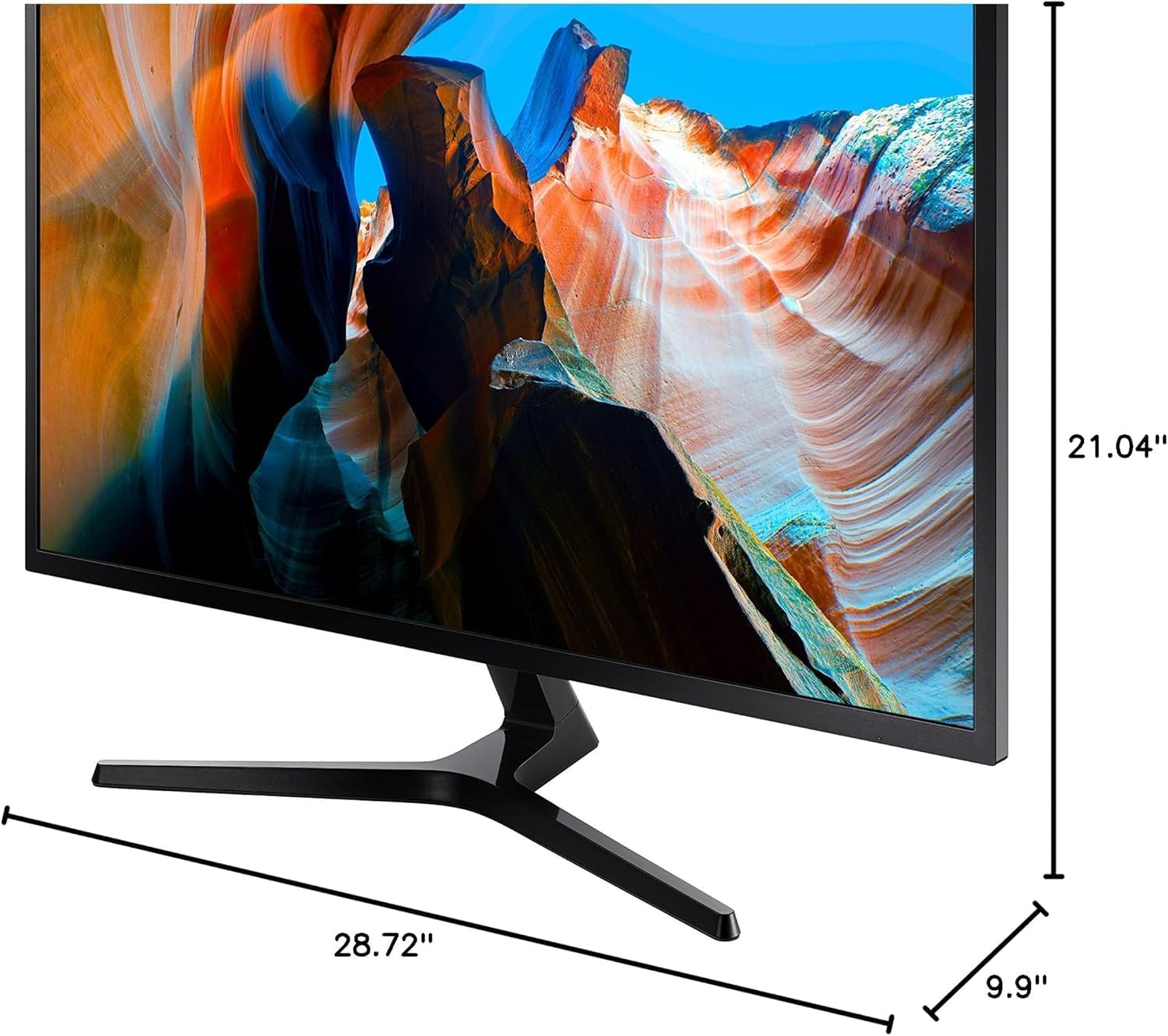
Figure 7.1: Diagram showing the approximate dimensions of the SAMSUNG 32" ViewFinity UJ59 monitor: 28.72" width, 21.04" height (with stand), and 9.9" depth (with stand).
8. Warranty Information
This SAMSUNG monitor comes with a Limited Warranty. For detailed information regarding warranty terms, conditions, and duration, please refer to the warranty card included in your product package or visit the official Samsung website for your region.
Keep your proof of purchase for warranty claims.
9. Customer Support
For further assistance, technical support, or service inquiries, please contact SAMSUNG customer support. You can find contact information (phone numbers, chat, email) on the official Samsung website for your country or region.
When contacting support, please have your monitor's model number (UJ59) and serial number ready.
Online Resources: https://www.samsung.com/support/