
1. Introduction
This manual provides detailed instructions for the Tera P166GC Android 13 Barcode Scanner PDA. This device is designed for efficient data management in various environments, featuring an upgraded Android 13 operating system, Wi-Fi 6 connectivity, a Qualcomm CPU, and a Zebra SE4710 scanner engine. Its rugged design with a 5.5-inch full touch screen and IP65 rating ensures durability and reliable performance.
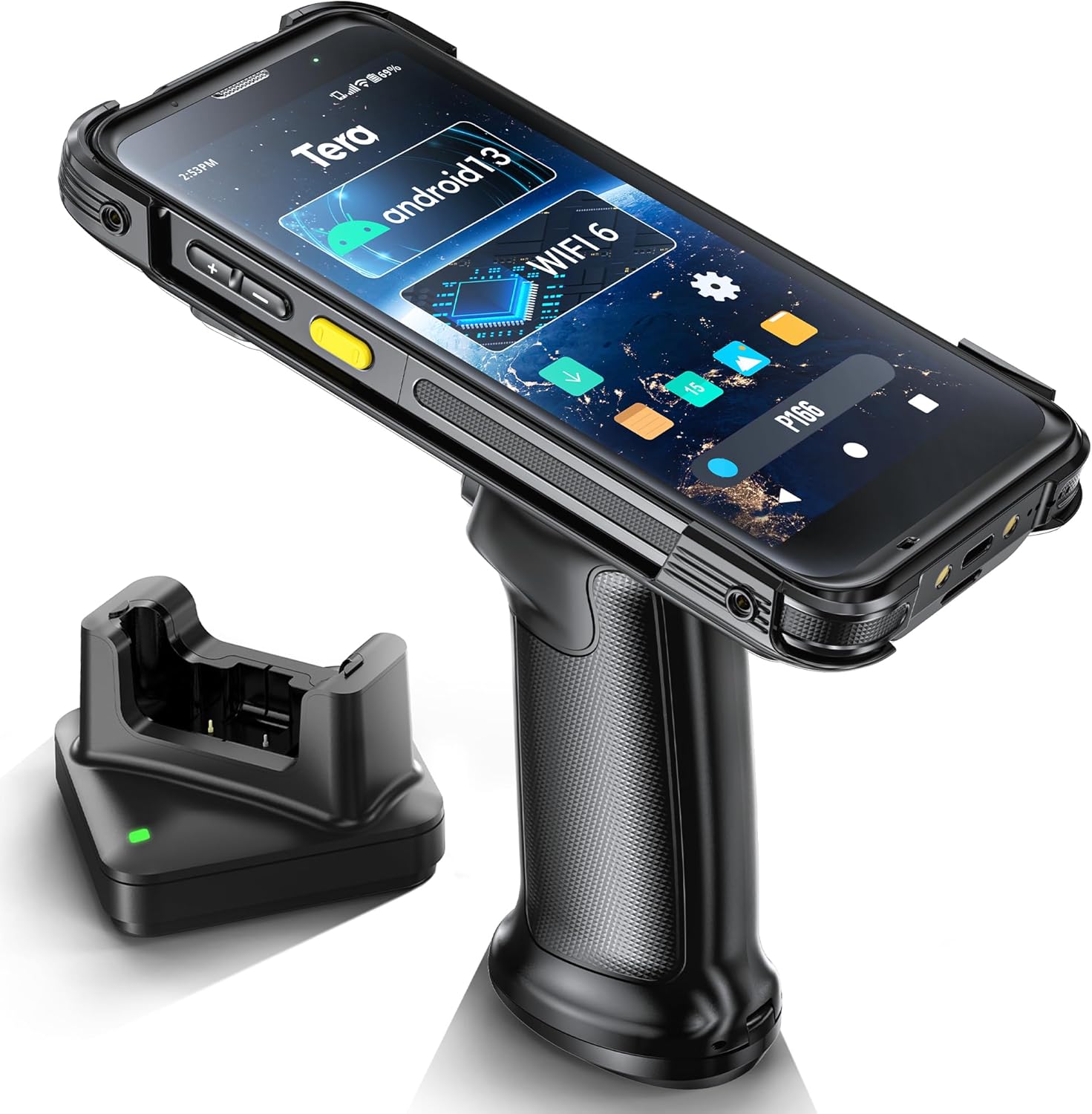
Image 1.1: Tera P166GC Android 13 Barcode Scanner PDA.
2. Package Contents
Verify that all items listed below are included in your package. If any items are missing or damaged, please contact customer support.
- Tera P166GC Android Barcode Scanner PDA
- Pistol Grip
- Charging Cradle
- User Manual
- Screen Protector
- Charging Adapter (US)
- QC-Adapter (US)
- USB Cable
- Lanyard

Image 2.1: All components included in the Tera P166GC package.
3. Product Overview
3.1. Upgraded Android 13 Operating System
The Tera P166GC runs on Android 13, offering enhanced security, privacy features, and optimized background task management for extended battery life. It supports dynamic theming and per-app language settings for a personalized user experience.

Image 3.1: Visual representation of the Android 13 operating system features.
3.2. Powerful Wi-Fi 6 Connectivity
Equipped with Wi-Fi 6, the device provides faster data rates up to 9.6 Gbps, increased capacity for simultaneous device connections, and reduced latency. This makes it ideal for demanding environments like smart warehouses and offices.

Image 3.2: Diagram illustrating Wi-Fi 6 benefits and connectivity.
3.3. Qualcomm CPU and Zebra SE4710 Scanner
The device integrates a Qualcomm 6115 Octa-core 2.0 GHz CPU for smooth application performance and multitasking. The embedded Zebra SE4710 scanner engine delivers industry-leading barcode scanning, capable of reading 1D/2D barcodes, even if damaged or poorly printed.

Image 3.3: A user operating the Tera P166GC, highlighting the Zebra SE4710 scanner's capability to read various barcode conditions.
3.4. Long-Lasting 4300 mAh Battery with Charging Cradle
A high-capacity 4300 mAh battery provides up to 490 hours of standby time and over 12 hours of continuous operation. The included charging cradle supports QC 3.0 fast charge, ensuring minimal downtime.

Image 3.4: Illustration of the 4300 mAh removable battery and its performance metrics.

Image 3.5: The Tera P166GC device docked in its charging cradle.
3.5. 5.5-inch Rugged Touch Screen with IP65 Rating
The expansive 5.5-inch touch display offers superior visual clarity and excellent outdoor readability. Its crash-resistant design and IP65 rating provide protection against water damage and dust, ensuring durability in challenging environments.

Image 3.6: The Tera P166GC device being splashed with water, illustrating its IP65 water resistance.
Video: Tera Dustproof Water Resistant Barcode Scanner PDA
Video 3.1: This video demonstrates the dustproof and water-resistant features of the Tera P166GC barcode scanner PDA, showcasing its ruggedness in various conditions.
Video: Tera Android 13 5.5" Touch Screen PDA
Video 3.2: This video provides an overview of the Tera P166GC, highlighting its Android 13 operating system and 5.5-inch touch screen interface in a warehouse setting.
4. Setup
4.1. Charging the Device
- Connect the charging adapter to the charging cradle.
- Place the Tera P166GC device into the charging cradle, ensuring it is properly seated.
- The charging indicator light on the cradle will illuminate, indicating that the device is charging.
- Allow approximately 2.5 hours for a full charge using the QC 3.0 fast charge adapter.
4.2. Powering On/Off
- To Power On: Press and hold the Power button located on the side of the device until the screen illuminates.
- To Power Off: Press and hold the Power button, then select 'Power Off' from the on-screen options.
4.3. Initial Configuration
- Upon first power-on, follow the on-screen prompts to select your language and region.
- Connect to a Wi-Fi network by navigating to Settings > Network & internet > Wi-Fi and selecting your desired network.
- Complete any additional setup steps as guided by the Android operating system.
5. Operating Instructions
5.1. Barcode Scanning
- Open the scanning application on your device.
- Point the scanner window at the barcode, ensuring the entire barcode is within the aiming pattern.
- Press the scan trigger button (often located on the pistol grip or side of the device) to activate the scanner.
- The device will emit a beep or vibrate upon successful scan, and the data will appear in the application.
5.2. Using the Touch Screen
The 5.5-inch full touch screen supports standard Android gestures:
- Tap: To select an item or open an application.
- Swipe: To scroll through lists or switch between screens.
- Pinch-to-Zoom: To zoom in or out on images and web pages.
5.3. Wi-Fi and Bluetooth Connectivity
- Wi-Fi: Access Settings > Network & internet > Wi-Fi to connect to available networks.
- Bluetooth: Access Settings > Connected devices > Connection preferences > Bluetooth to pair with Bluetooth devices.
6. Maintenance
6.1. Cleaning the Device
- Use a soft, lint-free cloth slightly dampened with water or a mild screen cleaner to wipe the display and exterior.
- Avoid using harsh chemicals, abrasive cleaners, or excessive moisture.
- Ensure all ports are closed before cleaning to maintain IP65 protection.
6.2. Battery Care
- To prolong battery life, avoid fully discharging the battery frequently.
- Store the device in a cool, dry place when not in use for extended periods.
- Use only the provided charging accessories.
6.3. Environmental Considerations
The Tera P166GC is designed with an IP65 rating for dust and water resistance. However, avoid prolonged exposure to extreme temperatures, direct sunlight, or corrosive substances.
7. Troubleshooting
| Problem | Possible Cause | Solution |
|---|---|---|
| Device does not power on | Low battery; device frozen | Charge the device for at least 30 minutes. Perform a forced restart by holding the Power button for 10-15 seconds. |
| Barcode not scanning | Barcode damaged/unclear; scanner window dirty; incorrect scanning mode | Ensure barcode is clear and well-lit. Clean the scanner window. Check scanner settings in the application. |
| Wi-Fi connection issues | Out of range; incorrect password; network interference | Move closer to the Wi-Fi router. Re-enter the Wi-Fi password. Restart the device and router. |
| Device is slow or unresponsive | Too many apps running; low storage | Close unnecessary applications. Clear cache or uninstall unused apps. Restart the device. |
8. Specifications
| Feature | Detail |
|---|---|
| Model Number | P166GC |
| Operating System | Android 13 |
| CPU | Qualcomm 6115 Octa-core, 2.0 GHz |
| Scanner Engine | Zebra SE4710 |
| Display | 5.5-inch Full Touch Screen |
| Connectivity | Wi-Fi 6, Bluetooth, 4G |
| Battery Capacity | 4300 mAh (Removable) |
| Charging Time | Approx. 2.5 hours (QC 3.0) |
| Operating Time | Over 12 hours (continuous operation) |
| Standby Time | Up to 490 hours |
| Ingress Protection (IP) Rating | IP65 (Dustproof, Water Resistant) |
| Dimensions (D x W x H) | 6.3"D x 0.61"W x 2.99"H |
| Scan Rate | 60 fps |
| Maximum Storage Temperature | 150 Degrees Fahrenheit |
9. Warranty & Support
9.1. Warranty Information
The Tera P166GC Barcode Scanner PDA comes with a 1-Year Warranty from the date of purchase. This warranty covers manufacturing defects and malfunctions under normal use. It does not cover damage caused by misuse, accidents, unauthorized modifications, or natural disasters.
For detailed warranty terms and conditions, please refer to the warranty card included in your package or contact Tera customer service.
9.2. Customer Support
If you encounter any issues or have questions regarding your Tera P166GC device, please contact our customer support team. You can find contact information on the official Tera website or through the retailer where you purchased the product.
For additional resources and FAQs, visit the Tera Store on Amazon.


