
1. Introduction
The Eufy SmartTrack Link is a compact item tracker designed to help you locate your belongings quickly and efficiently. This device integrates with Google's 'Find Hub' network for Android devices and offers two-way finding capabilities, allowing you to locate both your items and your smartphone. Its small size and integrated hole make it easy to attach to various items like keys, bags, or luggage.
Package Contents:
- Eufy SmartTrack Link
- Quick Start Guide
- Safety Manual
- Customer Support Information

The Eufy SmartTrack Link can be easily attached to various personal items.
2. Setup
2.1 Installing the Eufy App
- Download the 'Eufy Security' app from the Google Play Store on your Android device.
- Open the app and follow the on-screen instructions to create an account or log in.
2.2 Pairing Your SmartTrack Link
- Ensure Bluetooth is enabled on your Android device.
- In the Eufy Security app, tap the '+' icon to add a new device.
- Select 'SmartTrack Link' from the list of devices.
- Follow the app's instructions to complete the pairing process. This usually involves pressing a button on the SmartTrack Link.
2.3 Granting Location Permissions
For optimal functionality, especially for location tracking and lost mode features, you must grant the Eufy Security app 'Always' access to your device's location services. This ensures the SmartTrack Link can be located even when the app is not actively in use.

The Eufy Security app interface on an Android smartphone.
3. Operating the SmartTrack Link
3.1 Finding Lost Items (Using Your Phone)
If you've misplaced an item with the SmartTrack Link attached, use the Eufy Security app to make the tracker ring:
- Open the Eufy Security app on your Android device.
- Select the SmartTrack Link you wish to locate.
- Tap the 'Ring' button in the app. The SmartTrack Link will emit an audible sound, helping you pinpoint its location within Bluetooth range (approximately 15 meters).
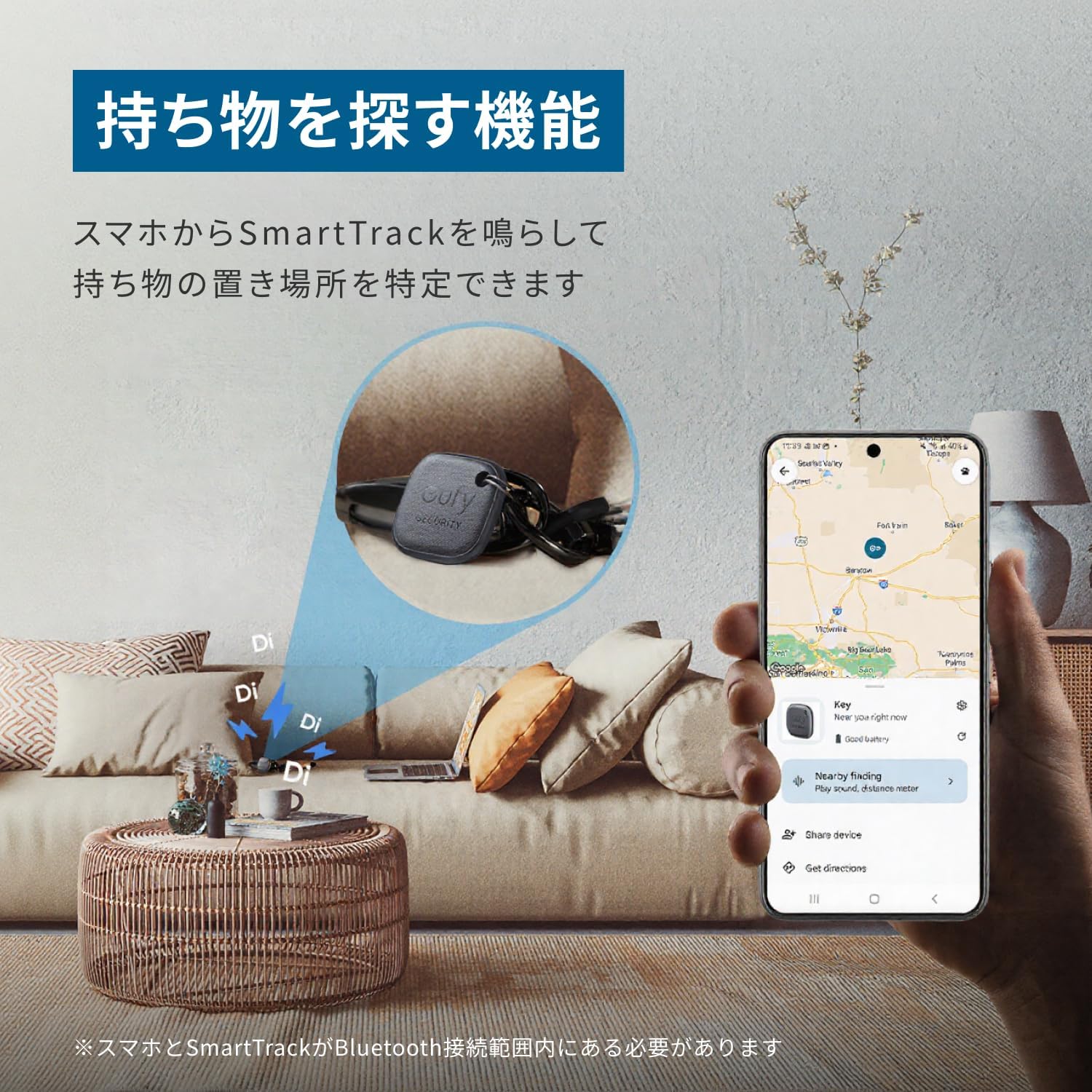
Use the Eufy app to make your SmartTrack Link ring and find your items.
3.2 Finding Your Phone (Using SmartTrack Link)
If you've misplaced your Android smartphone, you can use the SmartTrack Link to make your phone ring:
- Double-press the button on your Eufy SmartTrack Link.
- Your paired smartphone will ring, even if it's on silent mode (this feature is specific to the Eufy app).

Double-press the SmartTrack Link to make your smartphone ring.
3.3 Google 'Find Hub' Network Integration
The SmartTrack Link is compatible with Google's 'Find Hub' network, allowing you to leverage a wider network of Android devices to locate your lost items. This feature helps pinpoint the location of your SmartTrack Link even when it's outside your personal Bluetooth range.

Locate your SmartTrack Link using the Google 'Find Hub' network on your Android device.
3.4 Lost Mode and QR Code
If your SmartTrack Link is lost, you can enable 'Lost Mode' in the Eufy Security app. The back of the SmartTrack Link features a QR code. If someone finds your lost item and scans the QR code, they can contact you directly using the information you've provided in the app. Ensure your contact details are up-to-date in the Eufy app for this feature to work effectively.

The QR code on the back allows finders to contact you when Lost Mode is active.
3.5 Feature Comparison: Eufy App vs. Google Find Hub
The table below outlines the features available when using the Eufy app versus the Google Find Hub network:
| Feature | Eufy App | Google Find Hub |
|---|---|---|
| Register SmartTrack | Yes | Yes |
| Find Lost Items (Ring SmartTrack) | Yes | Yes |
| Locate Current Position (Outside Bluetooth Range) | No | Yes |
| Prevent Loss Tag (Alerts) | Yes | Yes |
| Find Your Phone (Ring Phone from SmartTrack) | Yes | No |
| Left-Behind Notification | Yes | No |
| Device Sharing (Multiple Accounts) | Up to 6 | Up to 2 |
Note: Information is current as of April 2025. Some features may vary depending on device or app version.
4. Maintenance
4.1 Battery Replacement
The Eufy SmartTrack Link uses a replaceable CR2032 lithium metal coin cell battery, which typically lasts for about 1 year. When the battery is low, the app will notify you. To replace the battery:
- Locate the small notch or opening on the side of the SmartTrack Link.
- Use a small tool (like a coin or the included pin) to gently pry open the device casing.
- Remove the old CR2032 battery.
- Insert a new CR2032 battery with the positive (+) side facing up.
- Carefully snap the device casing back together, ensuring it is securely closed.

The SmartTrack Link uses a replaceable CR2032 battery.
4.2 Cleaning
To clean your SmartTrack Link, wipe it gently with a soft, dry cloth. Avoid using harsh chemicals or abrasive materials, as these can damage the device. The device is not waterproof, so avoid exposing it to water or excessive moisture.
5. Troubleshooting
5.1 SmartTrack Link Not Ringing
- Check Battery: Ensure the CR2032 battery is not depleted. Replace if necessary.
- Bluetooth Connection: Verify that your smartphone's Bluetooth is on and the SmartTrack Link is within range (approx. 15 meters).
- App Status: Confirm the Eufy Security app is running and the SmartTrack Link is connected.
- Reset and Re-pair: If issues persist, try resetting the SmartTrack Link and re-pairing it with your device through the Eufy app.
5.2 Phone Not Ringing from SmartTrack Link
- App Permissions: Ensure the Eufy Security app has the necessary permissions to play sounds and override silent mode.
- Bluetooth Connection: Confirm the SmartTrack Link is connected via Bluetooth to your phone.
- App Running: The Eufy app needs to be running in the background for this feature to work.
5.3 Inaccurate Location Information
- Location Services: Ensure your phone's location services are set to 'Always' for the Eufy Security app.
- Network Coverage: Location accuracy relies on the density of the Google Find Hub network. In areas with fewer Android devices, accuracy may be lower.
- Environmental Factors: Obstacles like walls or dense foliage can affect signal strength and location accuracy.
5.4 Pairing Issues
- Restart Devices: Restart both your smartphone and the SmartTrack Link (by removing and reinserting the battery).
- Clear Cache: Clear the cache for the Eufy Security app in your phone's settings.
- Update App/Firmware: Ensure both the Eufy app and the SmartTrack Link's firmware are up to date.
6. Specifications
| Brand | Eufy |
| Model Number | T87B4 |
| Dimensions (L x W x H) | 37 mm x 37 mm x 7 mm |
| Weight | 10 grams |
| Battery Type | 1 Lithium Metal battery (CR2032), included |
| Average Battery Life | 1 year |
| Connectivity | Bluetooth |
| Control Method | App, Push Button |
| Range | Up to 15 meters (Bluetooth) |
| Compatible Devices | Smartphones (Android) |
| UPC | 194644207076 |
7. Warranty and Support
7.1 Product Warranty
The Eufy SmartTrack Link comes with a standard 18-month warranty from the date of purchase. If any defects or malfunctions occur during this period, the product will be exchanged or repaired as deemed appropriate by the manufacturer. Additionally, registered Anker members receive an extended 6-month warranty, totaling 24 months of support.

Standard 18-month warranty with an additional 6 months for registered Anker members.
7.2 Customer Support
For any inquiries, technical assistance, or warranty claims, please refer to the customer support information provided in your product's Quick Start Guide or Safety Manual. You can also visit the official Eufy website for FAQs and contact options.


