Introduction
The PowerA Battle Dragon Advanced Wireless Controller is designed for an enhanced gaming experience across multiple platforms. It offers versatile connectivity options including 2.4GHz wireless for PC, wired USB-C, and Bluetooth for Android devices, tablets, and smart TVs. This controller features magnetic Hall effect triggers, mechanical switches, mappable advanced gaming buttons, and adjustable trigger locks to provide precise control and customization.
Product Features
- Multi-Platform Compatibility: Optimized for PC desktops and laptops, cloud gaming devices, compatible Smart TVs, and Android smartphones and tablets.
- Triple Connectivity: Connect via wired USB-C, 2.4 GHz wireless for PC, or Bluetooth for Android devices.
- Hall Effect Technology: Integrated Hall Effect sensors in thumbsticks provide accurate response with anti-drift technology. Hall sensor triggers offer a precise feel for racing and shooting games.
- Mechanical Switches: ABXY, D-PAD, and LB/RB buttons feature mechanical switches for tactile feedback.
- Adjustable Height Analog Sticks: Customize thumbstick height by twisting to suit individual gaming styles.
- Mappable Buttons: Four advanced gaming buttons can be mapped for personalized control.
- 3-Way Trigger Locks: Adjustable trigger locks allow for shorter trigger pulls and faster response in compatible games.
- Turbo Button: Program the Turbo feature to ABXY, LB/RB, Select/Start buttons to reduce hand fatigue.
- Dual-Rumble Motors: Provides immersive haptic feedback during gameplay.
- Rechargeable Battery: Integrated 800mAh battery offers up to 30 hours of playtime, rechargeable via USB-C.
- Analog Caps: Non-slip removable caps enhance accuracy and sensitivity.
- App Support: Use the free PowerA Battle Dragon App for testing, calibration, and customization (supports wired USB-C and 2.4GHz Wireless only).
Package Contents
- PowerA Battle Dragon Advanced Wireless Controller
- 2.4GHz USB Wireless Dongle
- USB-C Charging Cable
- Adjustable Height Analog Stick Caps (pre-installed or included separately)
- Instruction Manual (this document)
Controller Layout
Familiarize yourself with the various buttons and components of your PowerA Battle Dragon Advanced Wireless Controller.
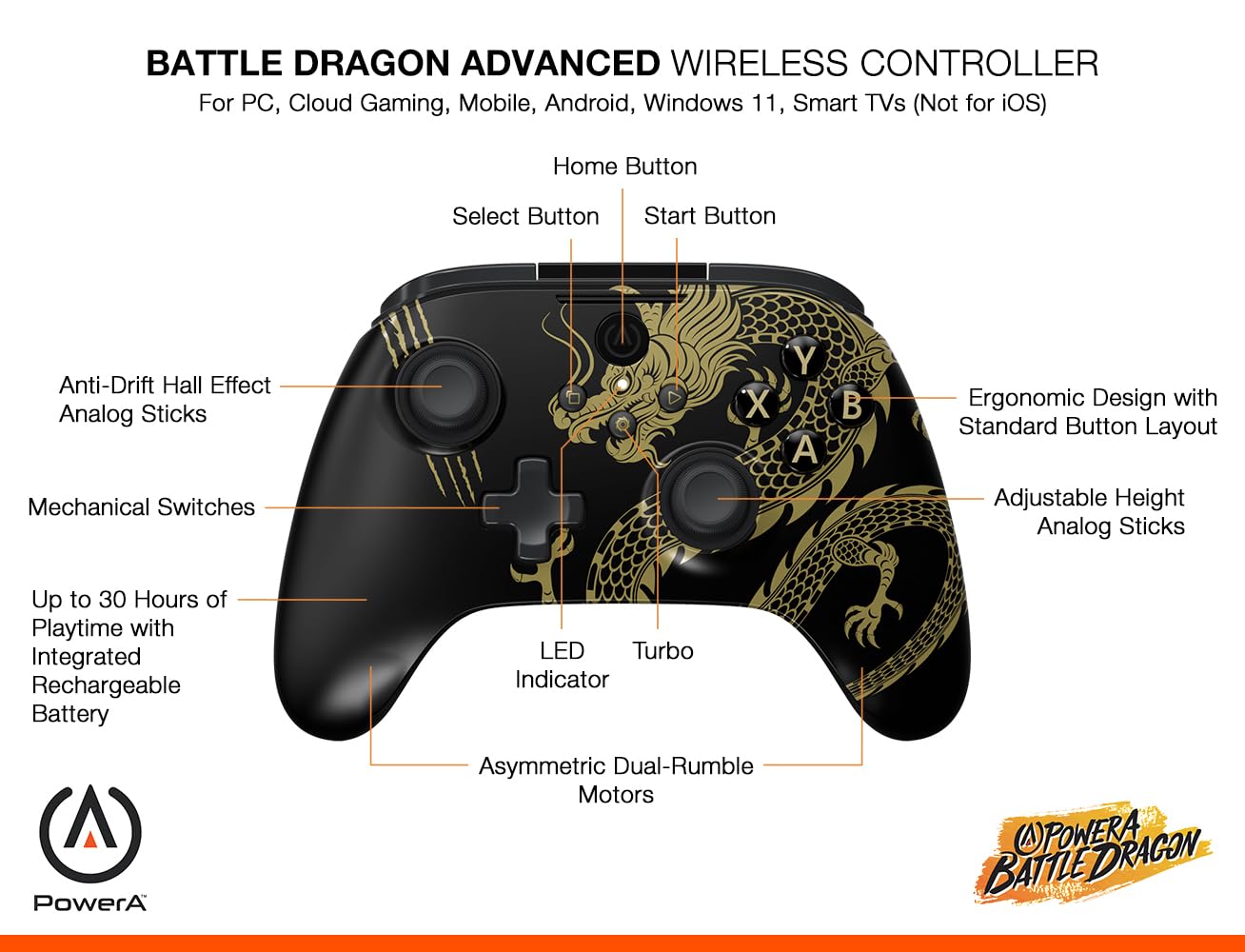
Image: Front view of the controller, highlighting the Home, Select, Start buttons, Anti-Drift Hall Effect Analog Sticks, Mechanical Switches, LED Indicator, Turbo button, Asymmetric Dual-Rumble Motors, Ergonomic Design, and Adjustable Height Analog Sticks.

Image: Back view of the controller, showing Hall Sensor Triggers, Three-Way Trigger Locks, Mappable Advanced Gaming Buttons, Textured Grips, Program Button, Battery Indicator, and Sync button. It also indicates connectivity options via Bluetooth, USB, or 2.4GHz Wireless.
Setup
1. Charging the Controller
Before initial use, fully charge the controller. Connect the included USB-C cable to the controller's USB-C port and the other end to a powered USB port (e.g., PC, USB wall adapter). The LED indicator will show charging status and turn off when fully charged. A full charge provides up to 30 hours of playtime.

Image: The controller is shown with an overlay indicating up to 30 hours of playtime with its rechargeable battery.
2. Connecting to PC (Wired or 2.4GHz Wireless)
The controller offers two methods for PC connection:
- Wired USB-C: Connect the USB-C cable directly from the controller to an available USB port on your PC. The controller will be recognized automatically.
- 2.4GHz Wireless: Insert the 2.4GHz USB wireless dongle into an available USB port on your PC. Power on the controller. The controller should automatically pair with the dongle. If not, press the Sync button on the back of the controller and the button on the dongle to initiate pairing.

Image: A visual representation of the three connectivity options: PC Low-Latency 2.4GHz, Bluetooth for other devices, and Wired USB-C for PC.
3. Connecting to Android Devices / Smart TVs (Bluetooth)
To connect via Bluetooth:
- Ensure the controller is powered on.
- Activate Bluetooth pairing mode on the controller by pressing and holding the Sync button on the back until the LED indicator flashes rapidly.
- On your Android device or Smart TV, navigate to Bluetooth settings and search for available devices.
- Select "PowerA Battle Dragon Controller" (or similar name) from the list to pair. The LED indicator on the controller will become solid when connected.
Note: This controller is not compatible with iOS devices.

Image: The controller is shown next to a television, illustrating its compatibility with PC, cloud, mobile, Smart TVs, and Android, with a clear disclaimer about iOS incompatibility.
Operation
Mode Switching (X-Input / D-Input)
The controller defaults to X-Input mode. To switch to D-Input mode, press the SELECT and START buttons simultaneously for 3 seconds. The LED indicator will flash 3 times to confirm the mode change.

Image: A diagram illustrating the process of switching controller modes. It shows the Select and Start buttons and explains that pressing them simultaneously for 3 seconds changes the mode, indicated by three LED flashes.
Mappable Advanced Gaming Buttons
The controller features four mappable Advanced Gaming Buttons (AGB) on the back. To map a button:
- Press the PROGRAM button on the back of the controller. The LED indicator will flash.
- Press the button you wish to map (e.g., A, B, X, Y, LB, RB, LT, RT, D-pad, L3, R3).
- Press one of the four Advanced Gaming Buttons (AGB1, AGB2, AGB3, AGB4) to assign the function. The LED indicator will stop flashing, confirming the mapping.

Image: The rear of the controller is shown, emphasizing the four mappable Advanced Gaming Buttons and the 3-way Trigger Locks.
3-Way Trigger Locks
Adjust the physical switches next to the triggers on the back of the controller to set the trigger pull depth. This allows for shorter trigger travel, providing faster response times in games like first-person shooters.
Turbo Button
The Turbo feature allows a button to be repeatedly pressed automatically when held down. To activate Turbo:
- Press and hold the TURBO button.
- While holding TURBO, press the desired button (ABXY, LB/RB, Select/Start) to assign the Turbo function.
- Release both buttons. The assigned button will now activate Turbo when held.
- To disable Turbo for a button, repeat the process.
Adjustable Height Analog Sticks
The analog sticks can be adjusted in height to match your preference. Simply twist the top of the analog stick to raise or lower its height. This customization can improve comfort and precision.

Image: A close-up view of an analog stick with arrows indicating a twisting motion for quick height adjustment.
App Support for Customization
Download the free PowerA Battle Dragon App (PC HQ App) to test, calibrate, and customize your controller settings. The app supports wired USB-C and 2.4GHz wireless connections only.

Image: A screenshot of the PowerA PC HQ App, demonstrating its interface for testing, calibrating, and troubleshooting controller issues like stick drift and dead zones. A QR code for app download is also visible.
Scan this QR code to download the PowerA PC HQ App: App Download Link
Maintenance
- Cleaning: Use a soft, dry cloth to clean the controller. Avoid abrasive cleaners or solvents.
- Storage: Store the controller in a cool, dry place away from direct sunlight and extreme temperatures.
- Battery Care: To prolong battery life, avoid fully discharging the controller frequently. Charge it regularly, even if not in use for extended periods.
- Analog Sticks: The non-slip removable analog caps can be cleaned or replaced if worn.
Troubleshooting
- Controller Not Connecting:
- Ensure the controller is charged.
- For 2.4GHz wireless, ensure the USB dongle is securely inserted and the controller is in pairing mode.
- For Bluetooth, ensure Bluetooth is enabled on your device and the controller is in pairing mode.
- Try connecting via wired USB-C to rule out wireless issues.
- Stick Drift or Inaccurate Input:
- Use the PowerA Battle Dragon App (PC HQ App) to calibrate the analog sticks and check for dead zones.
- Ensure the analog stick caps are properly seated.
- Buttons Not Responding:
- Check if the controller is in the correct input mode (X-Input/D-Input) for your game.
- Ensure no debris is obstructing the buttons.
- Short Battery Life:
- Ensure the controller is fully charged before use.
- Reduce rumble intensity if possible through game settings or the app, as this consumes more power.
Specifications
| Model Number | PCGP0403-01 |
| Connectivity | 2.4GHz Wireless, Bluetooth, Wired USB-C |
| Battery | 800mAh Lithium Polymer (Rechargeable) |
| Playtime | Up to 30 hours (on a single charge) |
| Dimensions (LxWxH) | 15.6 x 10.8 x 6.3 cm |
| Weight | 270 g |
| Country of Origin | China |
Warranty Information
This PowerA Battle Dragon Advanced Wireless Controller comes with a Two-Year Limited Warranty. Please retain your proof of purchase for warranty claims. For full warranty terms and conditions, refer to the official PowerA website or contact customer support.
Customer Support
For further assistance, technical support, or warranty inquiries, please contact PowerA customer care:
- Email: india.info@acco.com
- Online Support: Visit the PowerA support portal to submit a case request: www.powera.com/support/submit-case-request/
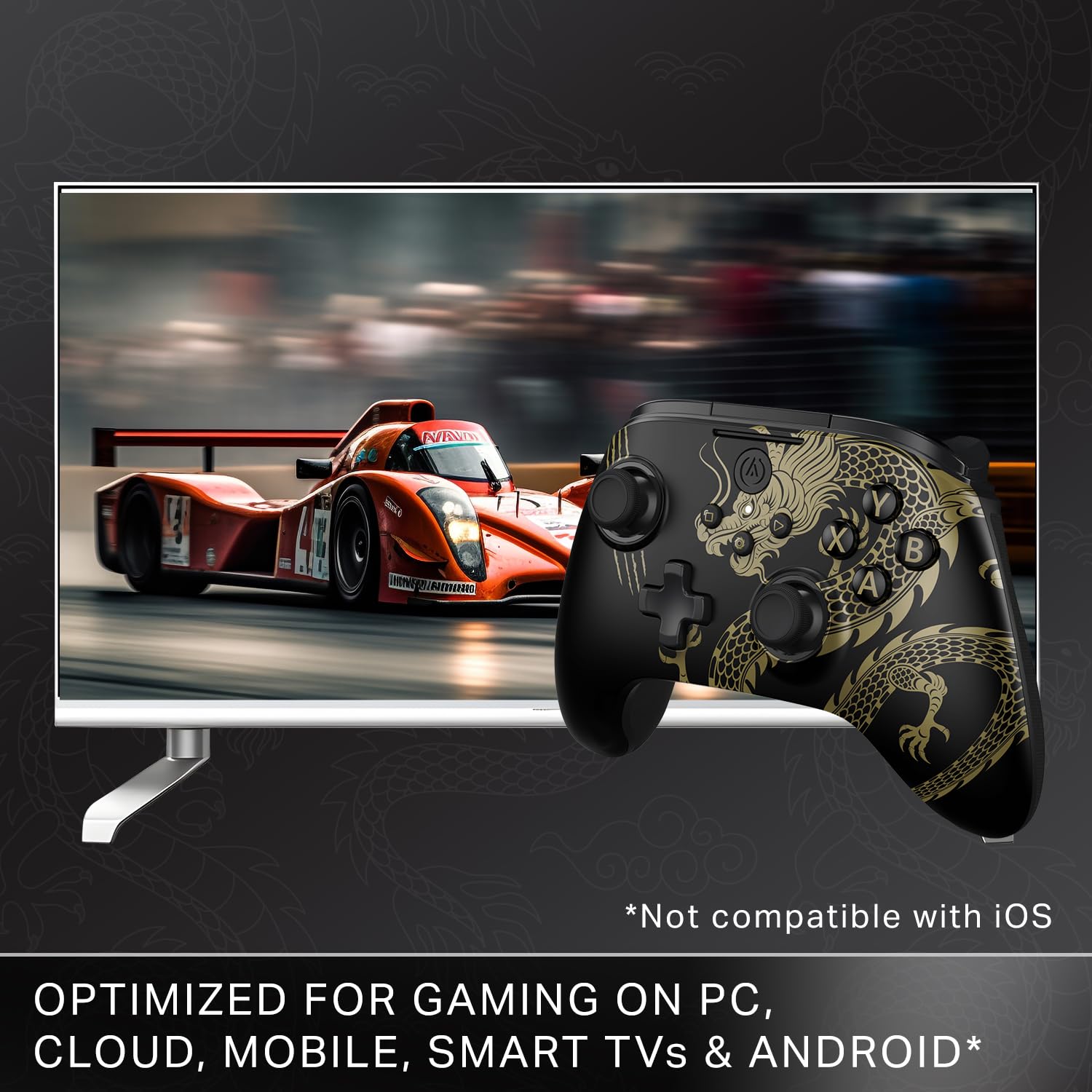
Image: PowerA Customer Care Contact details, including an email address and a link to their support page, accompanied by a QR code for easy access.
Scan this QR code to submit a support request: Support Request Link


