
ANVIZ ANVIZ-CX2-02-BK
ANVIZ CX2 Fingerprint Biometric Time Clock User Manual
Model: ANVIZ-CX2-02-BK | Brand: ANVIZ
Introduction
The ANVIZ CX2 Fingerprint Biometric Time Clock is designed to streamline employee time management for small businesses. This device offers versatile punching options including fingerprint, RFID card, and PIN, integrating seamlessly with the CrossChex Cloud software for efficient attendance tracking and payroll processing. This manual provides detailed instructions for setting up, operating, maintaining, and troubleshooting your ANVIZ CX2 time clock.

Image: The ANVIZ CX2 time clock unit displayed alongside a computer screen showing the CrossChex Cloud software dashboard, highlighting its integration for time management.
Key Features
- Powerful CrossChex Cloud Software: Designed to meet time management requirements for businesses of any size, offering easy operation and free access for small businesses (1 admin, 1 device).
- Versatile Punching Options: Supports Finger Scan (to prevent buddy punching), RFID cards, fobs, or PIN for clock-in/out.
- Automatic Statistics & Data Synchronization: Employee attendance data is automatically sent to the cloud software, enabling quick and accurate payroll processing and report viewing. Data can be downloaded for integration with systems like QuickBooks.
- Flexible Scheduling Options: Accommodates three shifts, including overnight, and works with weekly, bi-weekly, semimonthly, or monthly pay periods.
- Remote Access: View all time clock data and track employee punches from anywhere using a web browser.
- Large Storage Data Capacity: Features capacity for up to 500 users and 50,000 logs, with exceeded logs overwritten circularly.
- Multi-language Support: Available in English, Spanish, French, and Portuguese.
- Offline Use Capability: Securely captures punches when the internet is down, syncing data once connectivity is restored. Supports 2.4Ghz Wi-Fi and Ethernet connection.
Setup Guide
Follow these steps to set up your ANVIZ CX2 time clock and connect it to the CrossChex Cloud software.
1. Power Up and Network Connection
Connect the time clock to a power source. For network connection, you can use either Ethernet or Wi-Fi. The device supports 2.4Ghz Wi-Fi. If using a 5Ghz Wi-Fi router, connect via Ethernet cable or use a 2.4Ghz Wi-Fi bridge.
Video: This video demonstrates the process of powering up the ANVIZ CX2 and establishing an Ethernet connection, including selecting the language and configuring network settings.
2. Create Your CrossChex Cloud Account
Before setting up your new Time Clock, you need to create a CrossChex Cloud account. Open your web browser and visit us.crosschexcloud.com/register, then follow the prompts to complete the registration process.
3. Activate and Configure Your Time Clock
Power on your Time Clock. Follow the prompts on the device screen to connect to the internet via LAN or Wi-Fi. Enter your Company ID and Password, which can be found in the CrossChex Cloud "Settings" tab of your cloud account. Once connected, check for the cloud icon on the device screen to confirm successful synchronization.

Image: A visual guide outlining the four easy steps to start using the ANVIZ time clock, including account creation, device configuration, and employee setup.
4. Add Departments and Employees in Cloud Software
Departments are used to group employees within the CrossChex Cloud system. Select the "Employee" tab, then "Add" and assign to the departments you've created. You can create more departments within your account later.
5. Add Employee Fingerprints, Faces, Password or Cards
Select the "Employee" tab on your CrossChex Cloud "Organization" tab. You will then need to register employee biometrics (fingerprints, faces if applicable) or cards through the connected Time Clock. The device supports up to 500 users and 50,000 logs.

Image: An illustration showing a finger being scanned on the time clock, emphasizing its biometric capabilities and large user/log capacity.

Image: Three panels demonstrating various methods for clocking in: by fingerprint, by RFID card, and by password entry on the ANVIZ time clock.
Operating Instructions
Clocking In/Out
Employees can clock in or out using their registered fingerprint, RFID card, or by entering their PIN. The device will confirm a successful punch. The system is designed to prevent "buddy punching" through biometric verification.
Using CrossChex Cloud Software
Access the CrossChex Cloud software via a web browser to manage attendance data. The software provides automatic statistics and synchronization of data, allowing you to view reports, manage employee schedules, and prepare payroll efficiently. The software supports flexible scheduling options including weekly, bi-weekly, semimonthly, or monthly pay periods, and can handle overnight shifts.

Image: A person using a laptop to access the CrossChex Cloud software, demonstrating its accessibility and ease of use for checking punch records from anywhere.

Image: A screenshot of the CrossChex Cloud dashboard, displaying various attendance metrics and historical data for employee management.
Generating Reports
The CrossChex Cloud software allows you to generate various reports, such as current data reports, records reports, monthly attendance reports, attendance exception reports, overtime reports, and request reports. These reports can be downloaded for further analysis or integration with other payroll systems like QuickBooks.

Image: The CrossChex Cloud interface displaying options for exporting various types of attendance reports, emphasizing data accessibility.

Image: A detailed view of the CrossChex Cloud software's report export functionality, showing different report types available for download.
Offline Mode
The ANVIZ CX2 time clock can securely capture punches even when the internet connection is down. Once connectivity is restored, all recorded data will automatically synchronize with the CrossChex Cloud software, ensuring no data loss.
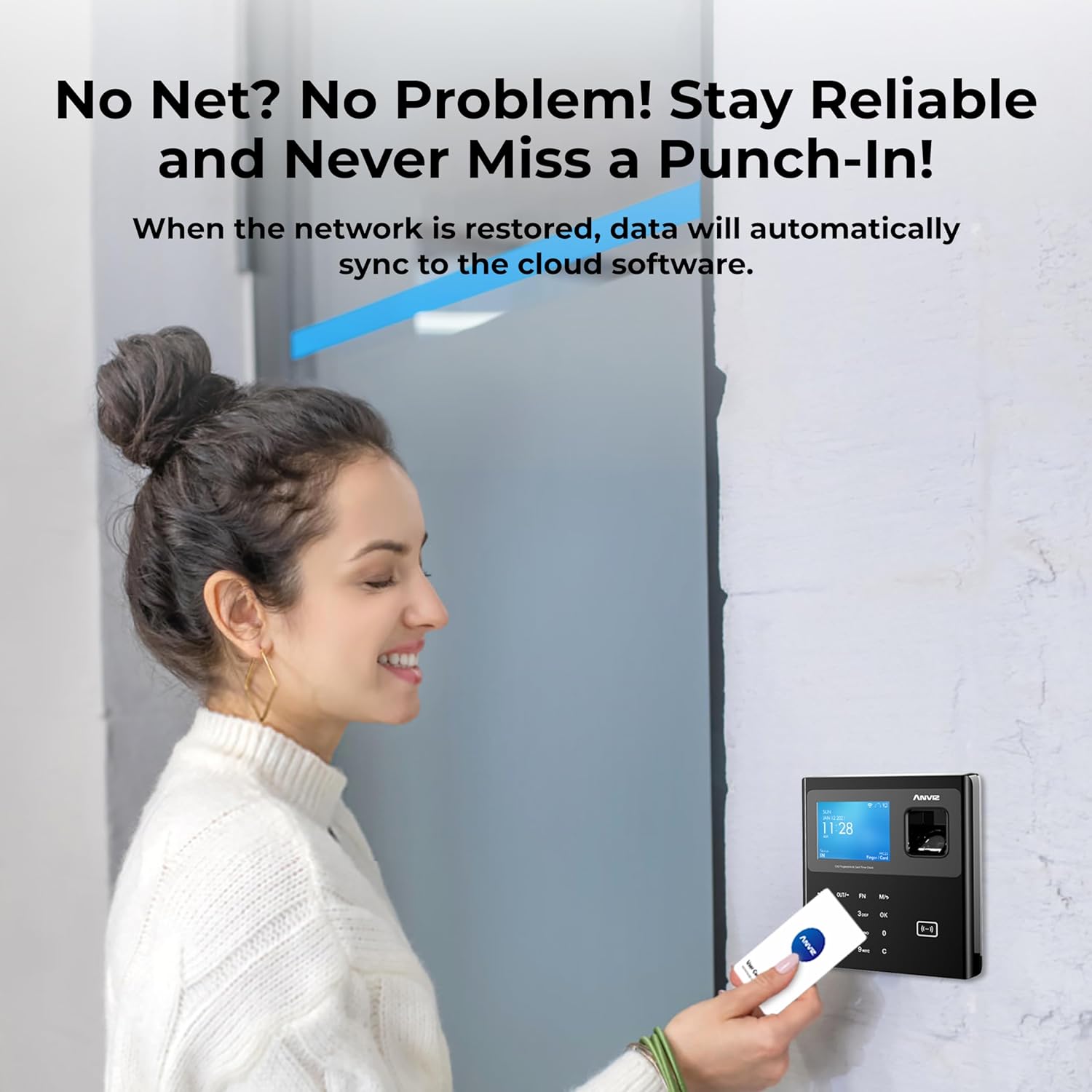
Image: A woman interacting with the time clock, illustrating its reliable offline functionality and automatic data synchronization when the network is restored.
Maintenance
To ensure optimal performance and longevity of your ANVIZ CX2 time clock, regular maintenance is recommended:
- Cleaning: Gently wipe the device, especially the fingerprint sensor and screen, with a soft, dry cloth. Avoid using abrasive cleaners or solvents.
- Software Updates: Periodically check the CrossChex Cloud software for updates to ensure you have the latest features and security enhancements.
- Data Backup: While the cloud software provides robust data storage, it is good practice to regularly download and back up your attendance reports.
Troubleshooting
This section addresses common issues you might encounter with your ANVIZ CX2 time clock.
- Device Not Powering On: Ensure the power adapter is securely connected to both the device and a working power outlet.
- Connectivity Issues (No Cloud Icon):
- Verify the Ethernet cable is properly connected or that the Wi-Fi network is active and within range.
- Confirm the Wi-Fi is 2.4Ghz, as 5Ghz is not directly supported without a bridge.
- Check the Company ID and Password entered on the device against your CrossChex Cloud account settings.
- Restart the device and your network router.
- Fingerprint Recognition Failure:
- Ensure the finger is clean and dry.
- Place the entire pad of the finger flat on the sensor.
- Re-register the fingerprint if issues persist, ensuring proper enrollment.
- Data Not Syncing to Cloud:
- Check network connectivity as described above.
- Ensure the device's date and time are correct.
- Verify your CrossChex Cloud account status and subscription (if applicable beyond the free tier).
- Software Interface Issues: Clear your web browser's cache and cookies, or try accessing the CrossChex Cloud software from a different browser or device.
Specifications
| Feature | Detail |
|---|---|
| Product Dimensions | 5.12 x 1.5 x 1.18 inches; 1.4 Pounds |
| Item Model Number | ANVIZ-CX2-02-BK |
| Manufacturer | ANVIZ |
| Brand | ANVIZ |
| Color | Black |
| Display Type | Digital |
| Special Feature | Night Mode |
| Power Source | Corded Electric |
| User Capacity | Up to 500 users |
| Log Capacity | Up to 50,000 logs |
Warranty and Support
The ANVIZ CX2 hardware is guaranteed for 3 years. Technical support is available from Monday to Friday.
For further guides and tips, you can visit the official support pages:
You can also contact customer support:
- Phone: +1(855)268-4948 (Mon-Fri 6:00am-7:00pm Pacific Time)
- Email: support@anviz.com

Image: Contact details for ANVIZ customer support, including phone number and operating hours.
Related documentsANVIZ-CX2-02-BK


Ask a question about this manual
Ask about setup, troubleshooting, compatibility, parts, safety, or missing instructions. Manuals+ will review the question and use this page’s manual context to help answer it.