
Introduction
This manual provides comprehensive instructions for the installation, operation, and maintenance of your Wisoqu Video Doorbell. Please read this manual thoroughly before using the product to ensure proper function and safety. Keep this manual for future reference.

Image: The Wisoqu Video Doorbell system, showing the indoor display unit, the outdoor camera, and illustrations of its two-way communication and visitor monitoring capabilities.
Package Contents
Verify that all items listed below are included in your package. If any items are missing or damaged, please contact customer support.
- 1 x Indoor Display Unit
- 1 x Outdoor Camera (Peephole Lens)
- 1 x USB Charging Cable
- 1 x Mounting Plate
- 6 x Mounting Screws
- 1 x English User Manual
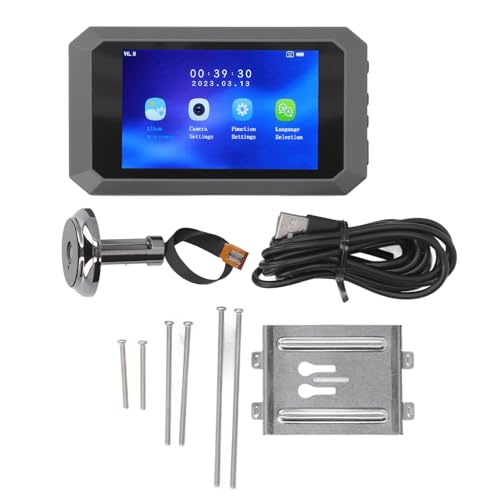
Image: A complete view of all items included in the Wisoqu Video Doorbell package, laid out for inspection.
Specifications
| Feature | Specification |
|---|---|
| Item Type | Video Doorbell |
| Screen Size | 3.97 inches |
| Screen Resolution | 480 x 800 |
| Camera Resolution | 1080P (Recording: 720P) |
| Camera Sensor | 2 Megapixels |
| Wide Angle | 135° |
| Infrared Lights | 2 |
| Storage Method | Micro Memory Card (supports 8G+, 16G/32G recommended, not included) |
| Language Support | English, Chinese, Russian, French, Italian, German, Japanese, Korean, Czech, Turkish, Arabic |
| Suitable Door Hole Diameter | Approx. 15-30mm / 0.6-1.2 inches |
| Suitable Door Thickness | Approx. 35-80mm / 1.4-3.1 inches |
| Battery Type | 3.7-4.2V 1400mAh Lithium-ion Battery (Built-in) |
| Charging Interface | Type-C |
| Indoor Unit Dimensions | Approx. 134.5 x 76 x 13mm / 5.3 x 3 x 0.5 inches |
Setup and Installation
Follow these steps to install your Wisoqu Video Doorbell:
- Prepare the Door: Ensure your door has a peephole hole with a diameter between 15-30mm and a door thickness between 35-80mm.
- Install Outdoor Camera: Insert the outdoor camera lens through the peephole from the exterior side of the door. Ensure the camera is facing outwards and is level.
- Attach Mounting Plate: From the interior side of the door, slide the camera's ribbon cable through the central opening of the mounting plate. Secure the mounting plate to the door using the provided screws, ensuring it is stable.
- Connect Indoor Unit: Carefully connect the outdoor camera's ribbon cable to the corresponding port on the back of the indoor display unit.
- Mount Indoor Unit: Align the indoor unit with the mounting plate and slide it downwards until it clicks securely into place.
- Insert Memory Card (Optional): If you wish to record videos or photos, insert a compatible micro memory card (8G or higher, 16G/32G recommended) into the designated slot on the indoor unit.
- Power On: Press and hold the power button on the indoor unit to turn it on.
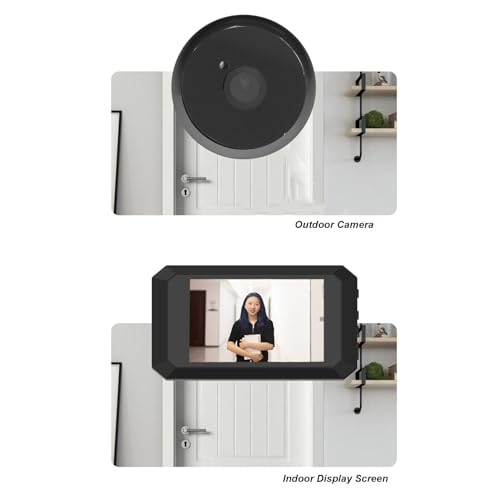
Image: A visual guide illustrating the placement of the outdoor camera and the indoor display unit on a door.
Operating Instructions
Basic Operation
- Power On/Off: Press and hold the power button to turn the device on or off.
- View Live Feed: When the device is on, the screen will display the live view from the outdoor camera.
- Two-Way Audio: The doorbell supports two-way communication. When a visitor presses the doorbell button, you can speak to them via the built-in microphone and speaker on the indoor unit.
Menu Navigation
Use the buttons on the indoor unit to navigate through the menu options displayed on the 3.97-inch screen. Common menu options include:
- Album: View recorded photos and videos.
- Camera Settings: Adjust camera-related parameters.
- Function Settings: Configure general device settings.
- Language Selection: Choose your preferred language from the supported options.
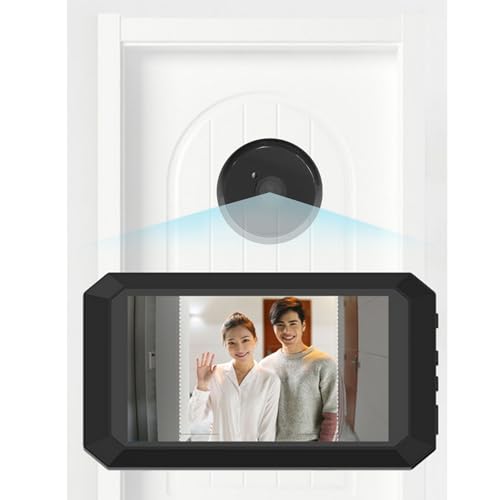
Image: The indoor display screen showing a clear view of visitors at the door, demonstrating the live monitoring function.
Features
Motion Detection
The doorbell is equipped with motion detection functionality. When movement is detected near your door, the device will automatically begin recording video or capturing photos, enhancing home security.
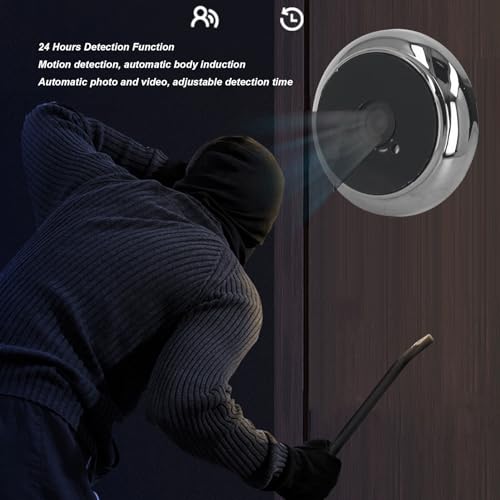
Image: A graphic depicting the motion detection feature, where the doorbell automatically records when a person is detected near the door.
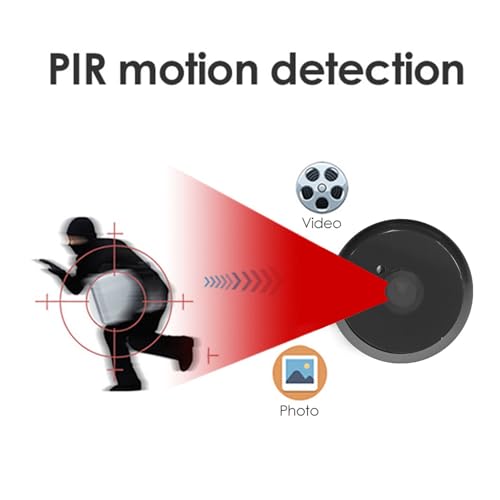
Image: A diagram illustrating the Passive Infrared (PIR) motion detection process, where movement triggers the camera to capture video or photos.
Night Vision
With built-in infrared lights, the doorbell provides clear visibility even in low-light conditions or complete darkness, ensuring you can identify visitors at night.
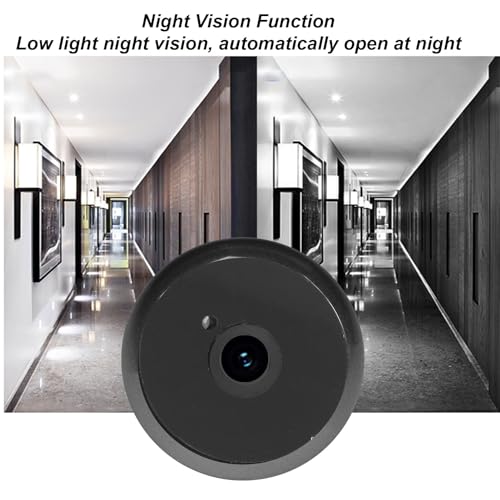
Image: The outdoor camera lens, with an example of its night vision function providing clear images in a dimly lit environment.
Wide Angle Viewing
The 135° wide-angle lens provides an expansive view of your doorstep, minimizing blind spots and allowing you to see more of your surroundings.
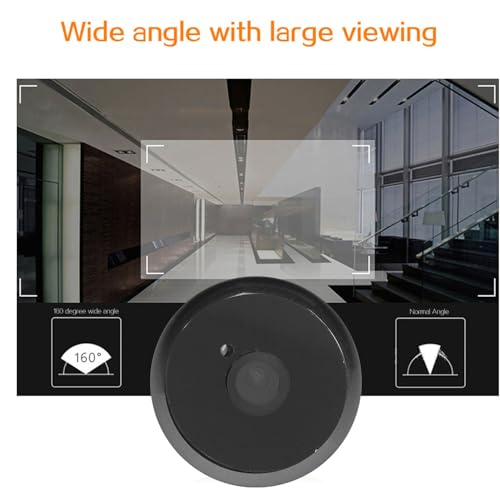
Image: A comparison illustrating the wide-angle viewing capability of the doorbell camera versus a standard view, showing a broader perspective.
Maintenance
- Cleaning: Use a soft, dry cloth to clean the indoor display unit and outdoor camera lens. Do not use abrasive cleaners or solvents.
- Battery Charging: Recharge the built-in 1400mAh lithium-ion battery using the provided Type-C USB cable when the battery indicator shows low power.
- Memory Card Management: Regularly back up important recordings from your micro memory card and format it periodically to maintain optimal performance.
- Firmware Updates: Check the manufacturer's website for any available firmware updates to ensure your device has the latest features and security enhancements.
Troubleshooting
| Problem | Possible Cause | Solution |
|---|---|---|
| Device does not power on | Low battery; Loose connection | Charge the battery using the Type-C cable. Ensure the ribbon cable is securely connected. |
| No image on screen | Outdoor camera not connected; Damaged cable | Check the connection of the outdoor camera ribbon cable. If damaged, contact support. |
| Motion detection not working | Feature disabled; Incorrect sensitivity settings | Enable motion detection in Function Settings. Adjust sensitivity as needed. |
| Cannot record video/photos | No memory card; Memory card full or faulty | Insert a compatible micro memory card. Format or replace the memory card. |
| Poor night vision | Infrared lights obstructed; Lens dirty | Ensure nothing is blocking the infrared lights. Clean the camera lens. |
Warranty and Support
For warranty information and technical support, please refer to the documentation provided with your purchase or contact Wisoqu customer service through their official website or the retailer where the product was purchased. Please have your model number (Wisoquc8nshugb05) and purchase date ready when contacting support.