
1. Introduction
This manual provides detailed instructions for the installation, operation, and maintenance of your DVVHFJHETKUJULIY DS-KIS603-P(C) Video Intercom Kit. This kit includes the DS-K6113-WPE1(C) outdoor station and the DS-KH6320-WTE1 indoor monitor, designed to enhance security and communication for your premises. Please read this manual thoroughly before using the product to ensure proper function and safety.

Figure 1: DVVHFJHETKUJULIY DS-KIS603-P(C) Video Intercom Kit components.
2. Package Contents
Verify that all items listed below are included in your package. If any items are missing or damaged, please contact your retailer.
- DS-K6113-WPE1(C) Outdoor Station x 1
- Surface Rain Cover x 1
- DS-KH6320-WTE1 Indoor Monitor x 1
- Power Supply x 2 (for components requiring separate power, if not using PoE for both)
- RFID Card x 6
- Mounting Accessories (screws, anchors)
- Quick Start Guide

Figure 2: Contents of the DS-KIS603-P(C) Video Intercom Kit.
3. Product Overview
3.1 DS-K6113-WPE1(C) Outdoor Station
The outdoor station serves as the primary entry point for visitors. It features a camera, microphone, speaker, and a call button. It supports Power over Ethernet (PoE) for simplified installation.
- Camera: High-resolution camera for clear video capture.
- Audio: Built-in omnidirectional microphone and speaker with noise suppression and echo cancellation.
- Network: 10/100 Mbps adaptive Ethernet and 802.11 b/g/n wireless connectivity.
- Access Control: Integrated RFID card reader for secure entry.

Figure 3: DS-K6113-WPE1(C) Outdoor Station with rain cover dimensions.

Figure 4: Technical drawing of the DS-K6113-WPE1(C) Outdoor Station.
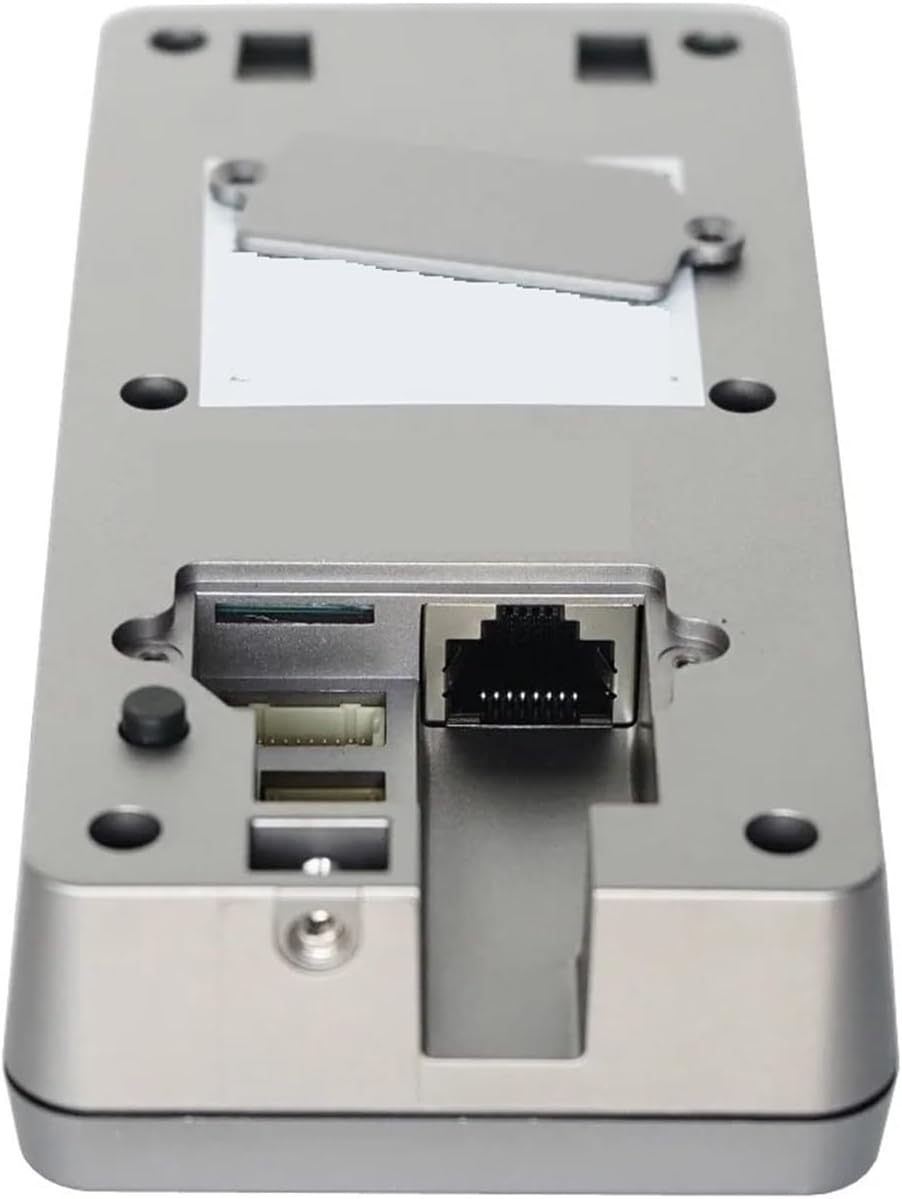
Figure 5: Rear view of the DS-K6113-WPE1(C) Outdoor Station connections.
3.2 DS-KH6320-WTE1 Indoor Monitor
The indoor monitor provides a clear display for viewing visitors, communicating with them, and managing system settings. It features a 7-inch color TFT screen and supports both wired and wireless network connections.
- Display: 7-inch color TFT screen.
- Resolution: Mainstream 1920 × 1080p, 720p; Subflow 704 × 576.
- Interface: User-friendly graphical interface for calls, messages, live view, and settings.
- Network: 10/100 Mbps adaptive Ethernet and 802.11 b/g/n wireless connectivity.
4. Specifications
| Feature | Specification |
|---|---|
| Outdoor Station Model | DS-K6113-WPE1(C) |
| Indoor Monitor Model | DS-KH6320-WTE1 |
| Display Screen | 7-inch Color TFT |
| Field of View (Horizontal) | 131° |
| Field of View (Vertical) | 78° |
| Video Resolution (Mainstream) | 1920 × 1080p, 720p |
| Video Resolution (Subflow) | 704 × 576 |
| Audio Input | Built-in Omnidirectional Microphone |
| Audio Output | Built-in Speaker |
| Audio Quality | Noise Suppression and Echo Cancellation |
| Wired Network | 10/100 Mbps Adaptive Ethernet |
| Wireless Network | 802.11 b/g/n |
| Power Supply | 802.3af PoE (Outdoor Station), DC Power (Indoor Monitor, if not PoE) |
| Manufacturer | DVVHFJHETKUJULIY |
| Model Number | LIO#w64507 (Kit Part Number) |
5. Setup
5.1 Installation Guidelines
- Mounting Location: Choose a suitable location for the outdoor station, typically near the entrance, at a height that allows clear viewing of visitors. The indoor monitor should be placed in a convenient location inside the property.
- Weather Protection: Ensure the outdoor station is protected from direct rain and harsh weather conditions. Use the provided surface rain cover for added protection.
- Wiring: For PoE (Power over Ethernet) setup, connect the outdoor station to a PoE-enabled switch or injector using an Ethernet cable. This single cable provides both power and data. If PoE is not used, connect the provided power adapter to the outdoor station and indoor monitor separately.
- Network Connection: Connect both the outdoor station and indoor monitor to your local network via Ethernet cable or Wi-Fi.
5.2 Initial Configuration
- Power On: Connect power to both the outdoor station and indoor monitor.
- Network Setup: Follow the on-screen prompts on the indoor monitor to configure network settings (wired or Wi-Fi). Ensure both devices are on the same network.
- Device Pairing: Pair the outdoor station with the indoor monitor according to the instructions in the Quick Start Guide. This typically involves scanning for devices on the indoor monitor.
- Mobile App Setup: Download the official mobile application (e.g., Hik-Connect) from your device's app store. Register an account and add your intercom system by scanning the QR code on the device or entering its serial number.
6. Operating Instructions
6.1 Basic Intercom Functions
- Making a Call: A visitor presses the call button on the outdoor station.
- Answering a Call: The indoor monitor will ring and display the visitor's video. Tap the 'Answer' icon to establish two-way audio and video communication.
- Unlocking the Door: During a call, tap the 'Unlock' icon on the indoor monitor to remotely open the connected door lock (if integrated).
- Live View: From the indoor monitor's main screen, select 'Live View' to see the outdoor station's camera feed at any time.
6.2 Mobile Application Usage
The mobile application allows you to manage your intercom system remotely.
- Remote Answering: Receive calls from the outdoor station directly on your smartphone, even when you are away from home.
- Remote Unlocking: Unlock the door remotely through the app.
- Live View: Access the live video feed from the outdoor station camera.
- Settings: Adjust various settings such as notification preferences, ringtone volume, and audio settings.
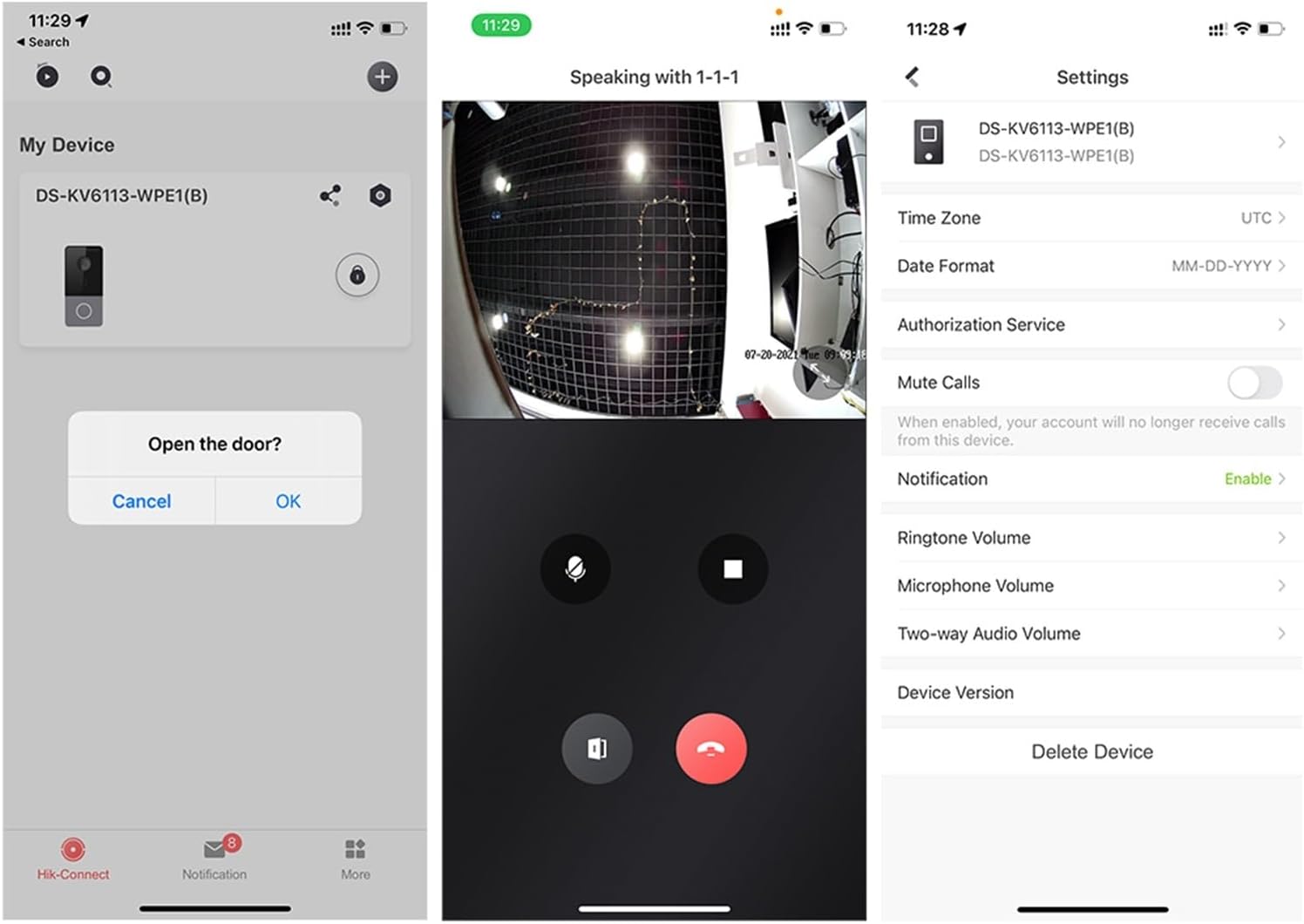
Figure 6: Mobile application interface for managing the intercom system.
6.3 RFID Card Access
The outdoor station includes an RFID card reader. Present a pre-programmed RFID card to the reader to unlock the door without needing to use the indoor monitor or mobile app.
- Programming Cards: Refer to the detailed instructions in the full user manual or the mobile app for programming new RFID cards.
- Using Cards: Hold the RFID card near the designated reader area on the outdoor station until the door unlocks.
7. Maintenance
- Cleaning: Use a soft, dry cloth to clean the surfaces of both the outdoor station and indoor monitor. Avoid abrasive cleaners or solvents.
- Firmware Updates: Periodically check for firmware updates through the indoor monitor's settings or the mobile application to ensure optimal performance and security.
- Cable Inspection: Regularly inspect all cables for any signs of wear or damage.
8. Troubleshooting
- No Power: Ensure all power adapters are securely connected and power outlets are functional. For PoE, verify the PoE switch/injector is active.
- No Video/Audio: Check network connections (Ethernet cable or Wi-Fi signal strength). Restart both the outdoor station and indoor monitor.
- Cannot Unlock Door: Verify the door lock is correctly wired to the outdoor station. Check settings on the indoor monitor or mobile app for unlock functionality. Ensure RFID cards are properly programmed.
- Poor Wi-Fi Connection: Ensure the devices are within range of your Wi-Fi router. Consider using a wired Ethernet connection for better stability.
- Mobile App Issues: Ensure your smartphone has a stable internet connection. Log out and log back into the app. Check for app updates.
9. Warranty and Support
Warranty information for the DVVHFJHETKUJULIY DS-KIS603-P(C) Video Intercom Kit is typically provided by the retailer at the time of purchase or can be found on the manufacturer's official website. Please retain your proof of purchase for warranty claims.
For technical support, troubleshooting assistance beyond this manual, or inquiries regarding specific product features, please contact your product retailer or the manufacturer's customer service department.


