
1. Introduction
The GLEDOPTO ESP32 Mini WLED LED Controller is a compact and versatile device designed for controlling addressable digital RGB IC LED strip lights. Featuring a high-performance ESP32 chip, it offers compatibility with the open-source WLED application, ensuring robust processing power and stable network connectivity. This controller includes a built-in microphone for dynamic music modes, allowing LED strips to react to sound and rhythm. It supports segmented control, enabling users to customize lighting effects for specific sections of their LED strips. With over 100 dynamic lighting modes and broad compatibility with various LED strip types (such as WS2811, WS2812, SK6812, TM1814, WS2813, WS2815), this controller provides extensive customization options for diverse lighting needs.

Image 1.1: The GLEDOPTO ESP32 Mini WLED LED Controller shown alongside its product packaging. This image provides an overview of the device's compact size and its retail presentation.
2. Safety Information
- Power Supply: Ensure the input voltage (DC 5-24V) matches the requirements of your LED strips and power supply. Using an incorrect voltage can damage the controller and LED strips.
- Electrical Connections: All wiring should be performed by a qualified individual or with extreme caution. Ensure power is disconnected before making any connections.
- Environment: Do not expose the controller to moisture, extreme temperatures, or corrosive environments. This device is rated IP20, meaning it is not protected against water.
- Overload Protection: Do not exceed the maximum output current of 6A per channel or 10A total output current. Overloading can lead to overheating and damage.
- Ventilation: Ensure adequate ventilation around the controller to prevent overheating, especially when operating at high loads.
- Children: Keep the device out of reach of children.
3. What's in the Box
Upon opening the package, you should find the following item:
- 1x GLEDOPTO ESP32 Ultra Mini WLED Strip Controller with Microphone
4. Product Specifications
| Feature | Detail |
|---|---|
| Model Number | LT-GL-C-310WL |
| Input Voltage | DC 5-24V |
| Output Current (per channel) | 6A Max |
| Total Output Current | 10A Max |
| Operation Mode | Automatic |
| Connector Type | LED (Quick Connect) |
| Circuit Type | Parallel |
| Mounting Type | DIN Rail Mount (suggested) |
| Dimensions | 1.77 x 1.5 x 0.87 inches (approx. 45 x 38 x 22 mm) |
| Weight | 0.32 ounces (approx. 9 grams) |
| Material | Copper, Brass (contact material) |
| Special Features | ESP32 Chip, Built-in Microphone, WLED Compatible |
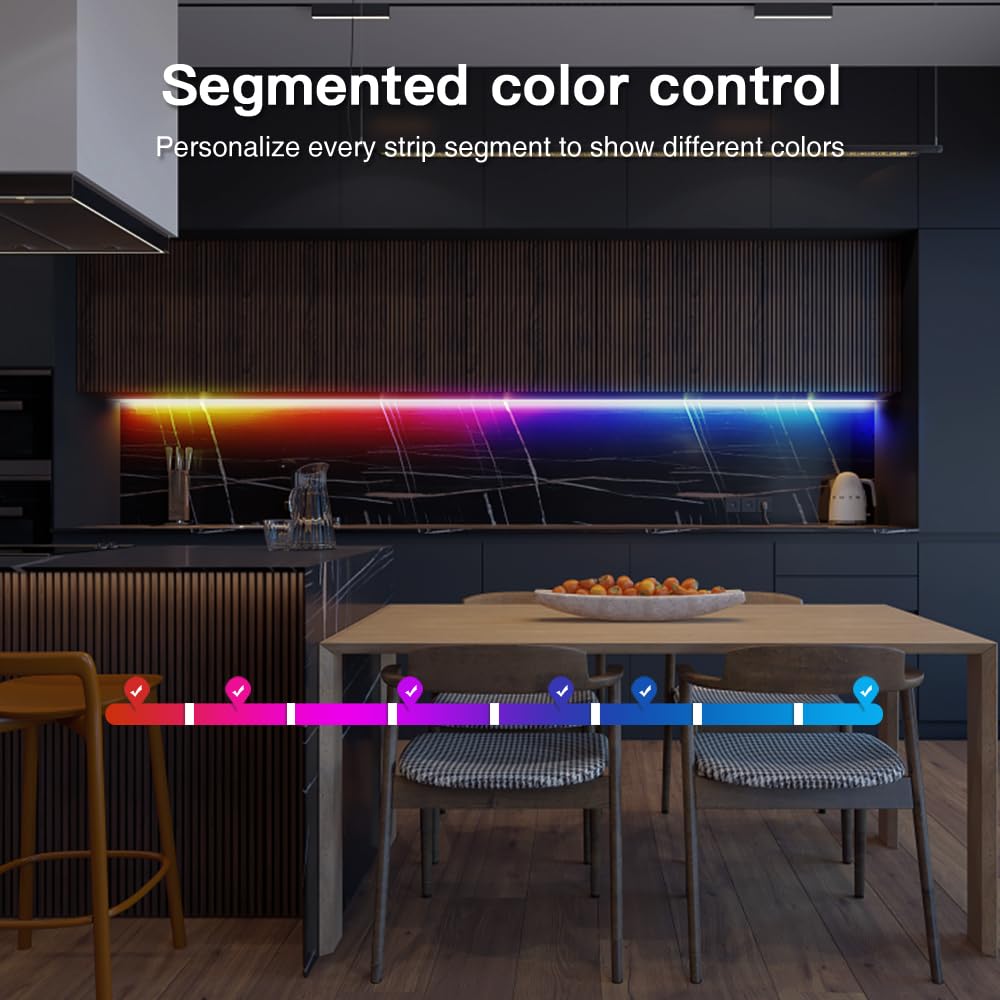
Image 4.1: The compact size of the GLEDOPTO ESP32 Mini WLED LED Controller, highlighting its dimensions for easy integration into various setups.
5. Setup and Installation
5.1. Wiring Instructions
Before connecting any wires, ensure your power supply is disconnected. The controller uses quick-connect terminals for easy wiring. Identify the VCC (Voltage), DATA, and GND (Ground) connections on your addressable LED strip. The controller provides multiple output terminals for flexibility.

Image 5.1: Wiring diagram for the controller. The default data output is GPIO16 (labeled 'D' in the diagram). V+ and V- are for power input. IO33 is available for DIY use, such as connecting push buttons.
- Power Input: Connect your DC 5-24V power supply to the V+ and V- terminals. Ensure correct polarity.
- LED Strip Connection:
- Connect the GND wire from your LED strip to a GND terminal on the controller.
- Connect the DATA wire from your LED strip to the IO16 terminal (default output) on the controller. An alternative data output is GPIO2 (labeled 'IO2'), which can be configured via the WLED app.
- Connect the VCC wire from your LED strip to a V terminal on the controller.
- Quick Connect Process:
- Open the connector by pushing the lever upwards.
- Insert the stripped wire into the terminal.
- Press the lever down to secure the wire.

Image 5.2: Quick connect port design for convenient and secure wire connections.
5.2. Initial Configuration (WLED App)
The controller is compatible with the open-source WLED application. Follow these steps for initial setup:
- Power On: After wiring, connect the power supply to the controller. The LED strip should light up with a default pattern.
- Connect to WLED-AP: On your smartphone or computer, search for Wi-Fi networks. You should find a network named "WLED-AP" (or similar). Connect to this network.
- Access Configuration Page: Open a web browser and navigate to
4.3.2.1. This will open the WLED configuration interface. - Configure Wi-Fi: In the WLED interface, go to "WiFi Setup" and enter your home Wi-Fi network's SSID and password. Save the settings. The controller will restart and connect to your home network.
- Access WLED App: Once connected to your home network, you can access the controller via the WLED app (available on app stores) or by its IP address in a web browser.

Image 5.3: The WLED application interface, demonstrating control over LED strip lighting.
6. Operating the Controller
6.1. WLED App Control
The WLED app provides comprehensive control over your LED strips. Key features include:
- Dynamic Modes: Choose from over 100 built-in dynamic lighting modes, ranging from subtle gradients to energetic flash effects.
- Segmented Control: Divide your LED strip into multiple segments and apply different colors or effects to each segment independently. This allows for highly customized and intricate lighting designs.
- Color Selection: Access a full-color picker to select static colors for your segments or entire strip.
- Presets: Save your favorite lighting configurations as presets for quick recall.
- Sync Effects: Synchronize lighting effects across multiple WLED controllers on the same Wi-Fi network.

Image 6.1: Example of segmented color control, where different sections of an LED strip display unique colors.

Image 6.2: Synchronization of lighting effects across multiple LED strips using the WLED app.
6.2. Microphone Music Dynamic Mode
The integrated microphone allows the LED controller to react to ambient sound and music. When enabled, the light strip automatically adjusts its lighting effects based on the rhythm and sound changes, creating an immersive audio-visual experience. This feature is ideal for parties, gatherings, or simply enhancing your home ambiance.

Image 6.3: The microphone function enables LED strips to dynamically react to music and sound, creating a vibrant atmosphere.
6.3. Button Functions
The controller features two buttons for basic control without needing the app:
- Restart Button: A short press will temporarily power off the ESP32 module, rendering the WLED controller temporarily unusable. Releasing the button will power on the module, enabling the WLED controller's functionality. This button is useful for a quick reset without power cycling the entire unit.
- Function Button:
- Short press: Toggles power on/off.
- Long press (≥1 second): Switches between different colors or lighting modes.
- Long press (≥10 seconds): Enters AP mode and activates the WLED-AP hotspot, allowing you to reconnect for Wi-Fi configuration.
6.4. LED Strip Compatibility
This controller is designed to be compatible with a wide range of addressable digital RGB IC LED strip types, including but not limited to:
- WS2811
- WS2812 / WS2812B
- SK6812
- TM1814
- WS2813
- WS2815

Image 6.4: Examples of compatible addressable LED strip types.
7. Maintenance
- Cleaning: Gently wipe the controller with a dry, soft cloth. Do not use liquid cleaners or solvents.
- Firmware Updates: Periodically check the official WLED project website or community forums for firmware updates. Updating the firmware can introduce new features, improve performance, and fix bugs. Follow the instructions provided by the WLED community for safe firmware updates.
- Storage: If storing the controller for an extended period, keep it in a dry, dust-free environment away from direct sunlight and extreme temperatures.
8. Troubleshooting
- No Power/Lights Not Turning On:
- Check all power connections to ensure they are secure and correctly polarized (V+ to V+, V- to V-).
- Verify that the power supply is functioning and providing the correct voltage (DC 5-24V).
- Ensure the LED strip itself is functional and correctly connected (GND, DATA, VCC).
- Cannot Connect to WLED-AP Wi-Fi:
- Ensure the controller is powered on.
- Try pressing and holding the Function button for 10 seconds to force the controller into AP mode.
- Restart the controller by briefly disconnecting and reconnecting power.
- Lights Not Responding to App/Incorrect Colors:
- Verify the controller is connected to your home Wi-Fi network and your device is on the same network.
- Check the LED Preferences in the WLED app to ensure the correct LED type and GPIO pin for data are selected (default is GPIO16).
- Ensure the number of LEDs configured in the WLED app matches your physical strip length.
- If colors are incorrect, check the RGB order setting in the WLED app (e.g., GRB, RGB).
- Music Mode Not Working:
- Ensure the microphone is enabled in the WLED app settings.
- Check microphone sensitivity settings in the WLED app.
- Ensure there is sufficient ambient sound for the microphone to pick up.
9. Warranty and Support
For warranty information and technical support, please refer to the product's purchase platform or contact the manufacturer, Sogledwow, directly. Keep your purchase receipt as proof of purchase for any warranty claims.


