
1. Product Overview
This manual provides instructions for the Fuluku Android Car Stereo, designed specifically for Mitsubishi Mirage models from 2012 to 2018. This unit integrates advanced features such as wireless Carplay and Android Auto, GPS navigation, Bluetooth connectivity, and a 9-inch touch screen display.

Image 1.1: Fuluku Android Car Stereo installed in a Mitsubishi Mirage dashboard, showing the 9-inch display and various app icons.
Key Features:
- Compatibility: Designed for Mitsubishi Mirage 2012-2018.
- Operating System: Android with 2GB RAM + 64GB ROM.
- Display: 9-inch capacitive touchscreen with 2.5D tempered glass, 1024 x 600 resolution.
- Smartphone Integration: Wired & Wireless Carplay, Android Auto, and Mirror Link.
- Navigation: Built-in GPS navigation system supporting offline and online maps.
- Connectivity: Bluetooth 4.0 (hands-free calling, music playback), Wi-Fi (hotspot connection), Dual USB input.
- Audio: EQ Audio settings, FM/RDS Radio with 18 preset stations.
- Camera Support: Includes AHD 1080P backup camera (170-degree ultra-wide angle, waterproof).
- Control: Steering Wheel Control (SWC) support.
- Additional Functions: 1080P HD Video Playback, Split Screen mode, Voice Control.
2. Setup and Installation
Before beginning installation, ensure your vehicle is turned off and the battery is disconnected. Verify that the product is compatible with your Mitsubishi Mirage (2012-2018) by checking the shape and size of your car's center console.
2.1 Package Contents
The package includes the following components:
- Fuluku Android Car Stereo Unit
- Power Cable
- GPS Antenna
- Rear Camera Input Cable
- RCA Cable
- 2 x USB Cables
- 2 x Mounting Brackets
- 4 x Screws
- User Manual (this document)
- Microphone
- Backup Camera

Image 2.1: Visual representation of the package contents, including the main unit, cables, and accessories.
2.2 Installation Steps
- Carefully remove the original car stereo and dashboard trim.
- Connect the provided power cable to the car's wiring harness. Ensure all connections are secure.
- Connect the GPS antenna, USB cables, RCA cables, and microphone to the corresponding ports on the new head unit.
- Mount the new Fuluku Android Car Stereo using the provided mounting brackets and screws.
- Reconnect the vehicle's battery and test the unit before fully reassembling the dashboard.

Image 2.2: Comparison of the car's dashboard before and after the Fuluku Android Car Stereo installation, showing a seamless fit.
2.3 Port Details
Familiarize yourself with the various connection ports on the rear of the unit:
- Power Cable: Main power and speaker connections.
- RCA Input: For external audio/video sources.
- USB Cable: For data transfer, charging, and wired Carplay/Android Auto.
- Camera Input: Dedicated input for the backup camera.
- Radio Antenna: For FM/RDS radio reception.
- GPS Antenna: For navigation functionality.

Image 2.3: Detailed view of the rear ports on the car stereo unit, indicating connections for power, RCA, USB, camera, radio, and GPS antennas.
2.4 Backup Camera Wiring
Connect the included AHD backup camera as follows:
- Connect the camera's video output to the 'Camera Input' port on the head unit.
- Connect the camera's red power wire to the vehicle's reversing lamp power (+).
- Connect the camera's black ground wire to a suitable ground point (GND).

Image 2.4: Diagram illustrating the wiring connections for the AHD backup camera, showing power, ground, and video signal lines.
3. Operating Instructions
This section details the operation of the Fuluku Android Car Stereo's various functions.
3.1 Power On/Off and Basic Navigation
- Power On: The unit will power on automatically when the vehicle's ignition is turned on.
- Power Off: The unit will power off automatically when the vehicle's ignition is turned off.
- Touch Screen: Navigate the interface by tapping, swiping, and pinching on the 9-inch capacitive touch screen.
3.2 Wireless Carplay & Android Auto / Mirror Link
Connect your smartphone for seamless integration:
- Wireless Connection: Enable Bluetooth and Wi-Fi on your smartphone. Pair your phone with the car stereo via Bluetooth. Follow the on-screen prompts to activate Wireless Carplay or Android Auto.
- Wired Connection: Connect your smartphone to the car stereo via a USB cable. Carplay or Android Auto will launch automatically.
- Mirror Link: For screen mirroring, connect your Android or iOS phone via USB or Wi-Fi. Follow the instructions in the 'Mirror Link' application on the head unit.

Image 3.1: Screenshots demonstrating the Wireless Apple Carplay, Wireless Android Auto, and Mirror Link functionalities on the car stereo display.
3.3 GPS Navigation
The unit supports both offline and online navigation:
- Offline Maps: Pre-installed maps allow navigation without an internet connection.
- Online Maps: Connect to Wi-Fi or a mobile hotspot to use online navigation services like Google Maps.
- GPS Antenna: Ensure the GPS antenna is properly installed and positioned for optimal signal reception.

Image 3.2: Display showing the GPS navigation interface with both online and offline map options, indicating route planning and real-time traffic.
3.4 Bluetooth Hands-free Call & Music
Pair your phone via Bluetooth for communication and audio streaming:
- Pairing: Go to the Bluetooth settings on the car stereo and your phone. Search for available devices and select the car stereo's Bluetooth name. Confirm the pairing code if prompted.
- Hands-free Calling: Once paired, you can make and receive calls directly from the car stereo. The phonebook will automatically load.
- Music Playback: Stream audio from your phone to the car stereo via Bluetooth.

Image 3.3: Screenshots of the Bluetooth interface, showing a disconnected status, dial pad, contacts, and music playback controls.
3.5 Steering Wheel Control (SWC)
Configure your steering wheel buttons to control the car stereo:
- Access the SWC settings menu on the head unit.
- Follow the on-screen instructions to program each button on your steering wheel (e.g., volume up/down, track skip, mode).

Image 3.4: User interacting with the steering wheel control learning interface on the car stereo, mapping physical buttons to functions like volume, mode, and navigation.
3.6 EQ Audio Settings
Customize your audio experience with the built-in equalizer:
- Navigate to the 'EQ Audio' settings.
- Adjust frequency bands, select preset sound styles (e.g., Pop, Rock, Jazz), or create custom profiles.
Image 3.5: Screenshot of the car stereo's EQ settings, showing adjustable frequency sliders and various sound effect presets like User, Standard, Rock, Pop, Live, Dance, Classical, Soft, and Jazz.
3.7 FM/RDS Radio
Access local radio stations with the integrated FM/RDS tuner:
- Open the 'Radio' application.
- Use the scan function to automatically find and save stations, or manually tune to frequencies.
- RDS (Radio Data System) provides additional information like station name and song title where available.

Image 3.6: Screenshot of the FM/RDS radio interface, displaying current frequency, station information, and preset buttons.
3.8 Split-Screen Mode
Utilize two applications simultaneously on the screen:
- While an application is open, swipe from the side or long-press the recent apps button (method may vary by UI theme) to activate split-screen mode.
- Select a second application to run alongside the first. For example, use navigation on one side and music playback on the other.
Image 3.7: The car stereo display in split-screen mode, showing a navigation map on the left and the Bluetooth phone interface on the right.
3.9 Wi-Fi Connection
Connect to the internet for online features and app downloads:
- Access Wi-Fi settings from the main menu.
- Scan for available networks and connect to your mobile hotspot or a local Wi-Fi network.
- Once connected, you can download apps from the application store, browse the web, or use online navigation.
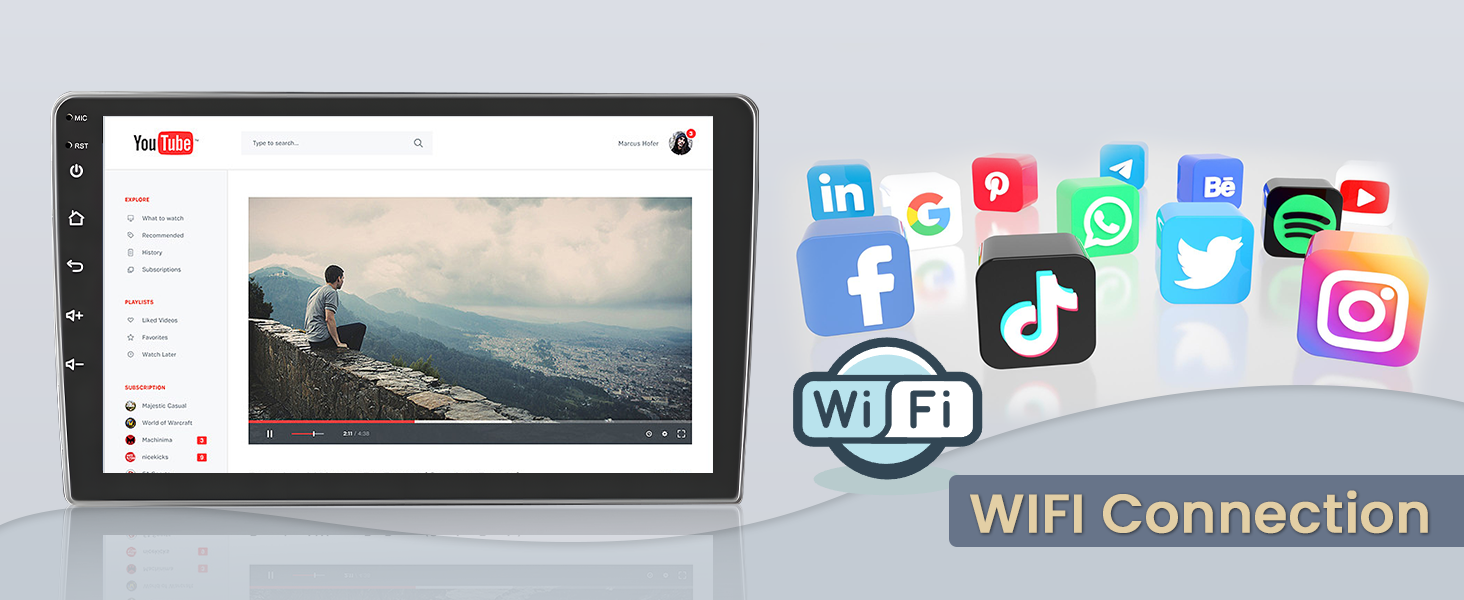
Image 3.8: The car stereo screen displaying a YouTube video and various social media and entertainment app icons, illustrating Wi-Fi connectivity.
3.10 Voice Control
Activate the voice assistant for hands-free operation:
- Use a designated voice command or button to activate the voice assistant.
- Issue commands for navigation, calls, music playback, and other functions to minimize distraction while driving.

Image 3.9: A visual representation of the voice control feature, showing example commands like 'Navigate home', 'Call 911', and 'Play music'.
3.11 Product Feature Video
Watch this video for a visual demonstration of the car stereo's features and functionalities.
Video 3.1: An official product video from Fuluku Direct demonstrating the features of the 2+64G Android Car Stereo with Carplay and Android Auto.
4. Maintenance
Proper maintenance ensures the longevity and optimal performance of your car stereo.
- Screen Cleaning: Use a soft, lint-free cloth to gently wipe the touch screen. For stubborn smudges, slightly dampen the cloth with water or a screen-safe cleaner. Avoid abrasive materials or harsh chemicals.
- Software Updates: Periodically check for software updates through the system settings. Updates can improve performance, add new features, and fix bugs. Ensure a stable internet connection during updates.
- General Care: Avoid exposing the unit to extreme temperatures, direct sunlight for prolonged periods, or excessive moisture. Ensure proper ventilation around the unit.
5. Troubleshooting
Refer to the following common issues and solutions before contacting customer support.
| Problem | Possible Solution |
|---|---|
| Unit does not power on. | Check power cable connections. Ensure the vehicle's ignition is on. Verify vehicle battery is charged. Check fuses. |
| No sound from speakers. | Check speaker wiring. Ensure volume is not muted or set too low. Verify audio output settings. |
| Carplay/Android Auto not connecting. | Ensure Bluetooth and Wi-Fi are enabled on your phone. Try connecting via USB cable. Restart both phone and car stereo. Update phone OS and car stereo firmware. |
| GPS signal is weak or inaccurate. | Ensure the GPS antenna is properly installed and has a clear view of the sky. Check antenna connection. |
| Bluetooth call quality is poor. | Ensure the microphone is properly connected and positioned. Reduce background noise. Re-pair the Bluetooth connection. |
| Screen is unresponsive or frozen. | Perform a soft reset (refer to the device's specific reset procedure, usually a small reset button or holding the power button). If persistent, contact support. |
6. Product Specifications
Detailed technical specifications for the Fuluku Android Car Stereo.
| Feature | Detail |
|---|---|
| Brand | Fuluku |
| Model Name | Fuluku Android Car Stereo |
| Model Number | A8060A3195A4MI2US62-C357 |
| Operating System | Android |
| Memory Storage Capacity | 64 GB |
| Screen Size | 9 inches |
| Resolution | 1024 x 600 |
| Touch Screen Type | Capacitive |
| Connectivity Technology | Bluetooth, USB, Wi-Fi |
| Bluetooth Version | 4.0 |
| Supported Navigation System | GPS (Worldwide Map Type) |
| Audio Output Mode | APE/FLAC/WAV/MP3/WMA |
| Human-Interface Input | Buttons, Microphone, Touchscreen |
| Compatible Devices | iPhones, Most Android Phones |
| Vehicle Service Type | Car (Mitsubishi Mirage 2012-2018) |
7. Warranty Information
This Fuluku Android Car Stereo comes with a 2-Year Manufacturer Warranty. This warranty covers defects in materials and workmanship under normal use. Please retain your proof of purchase for warranty claims.
8. Customer Support
For technical assistance, troubleshooting, or warranty inquiries, please contact Fuluku customer support.
- Email Support: fulukusupports@126.com
- Response Time: Expect a reply within 24 hours.
- Technical Support: Lifetime technical support is provided for this product.
Image 8.1: Fuluku customer support team ready to assist, with the support email address prominently displayed.