
1. Introduction
Thank you for choosing the GRV Smart Watch FC1. This device is designed to enhance your daily life with its advanced features, including Bluetooth calling, comprehensive activity tracking, and smart notifications. This manual provides detailed instructions to help you set up and operate your new smartwatch effectively. Please read this manual thoroughly before use and keep it for future reference.
2. Package Contents
Ensure all items are present in your package:
- GRV Smart Watch FC1 (Main Unit)
- USB Charging Cable
- User Manual

Image: The GRV Smart Watch FC1, its magnetic charging cable, and the instruction manual are included in the package.
3. Product Overview
3.1. Watch Components
The GRV Smart Watch FC1 features a rectangular design with a full-touch HD screen and a side button for control.
3.2. Dimensions
The watch measures approximately 25 x 3.5 x 1.7 cm and weighs 100g. The strap is adjustable to fit various wrist sizes.

Image: A detailed diagram illustrating the dimensions of the GRV Smart Watch FC1, including screen size, watch body measurements, and strap length.
4. Setup
4.1. Charging the Device
Before first use, fully charge your smartwatch. Connect the magnetic charging cable to the charging contacts on the back of the watch and plug the USB end into a power adapter (not included) or a computer's USB port. A full charge takes approximately 2 hours.

Image: The smartwatch is shown connected to its magnetic charging cable, indicating the charging process and battery level.
4.2. App Installation (GloryFit)
To unlock the full potential of your GRV Smart Watch FC1, download and install the GloryFit app on your smartphone. The app is compatible with Android 5.0 or later and iOS 9.0 or later.
- Scan the QR code in the manual or search for "GloryFit" in the App Store (iOS) or Google Play Store (Android).
- Download and install the app.
- Open the app and follow the on-screen instructions to create an account or log in.

Image: The GloryFit app displaying health and activity data, demonstrating its user interface and compatibility with Android and iOS devices.
4.3. Device Pairing
Pair your smartwatch with the GloryFit app via Bluetooth:
- Ensure your phone's Bluetooth is enabled.
- Open the GloryFit app and navigate to the device section.
- Tap "Add Device" or "Select Smartwatch" and allow the app to search for nearby devices.
- Select "FC1" from the list of found devices.
- Confirm the pairing request on both your phone and the smartwatch.
Troubleshooting Pairing Issues:
- Delete all previous Bluetooth records for the watch on your phone.
- Turn Bluetooth off and then on again on your phone.
- Ensure the watch is within 10 meters of your phone.
- Reset the watch and try pairing again.

Image: A visual guide demonstrating the steps to pair the GRV Smart Watch FC1 with a smartphone using the GloryFit application.
5. Operating Instructions
5.1. Basic Navigation
The GRV Smart Watch FC1 features a full-touch HD screen for easy navigation:
- Swipe Up/Down: Scroll through menus and notifications.
- Swipe Left/Right: Access quick functions or different screens.
- Tap: Select an item or confirm an action.
- Side Button: Press to return to the home screen or wake the device.
5.2. Call Function
The smartwatch supports Bluetooth calling, allowing you to make and receive calls directly from your wrist.
- Ensure the call function is enabled in the watch settings and the GloryFit app.
- Confirm Bluetooth connection for calls in your phone's Bluetooth settings.
- Access the call interface on the watch to view call history, dial numbers, or access synchronized contacts.

Image: A user demonstrating the call function on the GRV Smart Watch FC1, showing the watch on her wrist during a call.

Image: The smartwatch interface displaying options for call history, a dial pad, and synchronized contacts, enabling direct calls from the wrist.
5.3. Notifications
Receive notifications from various apps directly on your smartwatch. The watch will light up and display the content of incoming messages.
- Enable app notifications in your phone's settings (e.g., for LINE).
- In your phone's Bluetooth settings, allow the smartwatch to display system notifications.
- Within the GloryFit app, enable notifications for specific applications (e.g., LINE, X, TikTok, SMS, etc.).

Image: The smartwatch screen showing an incoming LINE message notification, alongside icons for other supported notification apps like LinkedIn, Messenger, WhatsApp, and Twitter.
5.4. Sports Modes
The GRV Smart Watch FC1 offers over 100 sports modes to track your workouts. Access these modes through the watch menu to record data such as distance, steps, and calories burned.
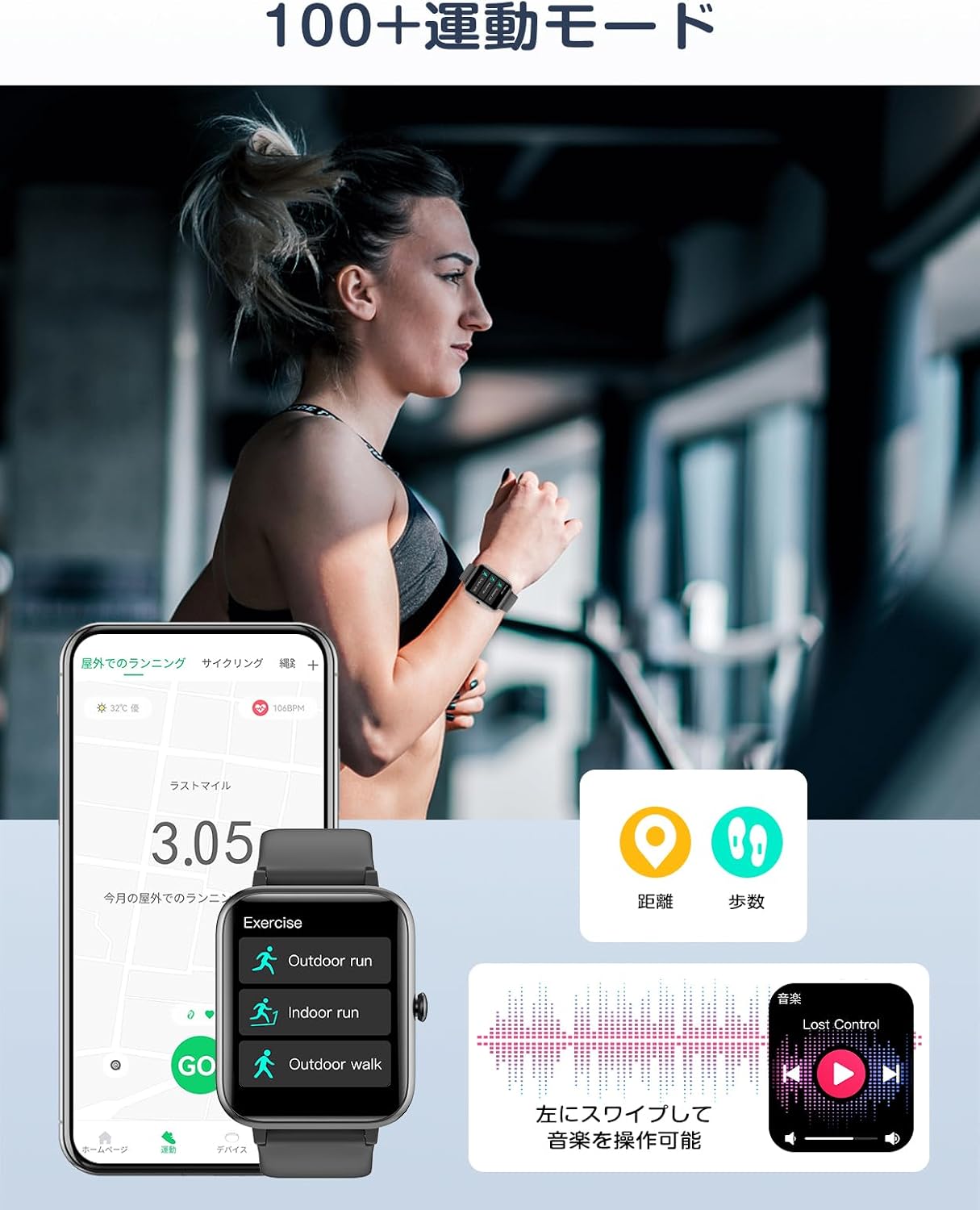
Image: A woman running on a treadmill, wearing the smartwatch which shows a sports tracking screen and options for music control during exercise.
5.5. Health Monitoring
The watch tracks various health metrics to help you maintain a healthy lifestyle.
- Daily Activity: Automatically records steps, distance, and calories. Set daily step goals and receive reminders upon achievement.
- Sleep Monitoring: Tracks your sleep patterns.
- Female Health: Predicts menstrual and ovulation periods based on previous records, with optional reminders.
- Sedentary Reminder: Alerts you to move after periods of inactivity.
- Breathing Training: Guides you through breathing exercises.

Image: Visuals depicting the smartwatch's health features, including icons for female health tracking, sedentary alerts, and guided breathing exercises. Also shows the watch's clear display and users sleeping.
5.6. Watch Faces & Customization
Personalize your smartwatch with over 300 watch faces available through the GloryFit app. You can also set your own photos as watch faces.

Image: A selection of over 300 watch face designs, including options to upload personal photos for customization via the GloryFit app.
5.7. Music Control
Control music playback on your smartphone directly from your watch. Swipe left on the watch face to access music controls.

Image: The smartwatch screen showing music playback controls (play/pause, skip tracks) and a user listening to music with headphones.
5.8. Other Smart Functions
The GRV Smart Watch FC1 includes a variety of useful functions:
- Weather Forecast: View current weather and forecasts.
- Voice Assistant: Interact with your phone's voice assistant.
- Alarm: Set alarms directly on your watch.
- Mini-Games: Enjoy simple games on your wrist.
- Password Protection: Set a password for your watch.
- Timer & Stopwatch: Essential timing tools.
- Find Phone: Locate your misplaced phone by making it ring.
- Flashlight: Use the screen as a light source.
- Remote Camera: Control your phone's camera remotely.
- Calculator: Perform basic calculations.
- Raise-to-Wake: Screen automatically turns on when you raise your wrist.
- Do Not Disturb Mode: Silence notifications and vibrations.

Image: The smartwatch's 'Toolbox' menu, providing quick access to features such as stopwatch, timer, flashlight, mini-games, and remote camera control.

Image: A collage demonstrating several smart functions of the watch: checking weather, finding a phone, remote camera operation, using a voice assistant, and setting an alarm.
5.9. Sound and Vibration Settings
Adjust sound and vibration preferences directly on your watch:
- Do Not Disturb Mode: When activated, notifications and raise-to-wake functions are disabled.
- Mute Mode: Notifications will vibrate but produce no sound.
- Entertainment Sound: Enable or disable sounds for music and videos.

Image: Screenshots of the smartwatch interface demonstrating how to activate 'Do Not Disturb' mode, 'Mute' mode, and adjust 'Entertainment Sound' settings.
6. Maintenance
6.1. Water Resistance Guidelines
The GRV Smart Watch FC1 is rated IP68 for water and dust resistance, meaning it can withstand immersion in cold water up to 2 meters deep. It is suitable for swimming, rainy days, and hand washing.
Important Note: Avoid using the watch in hot water, seawater, saunas, or depths exceeding 2 meters. High temperatures, high pressure, or corrosive environments can damage the watch.

Image: The GRV Smart Watch FC1 is shown with water splashing on it, illustrating its IP68 water and dust resistance capabilities.
6.2. Cleaning
Regularly clean your smartwatch and strap to ensure optimal performance and hygiene. Use a soft, dry cloth to wipe the screen and watch body. For the strap, use a damp cloth and mild soap if necessary, then rinse and dry thoroughly.
6.3. Belt Replacement
To replace the watch strap:
- Locate the spring bar on the underside of the watch.
- Press the spring bar to detach the strap.
- To attach a new strap, align one side of the spring bar with the watch lug hole, then press the spring bar and align the other side.

Image: A visual guide demonstrating the process of replacing the smartwatch strap by manipulating the spring bar on the underside of the watch.
7. Troubleshooting
If you encounter issues with your smartwatch, refer to the following common solutions:
| Problem | Solution |
|---|---|
| Watch does not turn on | Ensure the watch is fully charged. Connect it to the charger for at least 10 minutes. |
| Cannot pair with phone | Check phone's Bluetooth, restart both devices, clear previous Bluetooth connections, ensure watch is close to phone. |
| Notifications not received | Verify app notification settings on phone and within the GloryFit app. Ensure Bluetooth is connected. |
| Inaccurate activity data | Ensure the watch is worn correctly and snugly on your wrist. Calibrate settings in the GloryFit app if available. |
| Short battery life | Reduce screen brightness, disable unnecessary notifications, limit continuous heart rate monitoring, and ensure proper charging. |
If the issue persists, please contact customer support.
8. Specifications
| Feature | Detail |
|---|---|
| Model | FC1 |
| Display | 1.85-inch Full-Touch HD TFT Screen |
| Connectivity | Bluetooth |
| Compatibility | Android 5.0+ / iOS 9.0+ |
| Water Resistance | IP68 |
| Battery Capacity | 300 mAh |
| Charging Time | Approx. 2 hours |
| Typical Usage Time | Approx. 5 days |
| Standby Time | Approx. 30 days |
| Memory Storage | 128 MB |
| Dimensions | 25 x 3.5 x 1.7 cm |
| Weight | 100 g |
| Features | Bluetooth Call, 100+ Sports Modes, Activity Tracker, Pedometer, Heart Rate Monitor, Sleep Monitor, Notifications, Watch Face Customization, Music Control, Weather, Voice Assistant, Alarm, Mini-Games, Timer, Stopwatch, Find Phone, Flashlight, Remote Camera, Calculator, Raise-to-Wake, Do Not Disturb Mode |
9. Warranty and Support
9.1. Warranty Information
GRV products come with a standard warranty against manufacturing defects. Please refer to the warranty card included in your package or contact GRV customer service for specific warranty terms and conditions.
9.2. Customer Support
For any questions, technical assistance, or support regarding your GRV Smart Watch FC1, please contact our customer support team. Contact details can be found on the GRV official website or on the product packaging.


