
GEWOKLIY GE-MC40USDG
GEWOKLIY GE-MC40USDG 40Gbps M.2 NVMe Enclosure Instruction Manual
Model: GE-MC40USDG
1. Introduction
This manual provides detailed instructions for the installation, operation, and maintenance of your GEWOKLIY GE-MC40USDG 40Gbps M.2 NVMe Enclosure. Please read this manual thoroughly before use to ensure proper functionality and longevity of the product.
2. Package Contents
Verify that all items are present in your package:
- USB 4 Enclosure (GE-MC40USDG)
- Coaxial USB-C Cable (40Gbps)
- Velvet Drawstring Gift Bag
- Quick Start Guide
- Silicone Thermal Pads
- Screwdriver
- Screws
Note: An M.2 NVMe SSD is not included and must be purchased separately.
3. Setup: SSD Installation
Follow these steps to install your M.2 NVMe SSD into the enclosure:
- Disassemble the Enclosure: Use the provided screwdriver to remove the four screws securing the aluminum enclosure. Carefully separate the top and bottom covers.
- Insert the SSD: Gently insert your M.2 NVMe SSD into the M.2 slot on the PCB board. Ensure it is fully seated.
- Secure the SSD: Place the screw on the edge of the SSD and lock it into the designated hole to hold the SSD in place.
- Apply Thermal Pads: Place one silicone thermal pad on the surface of the SSD. Place another silicone thermal pad on the surface of the main control chip for optimal heat dissipation. Ensure good contact between the thermal pads and the aluminum casing when reassembling.
- Reassemble the Enclosure: Carefully align the top and bottom covers and secure them with the four screws.

Image: Step-by-step guide for SSD installation.
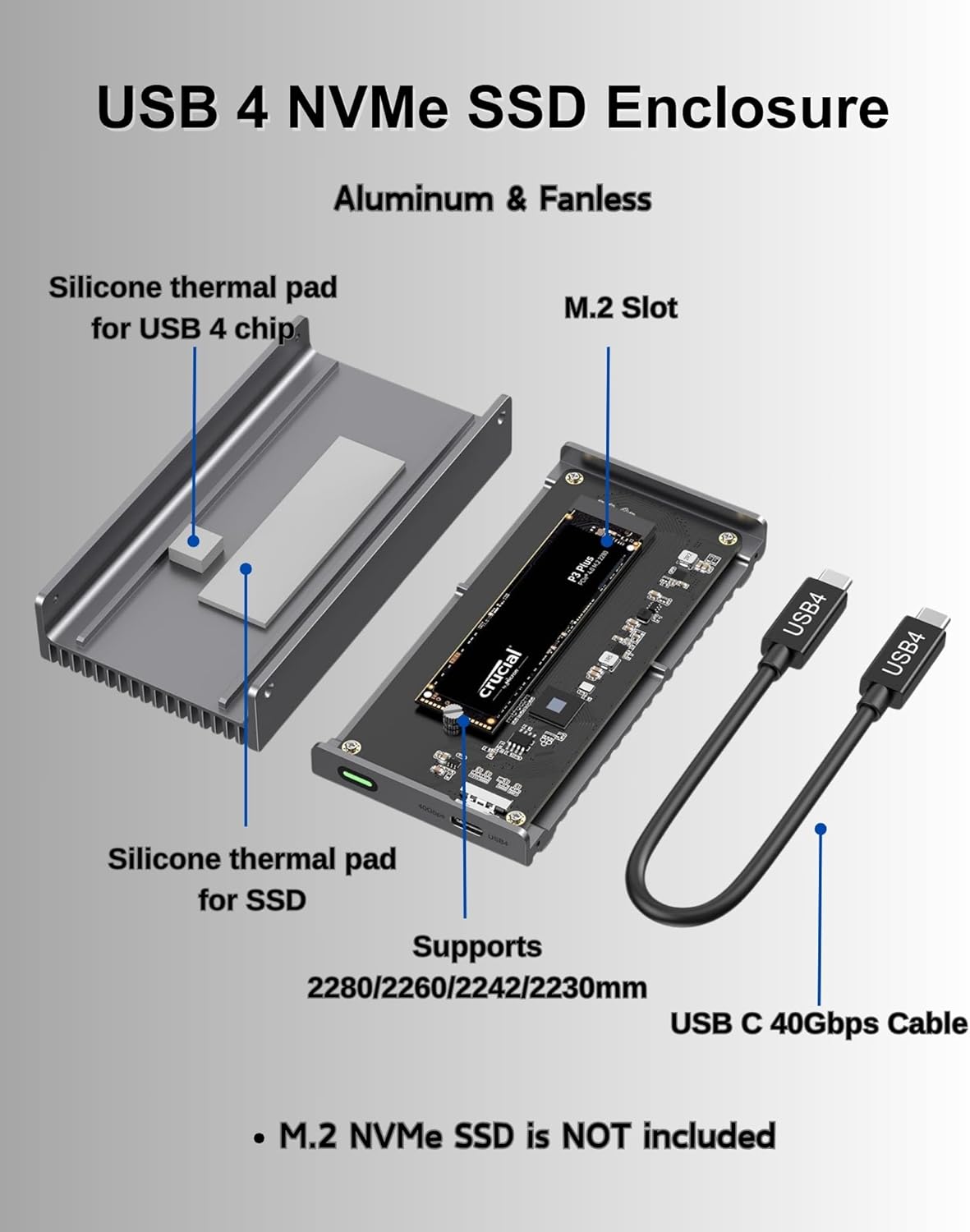
Image: Internal components of the enclosure, highlighting thermal pad placement.
4. Operating Instructions
The GEWOKLIY GE-MC40USDG enclosure is designed for plug-and-play operation, requiring no driver installation.
4.1 Connecting to a Device
Connect the enclosure to your host device (computer, laptop, tablet, smartphone, or gaming console) using the provided coaxial USB-C cable. Ensure the cable is securely connected to both the enclosure and the device's Thunderbolt 3/4 or USB 3.0/3.1/3.2 port.
4.2 Data Transfer Speed
The enclosure supports data transfer speeds up to 40Gbps when connected to a Thunderbolt 3 or Thunderbolt 4 interface. When connected to USB 3.2/3.1/3.0 interfaces, speeds will be lower. The LED indicator on the enclosure will light up to show operational status. A white LED indicates USB 3 speed, while a green LED indicates full USB4/Thunderbolt speed.

Image: Data transfer speed demonstration.
4.3 S.M.A.R.T. and TRIM Support
The enclosure utilizes S.M.A.R.T. (Self-Monitoring, Analysis and Reporting Technology) to monitor the hard drive's operational status and supports the TRIM command function to optimize SSD performance, ensuring data security and stability.
5. Compatibility
5.1 Supported SSD Types and Sizes
This enclosure supports M/B+M key NVMe solid-state drives with a maximum capacity of 8TB. Compatible SSD sizes include 2280mm, 2260mm, 2242mm, and 2230mm.
Note: This enclosure does not support SATA NGFF solid-state drives or mSATA solid-state drives.
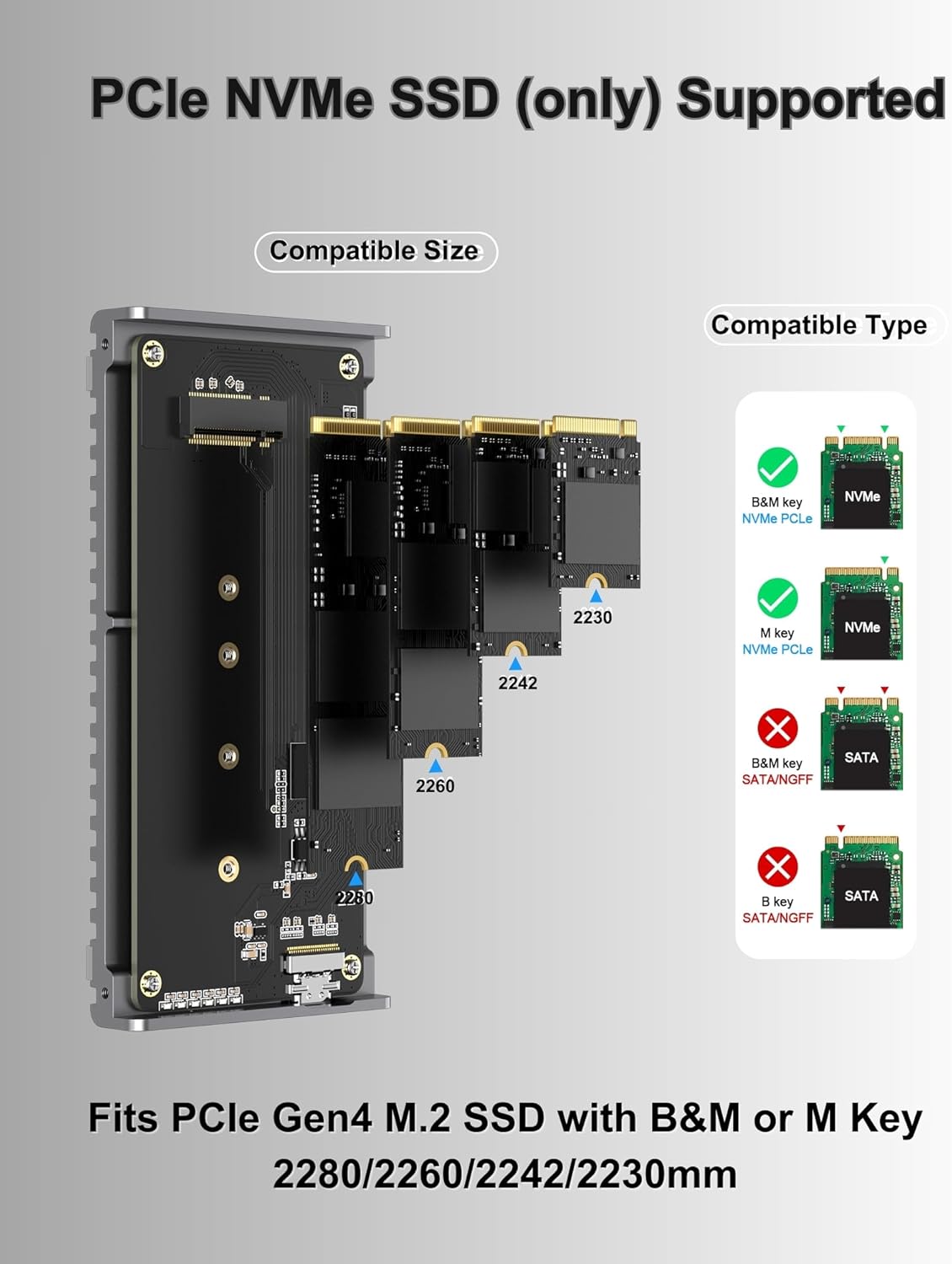
Image: Compatible M.2 NVMe SSD types and sizes.
5.2 Compatible Devices and Systems
The enclosure is widely compatible with various devices and operating systems:
- Devices: Personal Computer, Laptop, Smartphone, Tablet, Gaming Console (e.g., ROG Ally, Mac mini)
- Operating Systems: Windows, Mac OS, Linux, Android, Chrome OS

Image: Universal compatibility overview.
6. Heat Dissipation
The GEWOKLIY GE-MC40USDG enclosure features a robust, fanless industrial design for efficient heat management:
- All-Aluminum Case: Constructed from rugged aluminum with a groove surface, the enclosure acts as a large passive heatsink, efficiently absorbing and dispersing heat.
- Silicone Thermal Pads: Built-in thermal pads enhance heat transfer from the SSD and control chip to the aluminum casing, preventing overheating during intensive tasks.
- Noiseless Operation: The fanless design ensures silent operation, making it suitable for environments where noise is a concern.

Image: Passive cooling system of the enclosure.

Image: Internal heat dissipation mechanism.
7. Maintenance
To ensure optimal performance and longevity of your enclosure:
- Cleaning: Use a soft, dry cloth to clean the exterior of the enclosure. Avoid using liquid cleaners or solvents.
- Thermal Pad Integrity: Periodically check that the thermal pads are properly seated and making good contact with both the SSD/chip and the enclosure casing. If the enclosure consistently runs hot, re-check the thermal pad application.
- Cable Care: Handle the USB-C cable carefully. Avoid sharp bends or excessive pulling to prevent damage.
- Storage: When not in use, store the enclosure in a cool, dry place, preferably in the provided velvet bag, to protect it from dust and scratches.
8. Troubleshooting
- Enclosure Not Detected:
- Ensure the USB-C cable is securely connected to both the enclosure and the host device.
- Try connecting to a different USB-C or Thunderbolt port on your device.
- Verify that the M.2 NVMe SSD is correctly installed and seated within the enclosure.
- Check if the SSD requires initialization and formatting in your operating system's Disk Management (Windows) or Disk Utility (Mac OS).
- Slow Data Transfer Speed:
- Ensure you are using a Thunderbolt 3 or Thunderbolt 4 port on your host device to achieve 40Gbps speeds. USB 3.x ports will operate at lower speeds.
- Confirm that the provided coaxial USB-C cable (40Gbps) is being used, as cable quality can affect performance.
- Check the LED indicator: White for USB 3 speed, Green for full USB4/Thunderbolt speed.
- Verify your SSD is an NVMe PCIe Gen4 drive, as older generations or SATA SSDs will have lower speeds.
- Enclosure Gets Hot:
- It is normal for the aluminum enclosure to become warm during heavy use, as it is designed to dissipate heat from the SSD.
- Ensure the thermal pads are correctly installed and making firm contact with the SSD, control chip, and the enclosure's metal casing. Improper installation can hinder heat transfer.
- Avoid placing the enclosure in confined spaces that restrict airflow.
- SSD Not Fitting:
- Confirm your SSD is an M.2 NVMe (M Key or B+M Key) and not a SATA NGFF or mSATA drive.
- Verify the physical size of your M.2 SSD (2230, 2242, 2260, or 2280mm) is supported.
9. Specifications
| Model Number | GE-MC40USDG |
| Brand | GEWOKLIY |
| Hardware Interface | Thunderbolt 4 (compatible with Thunderbolt 3, USB 3.2/3.1/3.0) |
| Data Transfer Rate | Up to 40 Gigabits Per Second |
| Supported SSD Type | M.2 NVMe (M Key, B+M Key) |
| Supported SSD Sizes | 2230mm, 2242mm, 2260mm, 2280mm |
| Max Capacity | 8 TB |
| Material | Aluminum |
| Color | Dark Grey |
| Item Weight | 0.36 Kilograms (12.6 ounces) |
| Package Dimensions | 5.87 x 3.15 x 1.46 inches |
10. Warranty and Support
For warranty information and technical support, please refer to the official GEWOKLIY website or contact their customer service directly. Keep your purchase receipt for warranty claims.
Ask a question about this manual
Ask about setup, troubleshooting, compatibility, parts, safety, or missing instructions. Manuals+ will review the question and use this page’s manual context to help answer it.