
MAONO PS22 Lite Black
MAONO PS22 Lite USB Audio Interface User Manual
Model: PS22 Lite Black
Introduction
The MAONO PS22 Lite USB Audio Interface is a compact and powerful device designed for high-quality audio recording, podcasting, streaming, and music production. It offers professional-grade sound capture with a 24-bit/192kHz sample rate and a 106dB dynamic range, ensuring clear and realistic audio.
This interface is equipped with an XLR input for microphones, including support for condenser microphones with 48V phantom power, and a dedicated instrument input for guitars. Its intuitive design and plug-and-play compatibility with various operating systems make it suitable for both beginners and experienced content creators.

Figure 1: Front view of the MAONO PS22 Lite USB Audio Interface.
Package Contents
Before you begin, please ensure all items are present in your package:
- MAONO PS22 Lite USB Audio Interface
- USB-A/USB-C to USB-C Cable
- User Manual (this document)
Setup
1. Connecting to Your Computer
The MAONO PS22 Lite is designed for plug-and-play functionality with most operating systems. Use the provided USB-A/USB-C to USB-C cable to connect the interface to your computer's USB port. The device is powered directly via the USB connection, eliminating the need for an external power adapter.

Figure 2: The MAONO PS22 Lite is widely compatible with computers, phones, and tablets.
2. Driver Installation (Optional but Recommended)
While the device is plug-and-play, installing the dedicated ASIO drivers and ProStudio Routing Software (Windows only) is recommended for optimal performance, lower latency, and access to advanced routing features. Please refer to the MAONO official website for the latest driver downloads.
3. Connecting Microphones and Instruments
- XLR Microphone: Connect your XLR microphone to the MIC/LINE input. For condenser microphones, press the 48V button to activate phantom power.
- Instrument: Connect your guitar or other instrument to the INST input.
- Monitors: Use the MONITOR outputs to connect to your studio monitors or amplifier.
- Headphones: Plug your headphones into the 3.5mm headphone jack located on the side of the unit for direct monitoring.
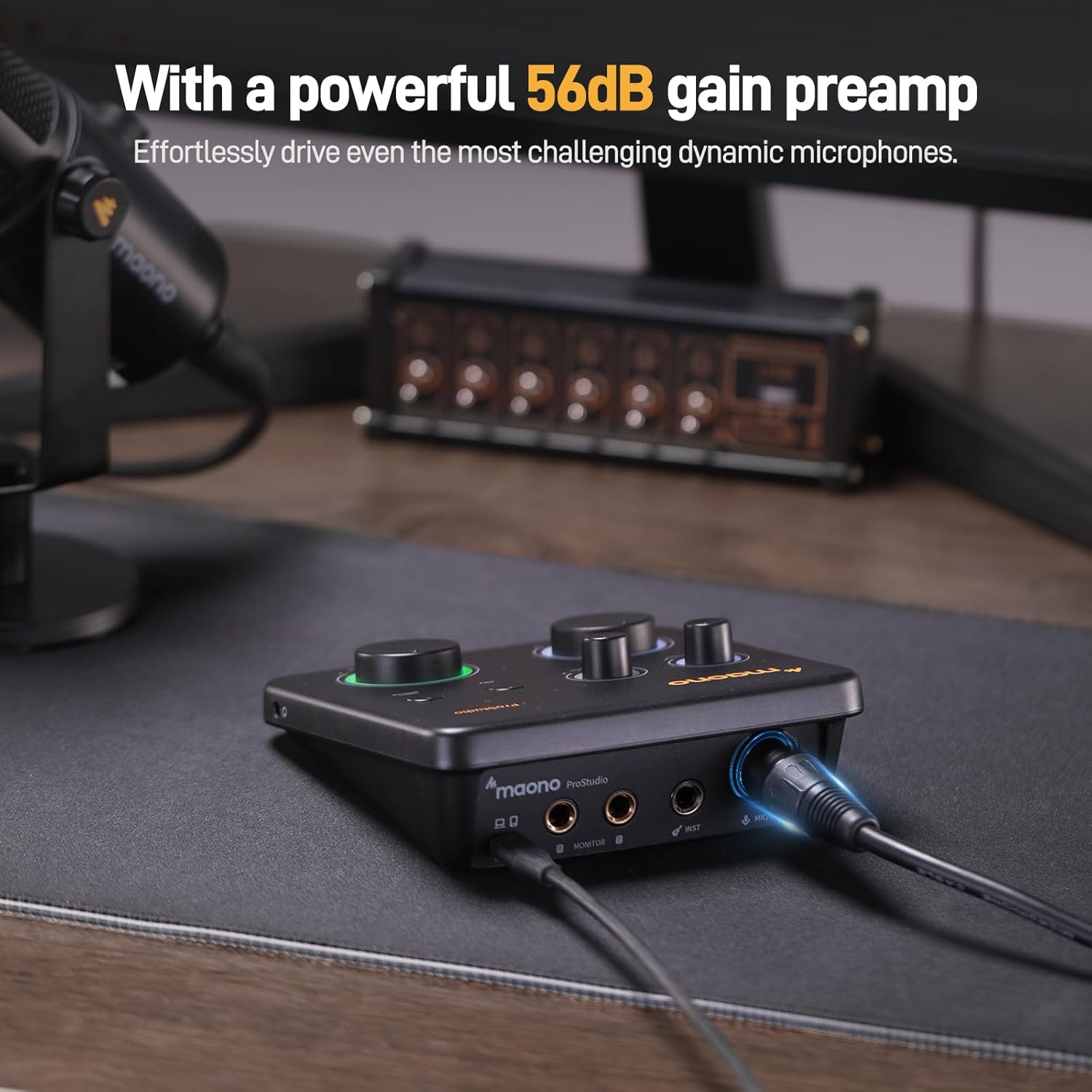
Figure 3: Connecting an XLR microphone to the interface.

Figure 4: A user playing guitar connected to the MAONO PS22 Lite.
Operating the Interface
Controls and Indicators
| Control/Indicator | Function |
|---|---|
| MIC/LINE GAIN Knob | Adjusts the input level for the microphone or line-level source. The surrounding light ring indicates input status (red for clipping). |
| INST GAIN Knob | Adjusts the input level for instruments connected to the INST input. |
| 48V Button | Activates +48V phantom power for condenser microphones. |
| DIRECT MONITOR Button | Enables direct monitoring, allowing you to hear your input signal through headphones without latency from your computer. |
| MONITOR Knob | Controls the output volume for your studio monitors. |
| HEADPHONES Knob | Controls the output volume for your headphones. |
| Dynamic Light Ring | Indicates connection status: Blue for powered but no data connection, Purple for USB data connection in Instrument Stream Mode, Green for USB data connection detected. |

Figure 5: Dynamic light ring indicating connection status.

Figure 6: The 3.5mm headphone jack is conveniently located on the side for easy access and direct monitoring.
ProStudio Routing Software (Windows Only)
The included ProStudio Routing Software provides advanced control over your audio routing, virtual channels, and loopback functions. This is particularly useful for live streamers and content creators who need to mix audio from multiple applications or sources with ultra-low latency via ASIO drivers.

Figure 7: The ProStudio Routing Software allows for multi-channel control and ultra-low latency audio mixing.

Figure 8: Loopback functionality provides creative freedom to remix and overlay tracks effortlessly.
Maintenance
To ensure the longevity and optimal performance of your MAONO PS22 Lite USB Audio Interface, follow these general maintenance guidelines:
- Keep the device clean by wiping it with a soft, dry cloth. Avoid using harsh chemicals or abrasive materials.
- Store the interface in a cool, dry place away from direct sunlight and extreme temperatures.
- Protect the knobs and buttons from excessive force or impact.
- Avoid spilling liquids on the device.
- When not in use, disconnect the cables to prevent strain on the ports.
Troubleshooting
If you encounter any issues with your MAONO PS22 Lite, please refer to the following common troubleshooting tips:
| Problem | Possible Solution |
|---|---|
| Audio crackles or pops |
|
| Chirping sound or audio artifacts |
|
| Microphone input is too loud/clipping (red light on gain knob) |
|
| No sound from headphones/monitors |
|
Official Product Videos for Troubleshooting and Setup
For visual guidance on setup and understanding features, please refer to the following official MAONO videos:
Video 1: "MAONO USB Audio Interface - Should you get it?" This video provides an overview of the interface and its features, which can be helpful for understanding basic setup and functionality.
Video 2: "Maono ProStudio Lite Review - Simple Setup for Recording." This video demonstrates a simple setup for recording, which can assist with initial connection and configuration.
Specifications
| Feature | Detail |
|---|---|
| Model | PS22 Lite Black |
| Dimensions (L x W x H) | 6.29 x 5.19 x 2 inches |
| Weight | 15.1 ounces |
| Connectivity | USB-C |
| Number of Channels | 2 (XLR/TRS Combo, Instrument) |
| Recording Resolution | 24-bit/192kHz |
| Dynamic Range | 106dB |
| Microphone Preamp Gain | Up to 56 dB |
| Phantom Power | +48V |
| Compatible Operating Systems | Windows, macOS, iOS, Android, ChromeOS |
| Supported DAWs | Avid Pro Tools, Ableton Live, Steinberg Cubase, Studio One, Logic Pro, Nuendo, Reaper, Audacity, Adobe Audition |
Warranty and Support
MAONO is committed to providing excellent customer service and product support. Your MAONO PS22 Lite USB Audio Interface comes with the following:
- 365 Days Replacement: Enjoy peace of mind with a full year replacement policy.
- Lifetime Tech Support: Access dedicated technical assistance for the lifetime of your product.
- 7/24H Customer Support: Our customer support team is available around the clock to assist you.
- One-to-One Debugging: Receive personalized debugging assistance from professional staff.
For further assistance, please visit the official MAONO website or contact their customer support directly.
Related documentsPS22 Lite Black


Ask a question about this manual
Ask about setup, troubleshooting, compatibility, parts, safety, or missing instructions. Manuals+ will review the question and use this page’s manual context to help answer it.