
SEUNKWANG V3
Contents
SEUNKWANG EWEADN V3 Wireless Keyboard and Mouse Combo User Manual
Model: V3 | Brand: SEUNKWANG
1. Introduction
Thank you for choosing the SEUNKWANG EWEADN V3 Wireless Keyboard and Mouse Combo. This product offers versatile connectivity with both Bluetooth 5.0 and 2.4GHz wireless modes, a comfortable typing experience with upgraded water drop keycaps, and a durable metal panel design. This manual provides detailed instructions for setup, operation, maintenance, and troubleshooting to ensure optimal performance and longevity of your device.

This image displays the SEUNKWANG EWEADN V3 wireless keyboard and mouse combo. The keyboard features white keys with transparent edges, a metal panel, and a full-size layout. The accompanying mouse is also white with a sleek, ergonomic design.
2. Key Features
- Dual Connectivity Modes: Seamlessly switch between Bluetooth 5.0 and 2.4GHz wireless connections.
- Rechargeable Battery: Built-in 2000mAh battery with Type-C charging, allowing use while charging.
- Upgraded Water Drop Keycaps: Concave and convex design for comfortable and precise typing, with enhanced light transmittance.
- Thickened Metal Panel: 2mm frosted metal panel for improved durability, scratch resistance, and a premium feel.
- Quiet Operation: Silent membrane switches reduce typing noise by up to 95% (37db-48db).
- Ergonomic Design: Keyboard features a 7° tilt with leg rests for comfortable long-term use.
- Single Backlight: Warm, illuminated backlight with 5 brightness levels and a breathing light mode.
- 26-Key Anti-Ghosting: Ensures accurate input during fast typing or gaming.
- Wireless Silent Mouse: Adjustable sensitivity with 3 levels, supports Type-C charging.
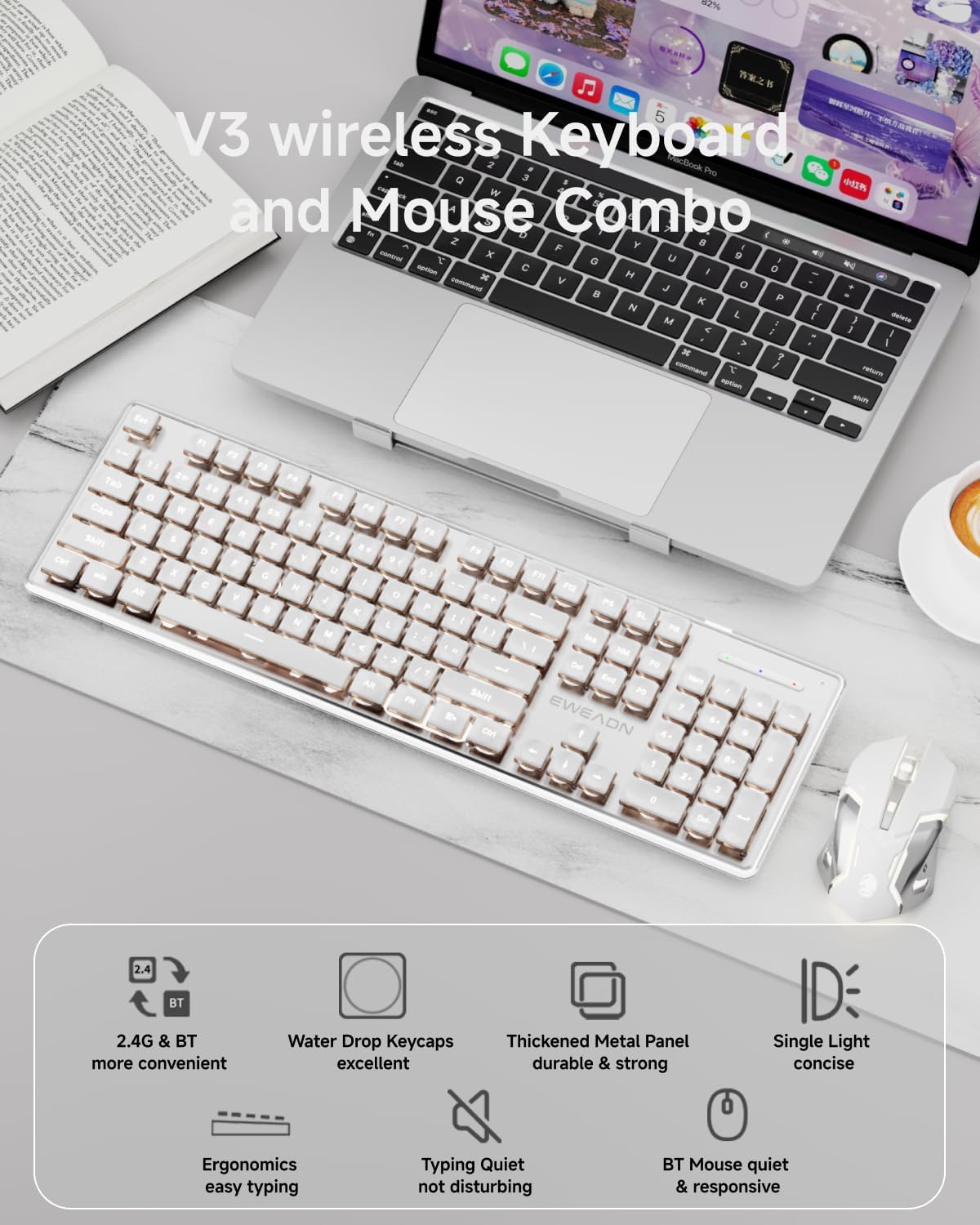
This diagram highlights the main features of the V3 combo, including 2.4G and Bluetooth connectivity, water drop keycaps, a thickened metal panel for durability, single light backlighting, ergonomic design for comfortable typing, quiet operation, and a responsive Bluetooth mouse.
3. Package Contents
Please check the package contents upon unboxing to ensure all items are present:
- SEUNKWANG EWEADN V3 Wireless Keyboard
- SEUNKWANG EWEADN V3 Wireless Mouse
- 2.4G USB Receiver (stored inside the mouse)
- USB Type-C Charging Cable
- User Manual (this document)
4. Setup Guide
4.1 Initial Charging
Before first use, it is recommended to fully charge both the keyboard and mouse. Connect the provided Type-C charging cable to the charging port on the keyboard and mouse, and plug the other end into a USB power source (e.g., computer USB port, USB wall adapter).
4.2 Connecting via 2.4GHz Wireless Mode
- Locate the 2.4G USB receiver. It is typically stored in a compartment on the underside of the mouse.
- Plug the USB receiver into an available USB port on your computer or device.
- On the keyboard, press the FN + 1 key combination to switch to 2.4G mode. The indicator light will confirm the connection.
- The mouse will automatically connect to the receiver.
4.3 Connecting via Bluetooth Mode
The keyboard supports two Bluetooth connections (BT1 and BT2).
- On the keyboard, press FN + 2 for BT1 mode or FN + 3 for BT2 mode. The corresponding indicator light will blink, indicating it's in pairing mode.
- On your device (computer, tablet, smartphone), open Bluetooth settings.
- Search for new devices. You should see "EWEADN V3 Keyboard" and "EWEADN V3 Mouse" (or similar names).
- Select both the keyboard and mouse to pair. Follow any on-screen prompts to complete the pairing process.
- Once paired, the indicator light on the keyboard will stop blinking and remain solid.

This image illustrates the dual connectivity options: 2.4GHz wireless via a shared USB receiver (FN+1) and Bluetooth (BT1/BT2 via FN+2/3) for connecting up to two devices. It also shows the convenient USB-C charging port, allowing for uninterrupted use while charging.
5. Operating Instructions
5.1 Switching Connectivity Modes
To switch between the 2.4G wireless mode and Bluetooth modes (BT1, BT2), use the following key combinations on the keyboard:
- FN + 1: Switch to 2.4G wireless mode.
- FN + 2: Switch to Bluetooth 1 mode.
- FN + 3: Switch to Bluetooth 2 mode.
5.2 Backlight Control
The keyboard features a single warm backlight with adjustable brightness and a breathing mode.
- FN + PU: Increase backlight brightness (5 levels).
- FN + PD: Decrease backlight brightness.
- FN + SL: Toggle backlight ON/OFF or switch to breathing light mode.

This diagram explains how to control the keyboard's single warm backlight. Users can adjust brightness using FN+PU (Brightness+) and FN+PD (Brightness-), and toggle the light on/off with FN+SL. The keyboard offers 5 levels of brightness and a breathing light mode.
5.3 Mouse Sensitivity Adjustment
The wireless mouse offers 3 levels of adjustable sensitivity (DPI) to suit your preference. Press the DPI button on the mouse (usually located behind the scroll wheel) to cycle through the sensitivity settings.

This image focuses on the wireless mouse, highlighting its precise, responsive, and smooth operation. It indicates the adjustable sensitivity feature and clearly shows the location of the 2.4G USB receiver stored within the mouse itself.
5.4 Power Saving and Sleep Mode
To conserve battery life, the keyboard and mouse are designed with smart sleep solutions. If inactive for a period (e.g., 30 minutes for the keyboard), they will enter a low-power sleep mode. To wake them up, simply press any key on the keyboard or move/click the mouse.

A detailed view of the keyboard's water drop keycaps, designed for comfortable fingertip fit and even force distribution. The image also notes the 80% noise reduction (37db-48db) due to silent membrane switches and the 100% translucency of the pudding structure for enhanced backlighting.
6. Maintenance and Care
To ensure the longevity and optimal performance of your SEUNKWANG EWEADN V3 combo, follow these maintenance guidelines:
- Cleaning: Use a soft, dry, lint-free cloth to wipe down the keyboard and mouse. For stubborn dirt, slightly dampen the cloth with water or a mild, non-abrasive cleaner. Avoid excessive moisture.
- Keycap Cleaning: The water drop keycaps can be gently removed for deeper cleaning if necessary. Use a keycap puller (not included) or carefully pry them off. Ensure they are dry before reattaching.
- Avoid Liquids: Do not spill liquids directly onto the keyboard or mouse. While designed to be spill-resistant, excessive liquid can cause damage.
- Storage: Store the device in a cool, dry place away from direct sunlight and extreme temperatures.
- Battery Care: Avoid fully discharging the battery frequently. Charge the device when the low battery indicator appears. Do not expose the battery to high temperatures.
7. Troubleshooting
If you encounter any issues with your keyboard and mouse combo, please refer to the following common solutions:
7.1 Connection Issues
- No Connection (2.4G): Ensure the USB receiver is securely plugged into a working USB port. Press FN+1 on the keyboard to confirm 2.4G mode. Try plugging the receiver into a different USB port.
- No Connection (Bluetooth): Ensure Bluetooth is enabled on your device. Press FN+2 or FN+3 to enter the correct Bluetooth pairing mode. Forget the device in your Bluetooth settings and re-pair. Ensure the keyboard and mouse are charged.
- Interference: Move the keyboard and mouse closer to the receiver/device. Avoid placing them near other wireless devices that might cause interference.
7.2 Keyboard/Mouse Not Responding
- Low Battery: Charge the keyboard and mouse using the provided Type-C cable.
- Sleep Mode: Press any key or move/click the mouse to wake the device from sleep mode.
- Driver Issues: For PC users, ensure your operating system drivers are up to date.
7.3 Backlight Not Working
- Check Brightness: Use FN+PU to increase brightness.
- Toggle ON/OFF: Use FN+SL to ensure the backlight is not turned off.
- Battery Level: Ensure the keyboard has sufficient charge, as low battery can disable backlighting.
7.4 Keys Sticking or Mouse Jumping
- Cleaning: Dust or debris under the keycaps or mouse sensor can cause issues. Refer to the Maintenance section for cleaning instructions.
- Surface (Mouse): Ensure the mouse is used on a clean, non-reflective surface.
8. Product Specifications
| Feature | Specification |
|---|---|
| Brand | SEUNKWANG |
| Model | V3 |
| Connectivity Technology | 2.4G Wireless, Bluetooth 5.0 |
| Keyboard Description | Membrane Keyboard with Water Drop Keycaps |
| Backlight | Single Color (Warm Light), 5 Brightness Levels, Breathing Mode |
| Material Type | Metal Panel |
| Battery Capacity | 2000mAh (Keyboard) |
| Charging Port | USB Type-C |
| Compatible Devices | PC, Laptop, Game Console, Projector, Smart TV, Smartphone, Tablet |
| Operating System Compatibility | Windows, Linux, Chrome OS, Mac |
| Mouse Features | Silent Click, Adjustable Sensitivity (3 levels), Rechargeable |
| Keyboard Tilt | 7° (with leg rests) |
| Anti-Ghosting | 26-Key Rollover |
| Colour | White |
| Item Dimensions (Keyboard) | Approx. 43.5 x 13.5 x 3.5 cm (L x W x H) |
| Item Weight | Approx. 948 g |
9. Warranty and Support
SEUNKWANG is committed to providing high-quality products and customer satisfaction. This product comes with 24 months brand support from the date of purchase.
If you encounter any issues or have questions regarding your SEUNKWANG EWEADN V3 Wireless Keyboard and Mouse Combo, please contact our customer support team. Our experts are available to assist you with troubleshooting, product information, and warranty claims.
Please retain your proof of purchase for warranty purposes.
Documents and downloads
Ask a question about this manual
Ask about setup, troubleshooting, compatibility, parts, safety, or missing instructions. Manuals+ will review the question and use this page’s manual context to help answer it.