
Inseego FX3100
Contents
Inseego Wavemaker FX3100 Dual Sim 5G Router User Manual
Model: FX3100 | Brand: Inseego
1. Introduction
The Inseego Wavemaker FX3100 is a versatile 5G indoor router designed to provide lightning-fast internet speeds and robust security for both business and home environments. With support for up to 64 devices and dual-band Wi-Fi 6 technology, it offers seamless connectivity and advanced networking capabilities. This manual provides essential information for setting up, operating, maintaining, and troubleshooting your FX3100 router.
2. What's in the Box
Upon unboxing your Inseego Wavemaker FX3100, please verify that all the following components are included:
- Inseego Wavemaker FX3100 5G Router
- Power Adapter
- Ethernet Cable
- Le'Mak Cable Tie Kit (as specified in product title)

Image: The Inseego Wavemaker FX3100 router, power adapter, and cable ties as typically found in the product packaging.
3. Product Features
The Inseego Wavemaker FX3100 boasts a range of features designed for optimal performance and security:
- Lightning-Fast Speeds: Experience gigabit-class LTE & 5G speeds with advanced chipset and antenna design.
- Supports Up to 64 Devices: Dual-band Wi-Fi 6 technology for seamless connections.
- Versatile Functionality: Ideal for mobile businesses, failover for business continuity, or secure connectivity for government or educational campuses.
- Comprehensive Security: Advanced encryption, guest WiFi network, hacker prevention, SASE capabilities, and VPN/ZTNA support.
- Easy Installation: Simple steps and the Inseego Mobile app provide real-time network coverage and signal strength information.
- Real Simultaneous Dual-Band Wi-Fi: Primary and guest Wi-Fi support.
- Ethernet Tethering: Plug and play compatibility with existing Wi-Fi networks.
- Advanced Networking: Includes MAC address filtering, NAT firewall, port forwarding, port filtering, Open VPN support, DMZ, and manual DNS.
4. Setup Guide
4.1 Initial Setup
- Insert SIM Card: Locate the SIM card slot(s) on the back of the router. Insert your activated 5G/LTE SIM card(s) into the designated slot(s) (labeled 1 and 2).
- Connect Power: Plug the power adapter into the router's power port and then into a wall outlet. The router will begin to power on.
- Placement: For optimal signal strength, place the router in an open area, away from obstructions and other electronic devices that may cause interference. The Inseego Mobile app can assist in finding the ideal installation spot by providing real-time network coverage and signal strength information.
4.2 Connecting Devices
You can connect devices to your FX3100 router via Wi-Fi or Ethernet:
- Wi-Fi Connection: On your device (smartphone, laptop, tablet), search for available Wi-Fi networks. Select the network name (SSID) broadcast by your FX3100 router (usually found on a label on the device or packaging) and enter the Wi-Fi password (also on the label).
- Ethernet Connection: Use an Ethernet cable to connect your device (e.g., desktop computer, gaming console) to one of the two LAN/WAN Ethernet ports (labeled 1 and 2) on the back of the router.
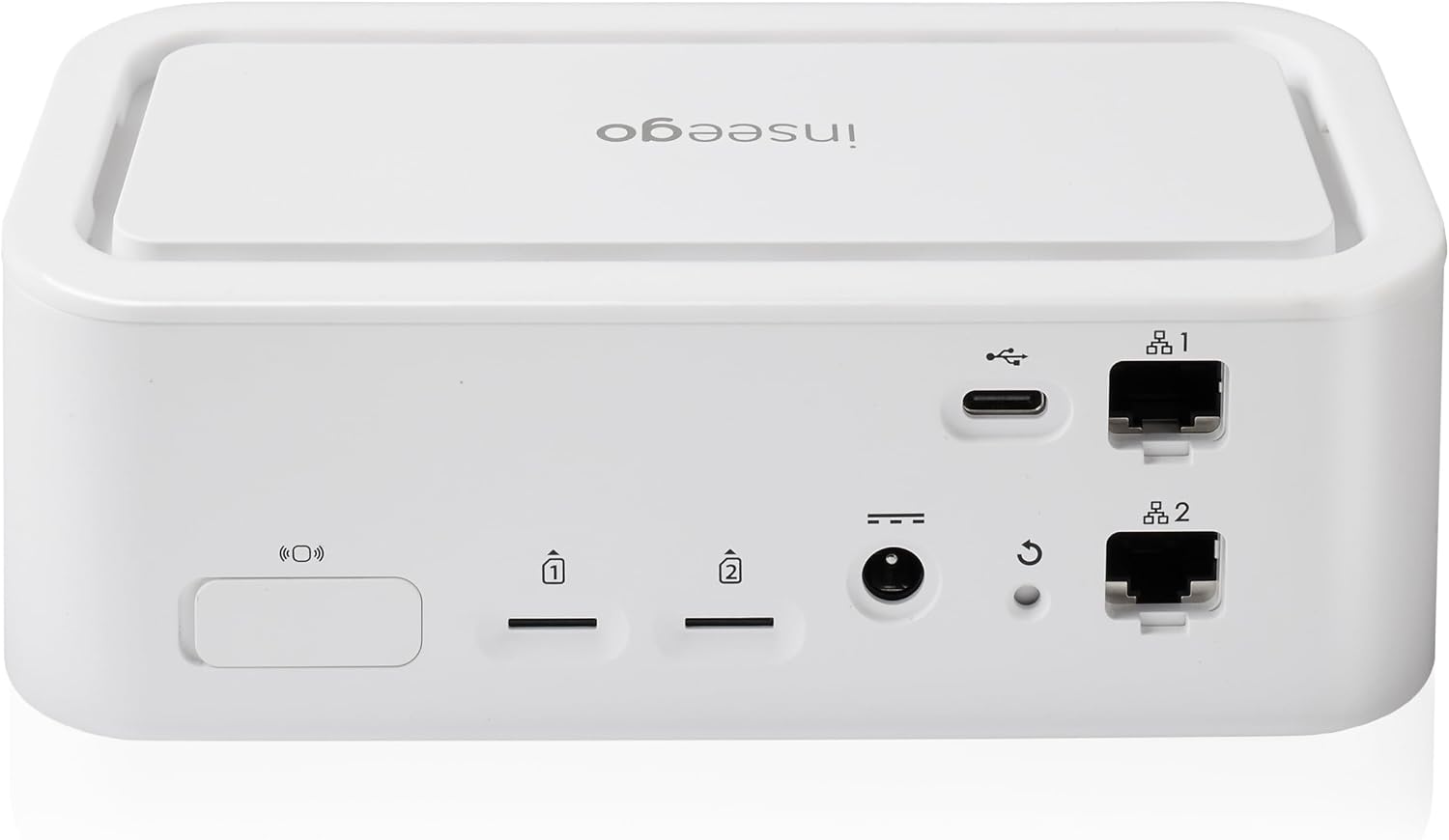
Image: The rear panel of the Inseego Wavemaker FX3100, highlighting the SIM card slots, power input, USB-C port, and two Ethernet LAN/WAN ports.
4.3 Inseego Mobile App
Download the Inseego Mobile app from your device's app store for simplified setup and management. The app allows you to monitor network status, configure settings, and view diagnostics.
5. Operating Instructions
5.1 Basic Operation
Once powered on and connected, the FX3100 will automatically establish a 5G or LTE connection. The LED status indicator on the front of the device provides visual cues about its operational status. This light can be turned on or off via the router's settings.
5.2 Advanced Networking
The FX3100 supports various advanced networking features accessible through its web interface or the Inseego Connect platform:
- Dual-Band Wi-Fi 6: Supports both 2.4GHz and 5GHz bands for optimal performance across different devices.
- LAN/WAN Ports: The two Ethernet ports can be configured for flexible LAN or WAN network setups.
- USB-C 3.1 Port: For data transfer and tethering capabilities.
- Port Forwarding & DMZ: Configure these settings for specific applications or devices requiring direct access from the internet.
5.3 Security Features
The router includes comprehensive security measures to protect your network:
- Advanced Encryption: Supports WPA/WPA2/WPA3 for secure Wi-Fi connections.
- Guest Wi-Fi Network: Create a separate network for guests to isolate them from your main network.
- NAT Firewall & MAC Address Filtering: Control network access and prevent unauthorized connections.
- VPN/ZTNA Support: Securely access your enterprise network, even for remote workers.
- Administration Portal: Access the security-hardened web interface with password hash and session timeout for secure management.
6. Maintenance
To ensure the longevity and optimal performance of your Inseego Wavemaker FX3100, regular maintenance is recommended:
- Firmware Updates: Periodically check for and install firmware updates through the Inseego Mobile app or the web interface. Updates often include performance improvements, new features, and security patches. Inseego Connect and Inseego 5G SD EDGE streamline remote device management and updates.
- Cleaning: Keep the router clean and free from dust. Use a soft, dry cloth to wipe the exterior. Ensure ventilation slots are not blocked.
- Operating Temperature: Ensure the device operates within its specified temperature range of 32°F to 104°F (0°C to 40°C) to prevent overheating.
7. Troubleshooting
If you encounter issues with your Inseego Wavemaker FX3100, try the following troubleshooting steps:
- No Internet Connection:
- Verify that your SIM card is properly inserted and activated.
- Check the LED status indicator on the router for any error lights.
- Restart the router by unplugging the power adapter, waiting 10 seconds, and plugging it back in.
- Confirm that your mobile network has coverage in your area.
- Slow Speeds:
- Ensure the router is placed in an optimal location for signal reception.
- Reduce the number of connected devices or bandwidth-intensive activities.
- Check for firmware updates.
- Wi-Fi Connectivity Issues:
- Ensure your device is within the Wi-Fi range.
- Verify the Wi-Fi password.
- Try connecting to the other Wi-Fi band (2.4GHz or 5GHz).
- Factory Reset: If problems persist, you may need to perform a factory reset. Refer to the device's web interface or the Inseego Mobile app for instructions on how to perform a factory reset. This will erase all custom settings.
8. Specifications
| Feature | Description |
|---|---|
| Model Name | Inseego Wavemaker FX3100 |
| Product Dimensions | 6.3 x 3 x 2 inches (160 mm x 76 mm x 52 mm) |
| Item Weight | 8.60 oz (245 g) |
| Connectivity Technology | 5G, Wi-Fi, USB, Ethernet, LTE |
| Wireless Communication Standard | 802.11ax (Wi-Fi 6) |
| Frequency Band Class | Dual-Band (2.4GHz & 5GHz) |
| Supported Devices | Up to 64 connected devices |
| Ports | 2x WAN/LAN 1 Gbps, 1x USB 3.1 Type C, 1x external antenna port (1x2 TS-9) |
| Operating Temperature | 32°F to 104°F (0°C to 40°C) |
| Security Features | AES encryption, administration portal, security-hardened web interface, password hash, session timeout, incorrect password lockout, anti-CSRF, MAC address filtering, NAT firewall, port forwarding, port filtering, Open VPN support, DMZ, manual DNS. |
| Web UI OS Supported | Windows 10+, Mac OS X 10.10+, Linux Ubuntu 14.04+, Chrome OS V79+ |
9. Product Views
9.1 Images

Front view of the Inseego Wavemaker FX3100 5G Router, showcasing its compact and minimalist design.

Detailed view of the rear panel, showing the various ports including Ethernet, USB-C, and SIM card slots.

A comparison chart illustrating the key differences and capabilities between the Inseego Wavemaker FX2000, FX3100, and FG2000 models.
9.2 Videos
No official product videos from the seller are available for embedding at this time.
10. Warranty and Support
The Inseego Wavemaker FX3100 is covered by a manufacturer's warranty. For specific warranty terms, duration, and to register your product, please refer to the documentation included with your purchase or visit the official Inseego support website. For technical assistance, troubleshooting beyond this manual, or customer service inquiries, please contact Inseego customer support directly through their official channels.
Documents and downloads
Ask a question about this manual
Ask about setup, troubleshooting, compatibility, parts, safety, or missing instructions. Manuals+ will review the question and use this page’s manual context to help answer it.