
1. Introduction
Thank you for choosing the ErGear EGESD8 Electric Standing Desk. This manual provides essential information for the safe and efficient assembly, operation, and maintenance of your new desk. Please read these instructions carefully before use and retain them for future reference. This electric standing desk is designed to offer ergonomic flexibility, allowing you to easily switch between sitting and standing positions, promoting a healthier work environment.

The ErGear Electric Standing Desk, showcasing its sleek design and spacious desktop in a contemporary workspace.
2. Safety Instructions
To ensure safe operation and prevent damage, please observe the following:
- Ensure all connections are secure before operating the desk.
- Keep children and pets away from the desk during operation.
- Do not place hands or other body parts near moving parts to avoid injury.
- Do not overload the desk. The maximum weight capacity is 80 kg.
- Avoid placing liquids directly on the control panel or near electrical components.
- If the desk makes unusual noises or movements, discontinue use and consult the troubleshooting section or contact support.
- Only use the provided power adapter and cables.

This image highlights the robust construction of the ErGear Electric Standing Desk, capable of supporting up to 80 kg, ensuring stability even under significant load.
3. Package Contents
Please check that all components are present and undamaged:
- Desktop Panels (assembled)
- Desk Legs (2)
- Foot Pads (2)
- Side Brackets (2)
- Crossbar
- Transmission Rod
- Control Panel
- Power Adapter & Cable
- Cable Grommets (2)
- Headphone Hooks (2)
- Assembly Hardware (screws, Allen wrench)
- User Manual
4. Assembly Instructions
Follow these steps to assemble your ErGear Electric Standing Desk. It is recommended to have two people for assembly.
Official assembly video for the ErGear Electric Standing Desk, demonstrating step-by-step installation.
Step 1: Assemble the Frame
- Attach the side brackets to the desk legs using the provided screws and Allen wrench.
- Secure the foot pads to the bottom of each leg.
- Connect the two leg assemblies with the crossbar, ensuring all screws are tightened.
Step 2: Fix the Transmission Rod
- Insert the transmission rod into the designated openings on both desk legs.
- Ensure the rod is properly seated and secured with the retaining clips or screws.
Step 3: Assemble the Desktop Panel
- Lay the desktop panels face down on a soft, clean surface.
- Align the panels and secure them together using the provided connectors and screws.
Step 4: Attach the Frame to the Desktop
- Carefully place the assembled desk frame onto the underside of the desktop.
- Align the pre-drilled holes and secure the frame to the desktop using the appropriate screws.
- Attach the control panel to the underside of the desktop in a convenient location using the provided screws.
- Install the headphone hooks to the underside of the desktop as desired.
Step 5: Connect the Cables
- Connect the motor cables from the legs to the control box.
- Connect the control panel cable to the control box.
- Connect the power adapter to the control box and then to a power outlet.
Step 6: Fix the Cable Grommets
- Insert the cable grommets into the pre-cut holes on the desktop to manage cables.
5. Operating Instructions
Your ErGear Electric Standing Desk features an intuitive control panel for easy height adjustment.
Short video showcasing key features of the ErGear Electric Standing Desk, including height adjustment and stability.
Control Panel Overview

The desk's intelligent control panel features an LED display showing current height in centimeters, along with up/down arrows and four memory preset buttons for quick adjustments.
- Up/Down Arrows (▲ / ▼): Press and hold to adjust the desk height manually.
- LED Display: Shows the current height of the desk in centimeters.
- Memory Presets (1, 2, 3, 4): Store and recall preferred height settings.
Adjusting Height
The desk can be adjusted between 72 cm and 118 cm.
- Manual Adjustment: Press and hold the up (▲) or down (▼) arrow button until the desk reaches your desired height.
- Using Memory Presets: Press the corresponding memory button (1, 2, 3, or 4) to automatically move the desk to the saved height.
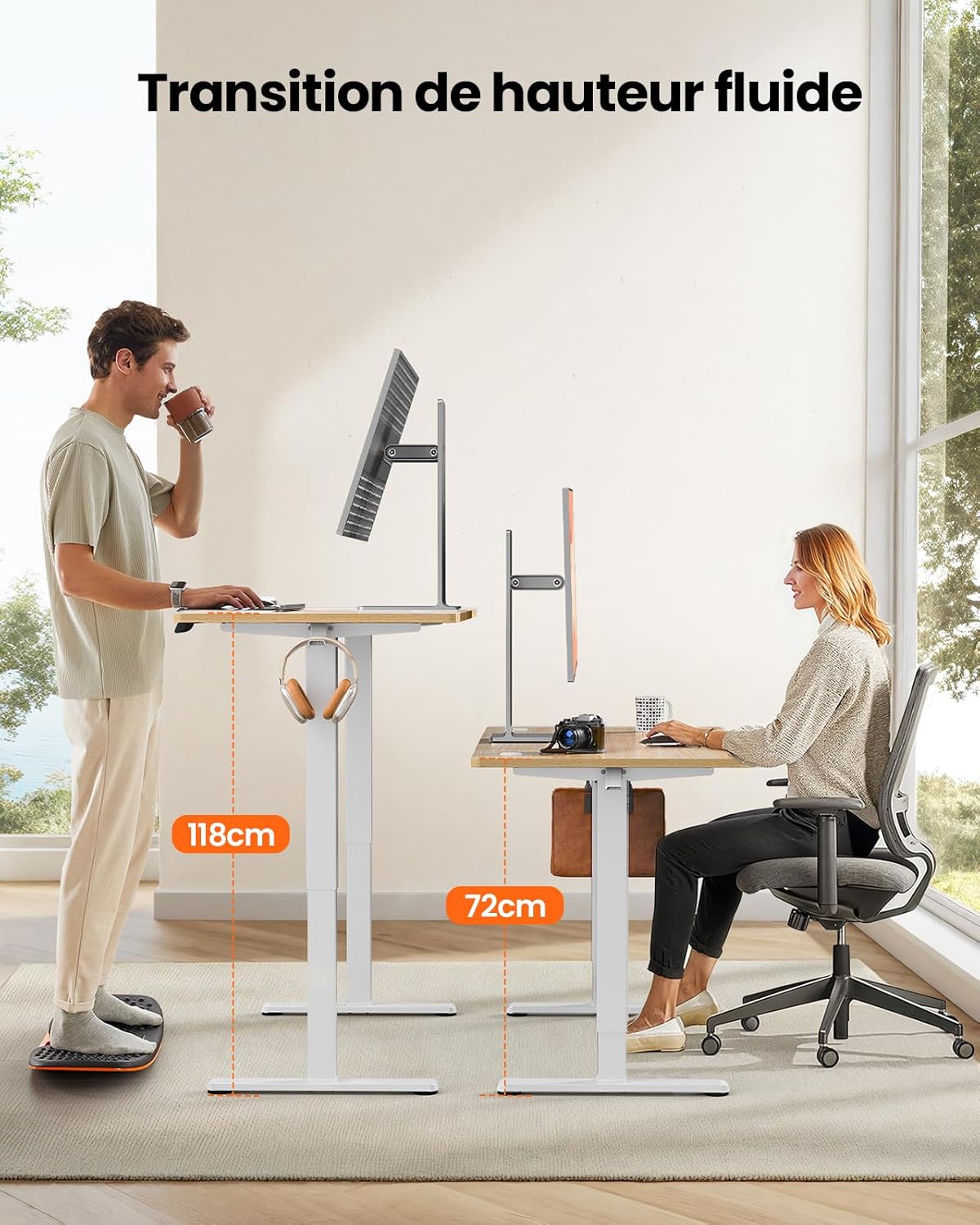
This image demonstrates the adjustable height range of the ErGear Electric Standing Desk, showing a user sitting at 72cm and standing at 118cm, emphasizing ergonomic flexibility.
Setting Memory Presets
- Adjust the desk to your desired height using the up/down arrows.
- Press the 'M' button (if available, or a 'Set' button) followed by the desired memory button (1, 2, 3, or 4). The display will typically flash or beep to confirm the setting is saved.
Silent Operation
The desk operates with a quiet motor, producing a noise level of ≤ 55 dB, ensuring a peaceful work environment.

Illustrates the ultra-quiet operation of the ErGear Electric Standing Desk, with a noise level of 55dB, ensuring a peaceful and undisturbed work environment.
6. Maintenance
Regular maintenance helps prolong the life of your desk:
- Cleaning: Wipe the desk surface and legs with a soft, damp cloth. Avoid harsh chemicals or abrasive cleaners.
- Cable Management: Periodically check that all cables are neatly organized and not pinched or tangled. Utilize the integrated cable grommets and hooks.
- Screw Tightness: Occasionally check and tighten any loose screws on the frame or desktop connections.
- Inspection: Inspect the desk for any signs of wear or damage. If any issues are found, contact customer support.

Detail view of the desk's integrated cable grommets and convenient hooks, designed to help maintain a tidy and organized workspace by managing cables and accessories.
7. Troubleshooting
If you encounter any issues with your desk, please refer to the following common problems and solutions:
| Problem | Possible Cause | Solution |
|---|---|---|
| Desk does not move. | Power cable disconnected, motor cable loose, overload. | Check all power and motor connections. Reduce weight on the desk. |
| Desk moves unevenly. | Uneven load, loose screws, obstruction. | Distribute weight evenly. Check and tighten all assembly screws. Ensure no obstructions. |
| Desk stops during adjustment. | Overload protection activated, obstruction. | Remove some weight. Check for obstructions. Wait a few minutes before trying again. |
| Control panel not responding. | Control panel cable loose, power issue. | Check control panel cable connection. Verify power supply. |
If the problem persists after trying these solutions, please contact ErGear customer support.
8. Specifications
| Feature | Detail |
|---|---|
| Brand | ErGear |
| Model Number | EGESD8 |
| Color | Beige and Natural |
| Desktop Dimensions (L x W) | 120 cm x 60 cm |
| Height Adjustment Range | 72 cm - 118 cm |
| Material | Wood (Desktop), Metal (Base) |
| Weight Capacity | 80 kg |
| Motor Noise Level | ≤ 55 dB |
| Special Features | Ergonomic, Electric, 4 Memory Presets, Cable Grommets, Headphone Hooks |
| Product Weight | 19.05 kg |

A clear diagram illustrating the overall dimensions of the ErGear Electric Standing Desk, including its 120cm x 60cm desktop and adjustable height range of 72cm to 118cm.
9. Warranty and Support
ErGear products are designed for durability and performance. This product comes with a standard manufacturer's warranty. For specific warranty details, please refer to the warranty card included in your package or visit the official ErGear website.
If you have any questions, require technical assistance, or need to report a missing or damaged part, please contact ErGear customer support through the retailer where you purchased the product or via the contact information provided on the official ErGear website.
Please have your model number (EGESD8) and purchase information ready when contacting support.


