
1. Introduction
This manual provides comprehensive instructions for the setup, operation, maintenance, and troubleshooting of your Corsair M55 Wireless Lightweight FPS Gaming Mouse. Please read this manual thoroughly before using the product to ensure optimal performance and longevity.

Image: Top view of the Corsair M55 Wireless Gaming Mouse, showcasing its symmetrical design.
2. Product Overview
The Corsair M55 Wireless Gaming Mouse is designed for competitive gaming, offering a compact, symmetrical shape suitable for various grip styles. It features low-latency wireless connectivity via 2.4GHz SLIPSTREAM WIRELESS v1.5 or Bluetooth, a high-precision optical sensor up to 24,000 DPI, and six programmable buttons. The mouse is powered by a single AA battery, providing extended battery life.
Package Contents:
- CORSAIR M55 WIRELESS Gaming Mouse
- USB Wireless Transceiver
- Safety Leaflet
- Warranty Card
- AA Alkaline Battery

Image: The Corsair M55 Wireless Gaming Mouse highlighting its lightweight design, 24,000 DPI sensor, and wireless capabilities.
3. Setup
3.1. Battery Installation
- Locate the battery compartment cover on the top rear of the mouse.
- Gently slide the cover backward to remove it.
- Insert the included AA alkaline battery, ensuring correct polarity (+/-).
- Replace the battery compartment cover, sliding it forward until it clicks into place.
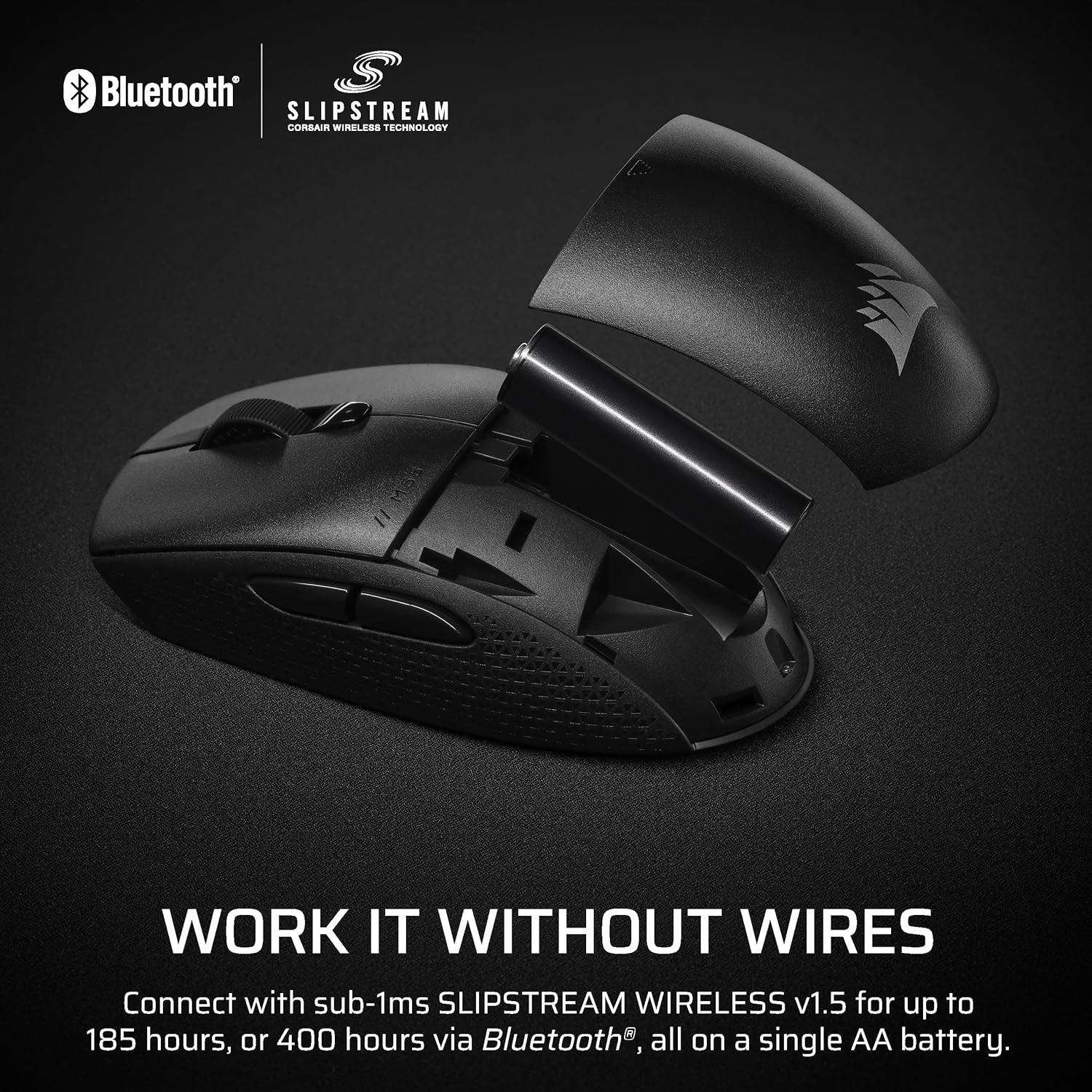
Image: The Corsair M55 Wireless Gaming Mouse with its top cover removed, showing the AA battery slot.
3.2. Connecting the Mouse
The M55 Wireless mouse offers two connectivity options: 2.4GHz SLIPSTREAM WIRELESS and Bluetooth.
3.2.1. 2.4GHz SLIPSTREAM WIRELESS Connection
- Plug the USB Wireless Transceiver into an available USB port on your computer.
- Turn on the mouse using the power switch located on the underside.
- The mouse should automatically connect to the transceiver. A status indicator light on the mouse will confirm connection.
3.2.2. Bluetooth Connection
- Turn on the mouse using the power switch located on the underside.
- Press and hold the Bluetooth pairing button (refer to the diagram in Section 4.1 for location) until the status indicator light begins to blink rapidly, indicating pairing mode.
- On your computer or device, navigate to Bluetooth settings and select "Corsair M55 Wireless" from the list of available devices.
- Follow any on-screen prompts to complete the pairing process. The status indicator light will become solid when connected.

Image: The Corsair M55 Wireless mouse highlighting its dual wireless connectivity options: SLIPSTREAM WIRELESS and Bluetooth.
4. Operating the Mouse
4.1. Button Functions

Image: A diagram of the Corsair M55 Wireless mouse with its six programmable buttons labeled for reference.
- 1. Left Click Button: Primary action.
- 2. Right Click Button: Secondary action.
- 3. Side Button 1 (Forward): Default forward navigation.
- 4. Side Button 2 (Back): Default back navigation.
- 5. Scroll Wheel: Scroll up/down, middle click.
- 6. DPI Cycle Button: Cycles through preset DPI stages.
4.2. Adjusting DPI (Sensitivity)
The DPI Cycle Button (6) allows you to switch between different sensitivity levels on the fly. Each press will cycle to the next preset DPI stage. The default DPI stages can be customized using the Corsair iCUE software.
4.3. Customizing Buttons and Settings
For advanced customization, including remapping buttons, creating macros, and fine-tuning DPI settings, download and install the Corsair iCUE software from the official Corsair website. The software allows you to personalize your mouse experience to suit your preferences.
4.4. Ergonomics and Grip
The M55 Wireless features a compact symmetrical shape and textured side grips to accommodate various hand sizes and grip styles (palm, claw, fingertip), providing enhanced control and comfort during use.

Image: A hand demonstrating a grip on the Corsair M55 Wireless mouse, highlighting its ergonomic design.
5. Maintenance
5.1. Cleaning
To clean your mouse, use a soft, lint-free cloth slightly dampened with water. Avoid using harsh chemicals or abrasive materials, as these can damage the mouse's surface. Ensure no liquid enters the mouse's internal components.
5.2. Battery Replacement
When the mouse's battery life diminishes, replace the AA battery following the instructions in Section 3.1. Dispose of used batteries according to local regulations.
6. Troubleshooting
6.1. Mouse Not Responding
- Ensure the mouse is powered on.
- Check the battery level and replace if necessary.
- For 2.4GHz SLIPSTREAM: Ensure the USB Wireless Transceiver is securely plugged into a working USB port. Try a different USB port.
- For Bluetooth: Ensure Bluetooth is enabled on your device and the mouse is paired. Try re-pairing the mouse.
- Restart your computer.
6.2. Intermittent Connection
- Move the mouse closer to the USB Wireless Transceiver or your Bluetooth-enabled device to reduce interference.
- Ensure there are no large metal objects or other wireless devices causing interference between the mouse and its receiver.
- Update your computer's wireless drivers.
6.3. DPI Not Changing
- Ensure the DPI Cycle Button is being pressed correctly.
- If using custom DPI settings, verify they are correctly configured in the Corsair iCUE software.
- Reinstall the Corsair iCUE software if issues persist.
7. Specifications

Image: The underside of the Corsair M55 Wireless mouse, detailing its optical sensor and performance metrics.
| Feature | Detail |
|---|---|
| Model Name | M55 Wireless |
| Item Model Number | CH-931F000-WW |
| Connectivity | 2.4GHz SLIPSTREAM WIRELESS v1.5, Bluetooth |
| Sensor Type | Optical |
| Max DPI | 24,000 DPI |
| IPS Tracking | Up to 300 IPS |
| Acceleration | Up to 35G |
| Polling Rate | Up to 1,000Hz |
| Buttons | 6 Programmable Buttons |
| Switch Type | Durable Mechanical Switches (60 million clicks) |
| Battery Type | 1x AA Alkaline Battery (included) |
| Battery Life | Up to 185 hours (SLIPSTREAM WIRELESS), over 400 hours (Bluetooth) |
| Weight | 2.08 ounces (approx. 59g) |
| Dimensions (LxWxH) | 4.67 x 2.45 x 0.1 inches (approx. 11.86 x 6.22 x 0.25 cm) |
| Color | Black |
8. Warranty and Support
8.1. Warranty Information
Your Corsair M55 Wireless Gaming Mouse is covered by a limited hardware warranty. The specific terms and duration of the warranty are detailed in the Warranty Card included with your product. Please retain your proof of purchase for warranty claims.
8.2. Technical Support
For technical assistance, driver downloads, or further product information, please visit the official Corsair support website: www.corsair.com/support. You can also find FAQs and community forums there.