
Introduction
Thank you for choosing the HLDIRECT 63 Inch Gaming Desk. This manual provides detailed instructions for assembling, operating, and maintaining your new gaming desk. Designed for an immersive gaming and efficient home office experience, this desk features a spacious carbon fiber desktop, dynamic LED lighting, and convenient accessories. Please read this manual thoroughly before assembly and use to ensure proper setup and longevity of your product.
Product Features
- Wide Gaming Table: The 63-inch desktop provides ample space for gaming setups and allows for comfortable leg stretching. Features cable management holes for a tidy workspace. Desktop is made of FSC-certified wood.
- Cool RGB LED: Integrated illusion gaming atmosphere lighting system with soft, non-blinding light. Adjustable monochrome, variable speed, and brightness settings via remote control for personalized lighting effects.
- Innovative Design: Constructed with a carbon black cold-rolled steel frame and high-hardness solid integral support for superior load-bearing capacity (over 220 lbs). Adjustable feet ensure stability on uneven surfaces, enhancing gaming accuracy.
- Super Cool Appearance: Carbon fiber material on the entire tabletop offers a three-dimensional texture and a delicate touch. Ergonomic design conforms to body curves for extended comfort. Rounded corners provide added safety.
- Easy to Assemble: Includes all necessary installation tools and detailed instructions, allowing for assembly within approximately 30 minutes.
Safety Information
- Always assemble the desk according to the provided instructions.
- Do not exceed the weight limit of 150 lbs.
- Ensure the desk is stable and anchored properly to prevent tipping.
- Always use caution when sitting or standing near the desk to avoid injury.
Setup Guide
Follow these steps carefully to assemble your HLDIRECT Gaming Desk.
1. Unboxing and Parts Check
Carefully open the packaging and remove all components. Lay them out and verify that all parts listed in the instruction manual are present before proceeding with assembly.

Image: All desk components laid out for assembly.
2. Assembling the Desktop Support Bar
Attach the central support bar to the underside of the desktop using the provided screws. Ensure it is securely fastened but do not overtighten.
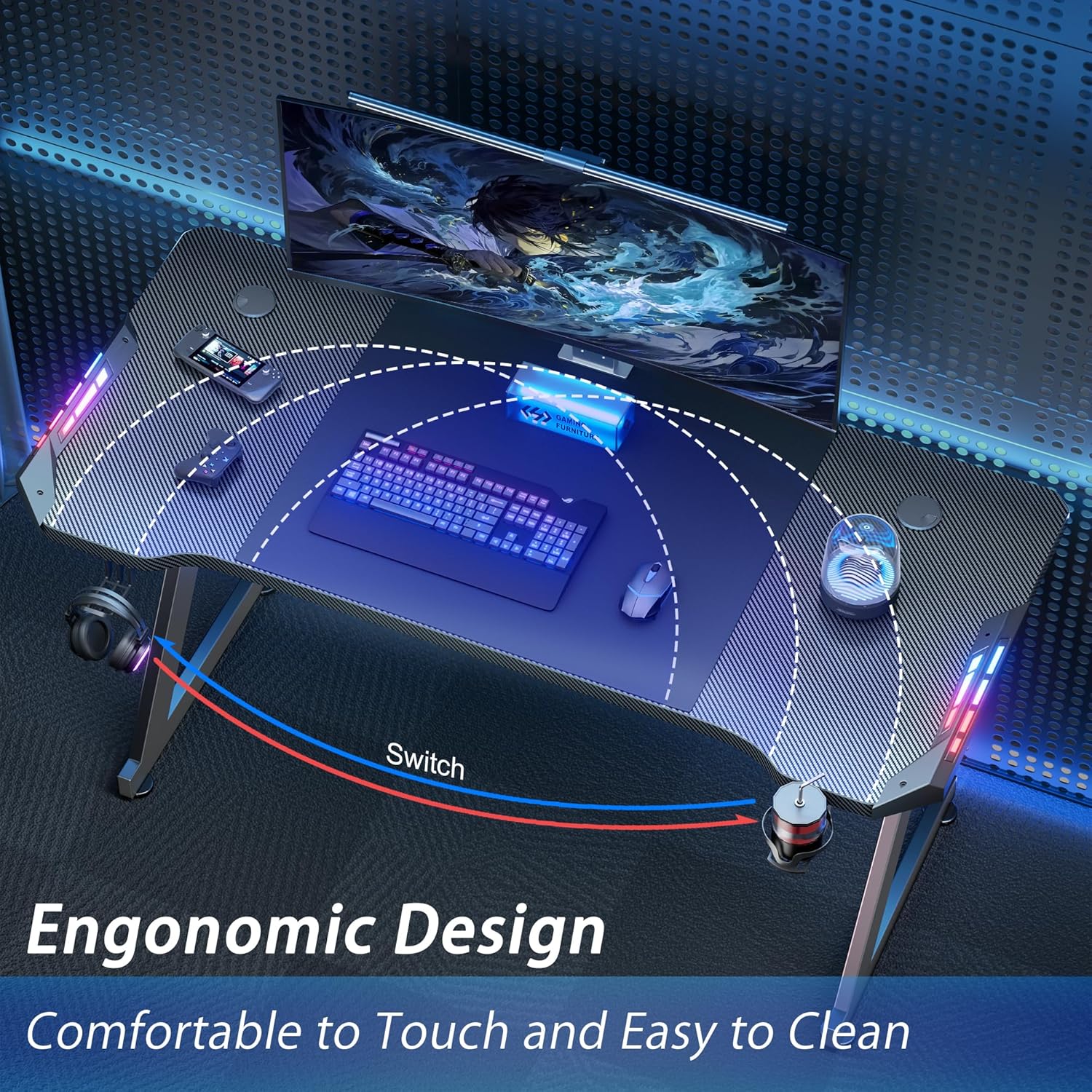
Image: Attaching the central support bar to the desktop.
3. Attaching the Legs
Secure the Z-shaped legs to the desktop assembly. Use the designated screws and washers. Be cautious not to overtighten the screws to prevent damage to the desk material.

Image: Securing the Z-shaped desk legs.
4. Installing Cup Holder and Headphone Hook
Attach the cup holder and headphone hook to the designated slots on the side of the desk. These accessories are designed for convenience and organization.

Image: Headphone hook installation.

Image: Cup holder installation.
5. Attaching Adjustable Leg Screws
Screw the four adjustable leg screws into the bottom of each desk leg. These allow you to fine-tune the desk's height and ensure stability on various floor types.
6. Cable Management
Utilize the double-sided cable grommets and adhesive cable holders to organize your wires and maintain a clean, clutter-free desktop. Wipe the surface clean before applying adhesive holders.

Image: Double-sided cable grommets.
7. Connecting LED Lights
Carefully insert the LED light strips into the designated slots on the desk. Connect the wiring underneath the desk, ensuring all connections are secure. Use the provided adhesive clips to manage the LED cables neatly.

Image: Integrated RGB LED light strips.
Operating Instructions
LED Lighting Control
The integrated RGB LED lighting system is controlled via a remote control. Ensure the plastic tab is removed from the remote's battery compartment before first use. Use the remote to:
- Adjust monochrome colors.
- Change light brightness.
- Control variable speed for light animations.
- Select from multiple color gradients and lighting effects.

Image: RGB System with Remote Control.
Ergonomic Design Benefits
The desk's ergonomic wrap-around shape allows you to sit closer to the table without discomfort, promoting a more natural and comfortable posture during long sessions.

Image: Ergonomic Design Desktop.
Maintenance
- Regularly wipe the carbon fiber desktop with a soft, damp cloth to remove dust and spills. Avoid abrasive cleaners.
- Check all screws and connections periodically to ensure they remain tight and secure.
- Keep the LED lights and remote control dry and free from excessive dust.
Troubleshooting
| Problem | Possible Cause | Solution |
|---|---|---|
| LED lights not turning on. | Power cable disconnected or remote battery dead. | Ensure USB power cable is securely plugged in. Replace remote battery if necessary. |
| Desk feels wobbly. | Loose screws or uneven floor. | Tighten all assembly screws. Adjust the leveling feet at the bottom of the legs. |
| Accessories (cup holder/headphone hook) are loose. | Mounting screws are loose. | Tighten the screws securing the accessories to the desk. |
Specifications
| Attribute | Detail |
|---|---|
| Brand | HLDIRECT |
| Product Dimensions | 24"D x 63"W x 29"H |
| Color | Black |
| Style | Modern |
| Base Material | Alloy Steel |
| Top Material Type | Carbon Fiber |
| Room Type | Bedroom, Game Room, Living Room, Office, Study Room |
| Included Components | Cup Holder, Headphone Hook |
| Item Weight | 35 Pounds |
| Maximum Weight Recommendation | 200 Pounds |
| Required Assembly | Yes |
| Includes All Assembly Tools | Yes |
Warranty and Support
HLDIRECT products come with a limited warranty. For specific warranty details, claims, or any product-related inquiries, please contact HLDIRECT customer support. Our experienced and professional customer team is available to provide assistance.