1. Introduction
This manual provides essential information for the proper use and maintenance of your ALLDOCUBE Universal Stylus Pen, model T812PEN. This stylus is designed for precise input on compatible touchscreen devices, offering features such as a real-time battery indicator, fast charging, and magnetic attachment for convenience.

Figure 1: ALLDOCUBE Universal Stylus Pen
Key features include:
- Real-time Battery Indicator
- Precision Tip for accurate input
- Fast Charging capability
- Wide Compatibility with ALLDOCUBE tablets and other capacitive touchscreen devices
- Magnetic Attachment for easy storage
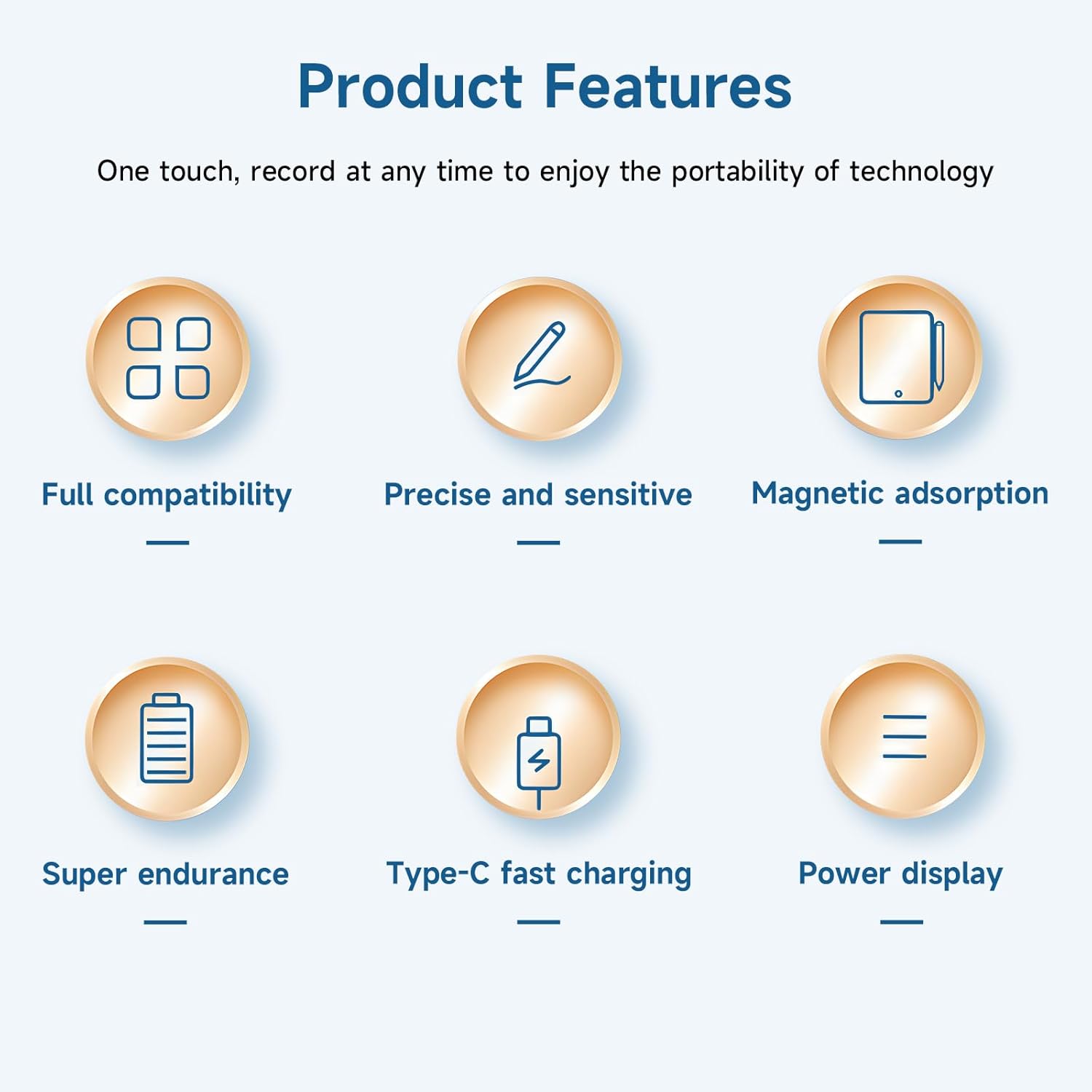
Figure 2: Overview of stylus features including full compatibility, precision, magnetic adsorption, super endurance, Type-C fast charging, and power display.
2. Setup
2.1. Charging the Stylus
Before initial use, fully charge the stylus. The stylus features a Type-C charging port. Connect the provided USB-C cable to the stylus and a compatible power source. The blue indicator light will blink during charging and remain solid when fully charged.

Figure 3: The stylus charging via its USB-C port, illustrating the 15-minute fast charging capability.
A 15-minute fast charge provides significant usage time. The stylus is designed with trickle charge technology to prevent overcharging, ensuring long-lasting battery life.
2.2. Power On/Off
To power on the stylus, double-tap the top of the pen. The blue indicator lights will illuminate. To power off, double-tap the top of the pen again. The stylus will automatically enter standby mode after 5 minutes of inactivity to conserve battery power.
2.3. Initial Connection
The ALLDOCUBE Universal Stylus Pen does not require Bluetooth pairing. Simply power it on, and it will be ready for use with any compatible capacitive touchscreen device.
3. Operating Instructions
3.1. Basic Usage
Use the stylus directly on your device's touchscreen for writing, drawing, and navigation. The precision tip ensures accurate and smooth input, mimicking the natural feel of writing on paper.
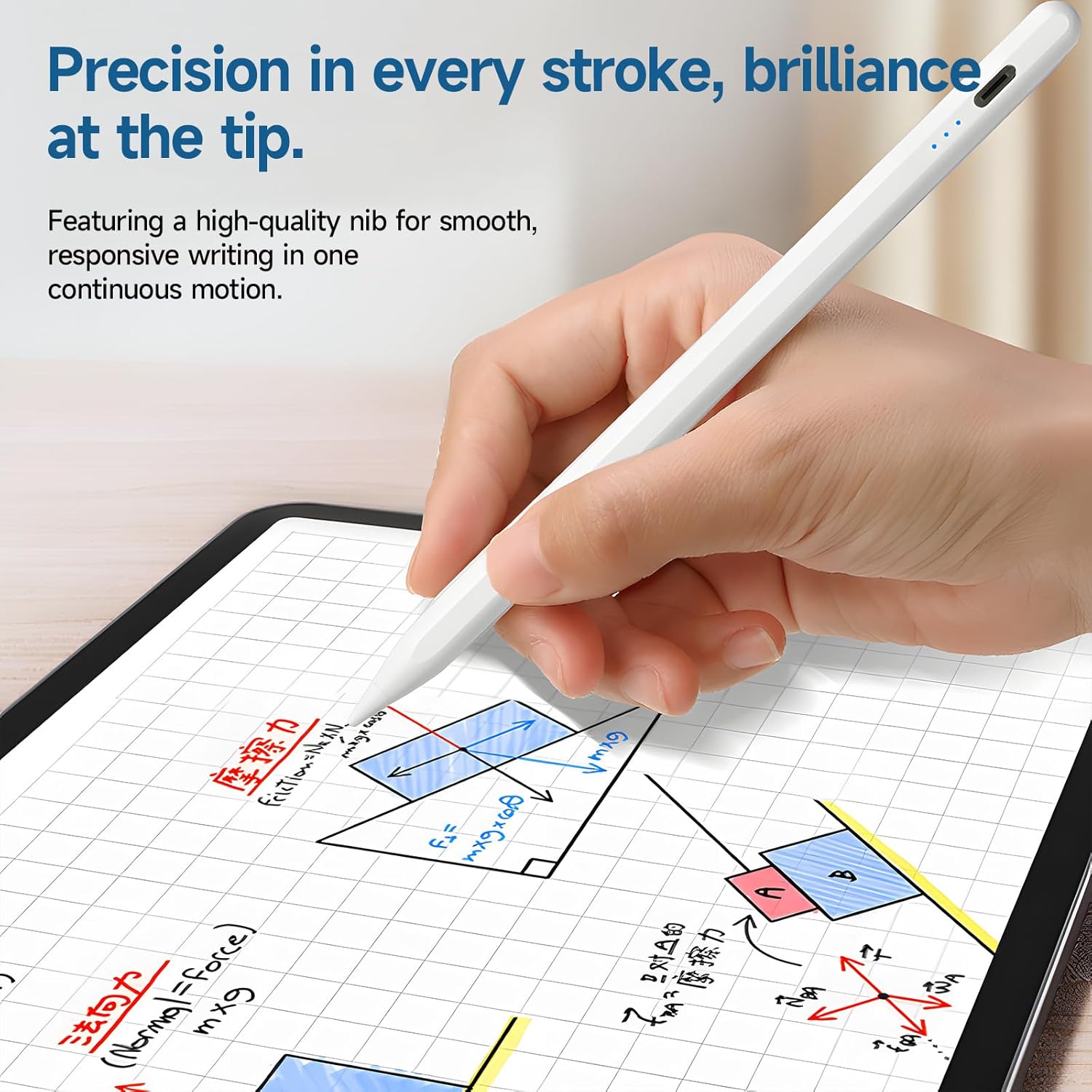
Figure 4: Demonstrating precise and smooth writing with the stylus on a tablet.
3.2. Real-time Battery Indicator
The stylus features blue LED lights to indicate the current battery level:
- Three blue lights: 70%-100% battery
- Two blue lights: 40%-70% battery
- One blue light: 10%-40% battery
- Blinking blue light: Charging in progress

Figure 5: Visual guide for the real-time battery indicator lights.
3.3. Magnetic Attachment
The stylus has a built-in magnet for convenient attachment to the side of compatible tablets. An optional magnetic sticker is also included for devices without built-in magnetic capabilities, allowing you to easily keep your stylus within reach.

Figure 6: The stylus attached magnetically to the side of a tablet for easy access and storage.
3.4. Wide Compatibility
This universal stylus is designed to work seamlessly with ALLDOCUBE tablets and a broad range of other capacitive touchscreen devices.

Figure 7: The stylus shown alongside multiple tablets, highlighting its wide compatibility.
3.5. Stylus Button Functions
The stylus may feature additional button functions depending on the specific model and application. Refer to the video below for a demonstration of common button functionalities, such as long-press for touchscreen interaction, selection, zoom, and erase functions.
Video 1: Demonstration of stylus button functions, including long-press for touchscreen interaction, selection, zoom in/out, mobility, rotating, copy, paste, and erase features.
4. Maintenance
4.1. Nib Replacement
The stylus tip (nib) is replaceable. If the nib becomes worn or damaged, it can be easily replaced. To remove, turn counter-clockwise with the nib facing down. To install a new nib, turn clockwise until secure.

Figure 8: Visual guide for replacing the stylus nib, showing counter-clockwise removal and clockwise installation.
4.2. Cleaning
To clean the stylus, gently wipe the body with a soft, dry cloth. For the nib, use a soft, lint-free cloth. Avoid using harsh chemicals or abrasive materials that could damage the stylus or its tip.
5. Troubleshooting
5.1. Stylus Not Turning On
- Ensure the stylus is charged. Connect it to a power source using the USB-C cable and check if the blue indicator light blinks.
- Double-tap the top of the stylus firmly to power it on.
5.2. Stylus Not Responding on Screen
- Verify the stylus is powered on (blue indicator lights are solid).
- Ensure your device's screen is clean and free of debris.
- Check if the stylus nib is securely installed and not worn out. Replace if necessary.
- Restart your tablet or device.
5.3. Battery Draining Quickly or Not Charging
- Ensure you are using the provided USB-C cable or a compatible high-quality cable.
- Check the power adapter or USB port for proper function.
- Avoid extreme temperatures, which can affect battery performance.
6. Specifications
| Feature | Specification |
|---|---|
| Model Number | T812PEN |
| Material | Metal |
| Item Weight | 8 ounces (0.5 Pounds) |
| Package Dimensions | 7.68 x 2.05 x 0.75 inches |
| Compatible Devices | Tablet (Capacitive Touchscreens) |
| Charging Interface | Type-C USB |
| Battery Indicator | Real-time LED lights |
7. Warranty and Support
ALLDOCUBE upholds rigorous standards from design to production. Each product undergoes thorough quality checks to ensure an exceptional user experience.
For products purchased from the ALLDOCUBE Official Flagship Store, customers benefit from a 12-month free repair warranty and lifetime technical support.
If you encounter any issues or have inquiries, please contact ALLDOCUBE customer support. You can expect a response within 24 hours.

Figure 9: ALLDOCUBE's commitment to quality and customer support, including a one-year warranty.


