
SERPHIX CT-105
Instruction Manual for SERPHIX 15.2" Large Digital Wall Clock
Model: CT-105
Introduction
This manual provides comprehensive instructions for the setup, operation, and maintenance of your SERPHIX 15.2" Large Digital Wall Clock. Designed for versatility, this clock features a large LED display, customizable RGB colors, and multiple control options including a remote and a dedicated mobile application. It is equipped with various timer functions, alarm capabilities, and an hourly chime feature, making it suitable for home, gym, living room, office, or garage decor.
Features
- Large LED Display: Sized at 15.2" x 4" x 1.5" with 2.7" large digits and 6 levels of brightness adjustment for clear visibility.
- Customizable RGB Colors: Choose any LED color to match your preference or decor.
- Dual Control: Supports both mobile application and remote control for convenient operation.
- Automatic Time Sync: The mobile app automatically syncs time via Bluetooth, ensuring accuracy to the second.
- Versatile Timer Functions: Includes stopwatch, countdown timer, and programmable interval timer.
- Custom Hourly Chime: Voice announcement of time at user-selected hours, with adjustable settings to avoid interruptions.
- Multiple Alarms: Stores up to 10 alarms, with options for long-term specific dates (e.g., anniversaries) and repeat alarms. Features 3 ringtone options and 6 volume levels.
- Power Requirement: Must be plugged in to use; not battery operated. Equipped with a USB power cord over 95 inches long.
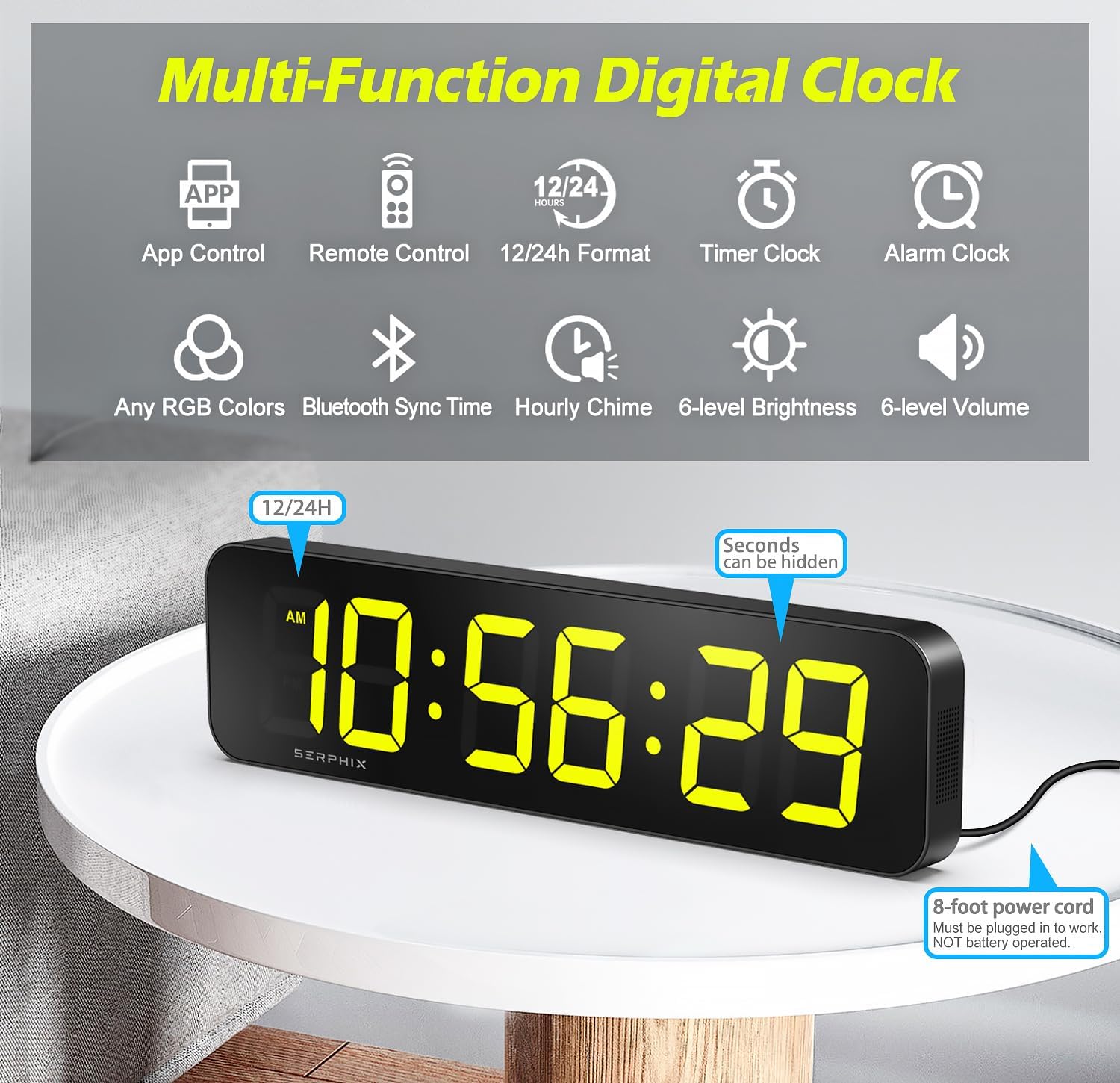
Figure 1: Overview of the clock's multi-functional capabilities.
Package Contents
Please ensure all items are present before proceeding with setup:
- SERPHIX Digital Wall Clock (Model CT-105)
- USB Power Cord (approx. 96 inches)
- Remote Control (requires 2x AAA batteries, not included)
- Power Adapter
- Wall Screws (M4 Screws x2)
- Fixed Brackets (x2)
- Instruction Manual (this document)

Figure 2: Contents included in the product package.
Setup
- Power Connection: Connect the USB power cord to the clock and then to the power adapter. Plug the adapter into a standard electrical outlet. The clock requires continuous power and is not battery operated. It can also be powered by a USB power bank.
- Remote Control Batteries: Open the battery compartment on the back of the remote control and insert 2x AAA batteries (not included), ensuring correct polarity.
- Placement: The clock can be placed on a desktop or mounted on a wall.
- For desktop use, simply place the clock on a flat, stable surface.
- For wall mounting, use the provided wall screws and fixed brackets to secure the clock to a suitable wall surface. Ensure the mounting location is near a power outlet.

Figure 3: The clock can be used on a desktop or wall-mounted.
Video 1: Demonstration of power connection, brightness adjustment, volume adjustment, color options, time format, alarm setting, stopwatch, countdown, and audio options using the remote control.
Operating Instructions
1. Time and Date Setting
The clock automatically syncs time via Bluetooth when connected to the mobile application. For manual adjustments or initial setup without the app:
- Use the SET button on the remote control to enter time setting mode.
- Use the UP and DOWN buttons to adjust values.
- Press OK to confirm and move to the next setting (e.g., hours, minutes, 12/24-hour format).
- The clock supports both 12-hour (with AM/PM indicator) and 24-hour formats. You can also hide the seconds display for a cleaner look.

Figure 4: Various display modes and time formats.
2. Brightness and Volume Adjustment
- Brightness: Use the BRT button on the remote to cycle through 6 levels of brightness.
- Volume: Use the VOL button on the remote to adjust the volume through 6 levels.
3. Customizable RGB Colors
The clock offers customizable RGB colors for its display. You can change colors using the remote or the mobile app.
- On the remote, use the color cycle button (often labeled with a color icon or "COLOR") to switch between preset colors or color-changing modes.
- Through the mobile app, you can access a color selection interface to choose specific RGB values or color zones for different parts of the display.

Figure 5: Color Zone Control allows for intuitive and personalized display colors.
4. Alarm Clock Function
The clock can store up to 10 alarms. Alarms are best managed via the mobile application for advanced settings.
- Setting Alarms (App): Open the app, navigate to the alarm section, and set the desired time, repeat days, sound (3 ringtone options), and volume (6 levels). You can also set long-term alarms for specific dates.
- Setting Alarms (Remote): Use the AL button on the remote to enter alarm setting mode. Use UP/DOWN and OK to set the alarm time.
- To disable or enable an alarm, use the app or the remote control's alarm toggle function.

Figure 6: Setting alarms is intuitive via the mobile app.
5. Timer Functions
The clock offers several professional and easy-to-use timer modes:
- Stopwatch: Measures elapsed time. Activate and control using the remote or app.
- Countdown Timer: Counts down from a set time. Ideal for specific tasks or workouts.
- Count-up Timer: Counts upwards from zero.
- Programmable Interval Timer: Set custom intervals for training routines (e.g., EMOM, AMRAP, TABATA).
To switch between timer modes, use the dedicated timer buttons on the remote control or select the desired mode within the mobile application.

Figure 7: Multiple timer modes for diverse needs.
6. Custom Hourly Chime
The clock can announce the time with a voice prompt at hours you choose. This feature is easily adjustable via the mobile app.
- Open the mobile app and navigate to the Hourly Chime settings.
- Select the specific hours during which you want the chime to activate. This allows for customization to avoid interruptions during certain times.

Figure 8: Customize hourly chime settings via the app.
7. Mobile App Control
The dedicated mobile application provides a feature-rich interface for controlling all aspects of your clock. It ensures accurate time synchronization and offers advanced customization options.
- Download: Search for the "SERPHIX Clock" app (or similar, check product packaging for exact name) on your smartphone's app store.
- Connection: Ensure Bluetooth is enabled on your device. The app should automatically detect and connect to your clock.
- Features: Use the app to set time, adjust brightness and volume, select RGB colors, manage alarms, configure timer modes, and set hourly chimes.

Figure 9: Seamless control and accurate time sync with the mobile app.
Maintenance
- Cleaning: Use a soft, dry cloth to clean the display and casing. Avoid abrasive cleaners or solvents.
- Power: Always ensure the clock is properly plugged in. Do not attempt to operate without external power.
- Environment: Keep the clock in a dry environment and avoid exposure to extreme temperatures or direct sunlight for prolonged periods.
Troubleshooting
| Problem | Possible Cause | Solution |
|---|---|---|
| Clock does not power on. | Not plugged in; power adapter or cable faulty. | Ensure the USB power cord is securely connected to the clock and the power adapter, and the adapter is plugged into a working outlet. Try a different USB port or power adapter if available. |
| Remote control not working. | Batteries are dead or incorrectly inserted; remote is out of range. | Replace the AAA batteries in the remote control, ensuring correct polarity. Ensure you are within the 39-foot operating range and there are no obstructions. |
| Time is inaccurate or not syncing. | Bluetooth connection issue; manual setting error. | Ensure Bluetooth is enabled on your smartphone and the app is connected to the clock. Restart the app or the clock. Manually set the time using the remote if automatic sync fails. |
| Display is too dim or too bright. | Brightness setting needs adjustment. | Use the BRT button on the remote or the brightness slider in the app to adjust to the desired level. |
| Alarm not sounding. | Alarm is disabled; volume is too low; incorrect alarm time. | Verify the alarm is enabled in the app or via the remote. Check the volume setting. Confirm the alarm time is correctly set. |
Specifications
- Brand: SERPHIX
- Model Number: CT-105
- Product Dimensions: 15.2"W x 1.5"H (Note: The clock's overall dimensions are approximately 15.2"W x 4"H x 1.5"D)
- Display Type: Digital LED
- Color: Black (Casing), Customizable RGB (Display)
- Power Source: Corded Electric (USB)
- Material: Aluminum
- Special Features: Timer, Adjustable Brightness, Hourly Chime, Adjustable Volume, App Control, Remote Control, 10 Alarms, Stopwatch, Countdown, Count-up, Interval Timer.
- Item Weight: 1.72 pounds
- Mounting Type: Wall Mount, Desktop
- Indoor/Outdoor Usage: Indoor

Figure 10: Product dimensions for planning placement.
Warranty and Support
For any questions, technical support, or warranty inquiries regarding your SERPHIX Digital Wall Clock, please contact SERPHIX customer service through the retailer's platform or the contact information provided on the product packaging. Please retain your purchase receipt for warranty validation.
Related documentsCT-105


Ask a question about this manual
Ask about setup, troubleshooting, compatibility, parts, safety, or missing instructions. Manuals+ will review the question and use this page’s manual context to help answer it.