
AINAVITO a74a58b7-18b7-4934-8895-4ae54d4acf86
Contents
AINAVITO 10.25" Touch Screen Wireless Carplay Android Auto User Manual
Model: a74a58b7-18b7-4934-8895-4ae54d4acf86
1. Setup
1.1 Initial Setup & Audio Configuration
Upon initial installation, it is crucial to perform a few setup steps to ensure proper functionality, especially regarding audio output. The system is designed to integrate seamlessly with your vehicle's existing audio system via the AUX input.

The 10.25-inch touch screen unit displaying the Apple CarPlay interface.
To access your car's original factory settings, tap on the 'Original Car' icon on the new unit's homepage. To switch between the new system and your car's original system, hold down the 'Return' button on your car's controls for approximately 3 seconds.
For audio output, ensure your car's audio source is set to AUX. This is typically done by pressing the 'Media' button on your car's console, selecting 'External Audio Input' or 'AUX' from the media source options, and then playing music. This will enable sound from the new unit through your car's speakers.
Video demonstrating initial setup steps, including switching to AUX audio source and navigating system settings.
1.2 Compatibility Check
This unit is compatible with Audi B8, B8.5 A4, S4, A5, S5, RS4, RS5 models manufactured between 2009 and 2016 that are equipped with the original Concert or Symphony radio system. It is not compatible with Audi Multimedia, Chorus, or CD Changer systems.
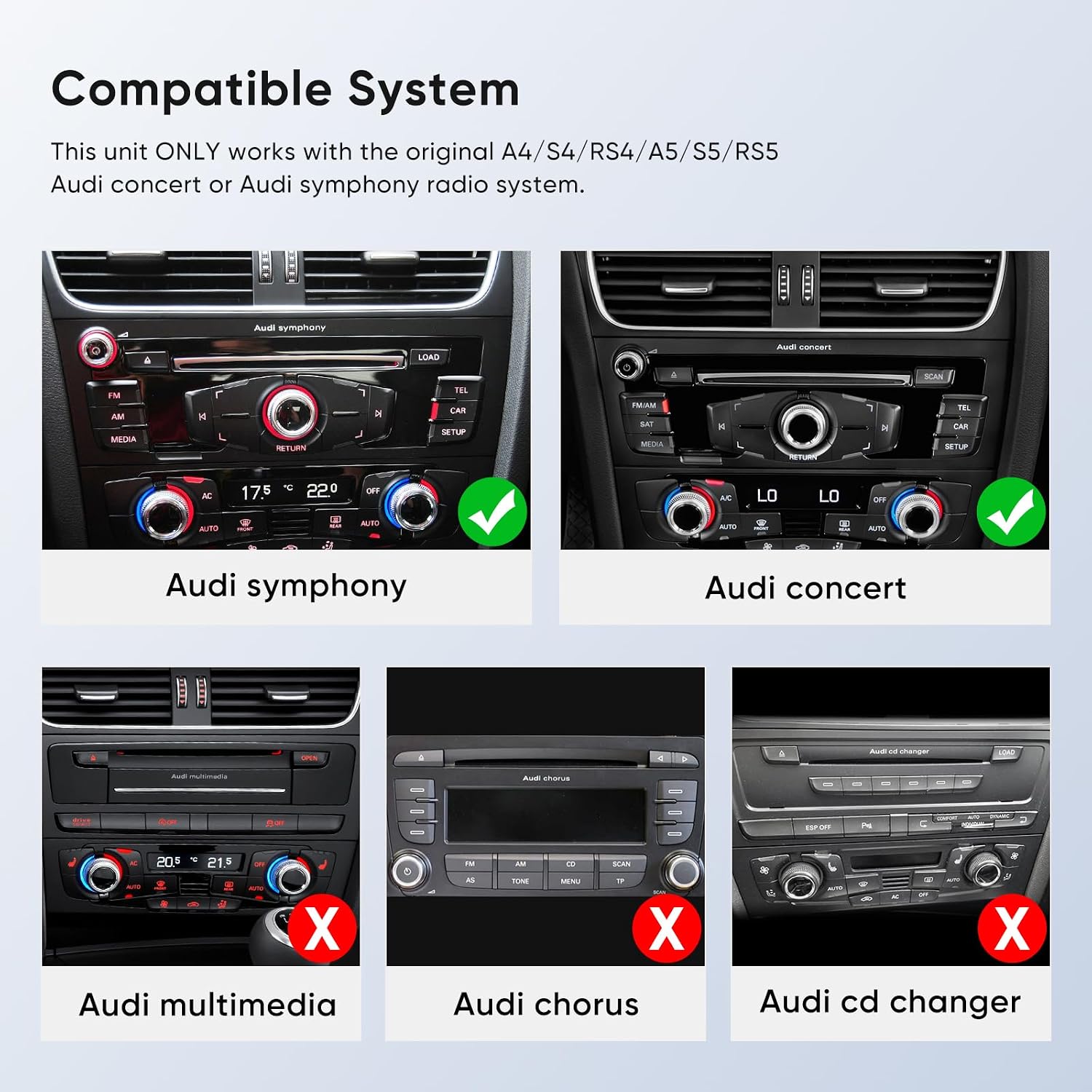
Visual guide to compatible and incompatible Audi radio systems.

Compatible Audi models and their respective radio systems.
Before installation, confirm the correct position of the circuit board switch based on whether your car has airbag lights. If your car does not have airbag lights, adjust the switch to '1'. If your car is equipped with airbag lights, adjust the switch to 'ON'.

Important note regarding the circuit board switch for airbag lights.
1.3 AMI/AUX Activation
If your car's original AMI system is not working, it may need to be enabled. This can often be done by plugging the AMI cable into your car's AMI port. The other end of the cable does not need to be connected to anything. Once this is done, the system should activate.
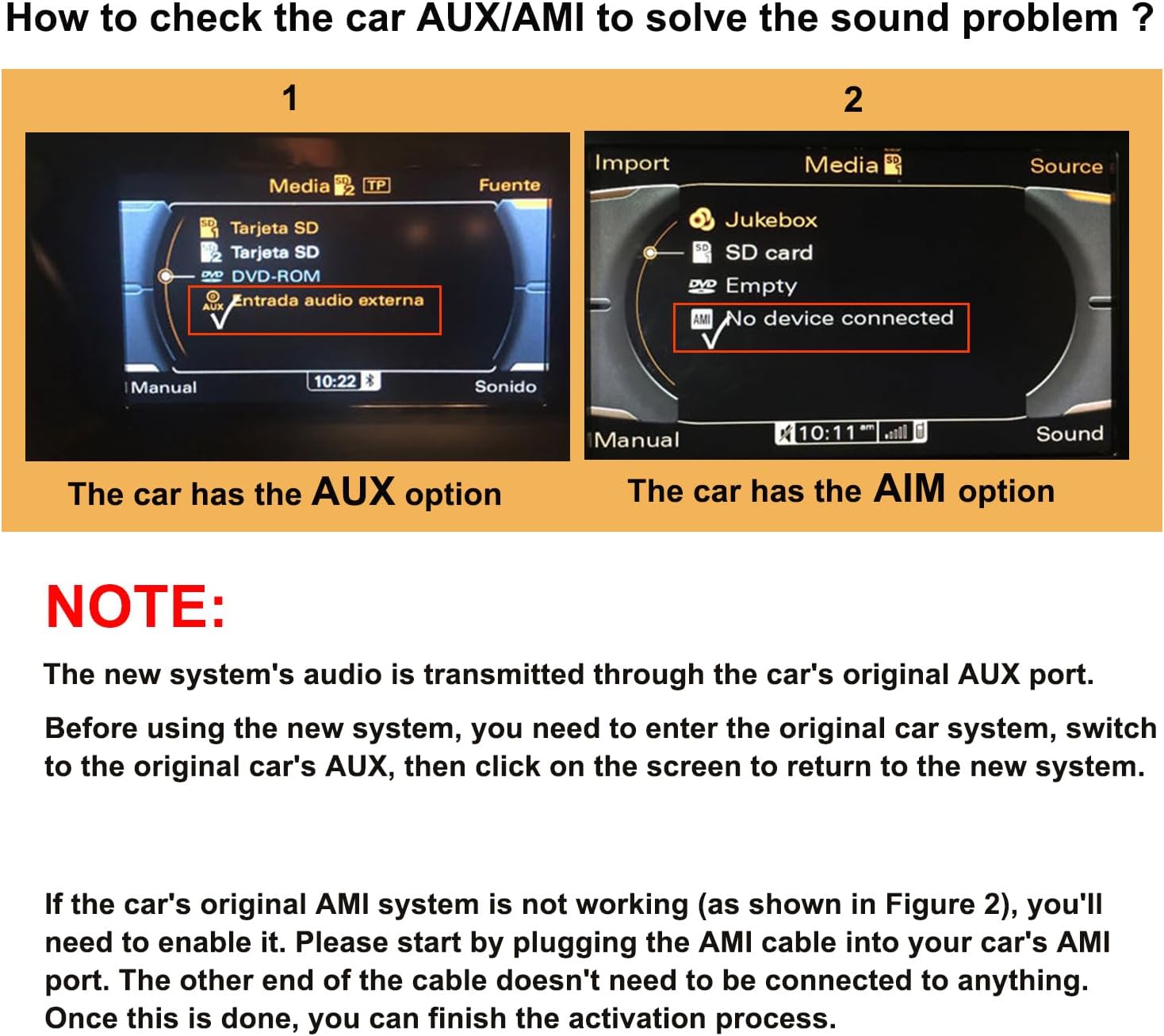
Instructions on how to check and activate AUX/AMI for sound output.
2. Operating Instructions
2.1 CarPlay & Android Auto
The unit supports both wireless and wired Apple CarPlay and Android Auto. Once connected via Bluetooth, you can utilize most mobile functions directly through the unit, including GPS navigation, sending and receiving messages, and playing music or videos. This feature enhances driving safety by minimizing phone interaction.

The system retains original iDrive and other essential car functions.

The unit integrates with the factory reverse view camera and supports dual operating systems.
2.2 Media Playback
The unit supports USB multimedia playback, allowing you to play music and videos directly from a USB flash drive connected to the unit's USB port. The 10.25-inch HD touch screen with 1280x480 IPS resolution supports 1080P MP4 video playback, offering a high-definition viewing experience.
2.3 Settings Panel Overview
The settings panel provides comprehensive control over the unit's features. You can access various options to customize your experience:
- Display: Adjust screen brightness.
- Volume: Control sound volume for different audio sources (GPS, Bluetooth, CarBack, CarPlay).
- Language: Change the display language.
- Time: Set the correct date and time.
- CarBack (Camera): Choose between the original car camera or any aftermarket camera you have installed. The system supports AHD 720P aftermarket backup cameras for clearer images.
- Version: View system details and software versions.
- Style: Customize the background appearance.
- Sound: Access equalizer settings for specific audio adjustments (Bass, Middle, Treble).
- Factory Settings: Accessed with password 8866. Here you can adjust camera clarity (default 720P at 25 frames per second), select the correct vehicle model based on your car's year (crucial for proper display and controls), and configure other advanced options like climate control type, parking view button, start-up interface (default Linux), and measurement units (speed, temperature).
3. Maintenance
To ensure the longevity and optimal performance of your AINAVITO touch screen unit, follow these maintenance guidelines:
- Cleaning: Use a soft, lint-free cloth to gently wipe the screen and exterior surfaces. For stubborn smudges, slightly dampen the cloth with water or a screen-safe cleaner. Avoid abrasive materials, harsh chemicals, or aerosol sprays.
- Temperature: Avoid exposing the unit to extreme temperatures, both hot and cold, for extended periods.
- Protection: While the screen is durable, avoid applying excessive pressure or sharp objects to it.
- Software Updates: Periodically check for and install any available software updates to ensure the system runs efficiently and securely.
4. Troubleshooting
If you encounter issues with your AINAVITO unit, consider the following common solutions:
- No Sound / Low Sound: Ensure your car's audio source is set to AUX. Verify volume levels in both the unit's settings and your car's original audio system. If using CarPlay/Android Auto, check the volume settings within those applications.
- Screen Freezing / Unresponsive: Try restarting the unit by turning off your car and allowing it to enter sleep mode, then restarting. Ensure the correct vehicle model is selected in the factory settings (password 8866), as incorrect selection can lead to display or control issues.
- Wireless CarPlay/Android Auto Audio Dropouts: Check your phone's settings and ensure a stable Bluetooth connection. Sometimes, restarting both the phone and the unit can resolve this.
- Screen Glare / Brightness Issues: Adjust the brightness in the 'Display' settings. Note that extreme sunlight can still cause glare. The unit's dimming may not always synchronize with car lights; manual adjustment might be needed.
- Screen Mirroring Not Working (Android): Verify compatibility with your specific Android device and ensure all necessary permissions are granted for screen mirroring.
- Backup Camera Display Issues: In the 'CarBack' settings, ensure the correct camera type (original OEM or AHD Camera) is selected.
For persistent issues, refer to the 'Some Settings that need to be done after installation' video for detailed guidance on various settings that might impact performance.
5. Specifications
| Feature | Detail |
|---|---|
| Screen Size | 10.25 inches |
| Resolution | 1280x480 IPS |
| Operating System | Linux |
| Connectivity Technology | Mirroring, Bluetooth, Wireless/Wired (Carplay+Android Auto), USB |
| Bluetooth Version | 4.0 EDR |
| Video Playback | 1080P MP4, H.264 or H.265 (HEVC) |
| Compatible Devices | iPhone, Smartphone |
| Audio Output Mode | Stereo |
| Item Weight | 5.41 pounds (2.46 Kilograms) |
| Package Dimensions | 16.22 x 8.78 x 7.09 inches |
5.1 Included Accessories

Product dimensions and a list of included accessories.
- 10.25" Head Unit x1
- ISO Wiring Harness Cable x1
- Metal Bracket x1
- Screws x8
- Installation Frame x1
- LVDS cable x1
6. Warranty and Support
AINAVITO is committed to providing high-quality products and customer service. For any questions regarding installation or product functionality, 24-hour after-sale service is available.
6.1 Contacting Support
You can reach out to our support team through the following methods:
- Amazon Message: Go to your order details, find the 'Sold By' section (Speedroad), and click 'Ask a Question'.
- Hotline: +1 888 502 7557 (Working hours: 3:00 PM to 12:00 PM PST)
- Email: info@ainavito.com

Our dedicated customer support team is ready to assist you.
6.2 Protection Plans
Extended protection plans are available for purchase to cover your device beyond the standard warranty:
- 2-Year Protection Plan
- 3-Year Protection Plan
- Complete Protect: A monthly plan covering all eligible past and future purchases.
Documents and downloads
Ask a question about this manual
Ask about setup, troubleshooting, compatibility, parts, safety, or missing instructions. Manuals+ will review the question and use this page’s manual context to help answer it.